Installing Minecraft IPA files on iPhone
t.me/ios_minecraft
To install the hacked version of Minecraft on devices running the iOS operating system (iPhone, iPad or iPod Touch), game files with the IPA extension are used. They can be installed even on an unlocked (without jailbreak) smartphone or tablet using the Cydia Impactor program.
To do this, download the IPA Minecraft file, install the Cydia Impactor program on a PC (with Windows, Mac OS X or Linux) and connect the iOS device to the computer. More detailed instructions are below.
The game installed in this way will only work for a week (7 days). After the expiration of this period of time, you will need to repeat all the points of the instructions again. Before reinstalling Minecraft, make sure that your settings and worlds are saved and you can restore them.
It should also be remembered that there is a limit on the number of applications installed in this way (no more than three). Therefore, if you want to install Minecraft, but you already have three other applications installed, one of them will have to be removed.
Instructions for installing the Minecraft IPA file
- Download, install and open the Cydia Impactor on your computer. We also recommend that you install the iTunes program (for Windows and for Mac).
Cydia Impactor download -> http://www.cydiaimpactor.com/
- Download the IPA file of the desired version of Minecraft in our telegram.
- Connect your iOS device to your computer using a USB cable. Wait until the name of this device appears in the Cydia Impactor drop-down list.
- Log in to the app. You will see a window like this:
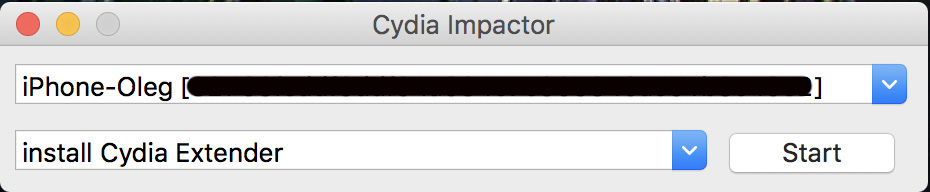
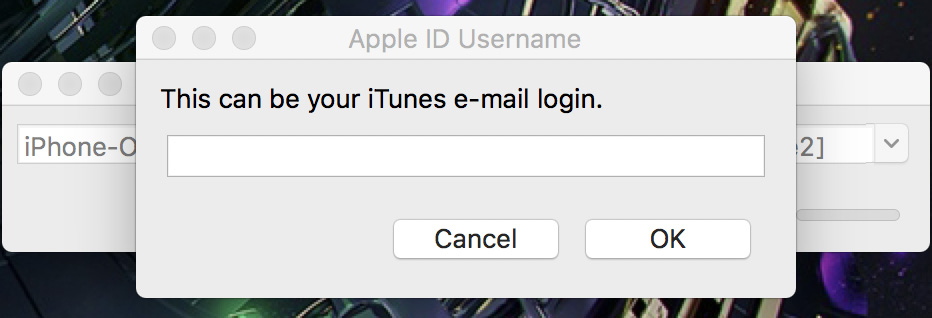
- Drag and drop the desired IPA file into this window. The application will ask you to enter your AppleID login (this is the mail to which your App Store, iTunes and iCloud are linked, usually this is iCloud mail). Enter it.
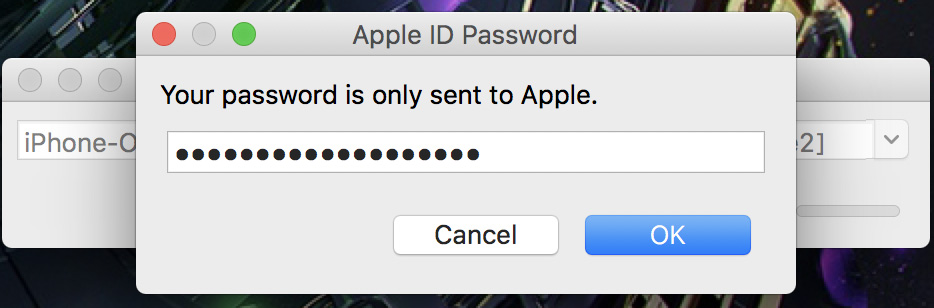
- Next, the application will ask you to enter the password for the applications created in the account (see the next item). Don't be alarmed, it's absolutely safe. Your data is not saved anywhere and is only used to sign the installation file directly on your PC, and will also be sent to Apple to confirm the certificate. Enter the password:
* Log in to the AppleID website and create a password for applications as indicated in the screenshots (if there are no application passwords, then you need to enable two-factor authentication):
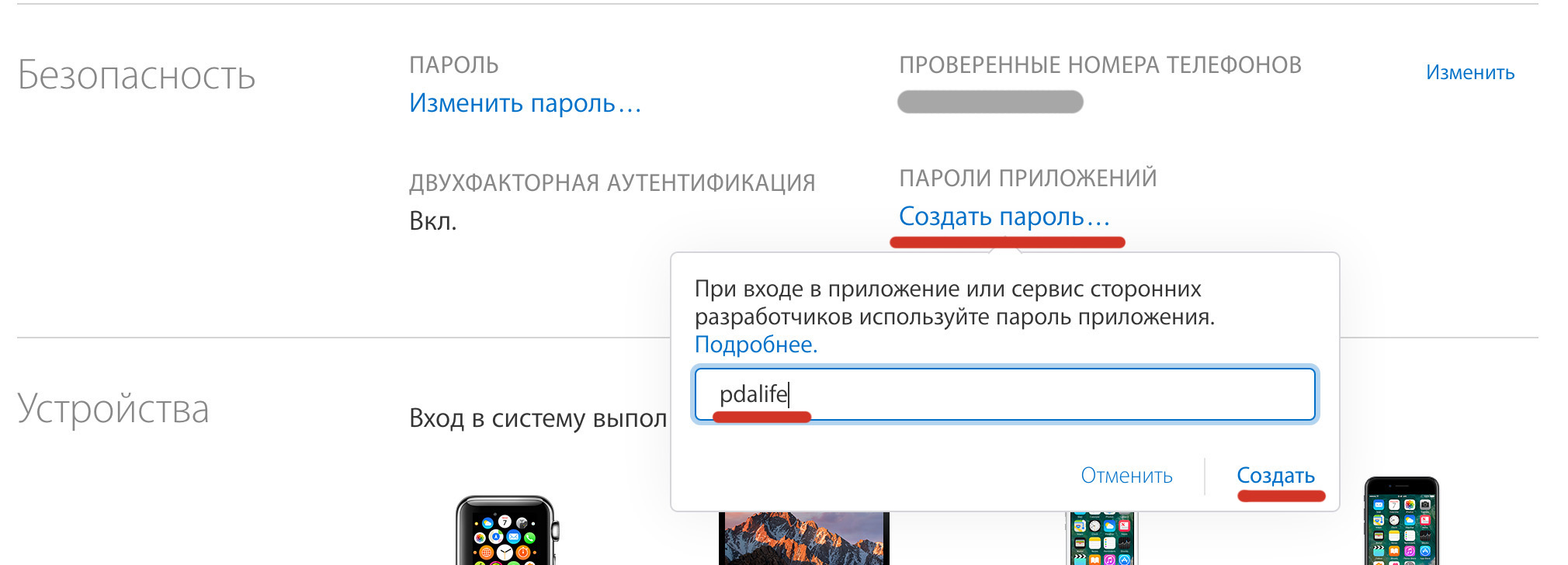
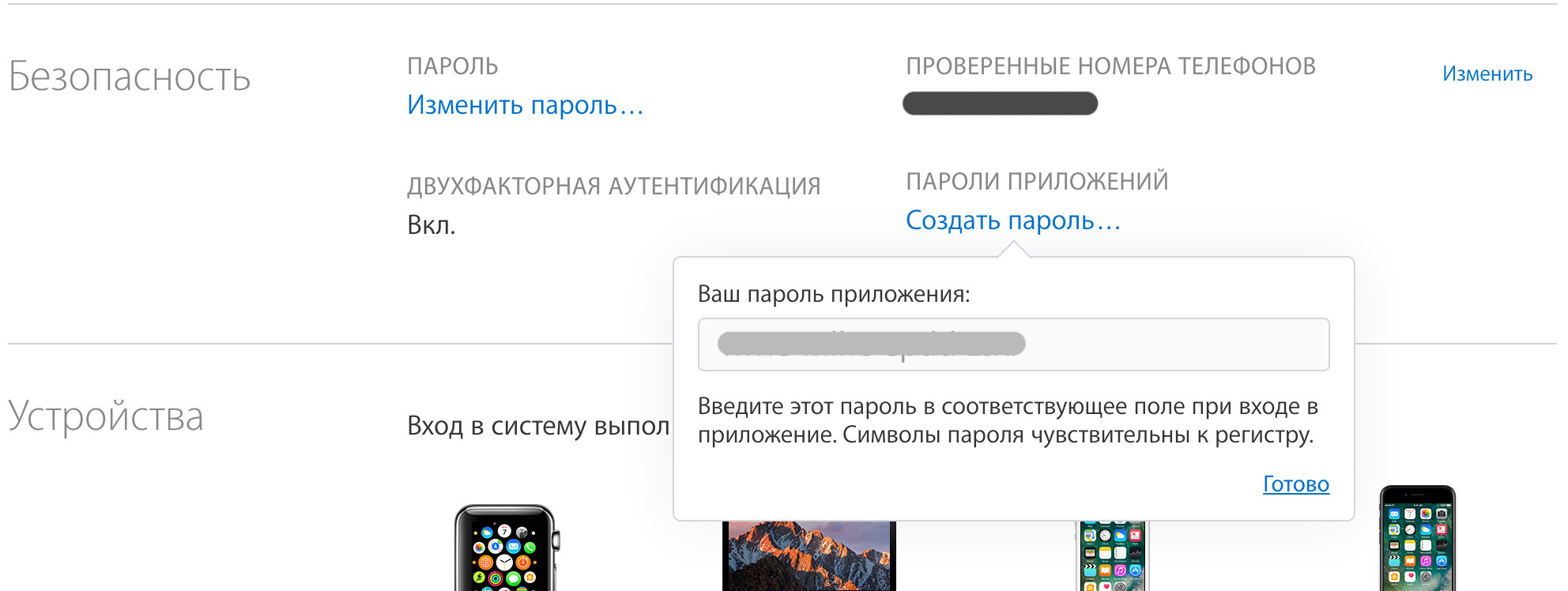
* After inserting the received password into the window from point 6 and click ok.
- Then the installation process will go on, if you are using a Mac, a message may appear asking you to save the key in your bundle. Allow this action by clicking “Allow”
- After the installation is completed, an application will appear on your iDevice. But when it starts, it will write that this application was created by an unreliable developer, that is, you. To fix this, see the next step.
- Go to Settings, select "Basic", scroll to the bottom and wait 5 seconds. The item "Profiles and device management" will appear. In the "DEVELOPER SOFTWARE" sub-item, find your Apple ID login and click on it. Click on the blue label "Trust". In the window that opens, click on the red "Trust" button. Wait for the download to finish and the "Verified" label appears next to the installed application. Now you can open the installed application.
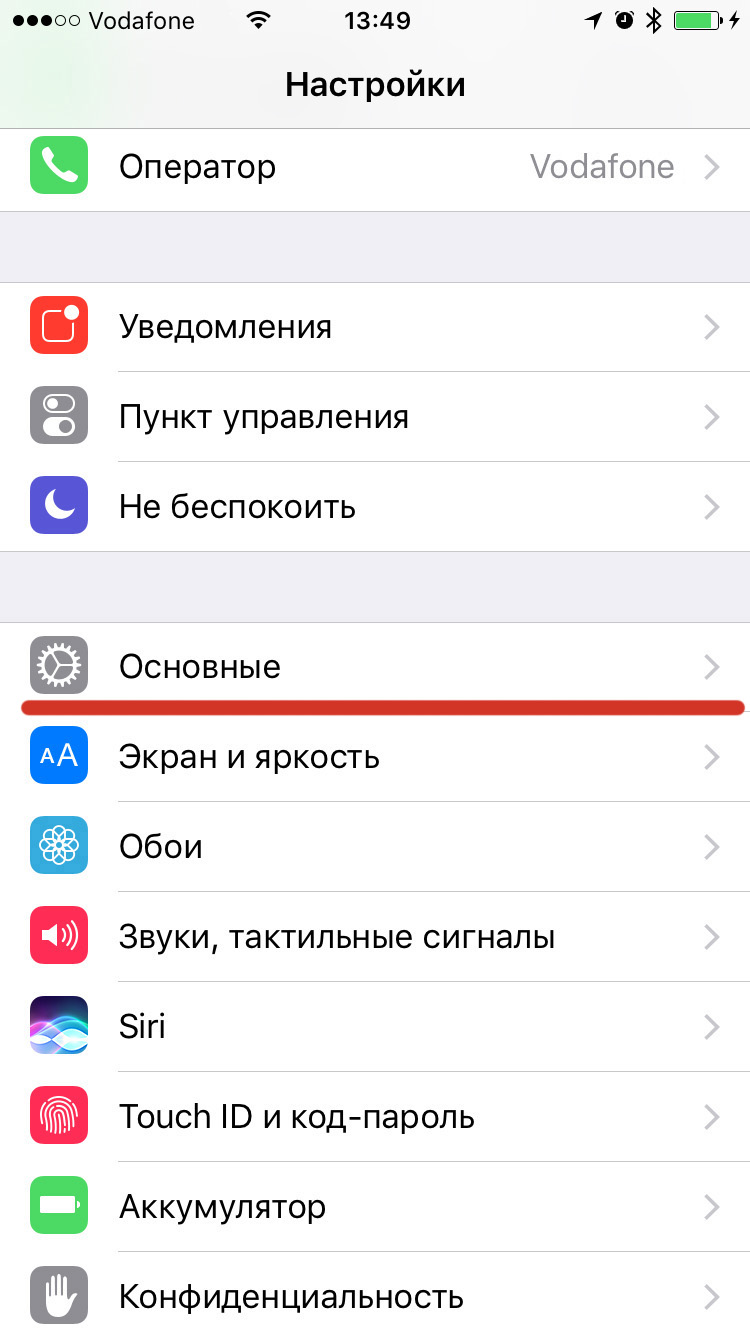
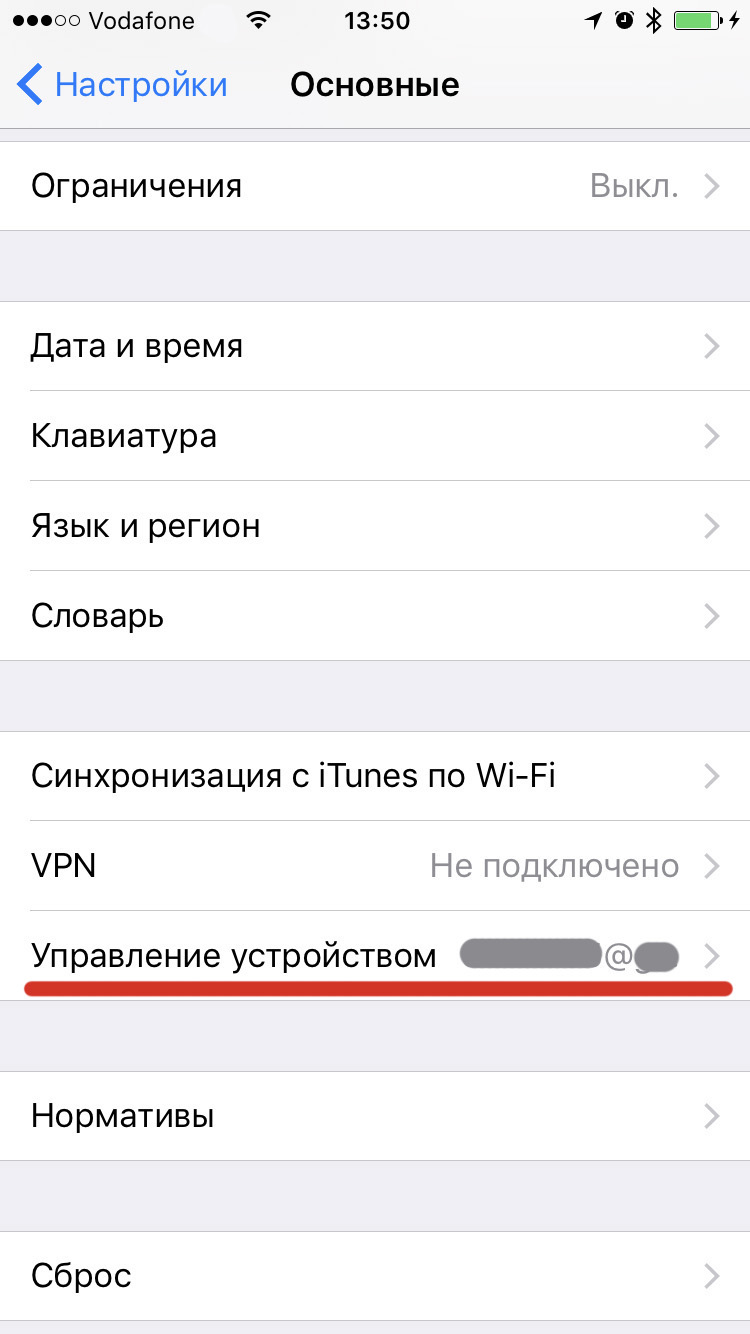
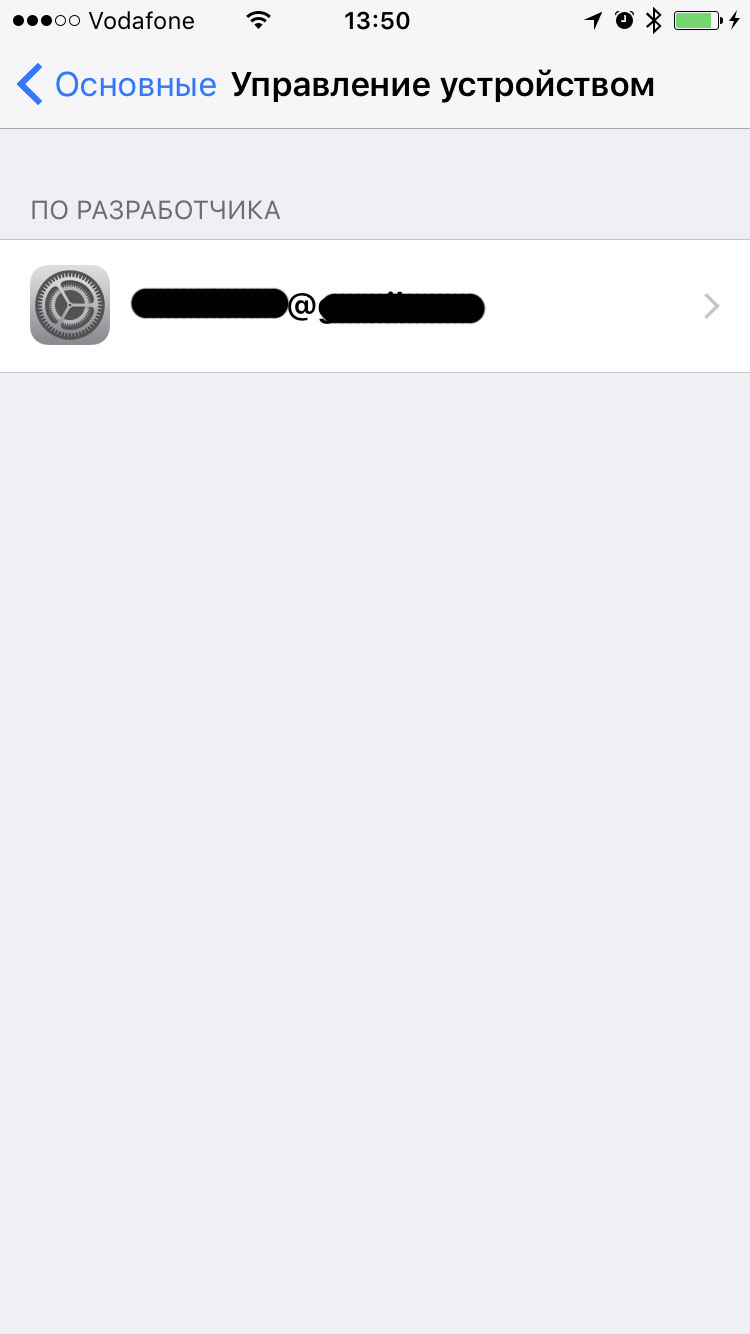
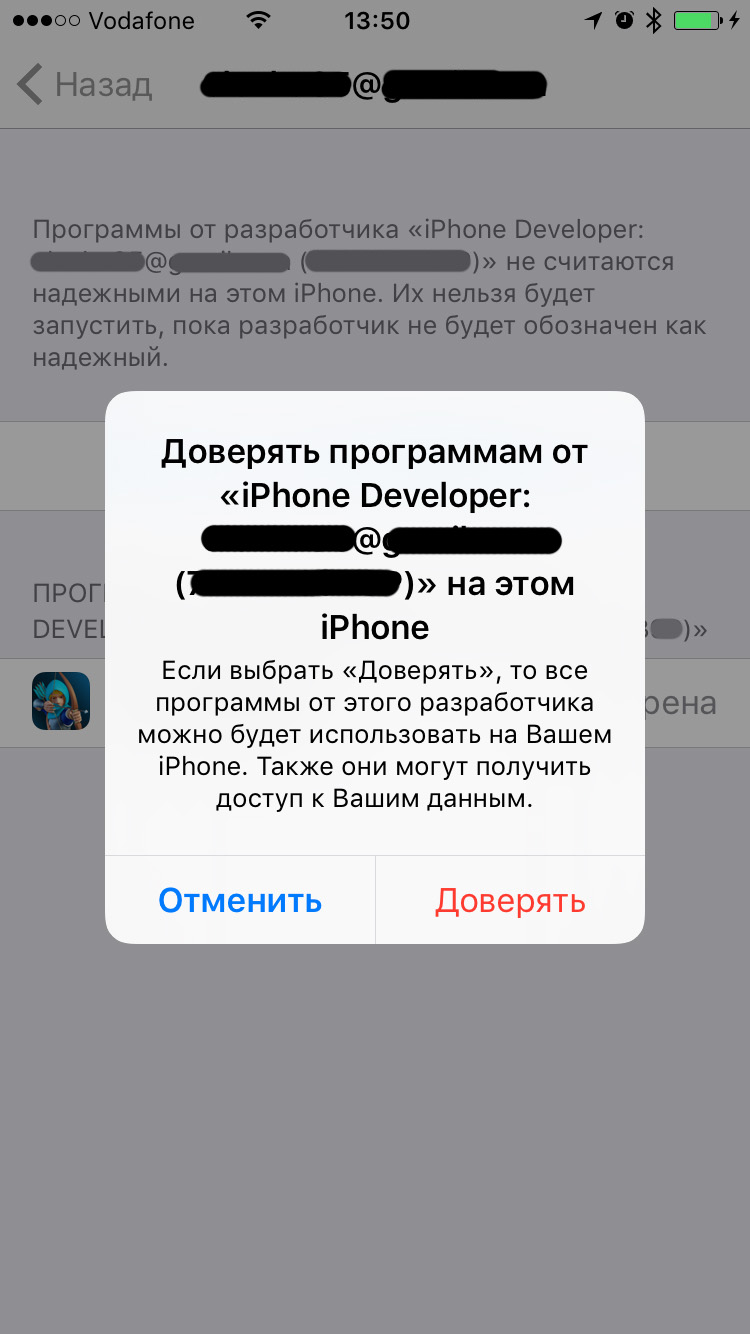
- Remember that this certificate is valid for 7 days and after this time you will have to do the same procedure again.
Then you can open Minecraft and finally start playing.
Is everything clear in this manual? Have you managed to install Minecraft on it? If you have any questions or suggestions for improving it — write in the comments!