Installing Derpfest on Pixel 6 and 6 Pro
@kadm0sWhat is this?
A detailed guide on how to install Derpfest Raviole on the Pixel 6 Series (6/6Pro). This mostly pertains to Windows but the instructions are almost identical when using Mac or Linux. These steps will help prepare your phone for flashing this custom Android Fork. Derpfest Raviole includes important information in the installation notes on what Android build the phone requires prior to flashing (usually the latest stable release). Follow these steps to create a "clean slate". Credit to @HurtCopain (FullOfHell) for maintaining Derpfest Raviole.
Where to find Derpfest Raviole...
- Download links for Derpfest Raviole can be found on the Derpfest Channel on Telegram. Latest changelogs and installation notes are also available in the pinned messages.
- Instructions for updating or a "dirty flash" are at the bottom of this page. OTA's updates are not working at this time (but could change in the future). Updates only take a few minutes with a simple fastboot update <filename.zip> command.
Requirements:
- A computer or laptop with a chromium based browser, such as Chrome, Edge, Brave etc.
- Supported Models for Derpfest Raviole: Pixel 6 Pro (Raven) and 6 (Oriole)
- Latest platform-tools (fastboot) and Google USB driver (windows only). If you do not have the latest platform-tools installed, you will get errors when you try to flash. If you've previously installed the "minimal adb" tool, it is very important to uninstall/remove this tool and the folder location with files.
- Instructions for installing latest platform-tools and win usb driver are found here
- Make sure the battery on your phone is at least 60% charged and if you are using a laptop, connect it to a power source so the flash process doesn't fail.
Instructions for flashing Stock Android:
(Preparing your phone before flashing)
- Before flashing Derpfest, the device must be on the latest version of Stock Android Check dev's notes. Things change and sometimes releases require older versions such as being on 12.0 instead of 12.1.
OEM Unlocking must be enabled in Developer Options before you proceed. Enable Developer Options and toggle on OEM Unlocking (more info here). Keep your bootloader unlocked and do not re-lock it at anytime (it will cause your device to brick if you do). - Open the Android Flash Tool Back-To-Public installation page. It will automatically install the latest stable Android build for your device.
- When the Flash Tool website loads, make sure to disable any adblockers and popup blocker (such as uBlock and Brave's built-in blocker and do not use private/incognito mode). This tool won't work without these changes.
- Turn your phone off, and without a cable connected, boot into Fastboot Mode by holding Power and Volume Down. Connect phone to the computer.
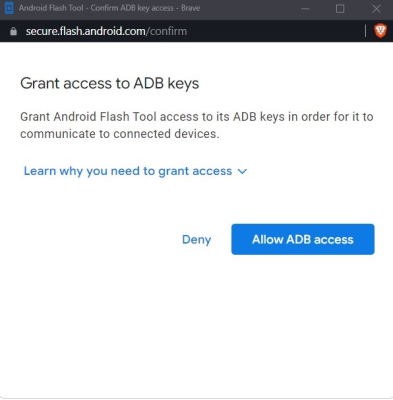
- Back on your computer browser, you will see the Android Flash Tool page from step 3. Refresh the website so the Android Flash Tool loads. A new window will appear called Grant access to ADB keys (click Allow)
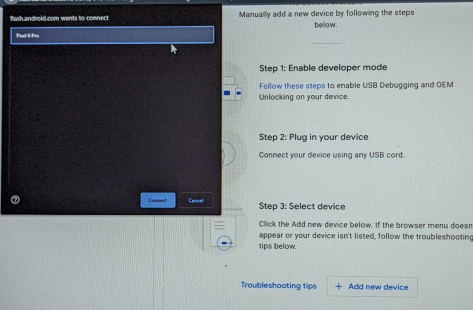
6. Click +Add New Device at the bottom. A new pop-up will appear. Highlight your device click connect:
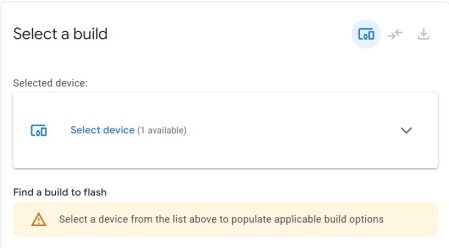
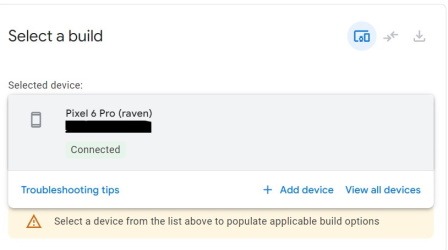
7. In the Select a build section, add your device so it looks like this:
8. Check the boxes only for “Wipe Device” and “Force Flash All Partitions” and uncheck all other options (both required for flashing a custom ROM)
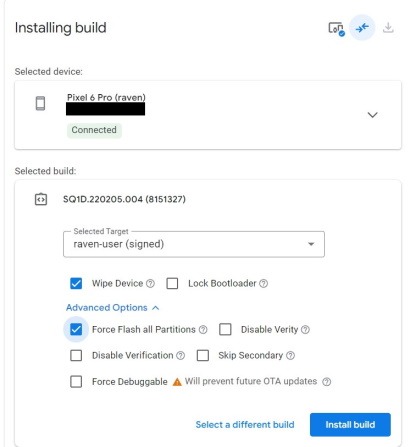
9. Click on Install Build. Do not touch your browser, computer or phone until it completes. Your phone will restart a few times. Be Patient. The phone will restart into a “Fastbootd” menu with some new options – leave your phone alone. Once this is complete, the phone needs to start back into Android at least once to proceed. Do not login into google or setup the device since it will be wiped again. Start phone back into Fastboot mode. This process takes between 8 and 45 minutes depending on your internet and usb connection speeds.
Installing Derpfest:
Don't forget to read the developer notes pinned in the channel - you must delete Face Unlock before adding a Fingerprint or you will have to do a factory reset. Don't forget!
- Download the Derpfest zip file for your specific device. The download link will be "pinned" at the top of the Derpfest Channel
[sample filename of a Derpfest image: derp_raven_v15.zip]
Warning: Flashing the wrong image can cause a "bricked" device. Check the filename matches the "Device Name" listed in fastboot mode. Do not extract the zip. - Turn your phone off, unplug usb cable and boot up into Fastboot Mode (like you did above). Then plug your phone into your computer.
- Open Windows Explorer and locate the Derpfest zip file you downloaded and do not open it. In the address bar erase everything and type in cmd and hit enter. This will open a command prompt window in the same folder as the Derpfest image.
- Type the command fastboot --version and make sure Fastboot is up to date - in this case v32 (get the latest version from the Android Developer Page)
Type the command fastboot devices (this will list your serial# for your phone. the command fastboot reboot bootloader will quickly restart the phone and is a way to test your usb drivers and platform-tools are installed properly) - Now type in the command fastboot -w and hit enter (this will perform a quick wipe. Errors are normal. This is wipe command is not required when updating Derpfest (dirty flash).
- Last step is to flash Derpfest. The flash command is simple:
fastboot update <filename.zip> [and hit enter]
*For example, on Raven, the command might be:
fastboot update derp_raven_v15.zip
and on Oriole: fastboot update derp_oriole_v7.zip
The filenames will change every few days - these are just examples!
Let the flash process complete without interruption. Phone will restart into fastbootd mode - Do not touch your phone or computer. You will know the flash has completed when you see the Android Boot Animation (this is normal) and then the Android Setup Wizard.
Notes and Recommendations:
- Flash process takes about 10 minutes. if you experience any problems, post the screenshot in the telegram channel.
- During the Android Setup Wizard, it is highly recommended to uncheck "Device Settings" and "Apps" but if more importantly, if not all apps, all Google System Apps such as sounds, wallpapers, settings, pixel launcher etc. This will ensure that the settings are not restored that could corrupt the setup and cause glitches. The apps can be unchecked in the Apps list during "restore from cloud" process. If you want to restore apps, uncheck the list, and just check the ones you need and exclude anything system related.
Updating Derpfest (dirty flash):
- Currently, the only way to update Derpfest is to fastboot update the latest Derpfest image through fastboot (ota updates do not currently work but this could change). This is called "dirty flash" and will update your Derpfest without needing to wipe data or go back to stock.
- To update Derpfest, simply download latest Derpfest zip file and in Fastboot Mode, run the command:
fastboot update <filename.zip>
**Do not run the fastboot -w command because a wipe is not needed when updating (dirty flashing) from a previous version of Derpfest.
@kadm0s 2022