I Built a Flippy Bird Game in Flutter. Here's How It Went!
FlutterPulseThis article was translated specially for the channel FlutterPulseYou'll find lots of interesting things related to Flutter on this channel. Don't hesitate to subscribe!🚀
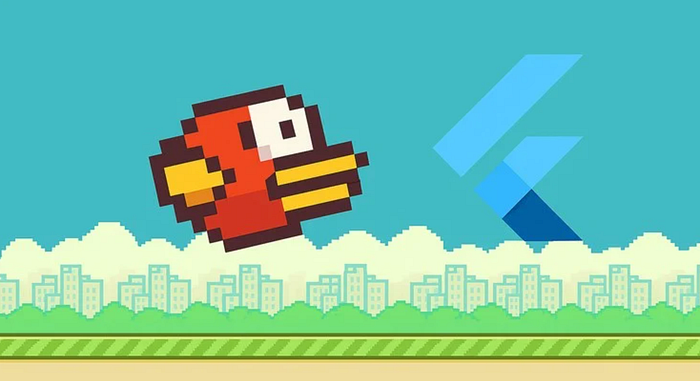
Build a Flippy Bird Game in Flutter Using Flame — Step-by-Step Tutorial
Build a Flippy Bird Game in Flutter Using Flame — Step-by-Step Tutorial
Have you ever wondered if you could build a game like Flappy Bird using Flutter?
Well, good news — you can! 🎮
In this tutorial, I'll walk you step-by-step through how I built a Flippy Bird game using Flutter and the Flame game engine. By the end, you'll have a fun, addictive 2D game running right inside your Flutter app!
🧩 What You'll Learn
By following this tutorial, you'll learn how to:
- Set up a Flutter project with the Flame engine
- Create a Flippy Bird character that jumps and falls with gravity
- Add pipes and an infinite scrolling background
- Detect collisions and manage game-over logic
- Add sound effects for a polished experience
⚙️ Step 1: Create a New Flutter Project
Start by creating a new Flutter project using your terminal or IDE:
flutter create flippy_bird
Open it in your favorite editor (like VS Code or Android Studio).
Then, add Flame to your dependencies in pubspec.yaml:
dependencies:
  flutter:
    sdk: flutter
  flame: ^1.17.0
Run the following command to install it:
flutter pub get
🔥 Step 2: Create the Game Class
Now, let's create our main game file.
Inside the lib folder, create a new file called flippy_bird_game.dart.
This file will contain our main game logic.
import 'package:flame/game.dart';

class FlippyBirdGame extends FlameGame {
  @override
  Future<void> onLoad() async {
    // Load assets here
  }

@override
  void update(double dt) {
    // Update game objects here
  }

@override
  void render(Canvas canvas) {
    // Draw objects here
  }
}
The FlameGame Class is the heart of any Flame project.
It manages the game loop, updates frames, and renders objects on the screen.
🐤 Step 3: Create the Bird Component
Next, let's create our bird — the player's character.
Create a new file called bird.dart:
import 'package:flame/components.dart';

class Bird extends SpriteComponent {
  double gravity = 500;
  double velocity = 0;
  Bird({required Sprite sprite, required Vector2 position})
      : super(sprite: sprite, position: position, size: Vector2(50, 50));
  @override
  void update(double dt) {
    velocity += gravity * dt;
    y += velocity * dt;
    if (y > 500) {
      y = 500; // ground level
      velocity = 0;
    }
  }
  void flap() {
    velocity = -250; // makes the bird jump
  }
}
🧠 How it works
- Gravity: continuously pulls the bird down.
- Velocity: changes when you tap the screen (makes the bird jump).
- Position: updates every frame using the
update()method.
🌆 Step 4: Add Background and Pipes
Now, let's make the game world more interesting by adding pipes and a background.
Create a new file called pipe.dart:
import 'package:flame/components.dart';

class Pipe extends SpriteComponent {
  Pipe({required Sprite sprite, required Vector2 position})
      : super(sprite: sprite, position: position, size: Vector2(80, 400));

  @override
  void update(double dt) {
    x -= 150 * dt; // Move pipe to the left
    if (x < -width) {
      x = 400; // Reset pipe to the right
    }
  }
}
This gives us continuously moving pipes that reset when they go off-screen, creating the illusion of infinite movement.
🕹 Step 5: Handle User Input (Flapping)
In the main game file (flippy_bird_game.dart), let's add the ability to flap when the user taps the screen.
import 'package:flame/input.dart';
import 'bird.dart';
import 'pipe.dart';

class FlippyBirdGame extends FlameGame with TapDetector {
  late Bird bird;
  late Pipe pipe;
  @override
  Future<void> onLoad() async {
    bird = Bird(
      sprite: await loadSprite('bird.png'),
      position: Vector2(100, 300),
    );
    add(bird);
    pipe = Pipe(
      sprite: await loadSprite('pipe.png'),
      position: Vector2(400, 0),
    );
    add(pipe);
  }
  @override
  void onTap() {
    bird.flap();
  }
}
⚡ Step 6: Add Collision Detection
To detect when the bird hits a pipe or the ground, we can use Flame's collision detection system.
Update the bird and pipe classes to extendCollisionCallbacks, and add bounding boxes using RectangleHitbox().
Example for Bird:
class Bird extends SpriteComponent with CollisionCallbacks {
  // same code...
  @override
  Future<void> onLoad() async {
    add(RectangleHitbox());
  }
}
And similarly for the Pipe component.
Then, in your game class:
@override
void onCollision(Set<Vector2> intersectionPoints, PositionComponent other) {
  if (other is Pipe) {
    pauseEngine(); // stop game
    print('Game Over!');
  }
}
🎵 Step 7: Add Sound Effects
Add the flame_audio package for sound:
dependencies:
  flame_audio: ^1.3.0
Then play a sound when the bird flaps:
import 'package:flame_audio/flame_audio.dart';

@override
void onTap() {
  FlameAudio.play('flap.wav');
  bird.flap();
}
You can also add background music or a "game over" sound.
✅ Step 8: Run and Test
Now, run your app:
flutter run
Tap the screen to make your bird jump between pipes. If you hit a pipe or fall, the game stops — simple but fun!
🚀 Bonus: Add a Score System
You can easily add a score counter by tracking when the bird passes a pipe.
int score = 0;

void updateScore() {
  if (pipe.x + pipe.width < bird.x && !pipe.passed) {
    score++;
    pipe.passed = true;
    print('Score: $score');
  }
}
If you prefer trying it out on your own, please visit the following link: 👇
👉 https://github.com/code-Sajjad/Flappy_bird_Flutter
💬 Final Thoughts
Building this game was a fun and educational experience!
Here's what I learned:
The Flame engine makes 2D games incredibly easy to build in Flutter.
- Simple physics (gravity + velocity) can make gameplay surprisingly engaging.
- Flutter isn't just for apps — it's for games too!
Happy coding and keep flapping! Follow me for more.