How to use the Splash Maker Bot
Ayra HikariThe following is how to use @splashmakerbot
Ingredients
- Prepare a logo image according to the size of your device.
- Prepare fastboot images according to the size of your device.
- Android /Desktop/Web telegram application.
How to use it
- Set the settings first, this bot needs your deviceinfo, you only need to adjust the codename of your device (To check the codename of your cellphone, visit this website), To how to adjust the codename of your device, please follow below:
/device {codename}
Examples for Xiaomi Redmi 3S / 3X / Prime:
/device land
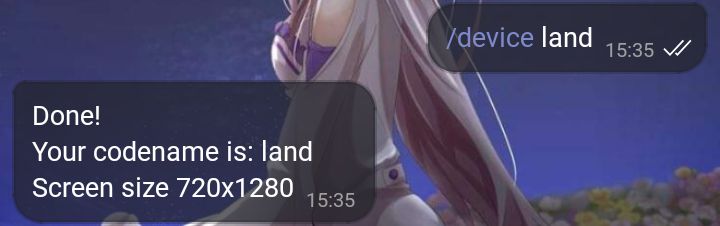
- If you have successfully set it, then there will be a reply to your device screen size info If the info screen size is 720x1280 then send the photo splash logo and fastboot according to the size.
- Send a photo to the bot as a photo or document, then select the button to put in the logo splash or fastboot.
/name my splash
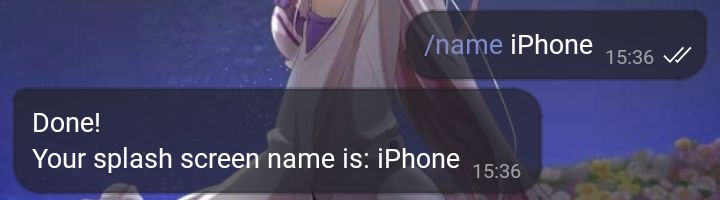
- If everything is set up, please proceed to the manufacturing process, if it is not all, please type /info to check all your configurations.
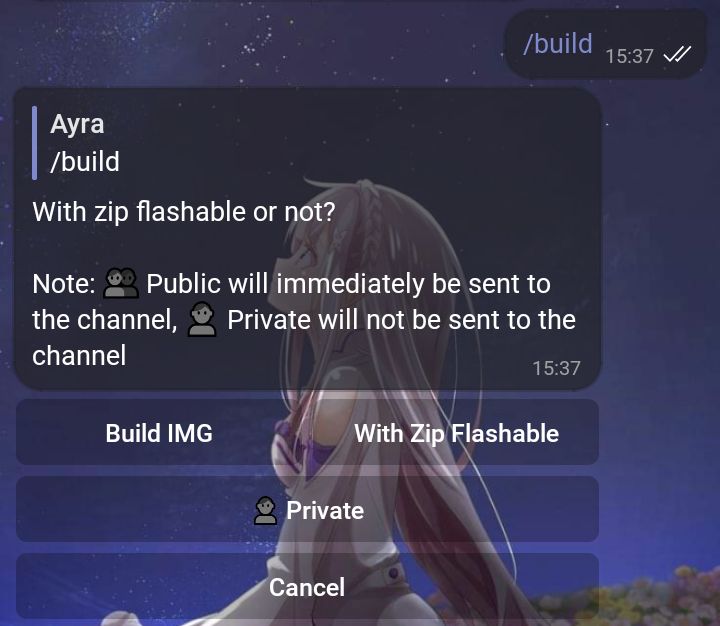
- To make a splash, type /build and select, create as img or flashable zip. It is recommended to make a flasable zip.
- Note: If you use personal photos, it is recommended to change the button to Private so that it is not posted on the public channel
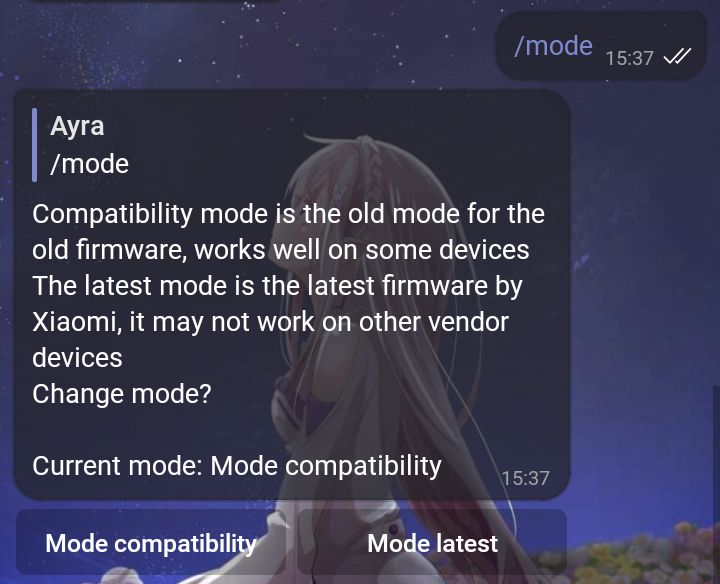
For older devices (for example redmi 4 down), you can set the mode, available modes, namely Compatibility and Latest Modes.
Here are the differences in the modes:
Compatibility mode
The compatibility mode is suitable for device redmi 4 down, even on other phones, lack of this mode for Xiaomi Redmi 4 down if using the latest firmware, the effect of the logo is only brief, to solve this problem, please use the Latest Mode.
For the Redmi 5 series and above, it is recommended not to use this mode because the firmware is the latest.
Latest Mode
The latest mode is usually used for the redmi 5 series and above, and the latest firmware for the previous series.
There is nothing special about this mode. just add a few images to be compatible with the latest firmware.
For Note series users
For the Note series, usually the size of the image file is limited, to solve this problem there are several tricks so that the image is compatible with the specified size limit:
Using Compress
Compressing image files is a suitable trick so that the image is compressed, although it must sacrifice quality. But the results aren't too bad for black and white images.
To compress images, you can use compresspng.com web, here's how to make the image compressed to the maximum:
- Click the upload files button
- After uploading click the image to enter the settings section
- After that, look at the side, change Colors to number 2
- Then click the Apply button
- After that, please download the image
Using Crop Image
Cropping an image is the last option so that the image size is compressed, crop this image only crop the middle part of the image logo.
Every cropped image will appear in the middle of the splash image.
The following is an example of a cropped image


For this bot splash, all devices listed are 100% safe , if the splash fails or corrupts the logo will change to the penguin logo , and it must be 100% booted, it won't cause hardbrick/bootloop. already tested to my tester and myself.
Please do not try to another device unsupported with this bot. I am not responsible if your device has been softbrick.
If you want to backup the splash.img default device, please follow the method below:
How to Backup splash.img
Using a PC
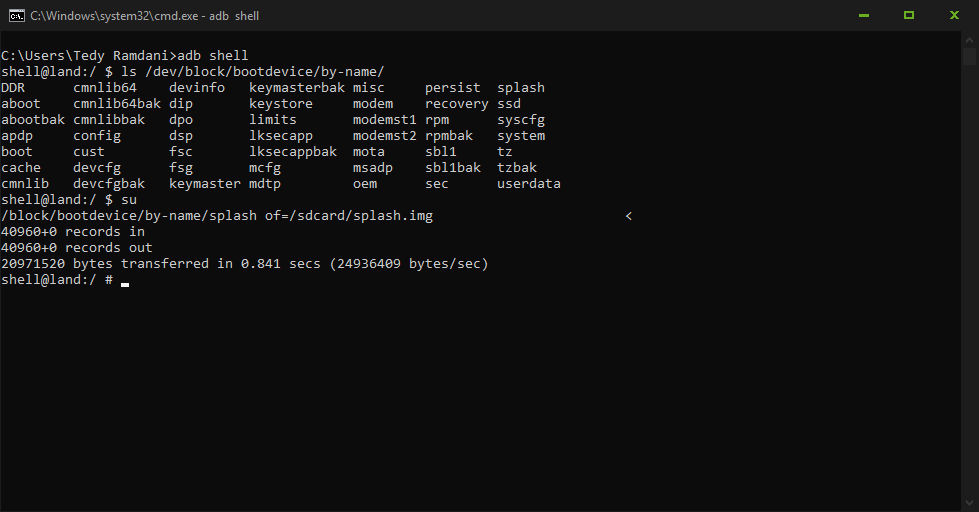
Plug your device into a PC, type this
adb shell
Type the code below to check all the names of the partitions
ls /dev/block/bootdevice/by-name/
If there is a splash partition, we will dump the partitions, the device must be rooted first.
su
dd if=/dev/block/bootdevice/by-name/splash of=/sdcard/splash.img
Using a device
Download the Terminal Emulator
Then run Terminal Emulator, then type
ls /dev/block/bootdevice/by-name/
If there is a splash partition, we will dump the partitions, the device must be rooted first.
su
dd if=/dev/block/bootdevice/by-name/splash of=/sdcard/splash.img
How to Restore backup splash.img
Via PC
- Plug your device into a PC, type
adb shell
- then put the splash.img on /sdcard or in the internal memory outside the folder
- and type this code
su
dd if=/sdcard/splash.img of=/dev/block/bootdevice/by-name/splash
Via device
- Place the splash.img on /sdcard or in the internal memory outside the folder
- Open the Terminal Emulator
- Type the code below
su
dd if=/sdcard/splash.img of=/dev/block/bootdevice/by-name/splash
I made this bot 100% from start to finish with myself, but I also used an external tool to create a splash, a tool made by GokulNC, an XDA member and modified logo_gen.py from Code Aurora. Thanks.
- Base tool by GokulNC and Code Aurora Foundation (CAF)
- Bot created by AyraHikari
If you like what I make, and want to maintain it so as not to die for some time, please donate it :)