How to use GC Remote and Local.bat
TomyummmmGC Remote and GC Local are batch files written/edited by me and Roshanconnor to provide easier use of gclone through a "text ui" via the command line. It is a double click and run file.
Updated batch script files can be found here: https://github.com/tomyummmm/gclone-batch-file/releases/tag/v1.1
GC remote is the provided .bat in the GClone guide for windows (https://telegra.ph/Gclone-Guide-for-Windows-07-20) by RoshanConnor, and is aimed at use for functions between 2 team drives assuming you have followed the guide and pre-requisites. The functions are either logically named or have explanations attached, and you just need to input the folder id of the source and destination. Making life more convenient for the major use cases of gclone (between 2 team drives).
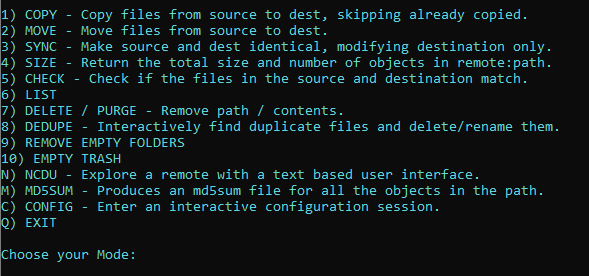

Similarly, GC local is made for use between a local source and a team drive, and vice versa. Take note to remove the rclone.conf file within the folder if you have used GC remote before this, as it will override and only show gc: as the remote, instead of the pre-configured ones you have set up before.
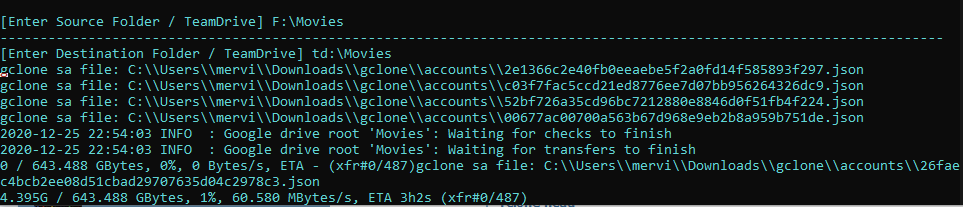
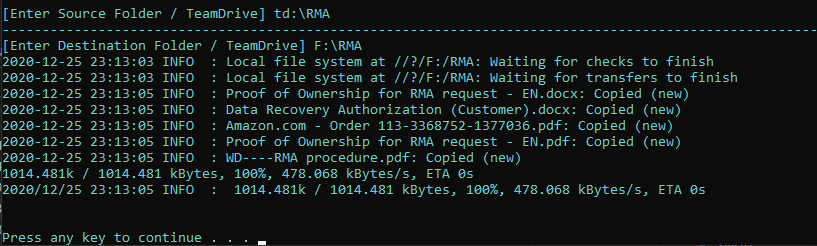
The input for source and destinations will be slightly different, where a local source would be something like "C:\Users\name\Desktop\Empty folder test" and a TD would be "remote:\path\folder". If your file path has spaces, the entire file path has to be entered with quotes like above. If not, td:\Folder and local:\Folder is fine.
My favourite function is NCDU, which you can use to manage your TD from CMD directly using your keyboard, and has a lot of useful features such as real time sorting by name, size, count; deleting files; copying file paths etc. You can read the documentation for it and watch a demo here: https://rclone.org/commands/rclone_ncdu/