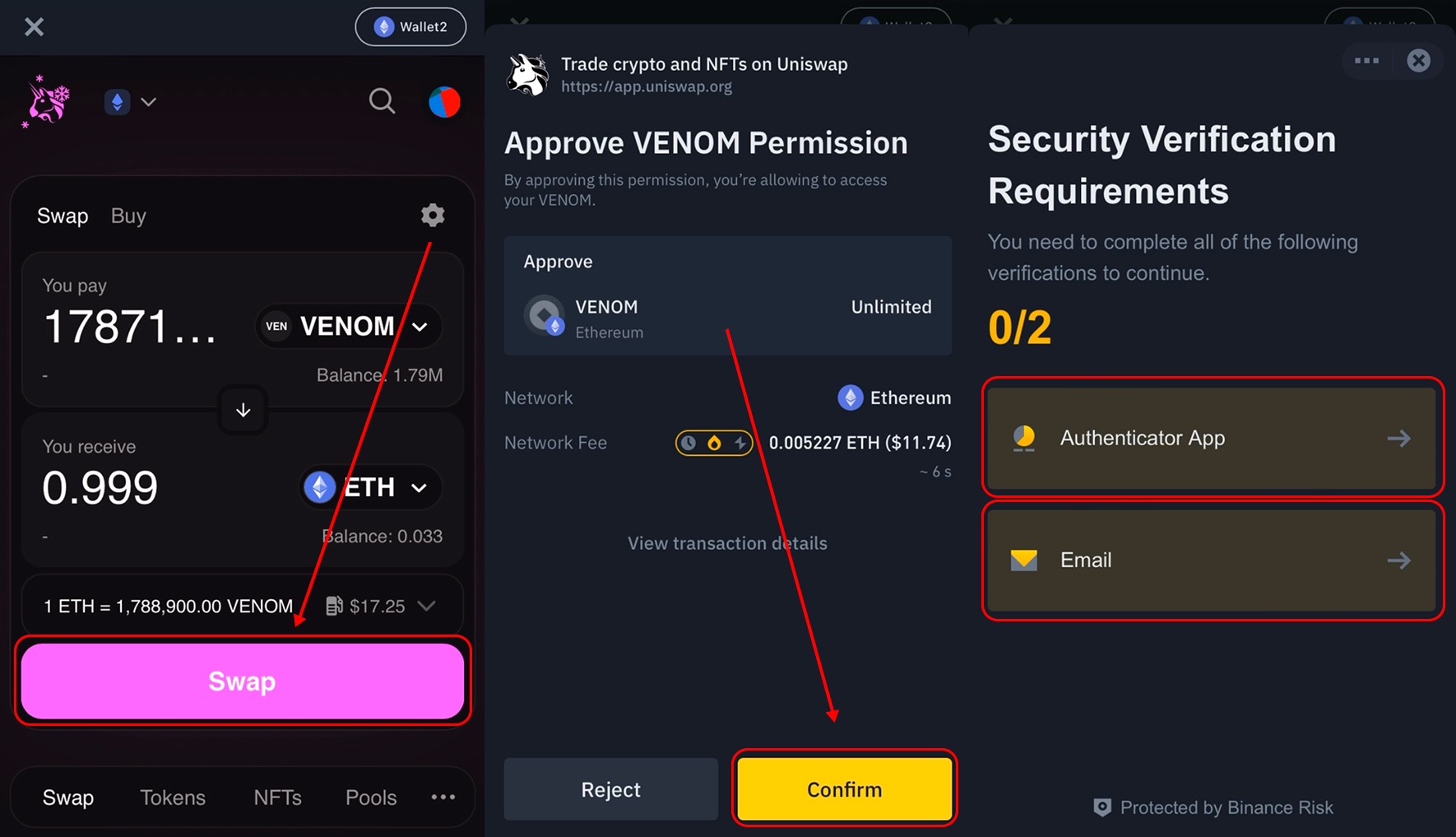
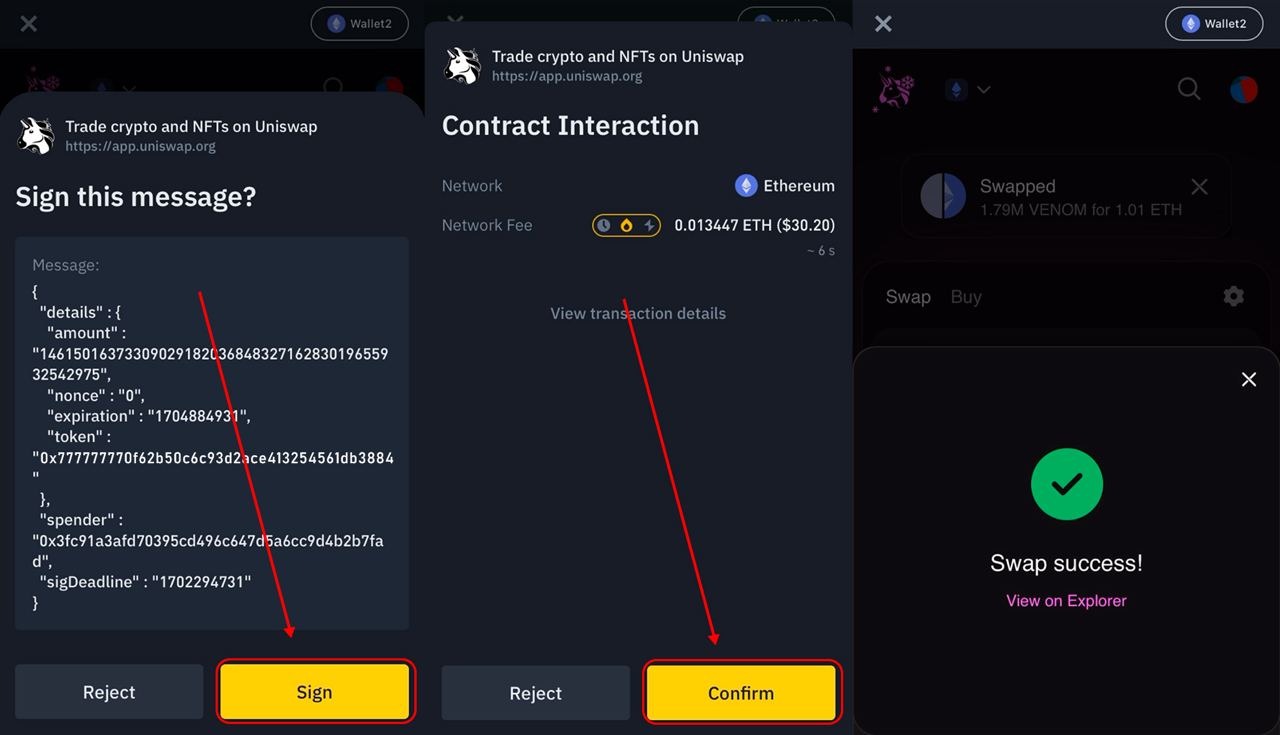
How to trade using Binance 🔶
Setting up Binance Web3 and using Uniswap to purchase token in under 15 minutes. Hope it helps and DM me to @btc_hunts in case of any issues.
1. Download and configure the Binance app:
- 🍏 iOS: Binance on App Store
- 📟 Android: Binance on Google Play
Log into your account and make sure your app is in "Pro" mode:
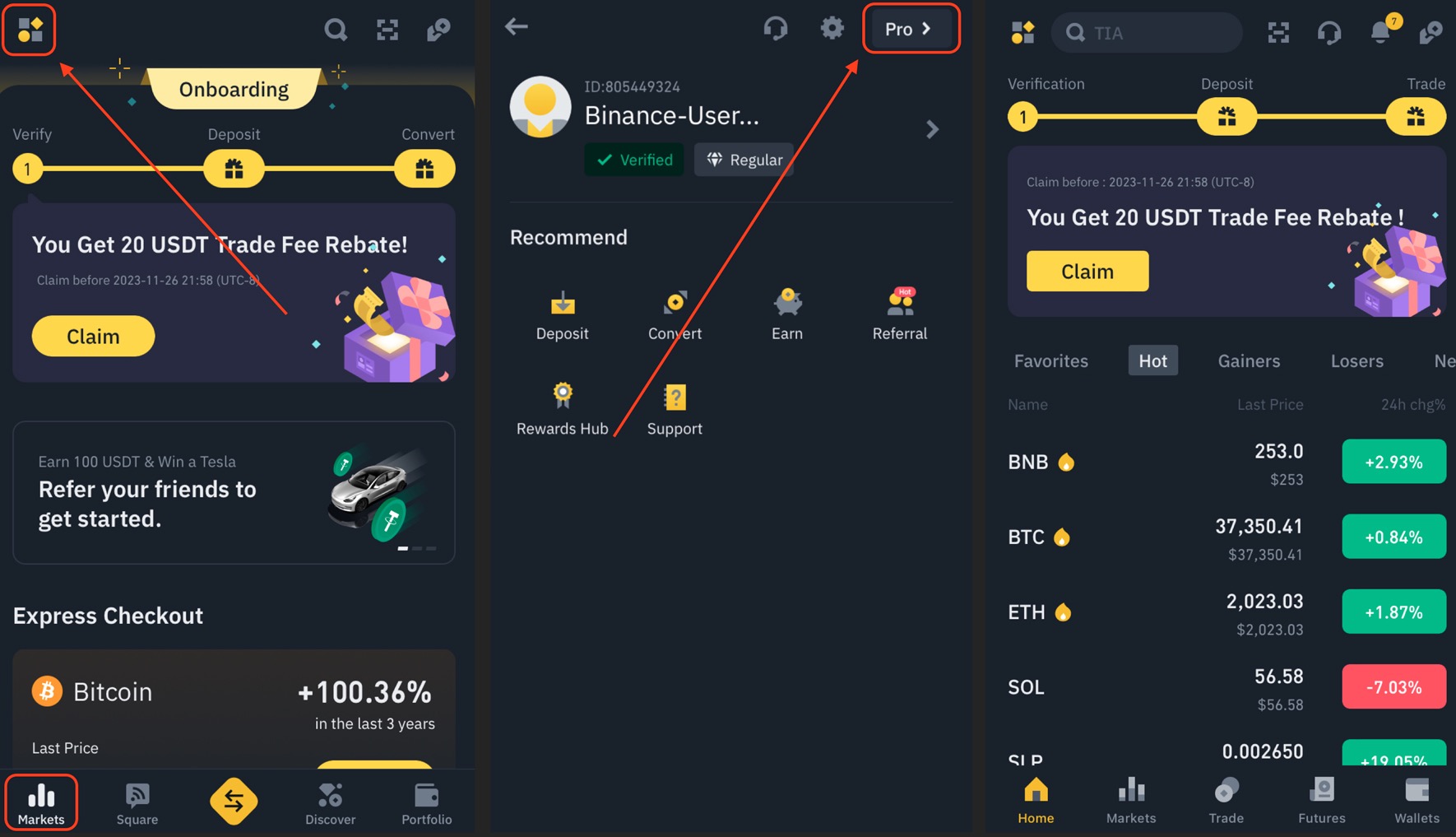
2. Create and fund Web3 wallet:
First of all, make sure you have enough Ethereum ($ETH) on your account. At least 0.02 ETH will be required to pay the network fee for the swap.
- Go to "Wallets" tab and click "Web3" button.
- Click "Create Wallet" and wait for the process to complete.
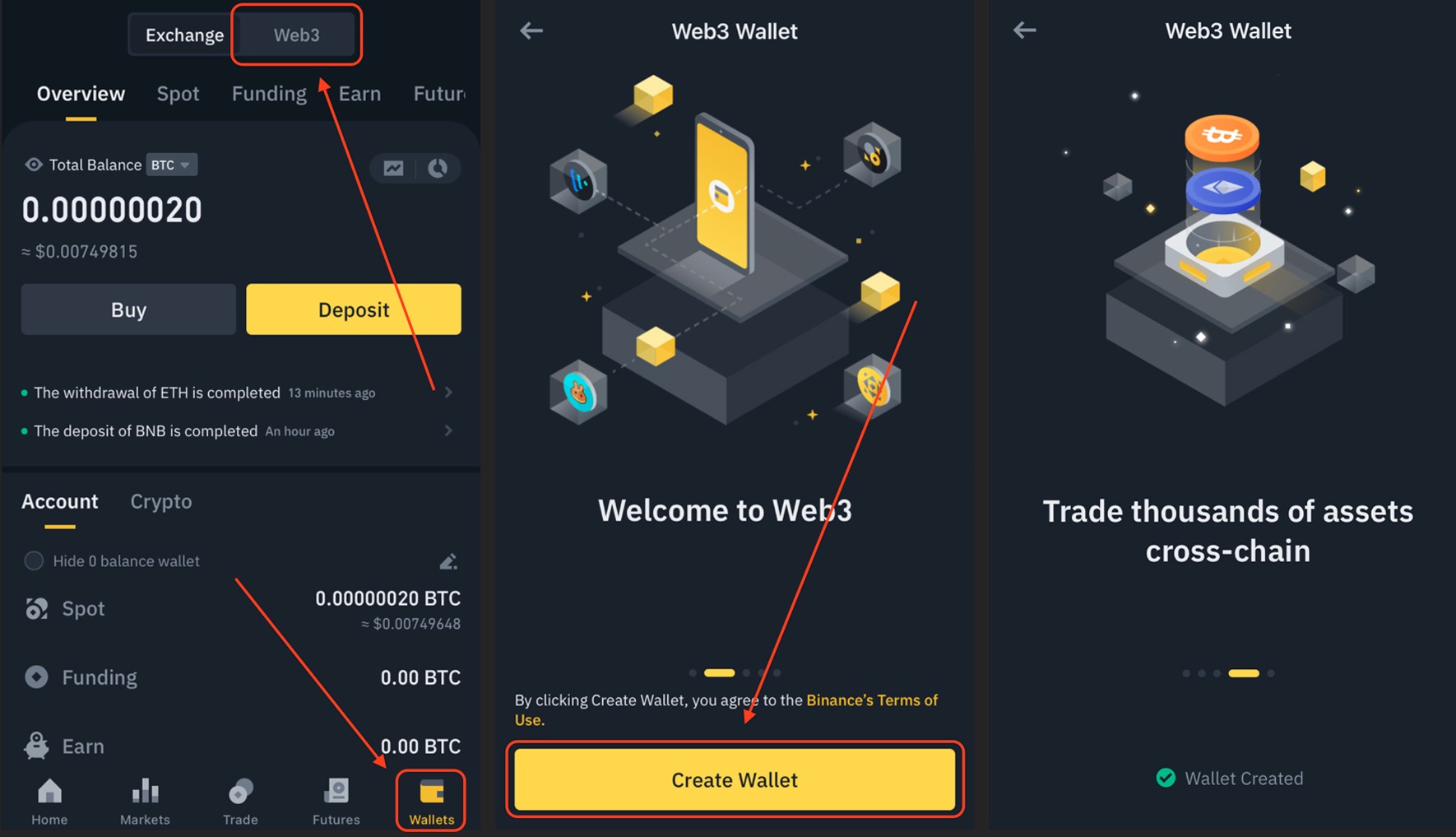
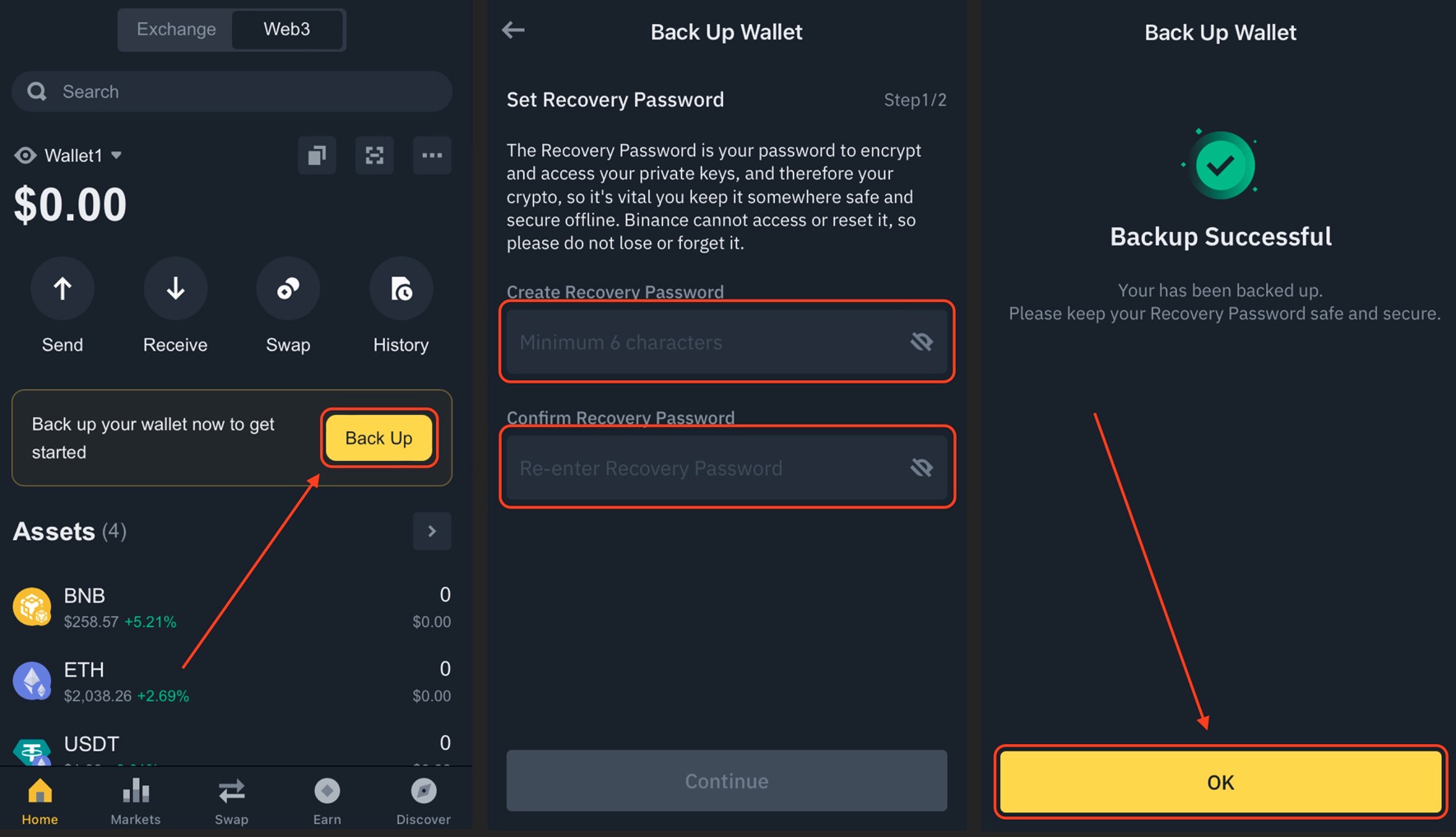
- Return to "Web3" tab and click "Back Up" button.
- Create a password, and backup your wallet to iCloud or Google Drive.
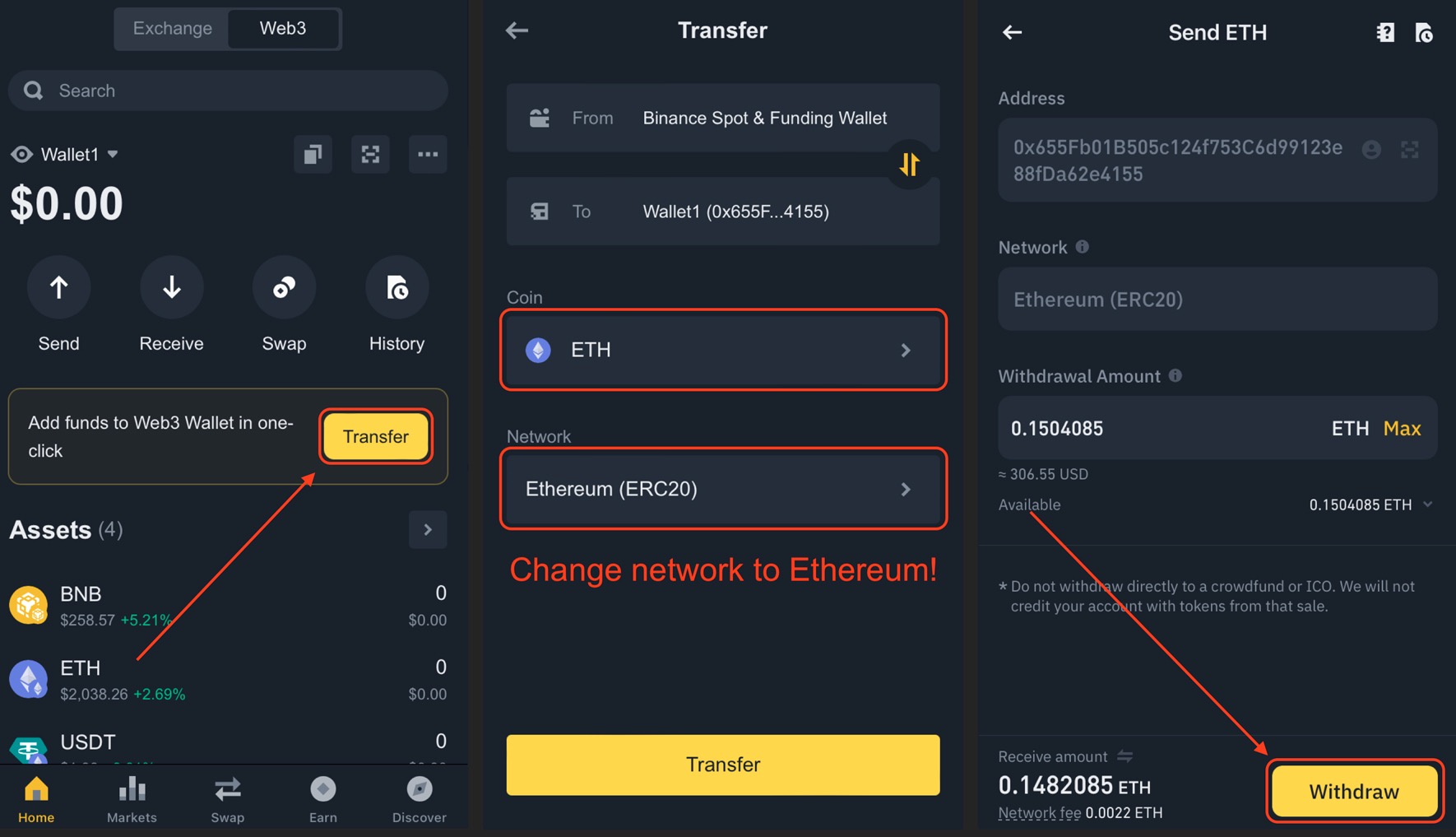
- Return to "Web3" tab and click "Transfer" button.
- Select ETH on Ethereum (ERC20) Network. You can actually transfer any other coin, but ETH is required to pay the network fee.
- Click "Transfer" and then "Withdraw". Complete the security verification if required.
3. Connect to Uniswap:
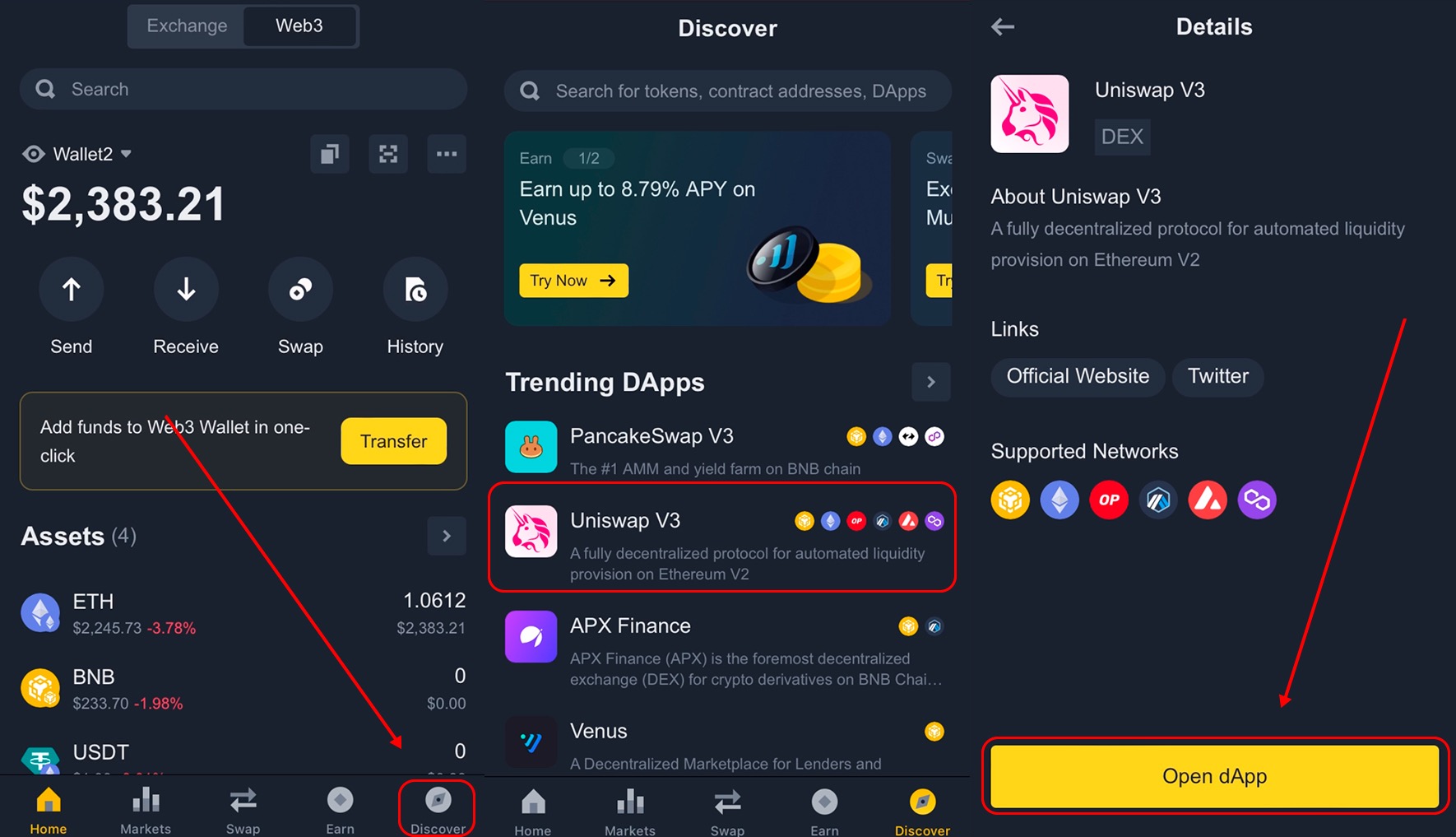
- At the bottom, click the "Browser" (🧭) button.
- In the list of trending DApps, find Uniswap V3 and click "Open dApp".
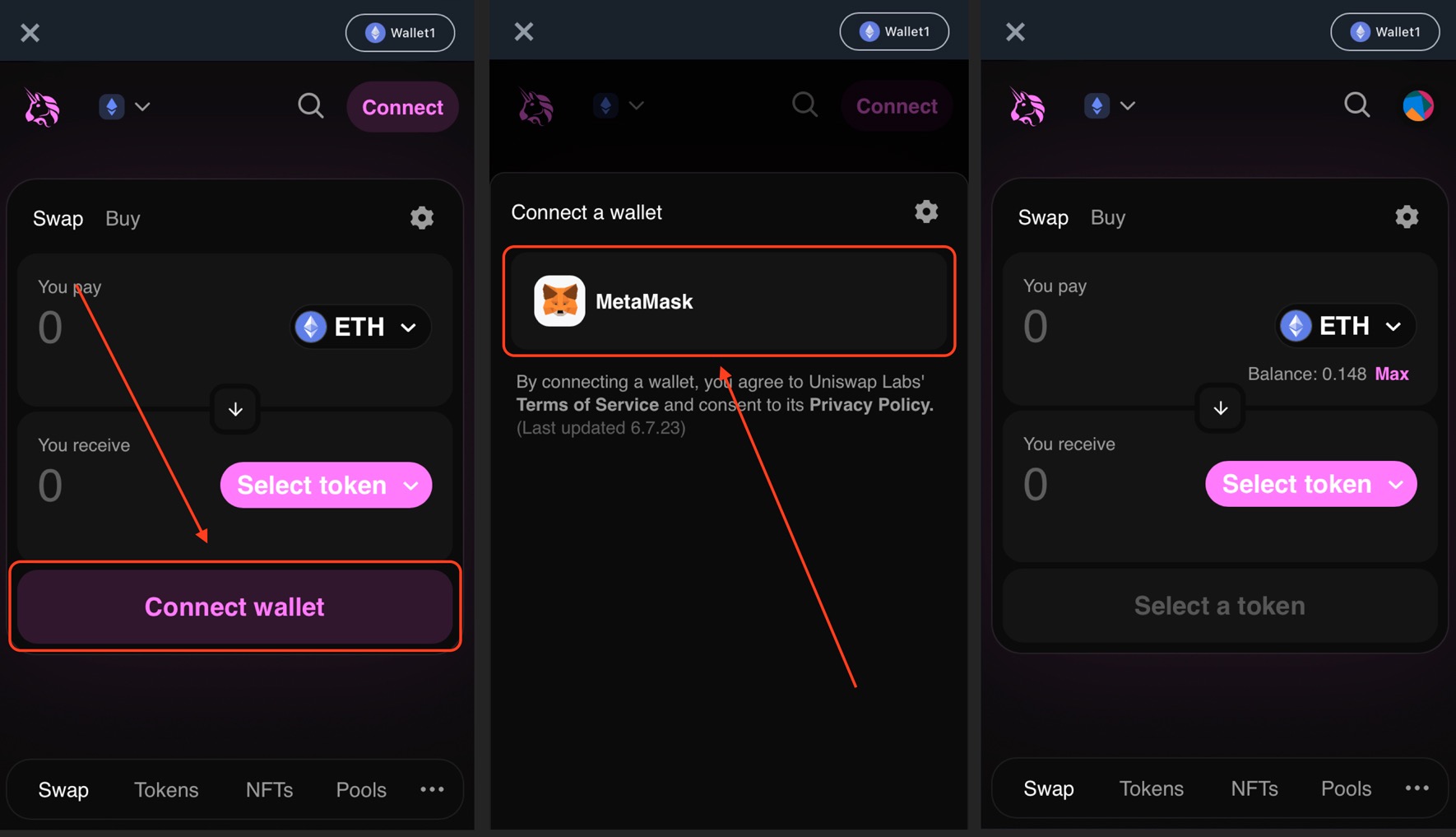
- Click "Connect Wallet", then select "MetaMask". Confirm connection if required.
4. Buy token:
Make sure you have selected Ethereum network and your Web3 wallet holds sufficient ETH balance. You can trade ERC20 tokens as well, but small amount of ETH is required to pay the network fee.
- Select the input (top) token and make sure the output (bottom) token is correct. If you can not find it by name, try searching by the contract address:
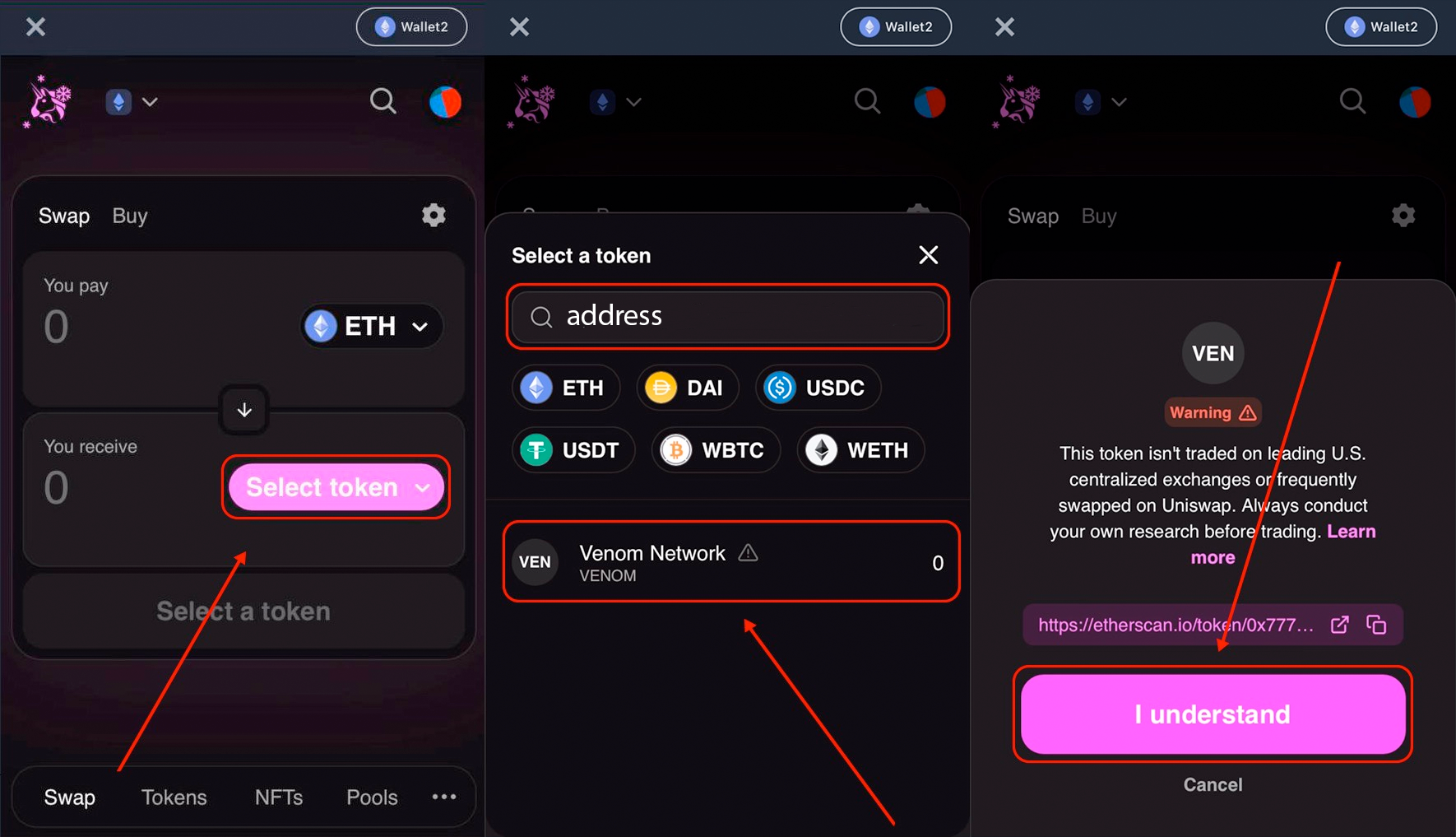
- Enter the amount of input tokens you want to exchange in the top field (I recommend clicking MAX).
- Check the output amount: keep in mind that it's fine if it displays that you'll receive smaller amount in USD, the actual value of tokens you are receiving is always equal to the value of tokens you are giving (minus 0.3% exchange fee).
- Press "Swap" button and confirm the swap. Don't be confused by "Swap" button changing its color, this doesn't affect the trade. Type "confirm" if requested by the website.
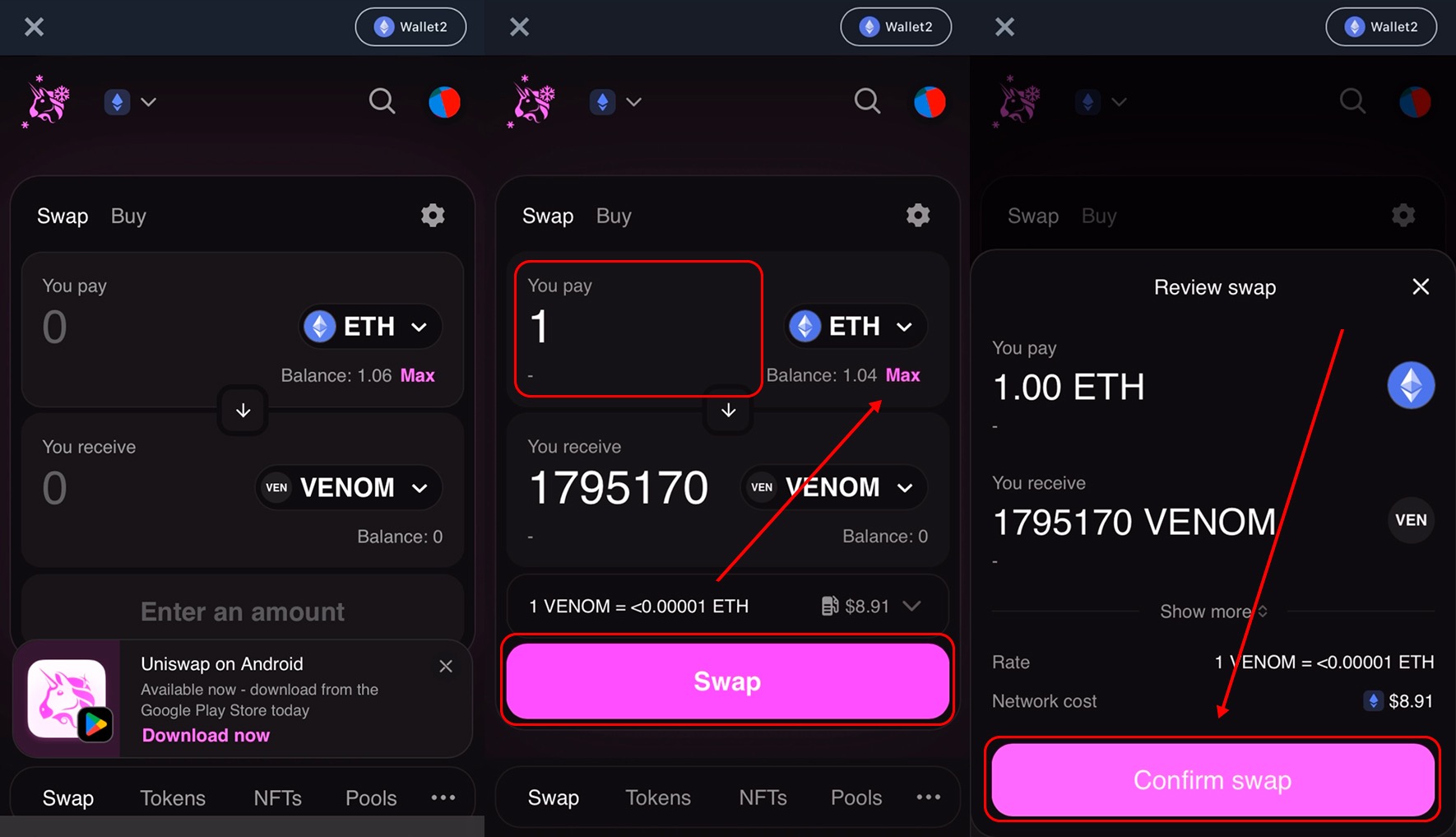
- If you are swapping ERC20 tokens, you will first have to approve them to Uniswap. If you are swapping ETH, you will be directed straight to the swap confirmation.
- Confirm the swap transaction(s) in your wallet and complete the security verification(s) if required.
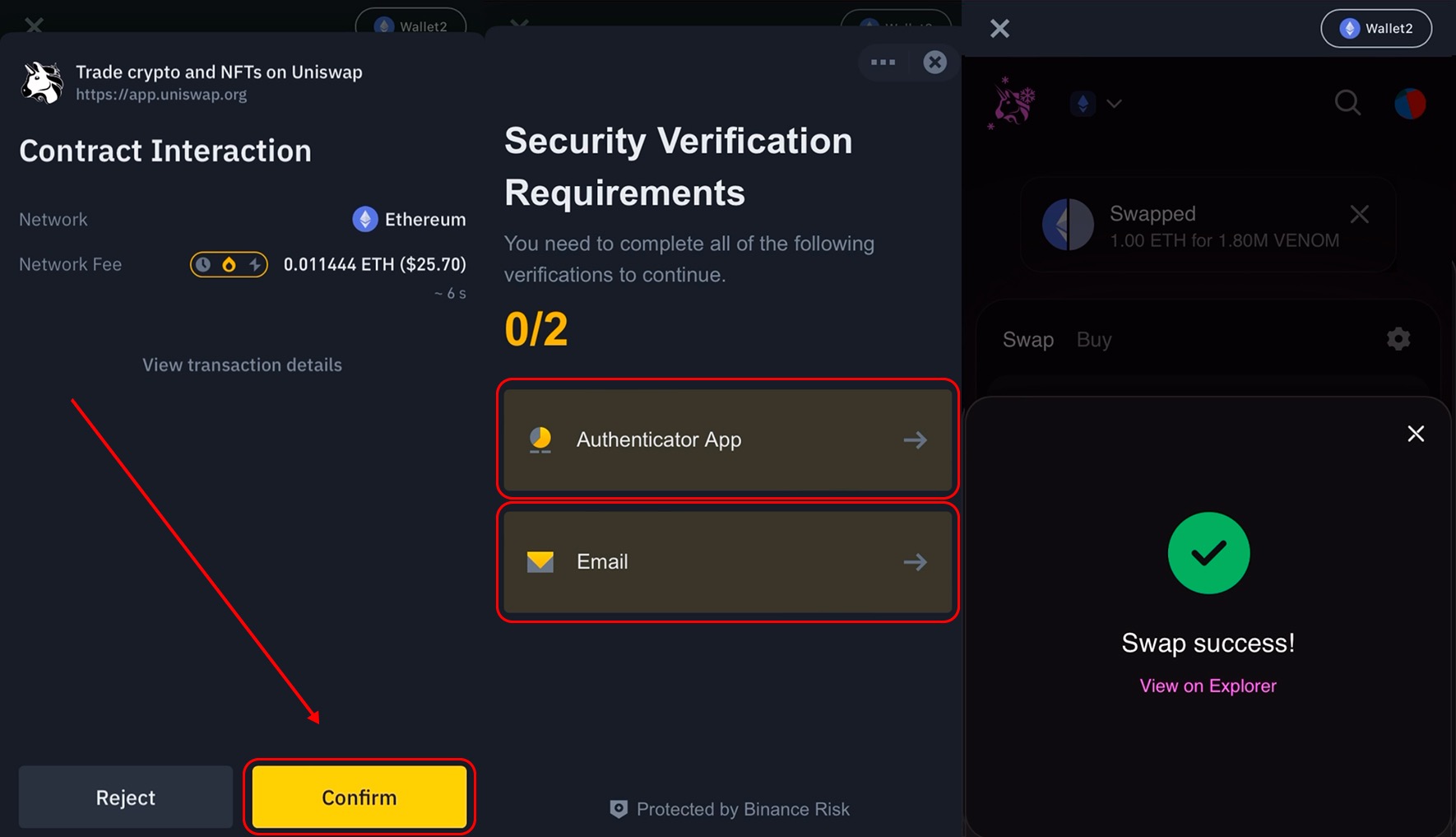
- Congratulations! You've just purchased token!
5. Sell:
- On the same Uniswap page, click the "↓" button to flip the trade direction.
- Make sure the input (top) token is correct and select the output (bottom) token.
- Enter the amount of tokens you want to exchange in the top field.
- Press the swap button and confirm the transaction in your wallet.