How to setup block based incremental OTA Update
Aftab-111How do I set up block-based incremental OTA? Here is the guide
- [After installing latest Stable OFox] Download the custom ROM, and copy it to your phone (normally this should be copied to an external storage device)
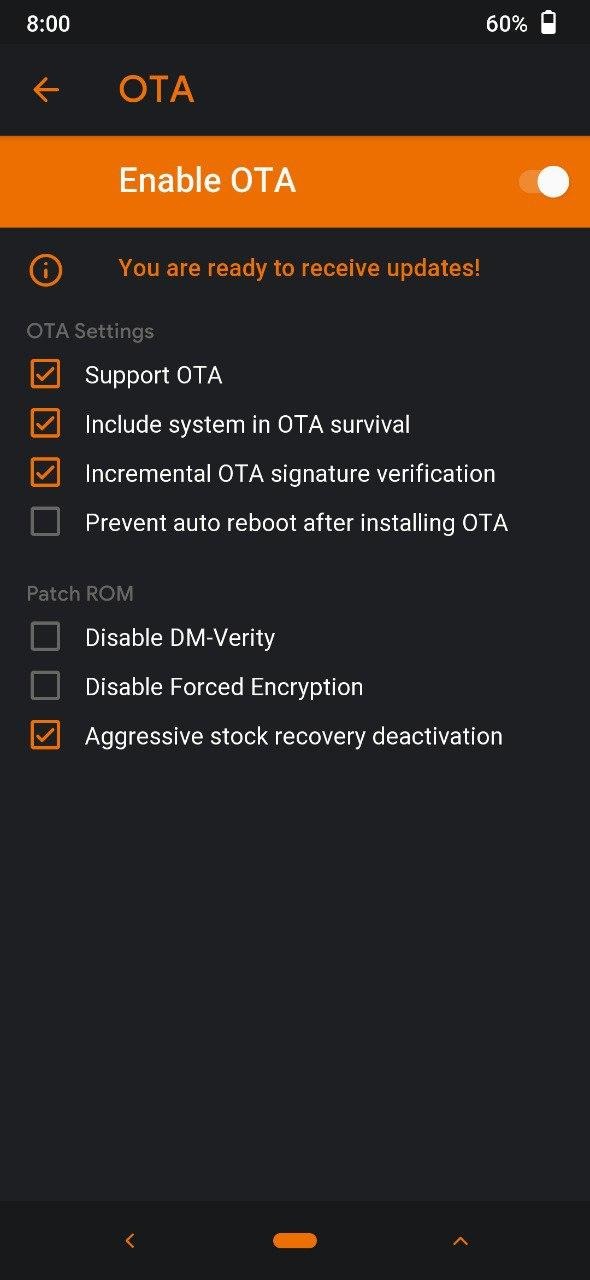
- Go to the OrangeFox settings, tap on "OTA" and turn on "Enable OTA".
- Ensure that the "Disable DM-Verity" box is un-ticked in the OTA settings, otherwise the incremental will most definitely not work.
- Go to the “Wipe” menu, and wipe data, cache, and dalvik, and reboot OrangeFox
- If you are Decrypted or want to be, ensure that the "Disable Forced Encryption" box is ticked in the OTA settings. Don't even try to use Fcrypt Disabler zip.
Flashing The Rom
- [Clean Flash Recommended] Flash your ROM (Full Package). After the ROM is flashed, OrangeFox will start the "OTA_BAK" process, which will backup your system (and sometimes vendor) images and boot partition into the /sdcard/Fox/OTA/ directory (this will be on your internal storage). You must NOT delete any of the files in the /sdcard/Fox/OTA directory. If you do, then incremental OTA updates will most definitely fail.
- Reboot your phone, and start to use your phone normally
- When ROM notifies you that there is an update, download the update, using the ROM's updater app, and allow it to reboot automatically to OrangeFox (Note: do not try to flash a block-based OTA zip manually from the recovery - this will not work - it is necessary to do all incremental OTA updates via the ROM's updater app)
- OrangeFox will install the OTA update automatically (this can take several minutes)
- OrangeFox will normally reboot the phone automatically upon completion of the installation of the OTA update
- After this, you not need to flash a full ROM any more.
- Enjoy