How to set up Linphone
Task TalkiOS and Android
- In Google Play or App Store search for and install Linphone.
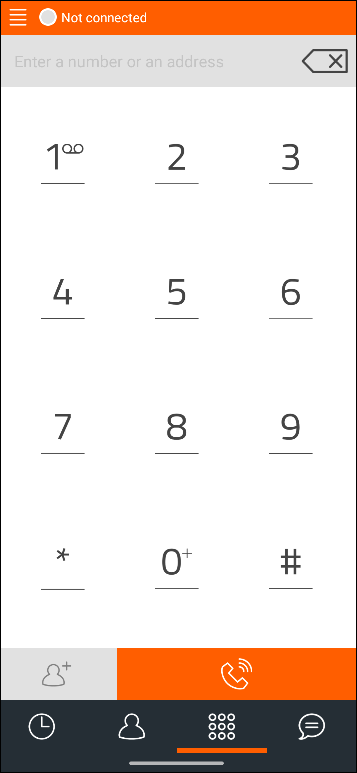
- Once the application has been successfully installed, run it.
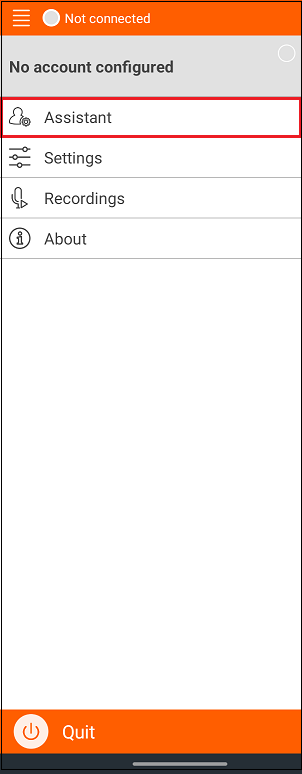
3. From the menu, click "Assistant".
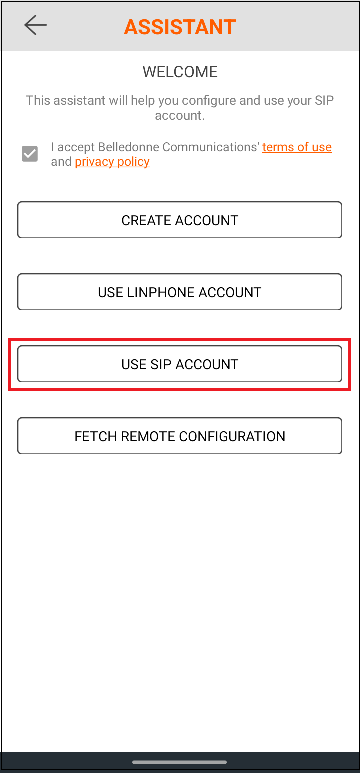
4. Click "USE SIP ACCOUNT".
5. In this paragraph, specify:
Username: your SIP number received from our support.
Password: your SIP number password received from our support.
Domain: the domain/hosting name received from our support.
Display name (optional): your name.
Transport: TCP.
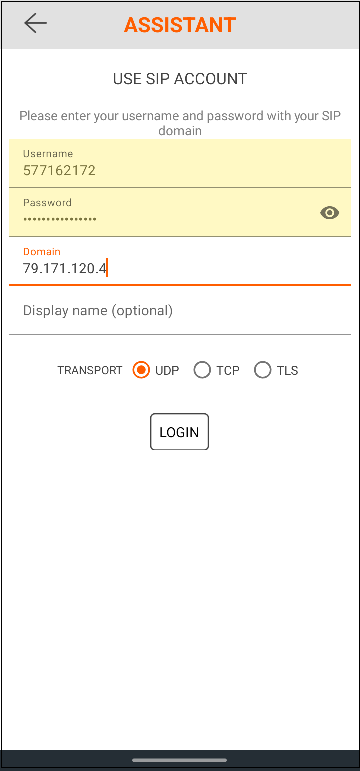
6. Click "LOGIN". If the settings are correct, you will see the connection status "Connected".
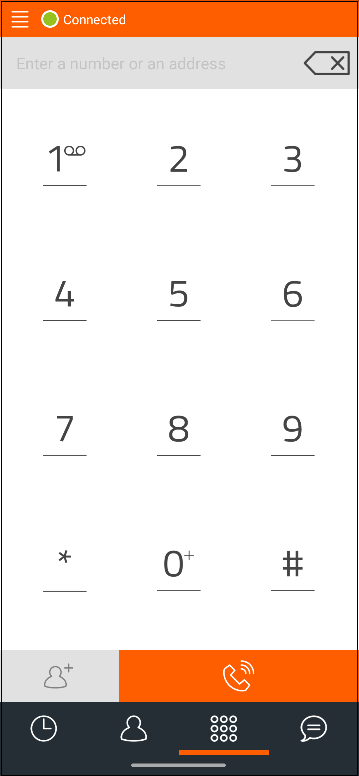
7. Done! Now you can use the Linphone app to make voice and video calls, send messages and other functions using iOS and Android mobile devices.
MacOS, Windows and Linux
- Download Linphone from the official website and install the program. After launching the software, a setup window will open.
- Click on the "USE A SIP ACCOUNT" button.
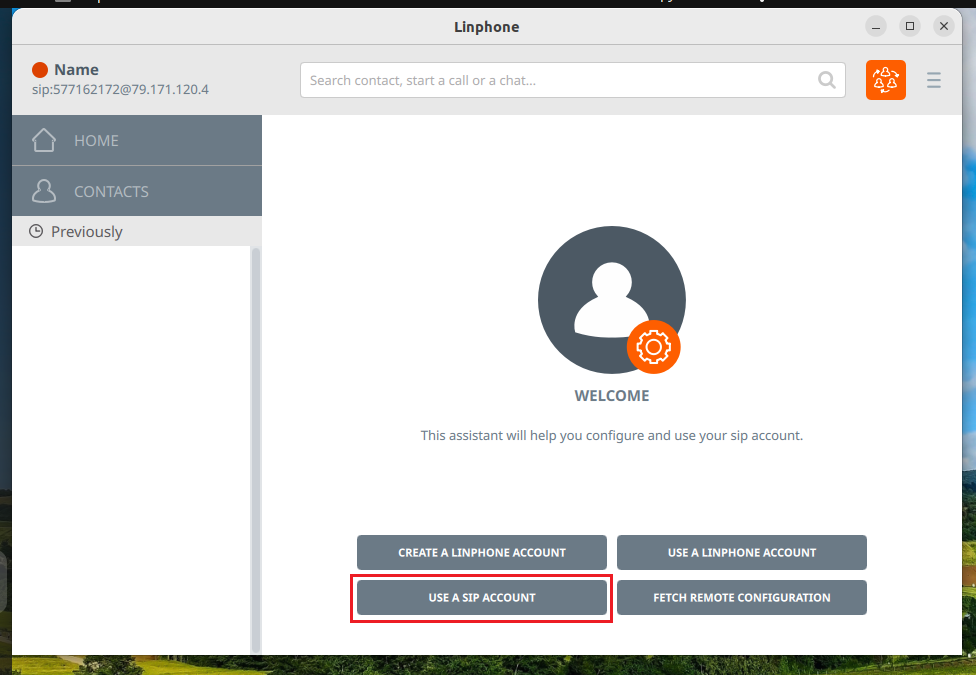
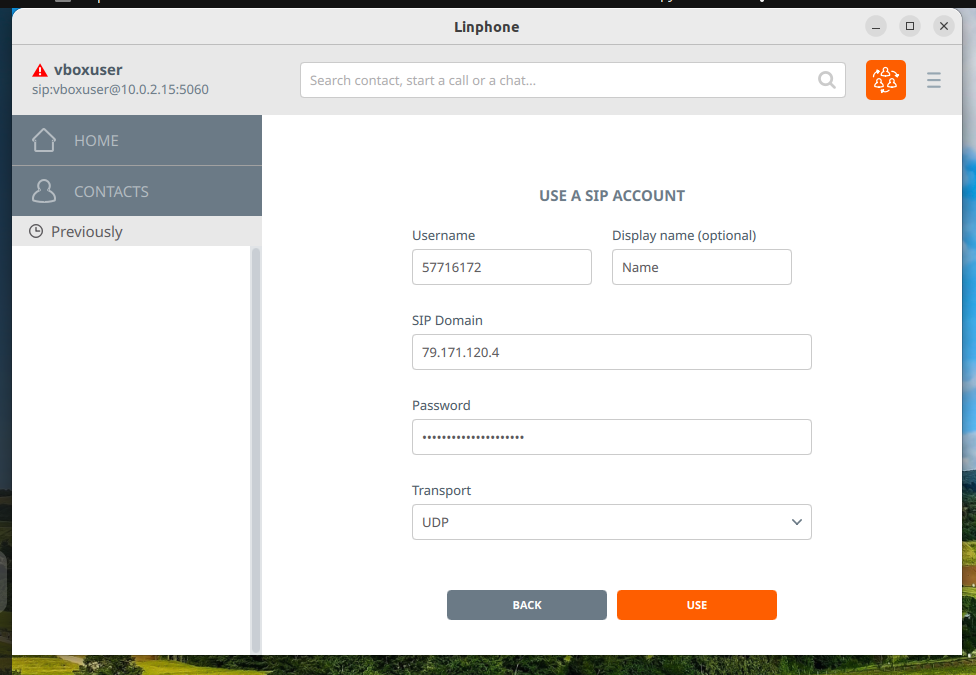
3. After that, enter the SIP-account data received from our support:
Username — SIP account login;
Password — SIP account password;
Display name (optional) — your name;
SIP Domain — the domain/hosting name received from our support;
Transport — TCP.
4. To set the device registration time, go to the account settings menu.
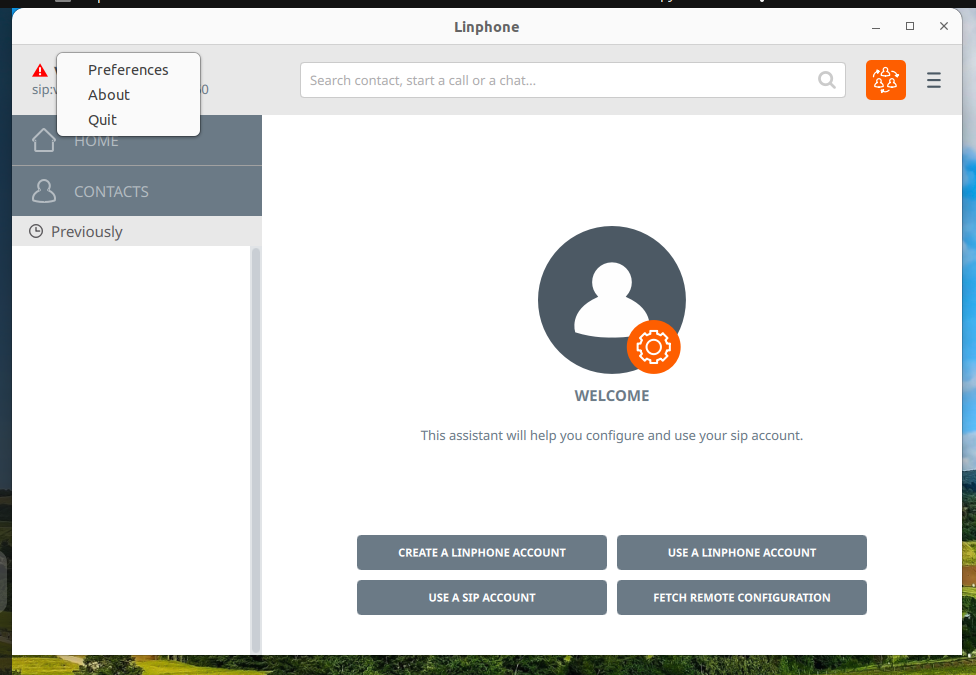
5. In the settings window, select an account and click the “Edit” icon.
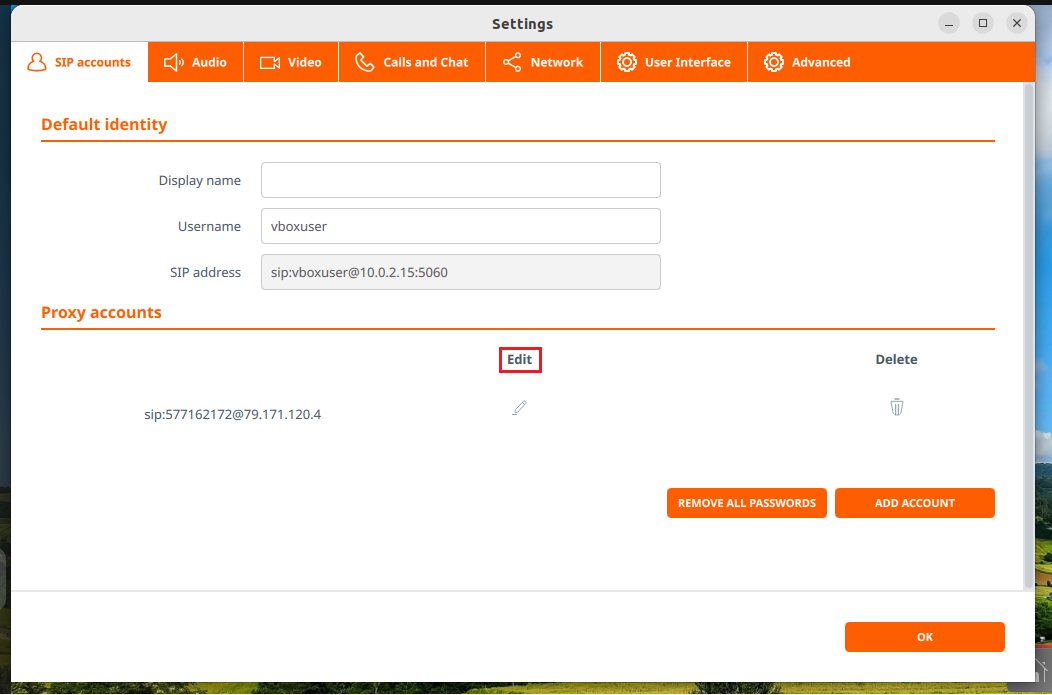
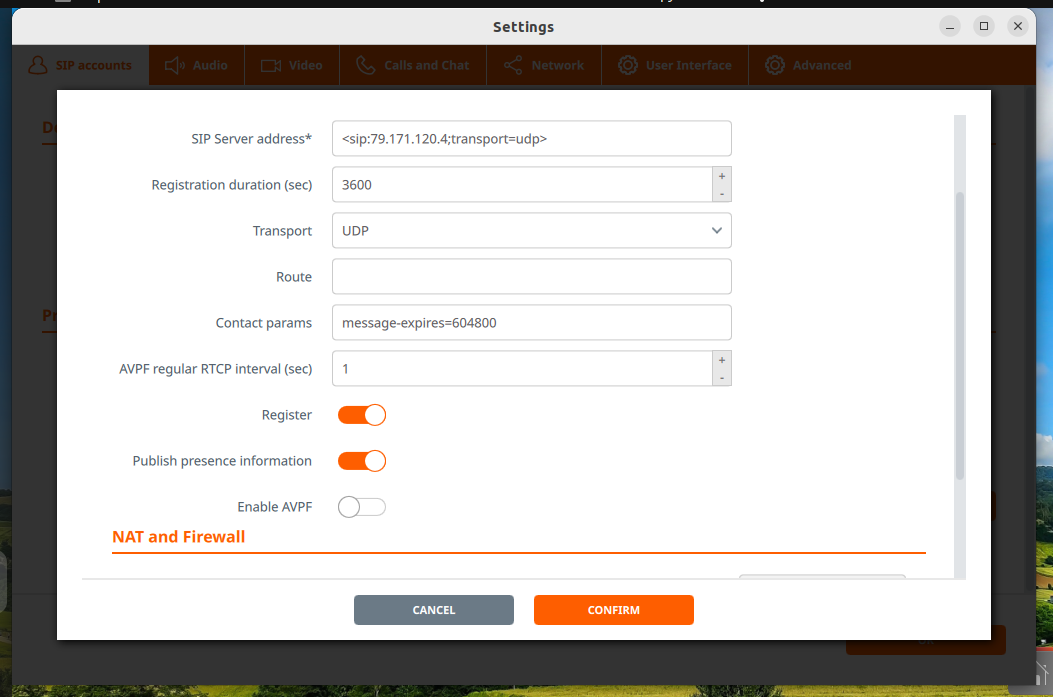
6. In the "Registration duration (sec)" field, set the value to 3600, and enable the "Publish presence information" switch and click "CONFIRM".
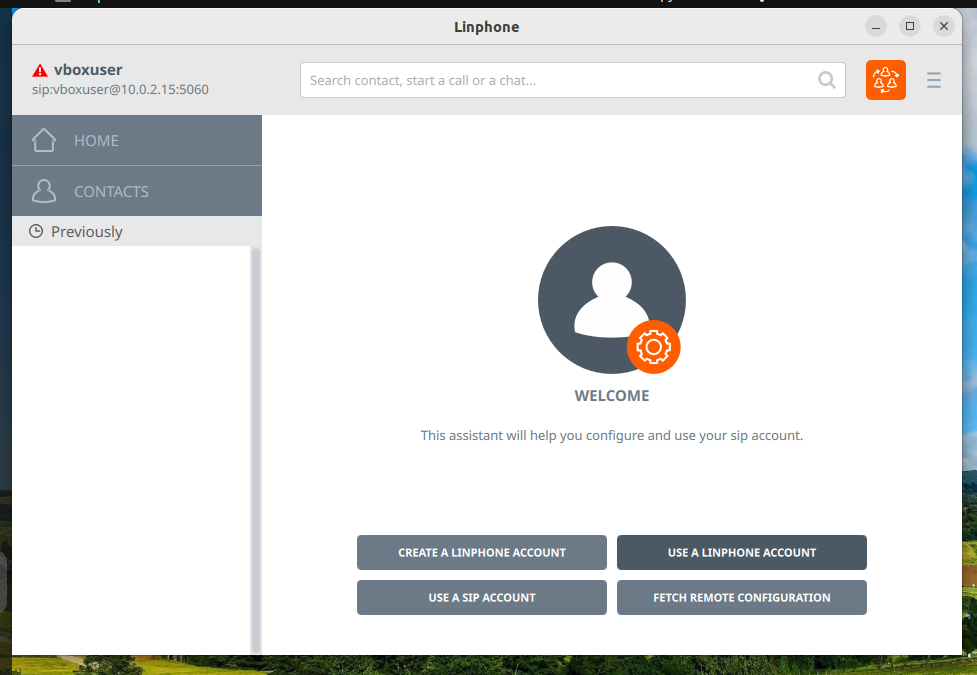
7. Next, you need to select the SIP account you have already configured. To do this, click with the left mouse button in the upper left corner of the settings panel.
8. After that, select the required SIP in the window and set the status "Available".
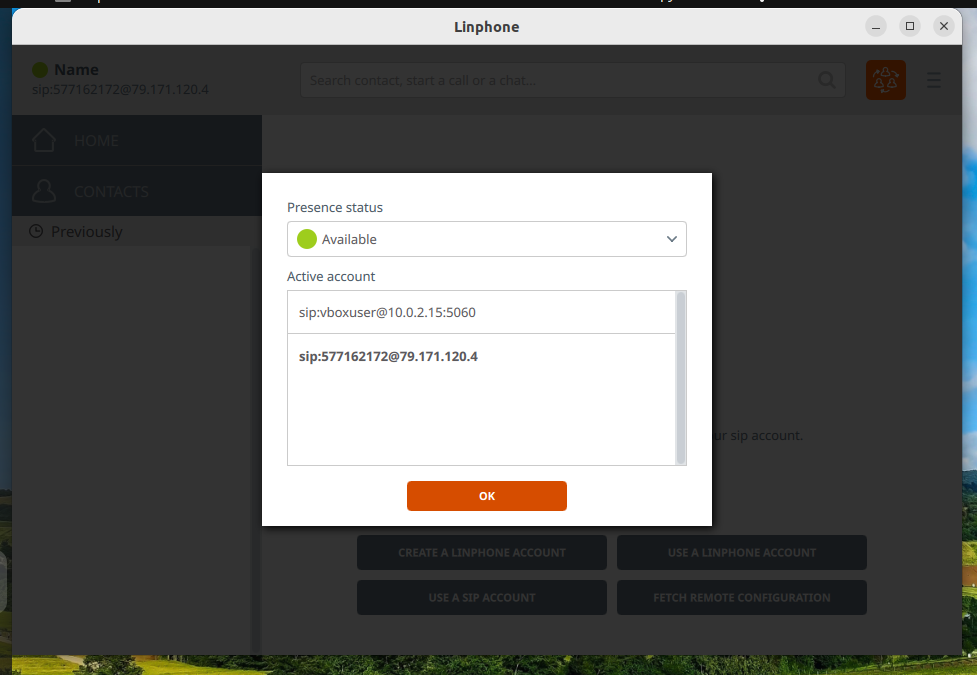
9. In case of successful registration, the call management window will look like this:
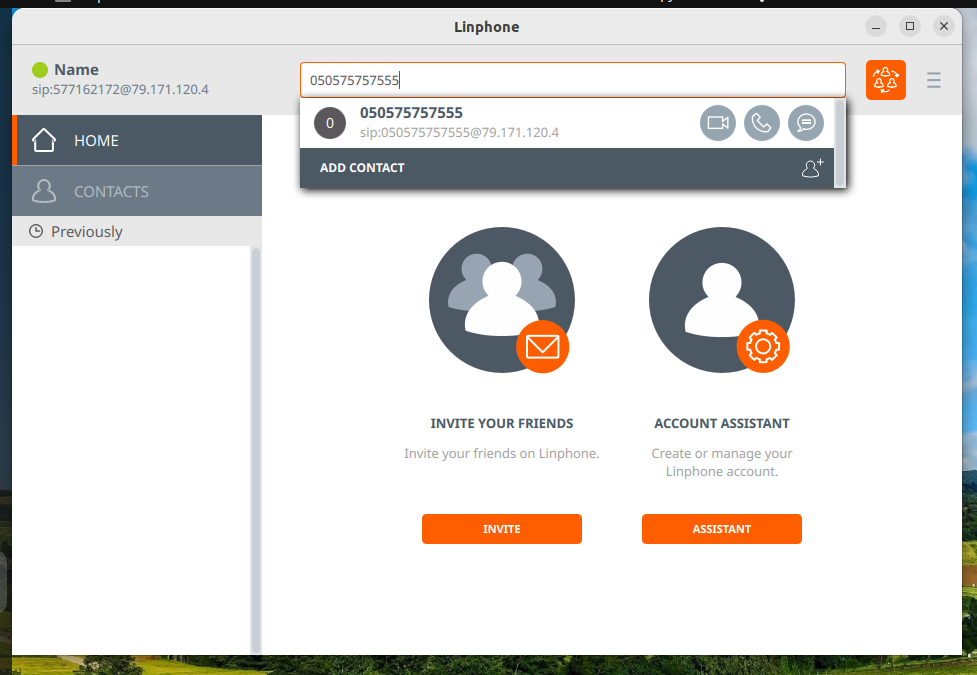
10. At this point the configuration of Linphone on macOS, Windows and Linux is complete and the SIP account is ready to make calls.