How to set Pattern Lock on Windows OS
benkigera
In windows, you have password based lock security. But what if there is a chance to add Android-like pattern lock on windows OS. Sounds good right! In this article, I’ll show you How to set Android Like pattern lock on windows XP/Vista/7/8/8.1 using Eusing Maze Lock.
To add Pattern Lock security on your windows OS, just follow these simple steps.
- First download Eusing Maze lock and install it on your computer. Now you can see Maze lock icon in your system tray at right bottom corner.
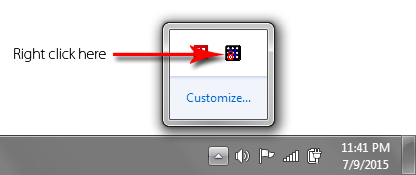
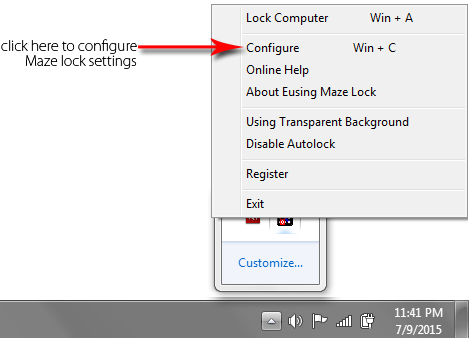
- Just right click on Maze lock icon and select Configure (or simply press Windows key +C).
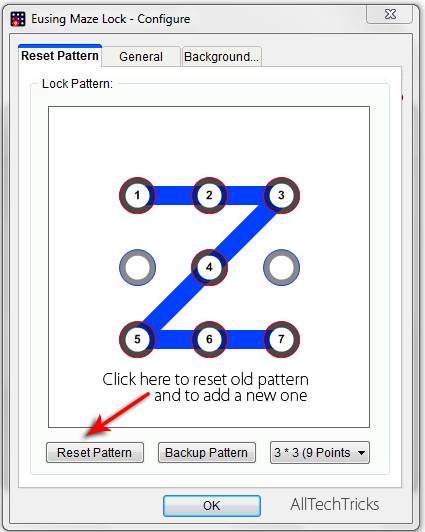
- Now Maze Lock configure window appears. There you’ll see Default lock pattern. Just click on Reset Pattern to reset the current pattern and for adding a new one.
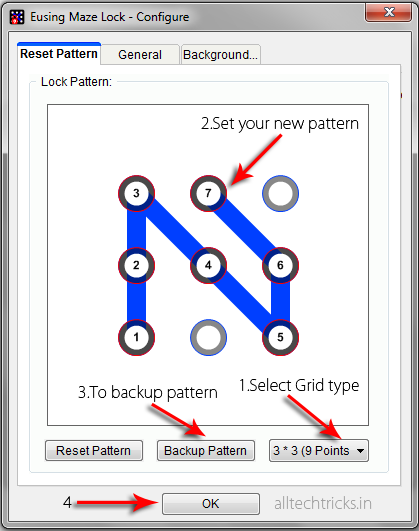
- Now you have to set a new pattern by dragging with your mouse on the grid. By clicking on Backup Pattern, you can save your pattern as a BMP image. But make sure that you save your pattern at a safe place.
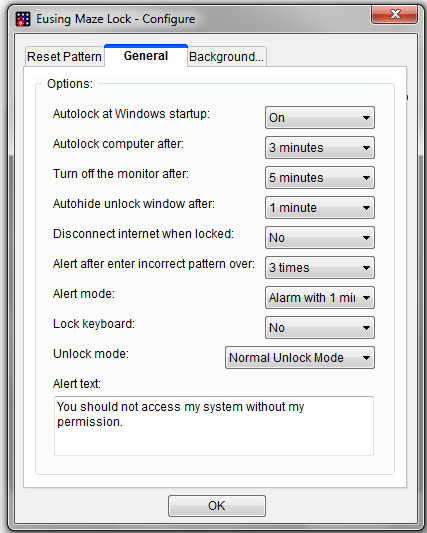
- After setting up a new pattern, click on General Tab. Here you have you set Maze lock settings like turning on Autolock at windows startup/after specified time, adding alert text…
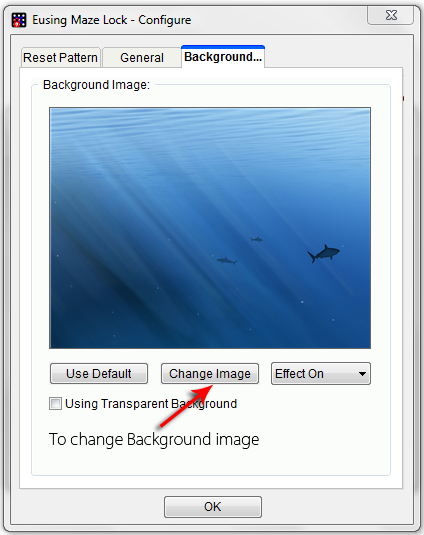
- If you want, you can add a Background image for your lock screen. For that click on Background tab and click on Change Image button, upload image and click on ok button.
- You’ve added lock pattern security on your windows OS. Now press windows key + A to open your lock screen and use your newly created pattern to unlock your system.
images > alltecktricks
join my channel for more hacker tips
https://t.me/learnsomethingnew