How to import the cache into an iOS/iPadOS application
iOS apps cacheFirst of all, install the imazing app on your computer running MacOS or Windows. The official version can be downloaded from here, and the hacked version for windows from here and for MacOS from here

Connect your device with a cable to your computer and run iMazing.
Click on "Manage apps"

Click on the arrow at the bottom.

Click on "Restore App Data"

Click "Chose...", then choose the .imazingapp file and click "Done"

Disable "Find my iPhone" if it is enabled (you can turn it back on after completing the process)
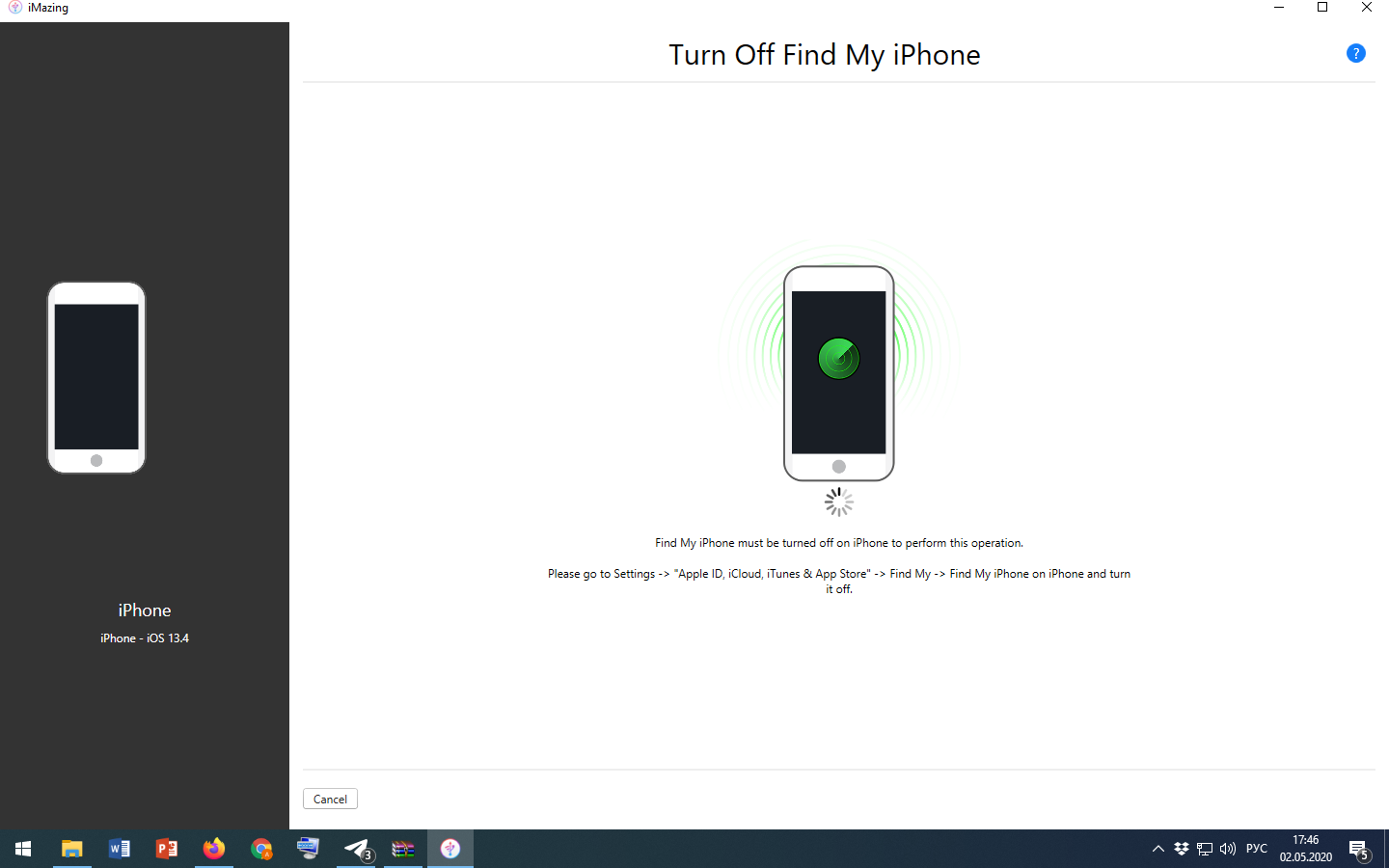
The cache import process will continue for some time and then welcome skreen will appear. Enter your password and wait until iMazing shows "Done".
If you are at iOS 15.0.0+, when the "Make This Your New iPhone" window appears, click "Customise Settings"

iPhone will offer to transfer data from different sources. Click "Do not transfer Apps and Data", your data will not be reset.

Start going through the initial configuration steps, and after the second appearanceof the "Make This Your New iPhone" window, click on "Customise Settings" again.
Finish initial configuration and then everything will be as before, but the cache will be imported into the desired application.
If you have done something wrong and the device has started to restore from the copy, immediately restart it and try again.
Potential side effects (iOS 13.0.0+):
• The device region can change to "USA", and therefore the time format can change to 12-hour and the date on the lock screen and in the notification center can be displayed in English (change the region to your own in the settings).
• Date at the lock and notifications screens might be at English. (Change your language to anyone and then back to yours).
• After updating iOS, some apps may downgrade, and deleted ones may return. (create a copy, erase a device's data аnd then restore the device)
! Once there was a case when apple pay cards were reset and some applications signed out from accounts
! Once there was a case when the phone refused to leave the initial configuration menu and hung up on "entering the apple id password". Only flashing and restoring from a copy helped.