How to get authorization from any Telegram Mini App
https://t.me/AutoBlumFarmNow let's look at how to quickly and easily get authorization for any Telegram mini-application, such as Blum, Notcoin, Hamster Kombat or any other, even if it does not run in the browser.
Explanations
Telegram always sends authorization to the mini-application. This authorization works on the principle of "log in via Telegram". Of course, neither the application itself nor its developers, nor we, will get any access to the Telegram account! That's not how it works.
Developers of the mini-application itself or third-party programs for them get access only to the mini-application itself, but not to Telegrams.
Now that we have discussed these points, let's get down to business.
1.1 Web version of Telegram
We will need it, since the data is stored on the page, and it is easiest to get it from the browser. Here is the link.
- We go to the website
- Log in to the required account
- We go to the desired chat with the bot
1.2 Using our Browser extension
Then you can use a special open source browser extension written by us. The link to the extension is here.
It is absolutely safe, has been verified by Google before entering their store, and is open source. The extension does not perform any other actions except for its intended purpose.
Install it in your browser, then go to the Telegram tab and refresh the page to make the extension work.
2 Launch the mini-application
This is something like a "Start" button in the chat, or just a side menu button (to the left of the message area). Here, I think you know exactly what to do.
3.1 Getting an authorization string with an extension
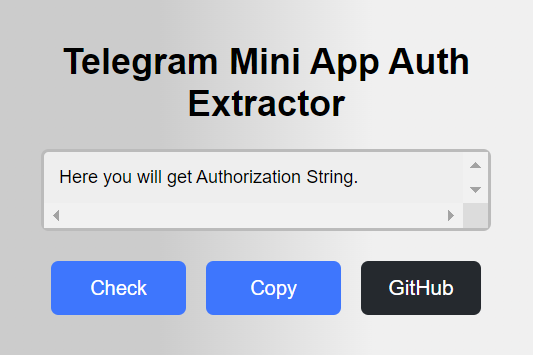
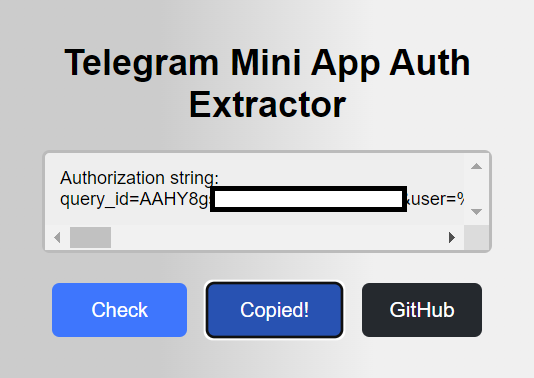
If you are using an extension, just open it and click "Check", and then copy using the "Copy" button.
3.2 Getting the authorization string manually
If you do not want to install the extension, you can get the authorization string manually. For this:
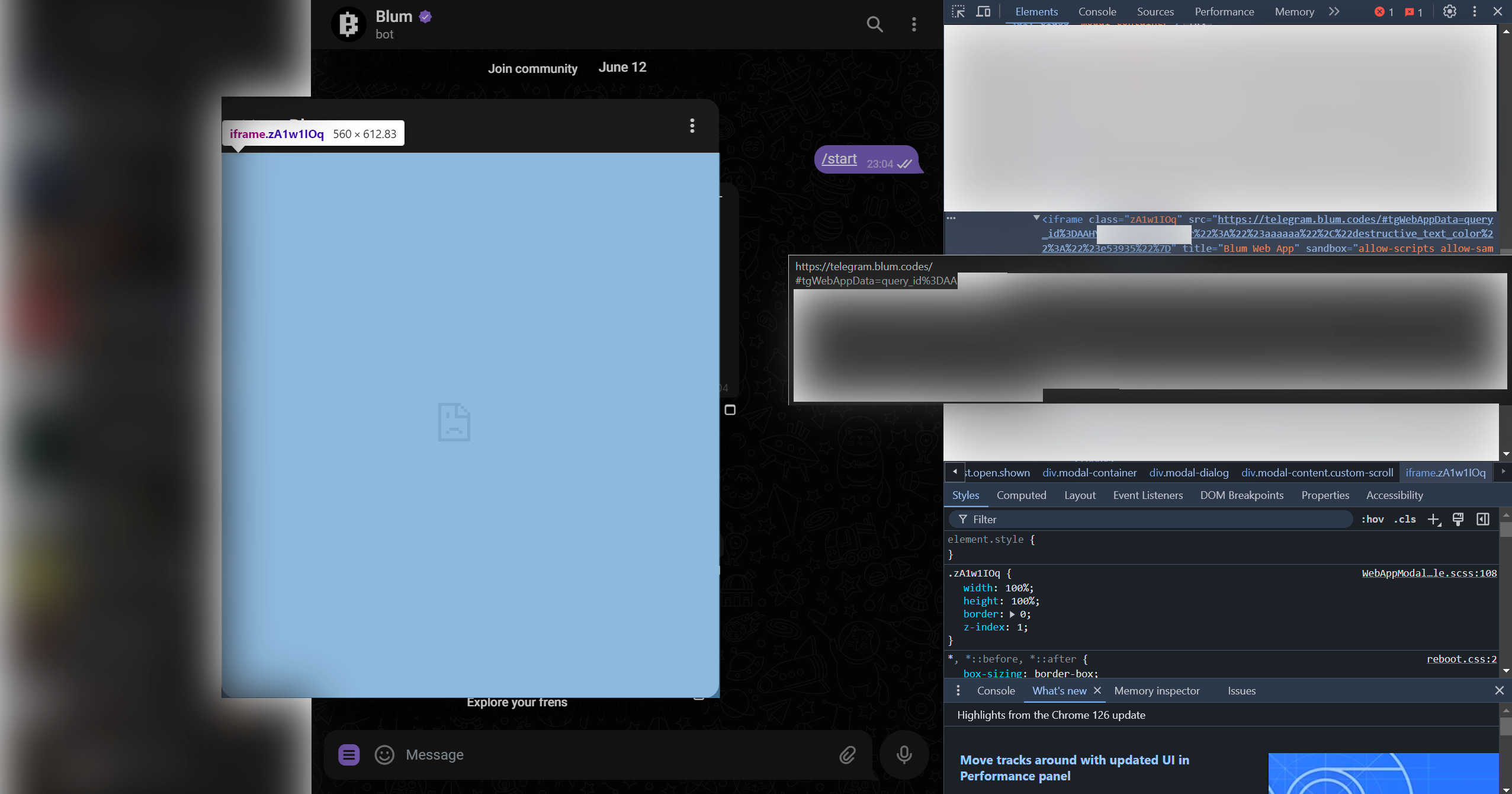
- Right-click on the window that opens and select "View Code" (or just press F12 to go to developer tools)
- Press Ctrl + F to enable the search
- In the search, enter: iframe
As a result, you will get something like this picture:
Right-click on the found <iframe> element and select "Copy Link Address":
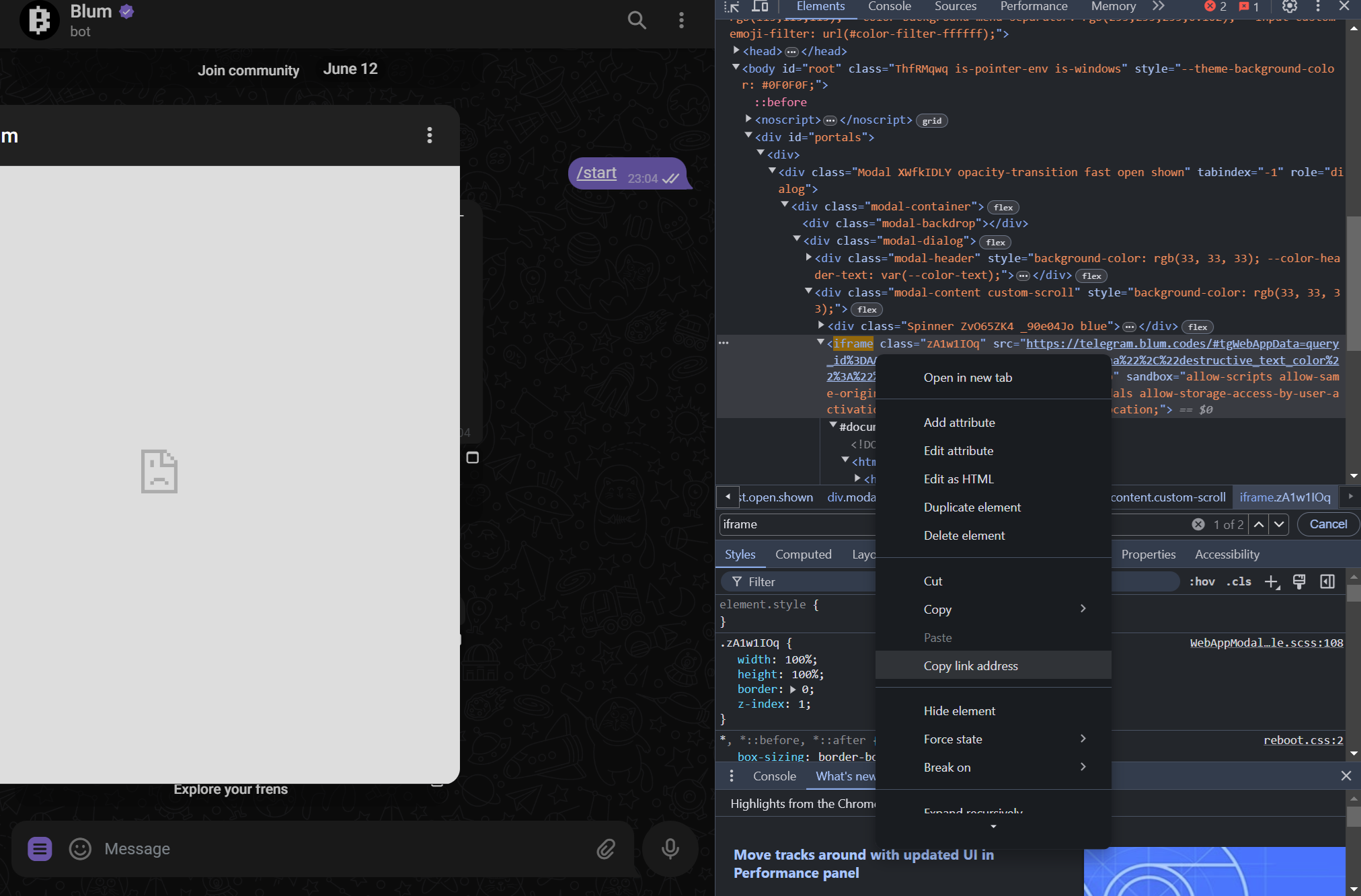
Ready!
Now you have a link containing the authorization that you can use in our application. We will automatically process it and take only the necessary fragments.