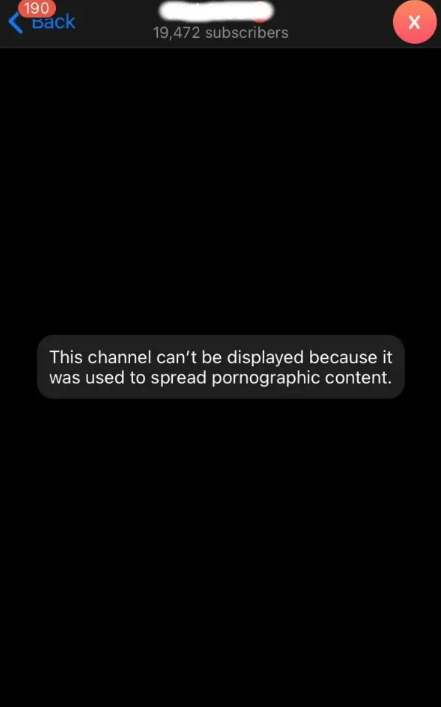
How to fix “This channel can’t be displayed” on Telegram
@RealClothesOffBotFor users in India or Iran, this method likely won't work for you. For now the only solution is probably changing your phone number to outside of India or Iran. You can search for VOIP numbers.
To fix “This channel can’t be displayed” on Telegram, you need to download the desktop version of Telegram.
Next, open Telegram Desktop > Scan the QR code > Menu > Settings > Privacy and security > turn on “Disable filtering”.
After you’ve turned on “Disable filtering”, you’ll be able to access blocked channels on Telegram!
Do note that you cannot disable the sensitive content filter on the Telegram app as it does not have it.
To disable it, you need to use the desktop version of Telegram instead.
Here is a step by step guide:
1. Download Telegram on your computer
Download Telegram for Windows: https://desktop.telegram.org/.
The first step is to download Telegram on your computer.
This is because you can only fix the “This channel can’t be displayed” error on Telegram Desktop.
Firstly, go to https://desktop.telegram.org/ and click on “Get Telegram for Windows x64”.
If you’re using macOS or Linux, click on “Show all platforms” instead and download Telegram for your operating system.
After you’ve clicked on “Get Telegram for Windows x64”, click on “tsetup.exe” to install it.
2. Scan the QR code using the Telegram app

After you’ve downloaded Telegram on your computer, you need to open it.
When you open Telegram on your computer, a QR code will be shown.
Now, you need to log in to Telegram using the QR scanner on the Telegram app.
To do so, open the Telegram app > Settings > Devices > Scan QR Code > Scan the QR code to log in.
3. Open the menu
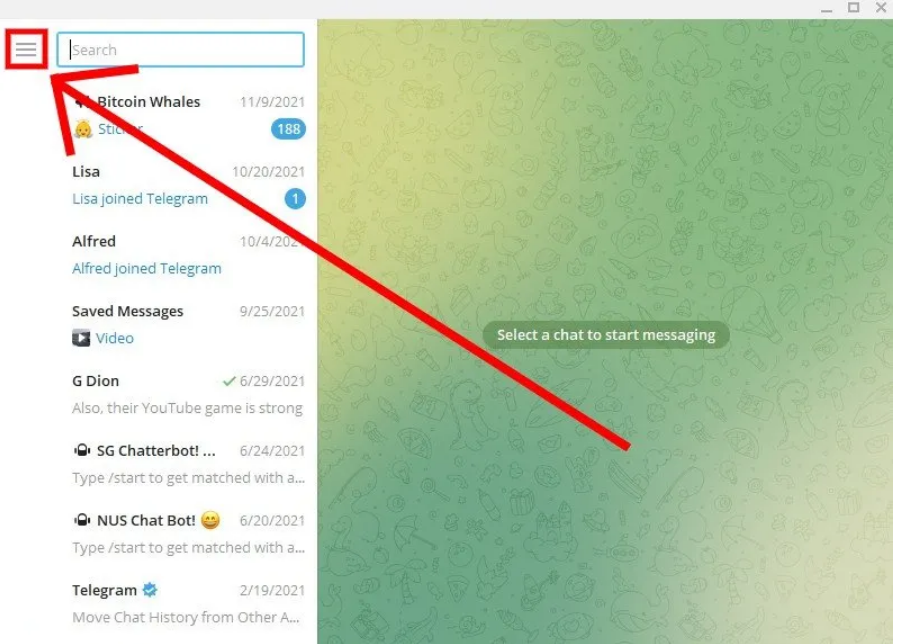
After you’ve scanned the QR code, you’ll be automatically logged in to Telegram.
Now, you’ll see all of your messages.
The top-left corner of Telegram Desktop has a menu icon.
Click on the menu icon to open the menu.
4. Click on “Settings”
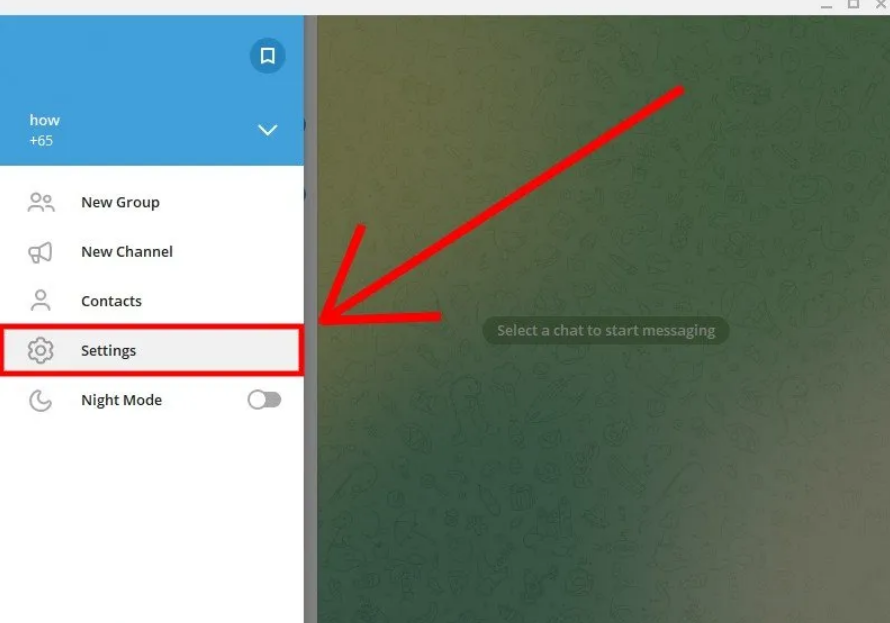
After you’ve clicked on the menu icon, the menu will be opened.
The menu has multiple options.
This includes “New Group”, “New Channel”, “Contacts”, and more.
Click on “Settings” under “Contacts” to open your Telegram settings.
5. Click on “Privacy and Security”
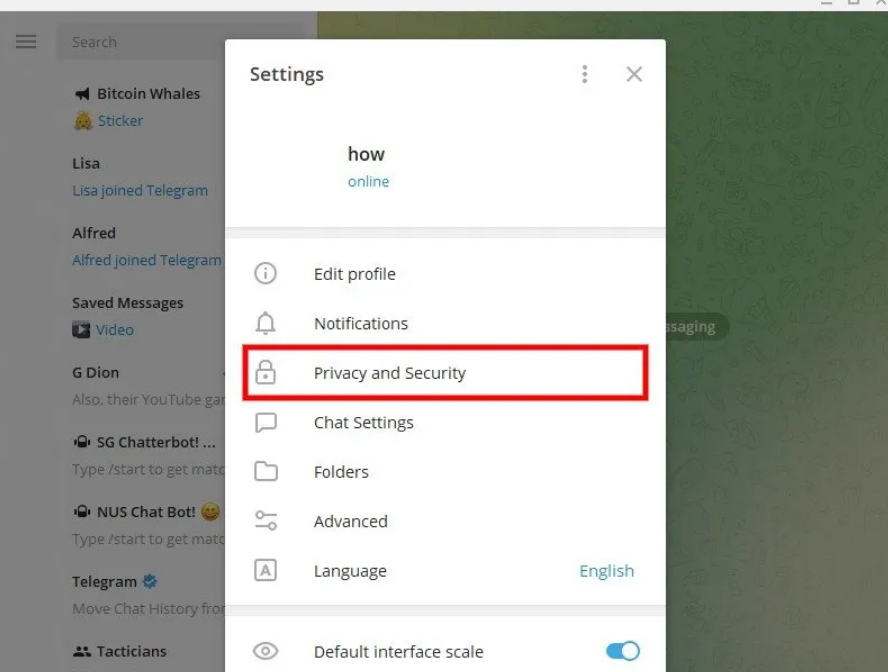
After you’ve clicked on “Settings”, the “Settings” page will open.
On the page, you’ll see several options.
This includes “Edit profile”, “Notifications”, “Privacy and Security”, and more.
The sensitive content filter is located in “Privacy and Security”.
Hence, you need to click on “Privacy and Security”.
6. Enable “Disable filtering”
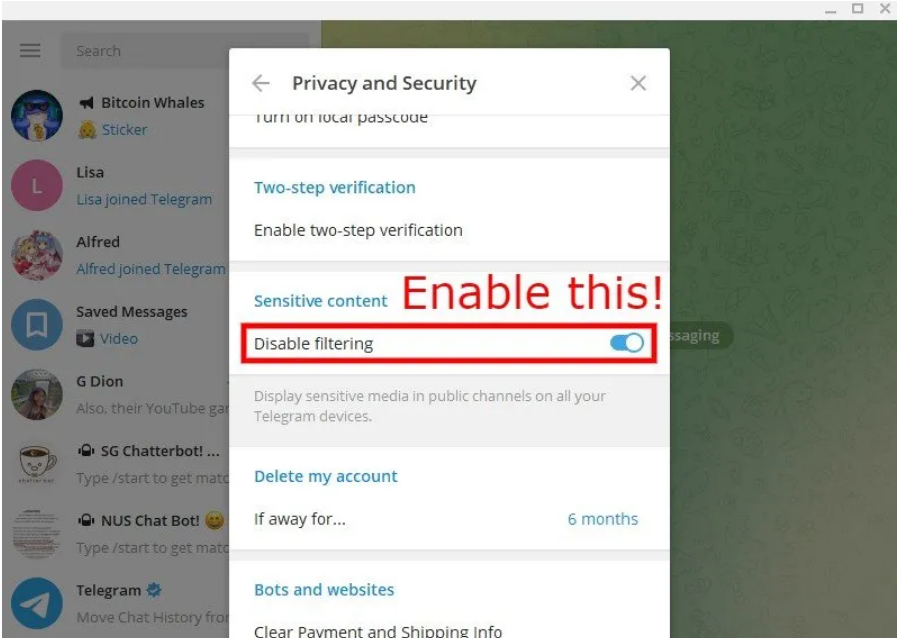
After you’ve clicked on “Privacy and Security”, the “Privacy and Security” settings will open.
There are multiple settings including “Privacy”, “Two-step verification”, “Sensitive content”, and more.
Scroll down until you reach the “Sensitive content” setting.
In the “Sensitive content” setting, you’ll see a “Disable filtering” option.
By default, the “Disable filtering” option is disabled.
To bypass the “This channel can’t be displayed because it was used to spread p****graphic content” error on Telegram, you need to enable it.
Turn on “Disable filtering” to see sensitive content on Telegram.
After you’ve “Enabled filtering”, force-close the Telegram app on your phone and re-open it.
Next, try to join the channel that has the “This channel can’t be displayed” error again.
Now, you should be able to join and view it without getting an error on both iPhone and Android devices.
This is because after you’ve enabled “Disable filtering”, the sensitive content filter will be disabled!