How to enable SST on Tracksol?
Important!
Read this carefully before you start.
- This is only applicable to Tracksol Retail System Merchants.
- Enable SST only if you have applied for SST.
- Do this on the 1st of September 2018
Follow the steps below to enable SST.
Login to your Tracksol Web and then;
- Enable SST for your Tracksol
Step 1 - Go to Parameter > Merchant Configuration.
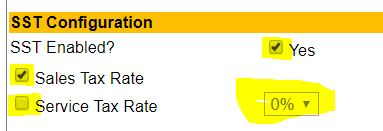
Step 2 - Look for SST Configuration > "SST Enabled?", tick Yes.
Step 3 - Select Sales Tax or Service Tax.
Step 4- Scroll to the bottom of the page & click [Save] button.
2. Set SST for Product.
For the product required SST, please enable SST for each product. You do this in 2 ways:
Option 1 - Enable SST one-by-one
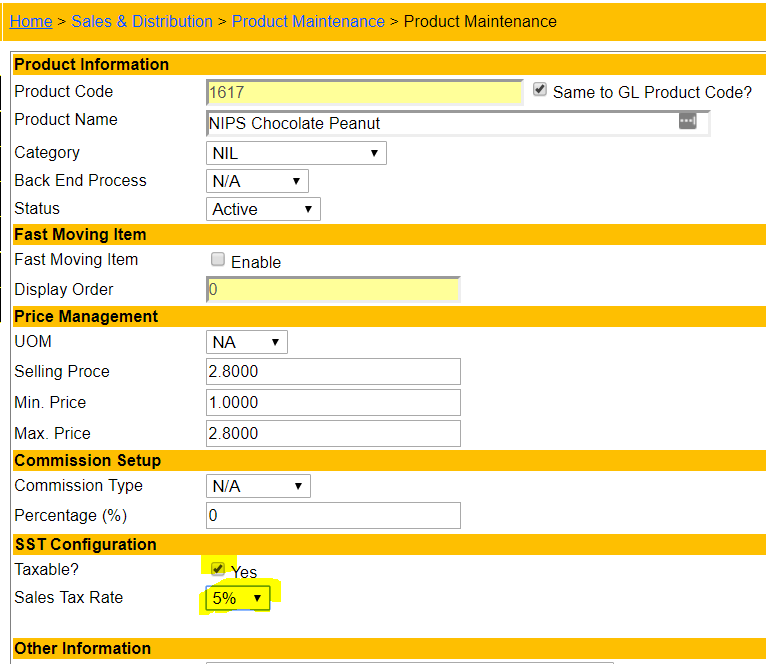
Step 1 - Go to Sales & Distribution > Product Maintenance, select the product you want.
Step 2 - Under "SST Configuration" section, Tick "Taxable", and select the Sales Tax Rate.
Step 3 - Scroll to the bottom of the page & click [Save] button.
Option 2 - Enable product SST by batch upload.
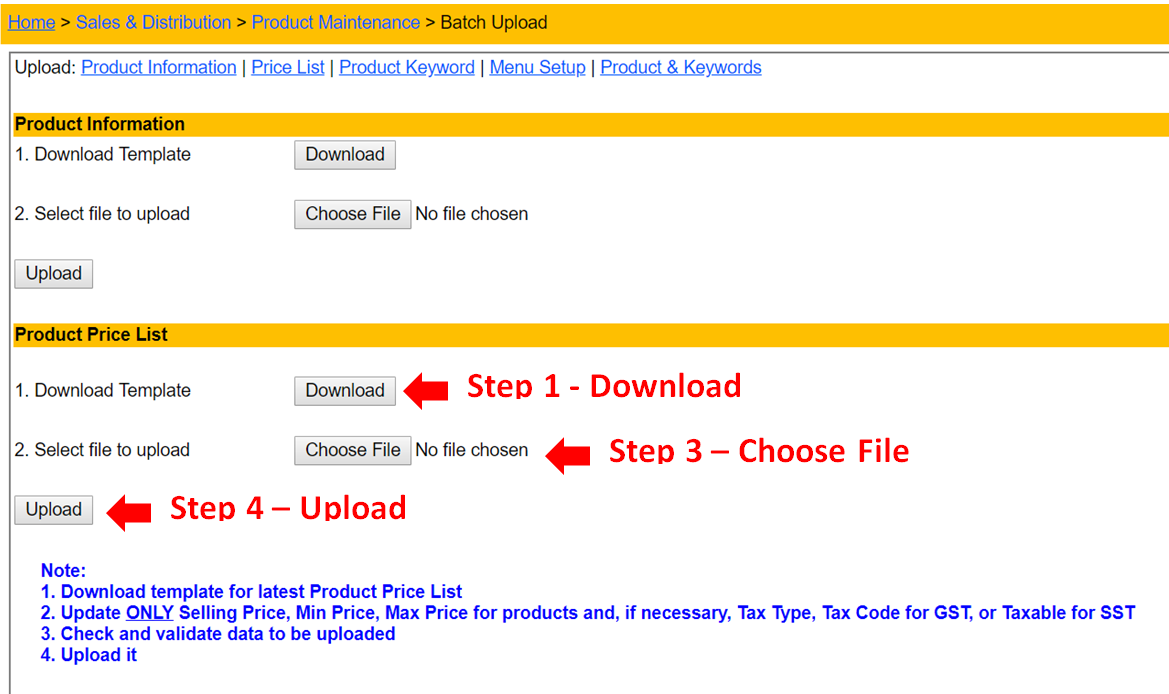
Step 1 - Download your product list
Go to Sales & Distribution > Product Maintenance > Batch Upload > Download
Step 2 - Edit in excel
Step 3 - Choose your updated price list.
Step 4 - Upload
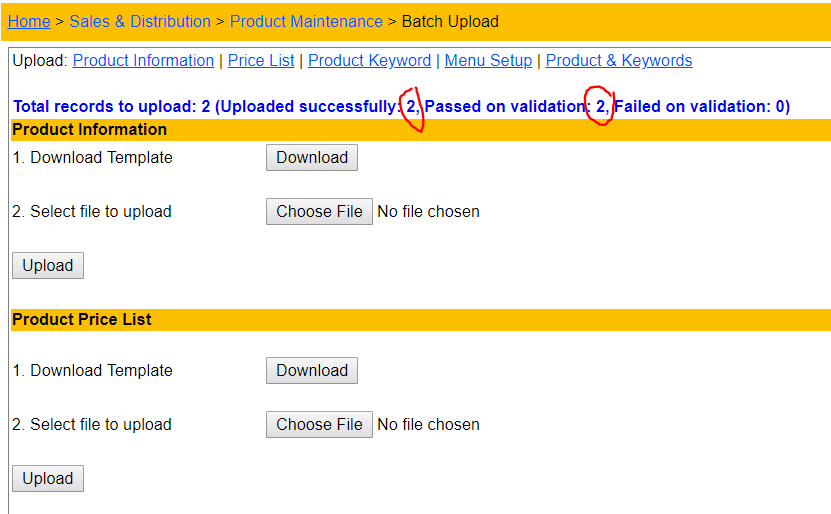
If upload is successful, it will show Passed on validation message.
3. Update Terminal
After done the setting on the web, please update your terminal:
Step 1 - Update Firmware version 0.1.5.g for all your Terminals
- Setting > Update Firmware > 7531 > Enter > Enter
Step 2 - Reload menu
- Admin > reload menu > reload
Step 3 - Update Files for all your Terminal
- Admin > update files > full update > done > override > done