How to delete magisk module from twrp
T∆®Z∆N__🇳🇪Reboot to TWRP. Since you probably can’t boot into your device, you will have to use the hardware button combinations to boot it to recovery mode. Different phones have different combinations. You can take a look at our guide for help with the button combinations for booting Android devices into the Fastboot and Recovery modes.
Once in TWRP, select Advanced > File Manager.
Navigate to /data/adb/modules.TWRP File Manager
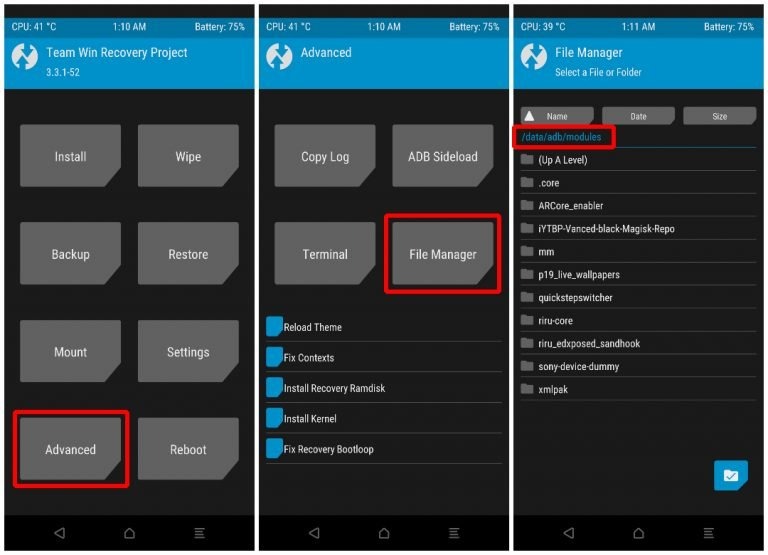
You can see folders for all the modules you have installed.
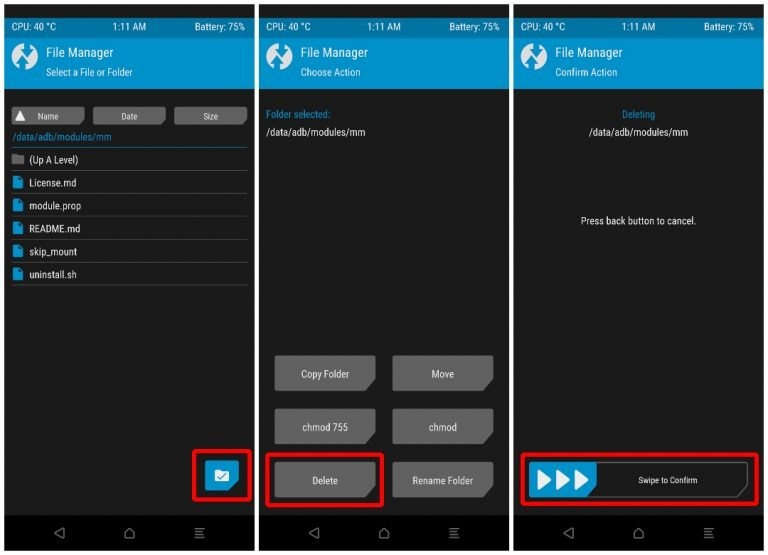
Tap on the folder for the module that you last installed, which is probably the cause of the bootloop. You can select any other module as well if you want to delete that one.
Once inside the folder, tap on the check button in the bottom-right corner.
From the available options, select Delete.
On the next page, swipe at the bottom to confirm the delete.Uninstall Magisk Module from TWRP recovery
Go back to TWRP main page.
Select Reboot > System.
Great! You have successfully uninstalled the Magisk module that was going rogue. Once you’ve deleted the Magisk module causing the bootloop, your device should boot up normally. It’s that easy.