How to create a new Solana wallet
VistoryDownload Phantom
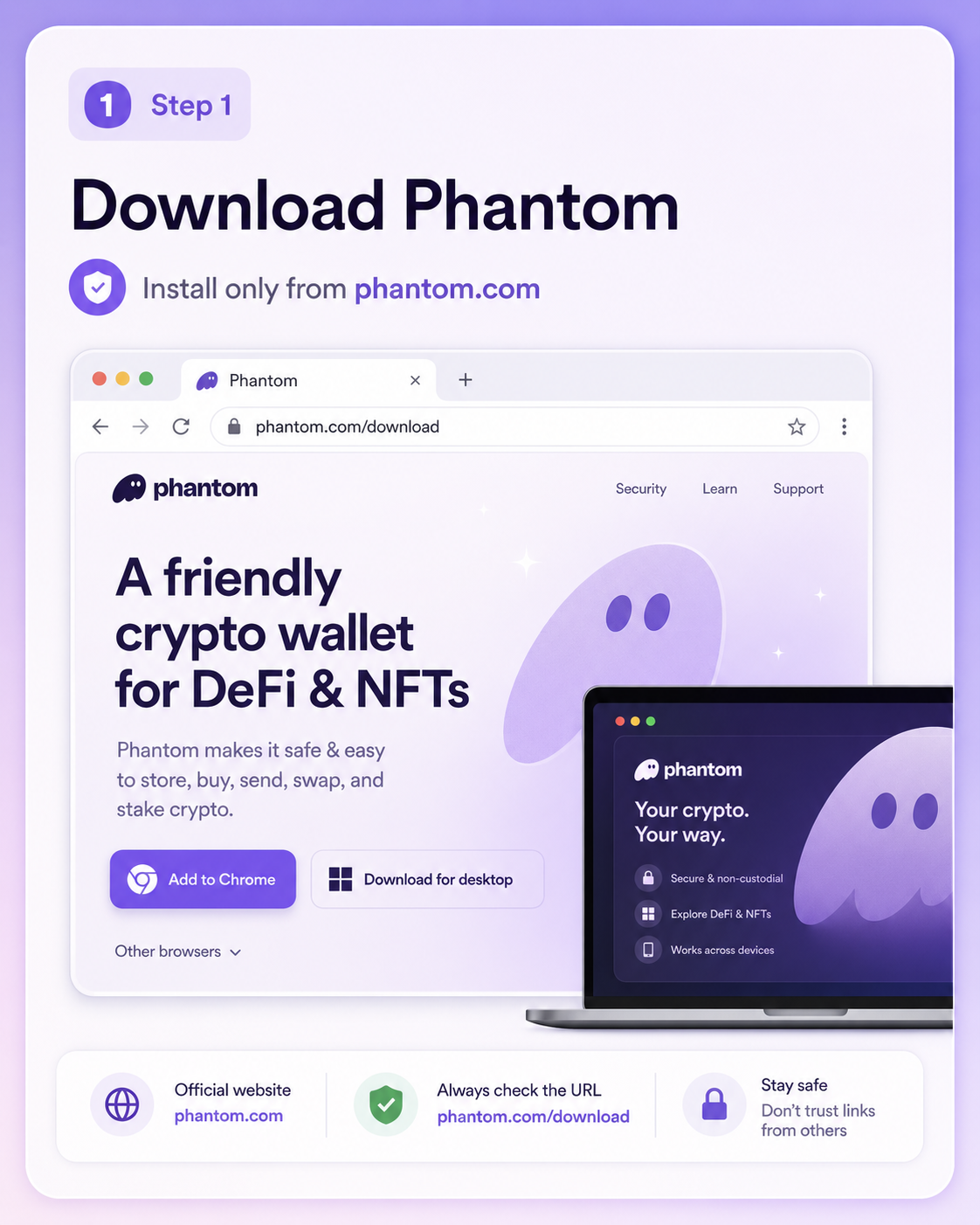
Visit phantom.com/download and select your browser or device. Make sure you're installing the official Phantom extension or app. The safest way is to always download directly from phantom.com.
Create a wallet with Google or Apple
You can also create a wallet by signing in with your Google or Apple account and setting a four-digit PIN. You will use your email and PIN to restore your wallet on a new device. Phantom never has access to your private keys or your funds.
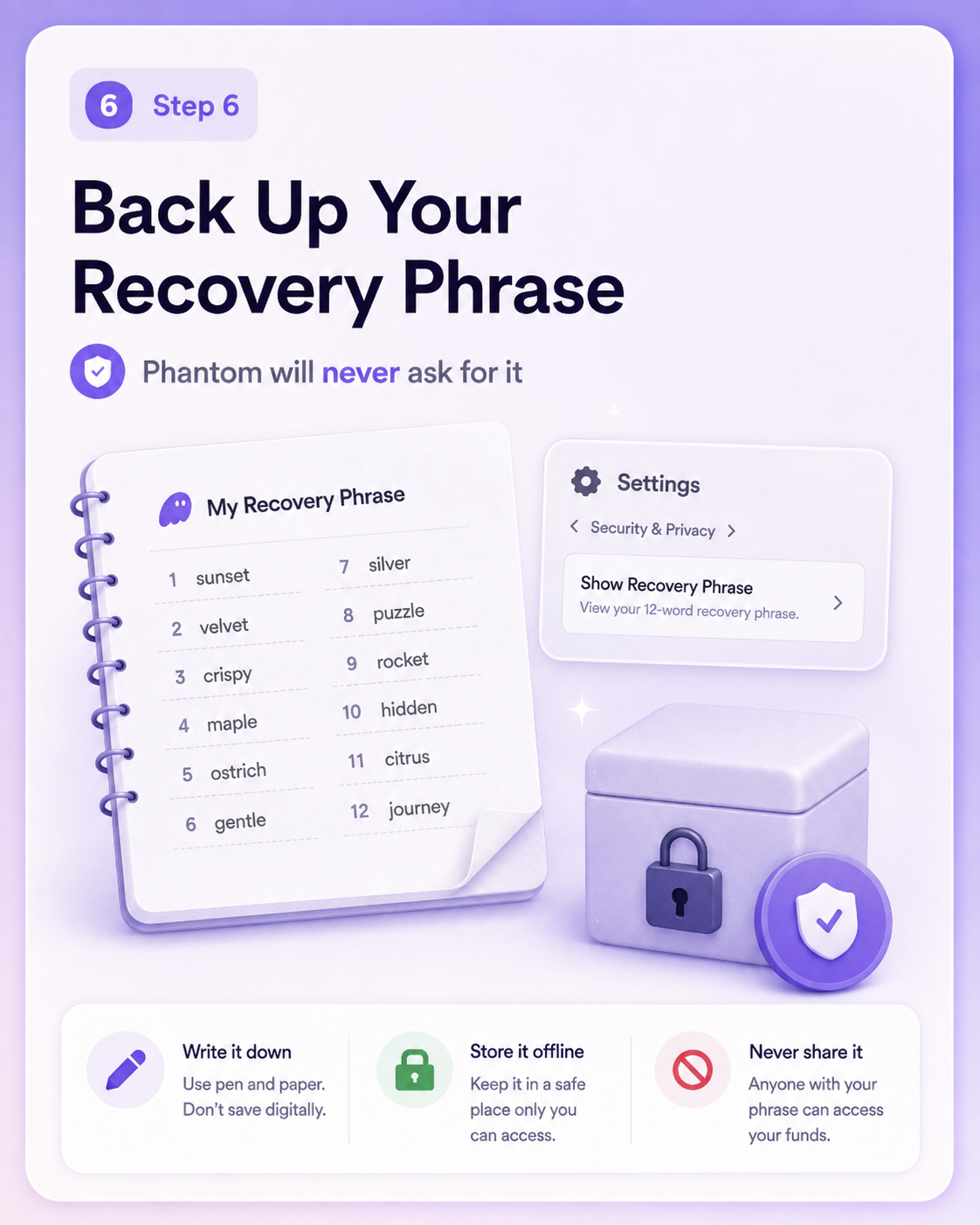
Your wallet also has a 12-word Secret Recovery Phrase you can export as an additional backup. We strongly recommend doing this after setup by going to Settings → Security & Privacy → Show Recovery Phrase.
Desktop (browser extension)
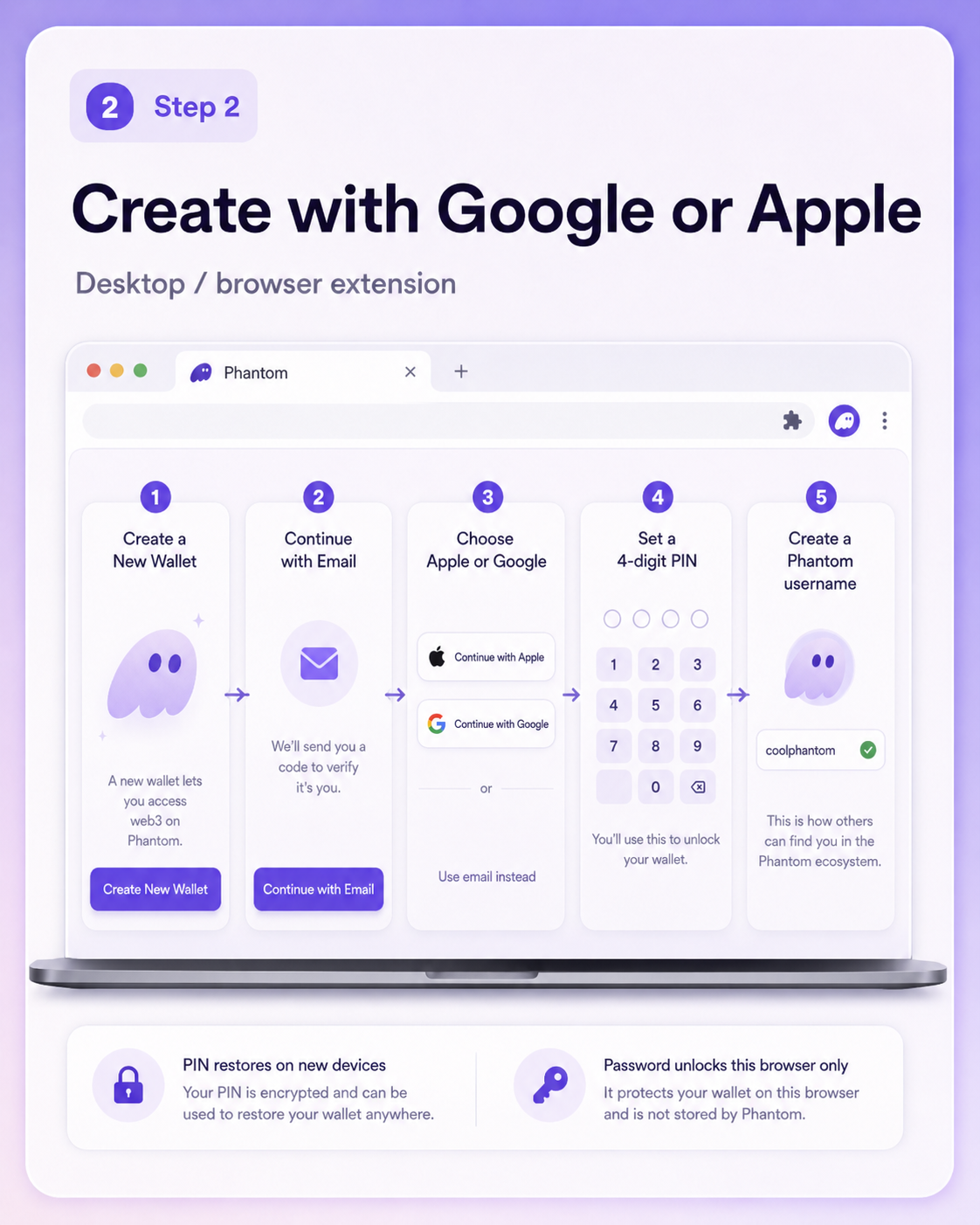
- Open the Phantom browser extension and click Create a New Wallet, then Continue with Email.
- Click Apple or Google and follow the prompts to sign in.
- Set a four-digit PIN. You will use this to restore your wallet on new devices.
- Create a secure password. This unlocks Phantom in your current browser only and does not replace your PIN.
- Create a Phantom username.
Mobile app
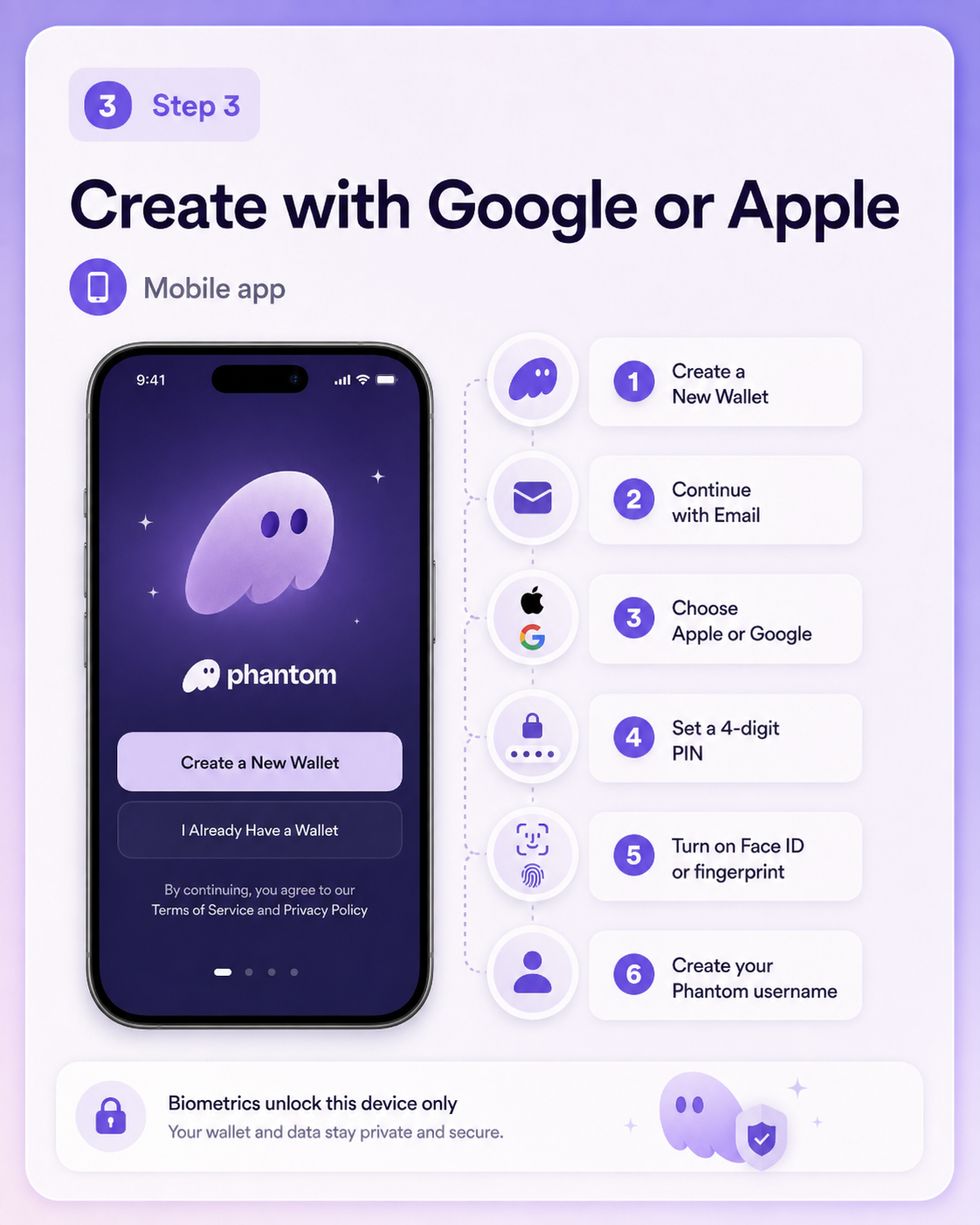
- Open the Phantom mobile app and tap Create a New Wallet, then Continue with Email.
- Tap Continue with Apple or Continue with Google and follow the prompts to sign in.
- Set a four-digit PIN. You will use this to restore your wallet on new devices.
- Turn on biometric authentication such as Face ID or fingerprint. This unlocks Phantom on your current device only and does not replace your PIN.
- Create a Phantom username.
Create a wallet with a recovery phrase
Your wallet is secured by a 12-word Secret Recovery Phrase. Write it down and store it somewhere safe and offline. It's the only way to restore your wallet on a new device, and anyone who has it can access your funds. Phantom will never ask you for your recovery phrase.
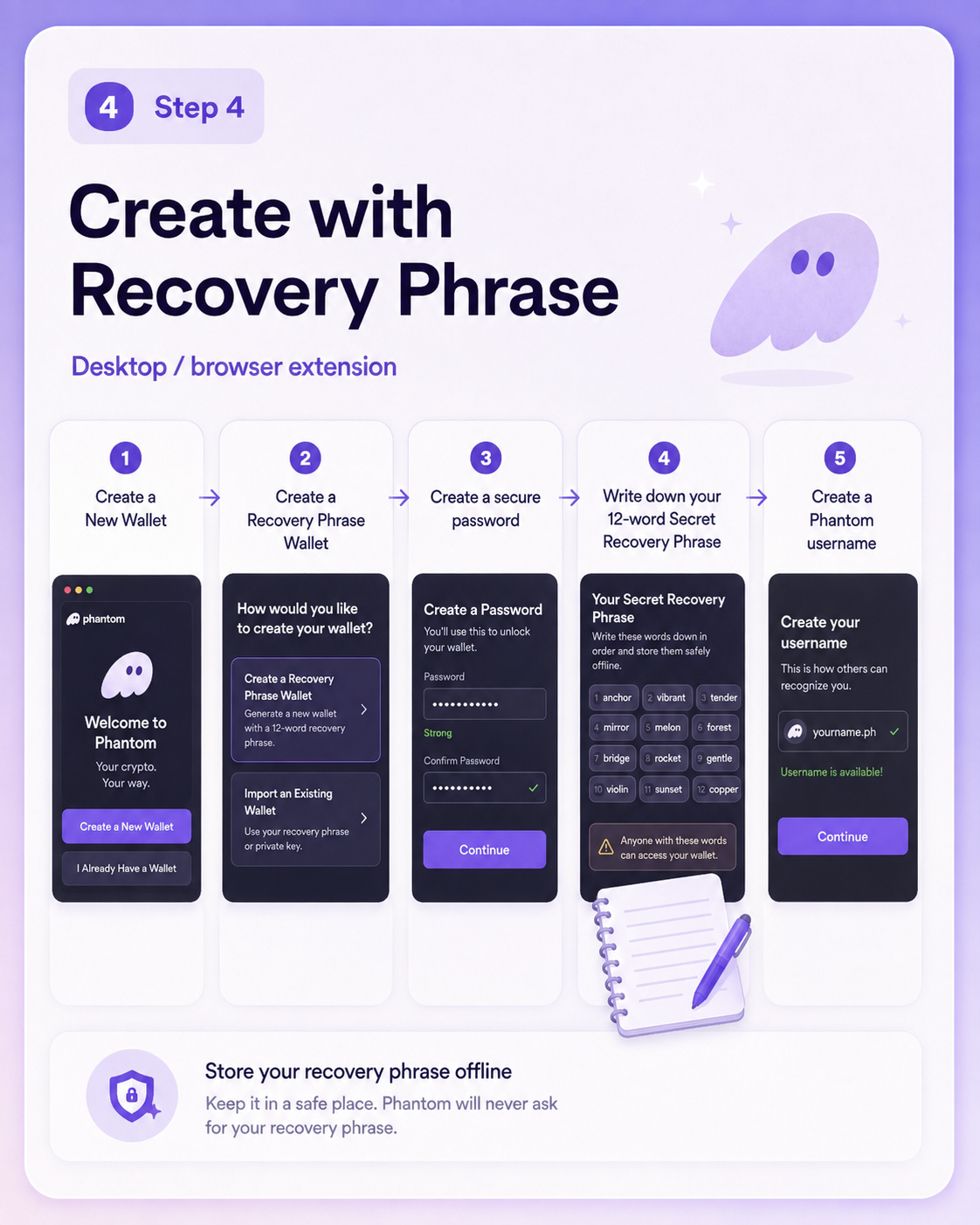
Desktop (browser extension)
- Open the Phantom browser extension and click Create a New Wallet, then Create a Recovery Phrase Wallet.
- Create a secure password. This unlocks Phantom in your current browser only and does not replace your recovery phrase.
- Write down your Secret Recovery Phrase and store it somewhere safe and offline.
- Create a Phantom username.
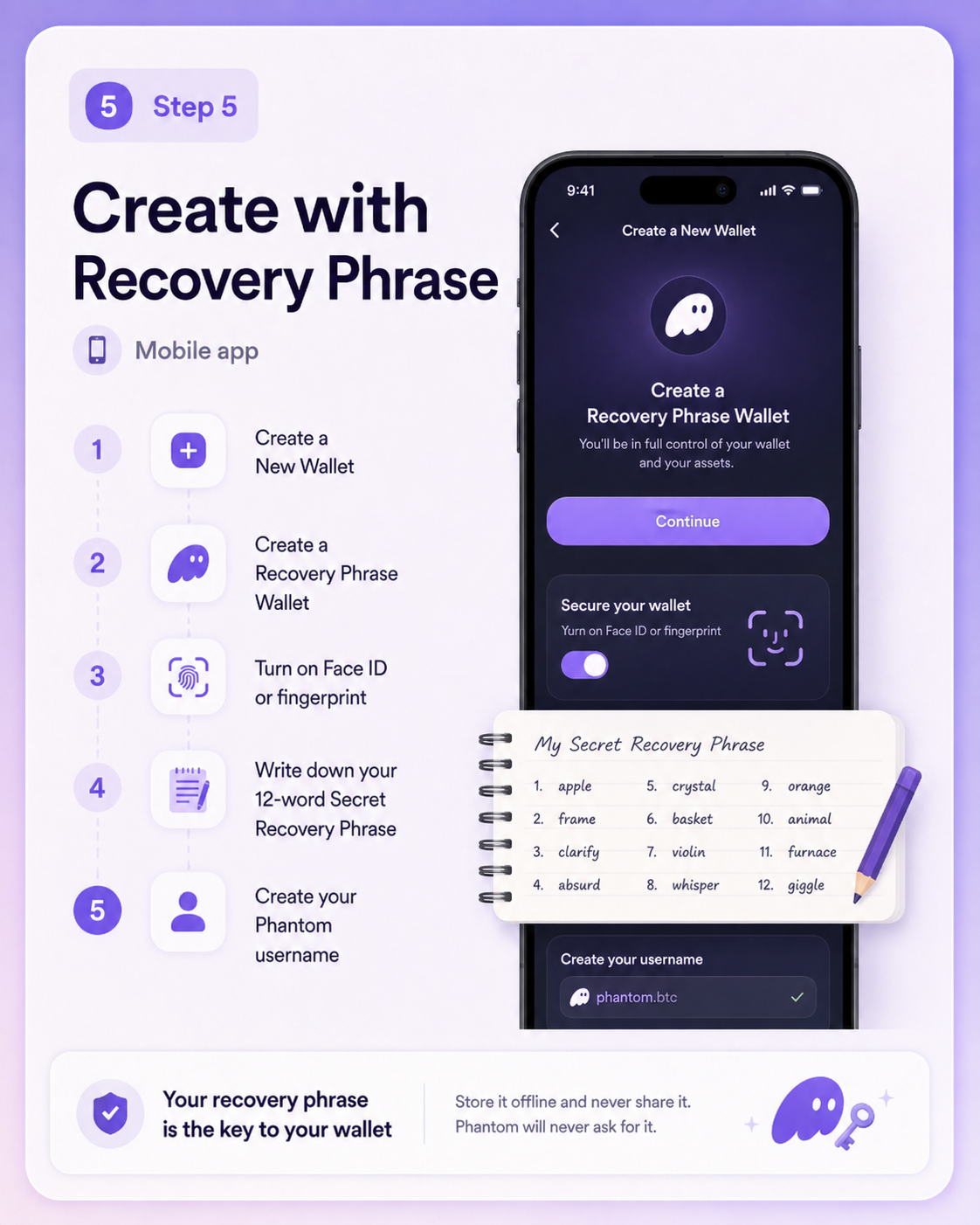
Mobile app
- Open the Phantom mobile app and tap Create a New Wallet, then Create a Recovery Phrase Wallet.
- Turn on biometric authentication such as Face ID or fingerprint. This unlocks Phantom on your current device only and does not replace your recovery phrase.
- Write down your Secret Recovery Phrase and store it somewhere safe and offline.
- Create a Phantom username.