How to create a TonKeeper
Ring ProjectTonKeeper
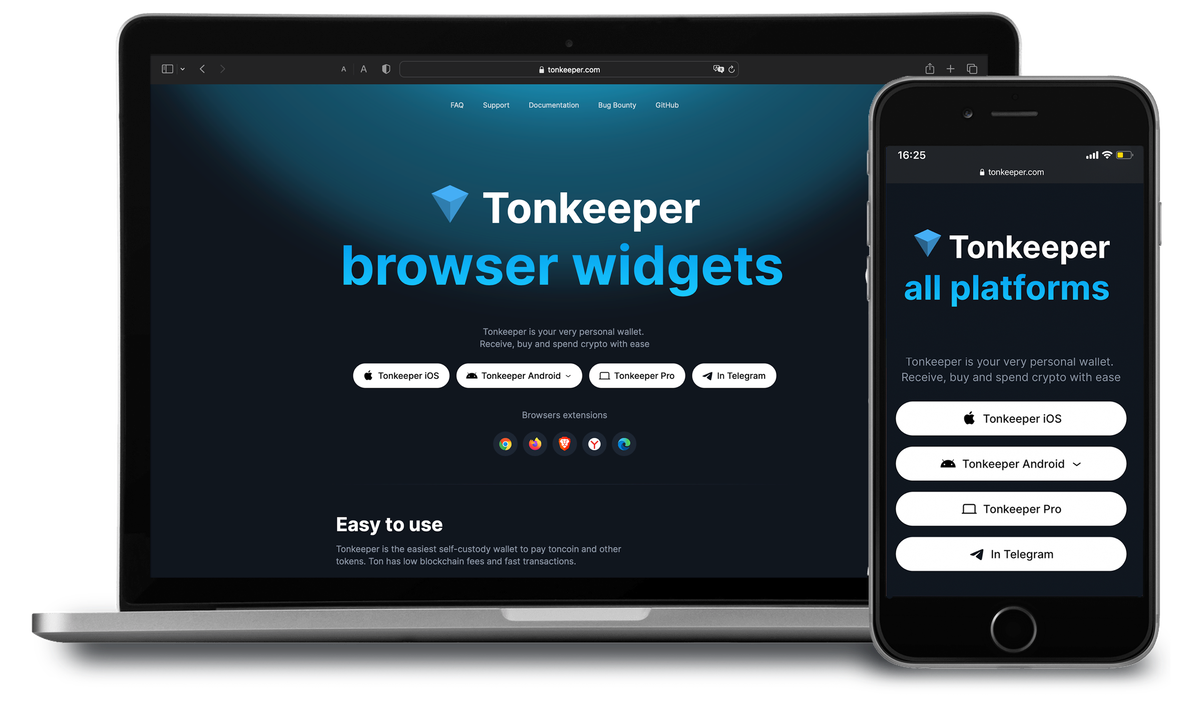
1. Visit the official Tonkeeper website
This can be done from computer or smartphone.
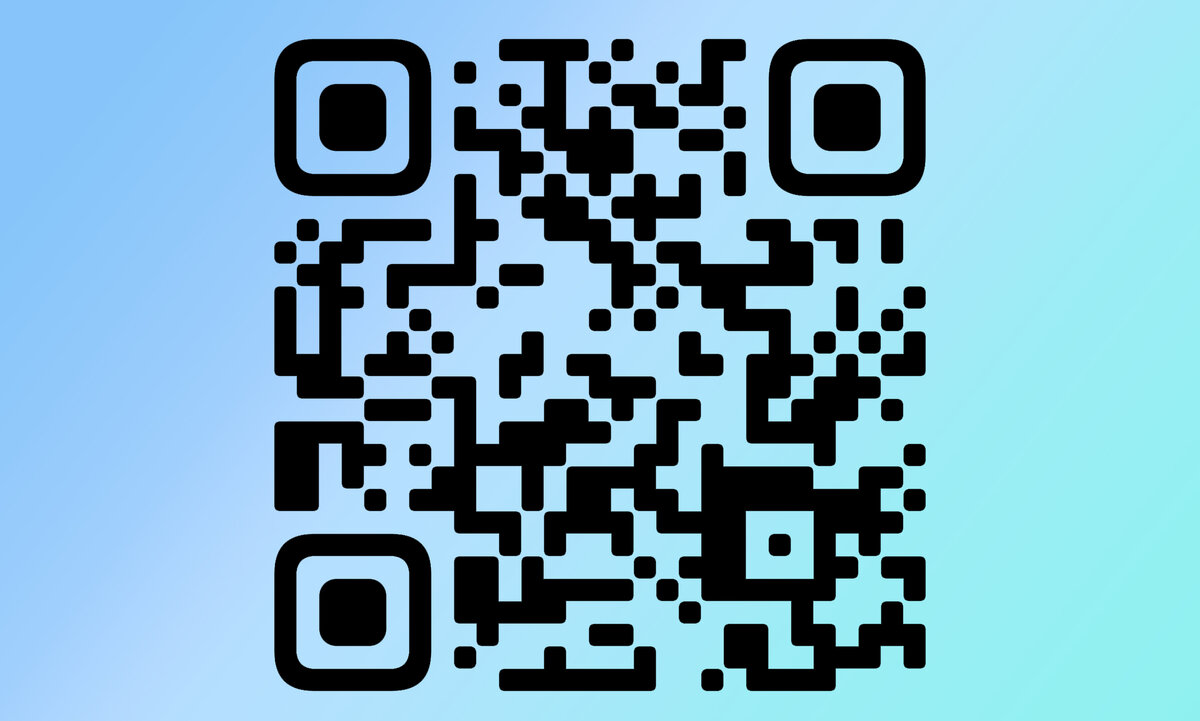
If you are reading an article on your computer and need to install a wallet on your phone, you can scan the QR code and be taken to the official Tonkeeper website.
2. Select your device type from the list.
If you have a laptop, you will need to select the operating system type and then the boot loader file will be downloaded. If you have a smartphone, the app store will open. Download it.
3. Now let's create a wallet.
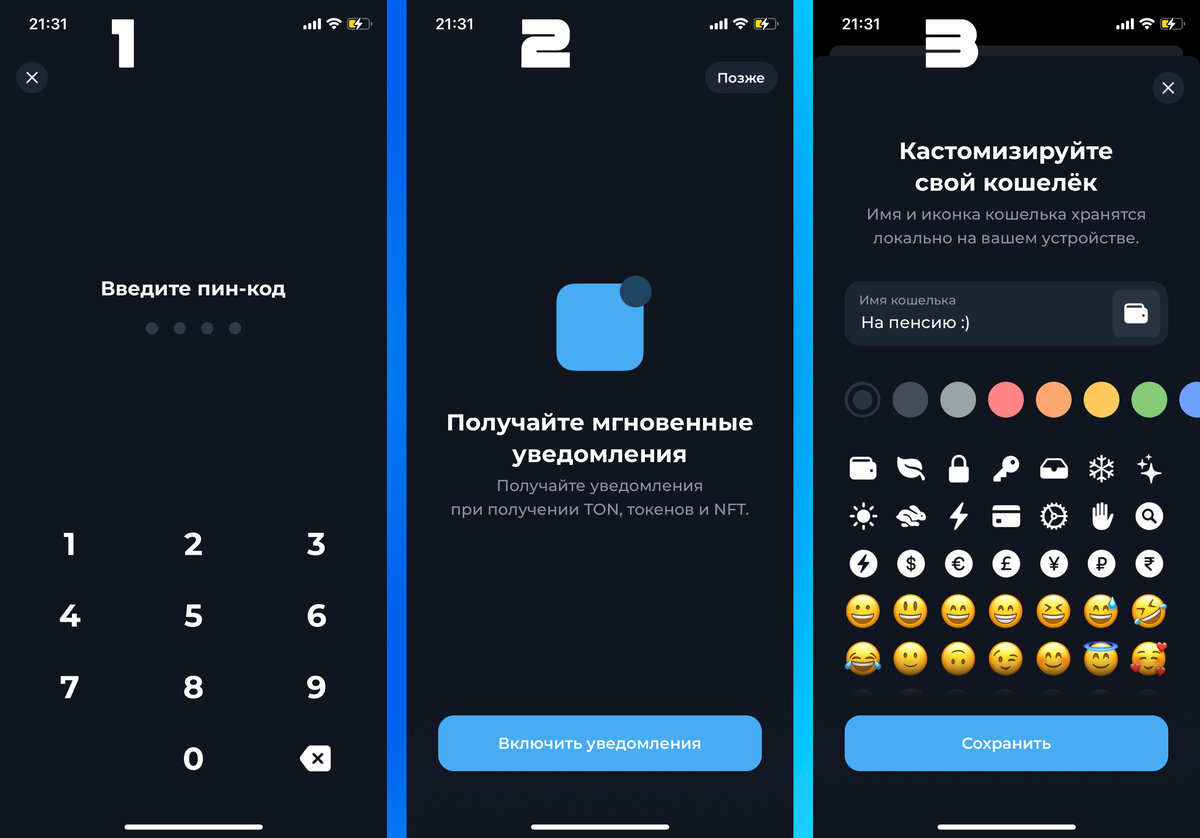
- Open the application.
- We come up with a secret key.
- Decide what to do with notifications from the application.
- Give our wallet a name and choose a colour scheme.
- Click on the cogwheel in the top right and go to settings.
- Click on 'Backup', then 'Make a copy manually'.
- and agree with the warning.
We save the words generated by the wallet, we definitely save their order. I recommend that you rewrite them in several different places where only you have access. It's not safe to take a screenshot or write notes on your phone!
Click 'Check backup', then type the words according to the numbers requested, click 'Done'.
TonKeeper Wallet's main functions:
After logging into the application, at the bottom of the screen we will see 3 buttons "Wallet", "History" and "Browser", if you buy NFT, then the 4th button "Purchases" will appear. Let's go through them in order.
1. Wallet.
All your finances are displayed here, along with buttons for interacting with them.
At the top is the name of the wallet, by clicking on it we can add one or more wallets. Below it is the total balance, roughly converted to TONs (in the settings you can change the currency, for example to dollars or rubles).
Then 6 interaction buttons:
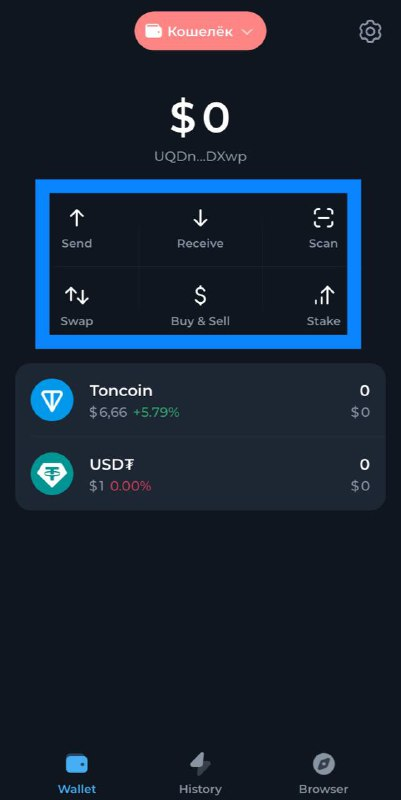
- "Send" allows you to enter the address of the wallet and make a transfer on the TON blockchain network.
- "Receive" - here you can get the address of our wallet (the QR code is also displayed for your convenience), you can copy it or send it in a way that is convenient for you.
- "Scan" - using a scanner, you can read the QR code with the address for sending money and connect your wallet to various services in the TON ecosystem, such as Getgems or STON.fi.
- "Swap" - here you can exchange (convert) currencies directly in the wallet.
- "Buy & Sell - this tab offers various services for replenishing the wallet, which can currently be done using cards from Russian and foreign banks.
- "Stake" - here you can bet your coins at a percentage, this is a great opportunity to increase your capital a little if you keep coins in the long term!
There will be a list of coins under these buttons, clicking on the coin will open a window in which we can perform basic operations (send, receive or exchange) There will also be a chart with the exchange rate and the history of the operation for this coin.
2. History.
Here you will find the complete transaction history of your wallet. By clicking on the transaction, you can see more detailed information (time, commission amount, full address of the recipient or sender) You can also go from this tab to the Tonviewer website for a more detailed analysis of the transaction.
3. The browser.
This section contains a built-in browser and quick access to decentralized applications. There are two buttons on top, "Explore" and "Connected".
The 'Explore' tab gives you an overview of everything you can use in the wallet, as well as a banner advertising new applications.
The 'Connected' tab contains icons that give you quick access, via the built-in browser, to the services you have signed up to using this wallet.
4. Shopping.
All your purchased NFTs are stored here. By clicking on any of them, you can view detailed information about it or send it to another user.
- If you find an unknown NFT with a QR code or other information, do not read it or click on any links. It could be spam or a scam!
- For security, go to the "Wallet" section, click on the gear icon (Settings) at the top right, then "Tokens", "Collections" in this tab will be all your NFTs, click on the minus icon to the left of the suspicious tokens and they will be hidden.
Where can I find my wallet address?
For all transactions in the crypto space, you need to specify a public wallet address. Also, the address of the crypto wallet is simply called a wallet: specify your TON wallet = specify the wallet address.
It is safe to share the wallet address, it can only be used to send funds. But remember that the blockchain is a transparent and open structure, and any user who knows the public address will be able to get information about the operations that have been performed from it. At the same time, you remain completely anonymous (no service in DeFi asks for your personal data).
Where can I find the address of my wallet? In the most visible place on the main page of your wallet! This string of characters starting with EQ or UQ (a special tag for wallets on the TON blockchain) is the address of your wallet. It can be copied by simply tapping on the screen.