How to Restore a Deleted Word Document
Notchox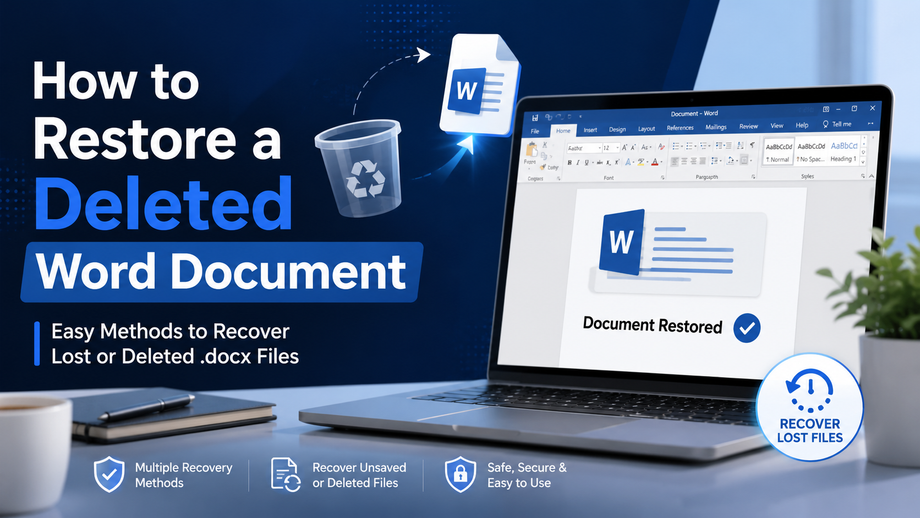
If you are someone who often uses Word documents for writing and editing, then you probably have experienced how easy it is for you to lose those documents. For example, you might have been organizing your folder and accidentally deleted a file. If this file is important, then recovering it can be quite a task.
However, if you are not sure how to recover a Word document that was deleted, then you have nothing to worry about, as here in this guide, we will provide you with the different methods that allow you to recover a Word document on your device easily.
Check the Recycle Bin
Before you start looking for any recovery methods and solutions, the first thing that you need to do is to check the Recycle Bin for a deleted Word document. When you delete a file “normally”, Windows moves it there, instead of tearing it out permanently.
Go ahead and open the Recycle Bin from your desktop, then search for the missing document. If you spot it, do a right click on the file and choose Restore. The document should go back to its original folder, so you can access it pretty much right away.
Method 1: Restore from a Backup
If you usually back up your files with Windows Backup, File History, or cloud services like OneDrive, then getting the document back is pretty straightforward. Head to your backup location and find the most recent version of the deleted file.
Restore it back to the original place, or save it somewhere else to prevent accidental overwrites of files already there. Consistent backups are still one of the safest shields against random data losses and crashes.
Method 2: Recover Unsaved Word Documents
If Microsoft Word shuts down unexpectedly, or your computer crashes before you save, you might still be able to recover the work. Open Word, then go to File > Info > Manage Document, and pick Recover Unsaved Documents.
Word keeps temporary copies of files that never got saved, for a limited stretch of time, so you can reopen them and save again if they’re still available.
Method 3: Search for AutoRecover Files
Word also creates AutoRecover files while you’re working. These temporary bits can help bring documents back after an abrupt shutdown. Open Word and go to File > Options > Save to view the AutoRecover file location. Then jump to that folder in File Explorer and look for files with the .asd extension. Open the one you need in Word, then save it as a fresh new document.
Method 4: Restore From a Previous Version
You can also recover deleted word file by using an important feature of Google, which is accessing a previous version. This feature permits people to restore previous versions of a file; however, you can only use this feature if the File History or System Protection is enabled.
You need to go to the folder where this document was stored originally and right-click on it, from where you can restore one of the previous versions. If an earlier version is available, you only need to select it to restore it without issues.
The website Notchox is an exceptional platform where you can look for other methods that allow you to recover Word documents with ease.