How to Receive Microsoft Breach Notifications
JR Aquino - @tanawtsManaging security for an enterprise can be technically challenging, but it can also be procedurally challenging as well. This is especially true when information is spread out across a number of different locations to receive Data Breach Notifications from a vendor.
Here you will find the aggregated information pertaining to Microsoft's commitments and processes for Data Breach Notifications along with the details on how you, as a security/privacy leader for your company, must configure the Microsoft Portals in order to view/receive these types notifications. NOTE: If a Data Breach occurs in one of Microsoft's services, and you have not configured these steps, the notifications from Microsoft may go to Global Admins without Security staff being aware.
The Commitments:
Microsoft outlines Data Breach Notification commitments in a document they call the, Microsoft Products and Services Data Protection Addendum (DPA) which can be viewed here: https://www.microsoft.com/licensing/docs/view/Microsoft-Products-and-Services-Data-Protection-Addendum-DPA

The Incident Handling & Notification Procedures:
The Incident Response procedures have subtle nuances depending on the scope and products/services affected by a Data Breach at Microsoft
- Overview - https://learn.microsoft.com/en-us/compliance/regulatory/gdpr-breach-notification
- Azure, Dynamics 365, and Windows:
https://learn.microsoft.com/en-us/compliance/regulatory/gdpr-breach-azure-dynamics-windows - Microsoft 365/Office 365:
- https://learn.microsoft.com/en-us/compliance/regulatory/gdpr-breach-office365
- Microsoft Support and Professional Services:
https://learn.microsoft.com/en-us/compliance/regulatory/gdpr-breach-microsoft-support-professional-services
The Notification Mechanisms:
Similar to Microsoft's procedures, there are important and subtle nuances regarding the notification mechanisms Microsoft employs to communicate with impacted customers
In most cases, customer action is required to configure MS portals in order to receive email notifications to Security employees, otherwise Global Admins, or Azure Subscription Admins may be the only staff to see a message pop-up on a portal - not necessarily an email or phone call.
There is no singular location to centrally configure preferences for breach notifications - you must set these up separately across M365/O365, Azure Active Directory, and Azure.
Microsoft 365/Office 365
In order to view Data Breach Notifications from in the Message Center, your AAD account will need to have the "Message Center Privacy Reader" role or your account will need to be a Global Administrator -https://learn.microsoft.com/en-us/microsoft-365/admin/add-users/about-admin-roles?view=o365-worldwide


Microsoft Message Center:
https://admin.microsoft.com/AdminPortal/Home#/messagecenter
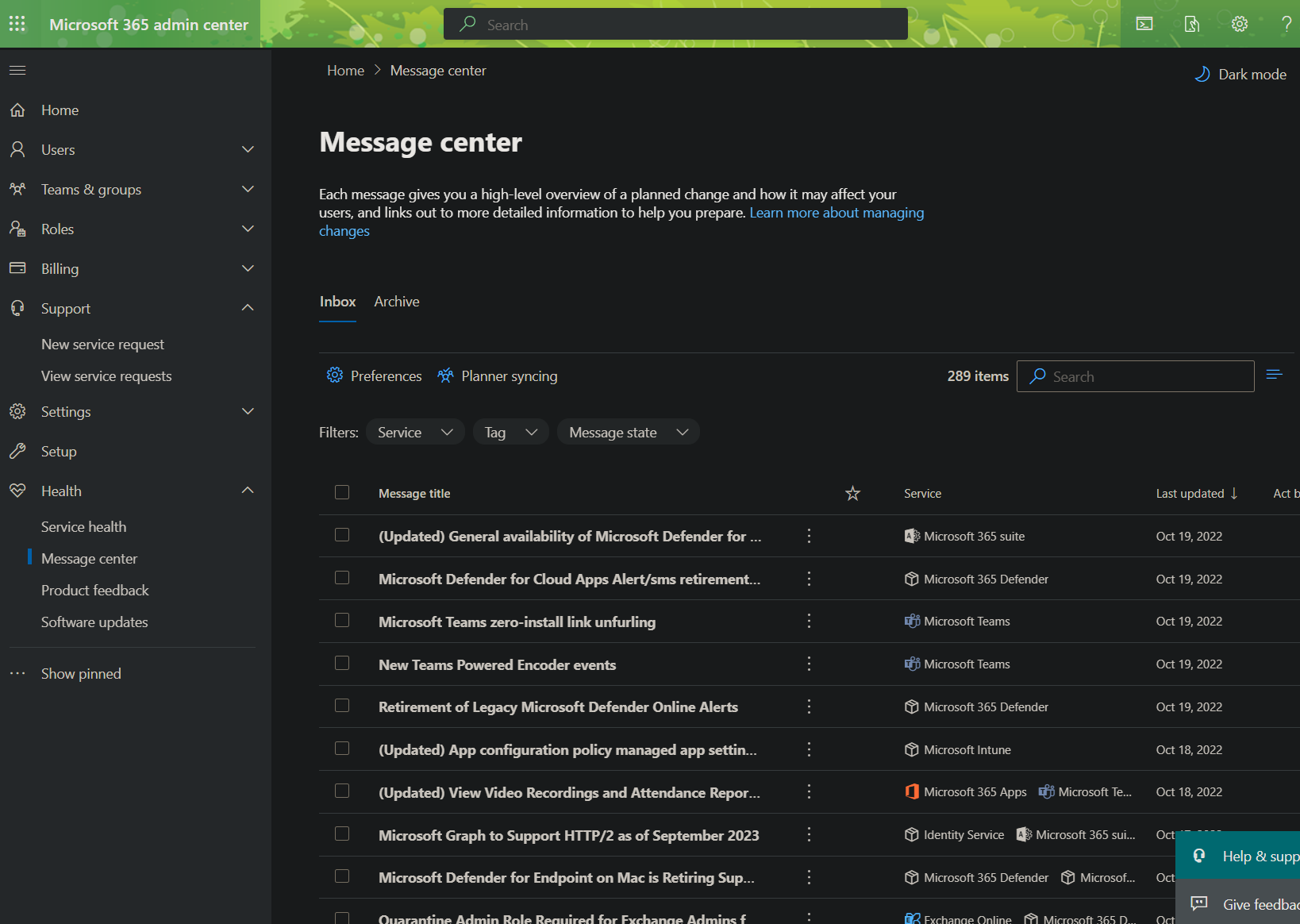
NOTE: If you don't want to have to login to the Message Center Portal to know if a Microsoft Data breach has affected your Office Suite of services, you can optionally setup Mail notifications for the "Data Privacy" tagged events:
https://learn.microsoft.com/en-us/microsoft-365/security/office-365-security/step-by-step-guides/stay-informed-with-message-center?view=o365-worldwide
Azure Active Directory
For Azure Active Directory related Data Breaches, there is a Tenant-Level configuration needed to specify the "Global Privacy Contact"
This person is also who Microsoft contacts if there's a data breach specifically related to Azure Active Directory services. If there's no person listed here, Microsoft contacts your global administrators.
Azure Active Directory Global Privacy Contact

Azure
As you'll see, Azure is the most nuanced and potentially complicated as it pertains to awareness of a Microsoft Data Breach as there can be incidents which only affect singular Azure Subscriptions as opposed to a Tenant-wide impact.
In these Subscription-level, events, in addition to a 'Toast" Pop-Up that will appear when the admin authenticates into the Azure Portal (https://portal.azure.com), the email address associated with Azure Subscription Admin/Sub RBAC Owner will receive an email notification.
In order for your Security Leader, Security Operations Center to be centrally aware of these notifications, it is necessary to configure a security notification Policy Definition in the Azure Service Health portal.
Azure Service Health Notifications

Creating a Security Notification Policy Definition in Azure Service Health
- Navigate to Policy, in the Azure portal (https://portal.azure.com). Click “+ Policy Definition”

- Set the Definition location (where the policy definition is saved) to “Tenant Root Group”, specify a name, create a new category “Service Health” and paste the contents of the linked Policy JSON configuration (https://pastebin.com/7aKZm2v7) into the “Policy Rule” box. Then click “Save”.

- At the Policy Definitions screen, type “service health” into the Search box, then click your newly created policy.

- Click "Assign"

- For Testing (Recommended), set “Scope” to an individual test subscription and click “Next” (do not click “Review + create” yet)
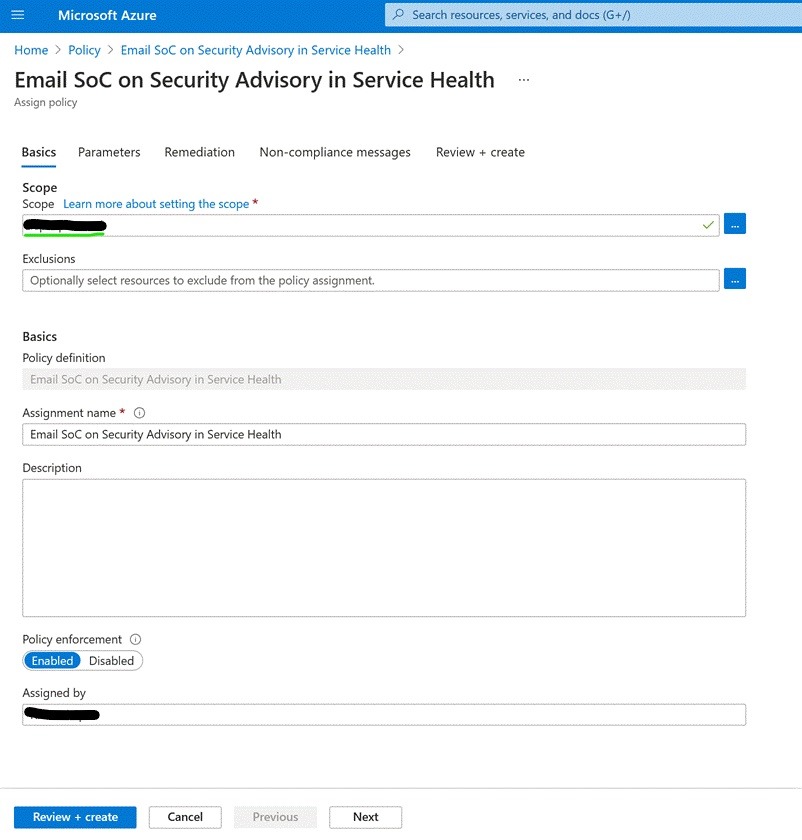
- Uncheck “Only show parameters that need input or review”, enter appropriate values for all parameters and click “Next”
- Click “Create a remediation task”, change the “System assigned identity location” to “West US 2”, and now click “Review + create”

- Review details and then click “Create”

- If all goes well, you should have three notifications, like these:

- You may navigate to Policy -> Remediation -> Remediation tasks to track the progress

- When the task is finished, the Remediation Status will change to "Complete"

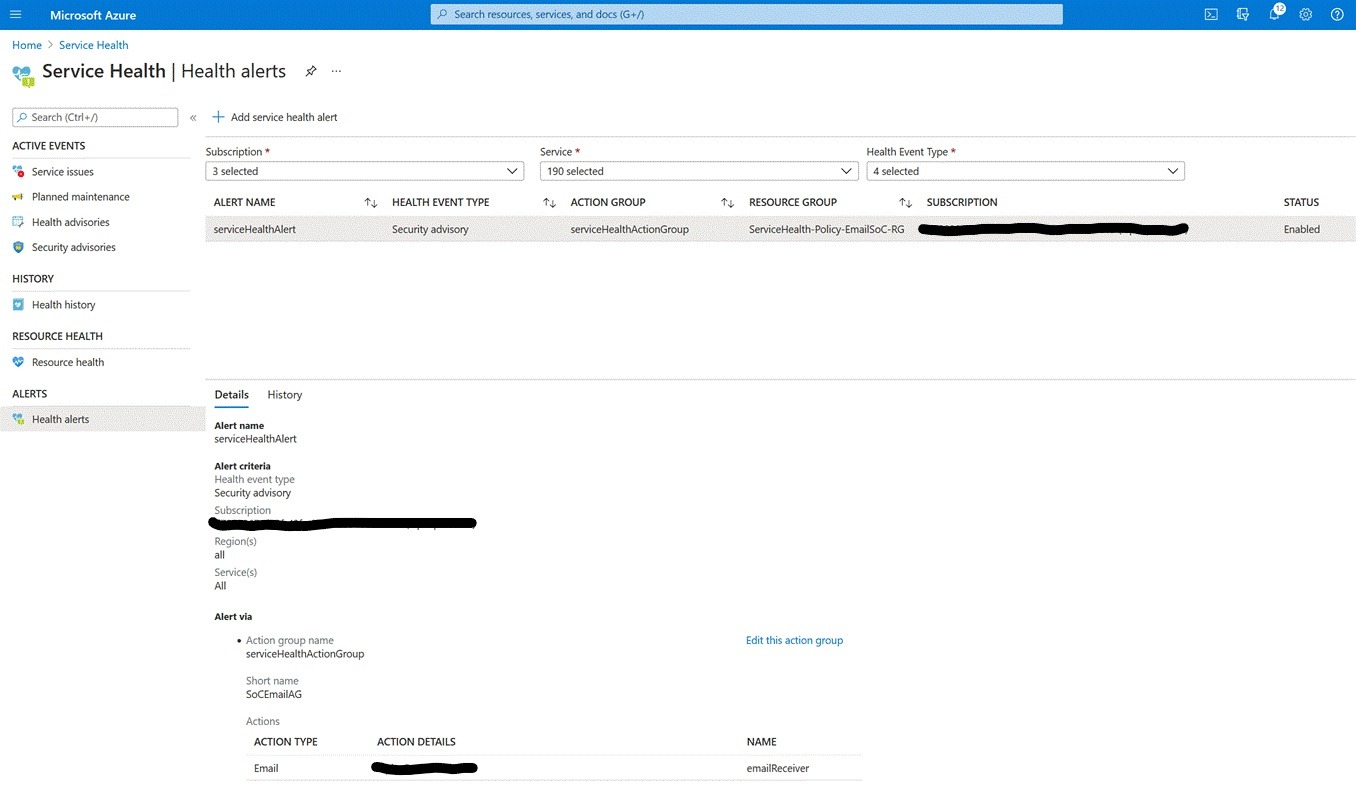
- Once this has completed, you can navigate to Service Health -> Health alerts to review the configuration.
Expanded Testing:
Once you have tested this successfully, re-run steps to create a new assignment, but this time expand the “Scope” in step 5 to now target a management group that has multiple new/test subscriptions under it. If your management group or additional test subscriptions don’t exist, create a couple of new subscriptions, create a new management group at a level of your choice, and move the new subscriptions under this management group. (Management group docs: https://docs.microsoft.com/en-us/azure/governance/management-groups/overview)
To test applying this at both the management group level and at the same time, to multiple subscriptions under the management group:
Click “Prod” (or the equivalent management group in your environment. Subscriptions expanded just for display), then click “Select”. Proceed with step 6 onwards.


The end goal of this testing is to apply it to a progressively higher management group level, to have it apply to all subscriptions, until you’re able to assign it to the “Tenant Root Group”, which will apply the policy to ALL existing as well as any newly created subscriptions.
(Note: the option to create a remediation task might not be available at this stage, but you will need to create it separately by browsing back to the assignment after it is created and has evaluated all subscriptions, and then clicking “create remediation”)