How to Quickly Download Instagram Videos in 2025 (Desktop & Mobile)
If you spend any real time on Instagram, you eventually hit a moment when a video or Reel deserves a place outside the app. Maybe it’s a creator’s workout routine you’ll rewatch in the gym, a travel clip that nails the mood for a presentation, or a how‑to you want offline on a plane. Instagram itself doesn’t offer a one‑tap download for other people’s content. But with the right approach, you can download Instagram videos safely, keep quality intact, and avoid a mess of watermark‑ridden files and dead links.
I manage content workflows for teams that publish across platforms. What follows is the practical, field‑tested way to download Instagram videos and Reels on desktop and mobile in 2025 without drama. You will see how to do it quickly, how to keep quality high, the common pitfalls with link grabbers, and when you should step back and ask if the download is even allowed.
What changed recently and why it mattersInstagram has tightened a few screws. Public posts still load HLS streams or MP4 files behind URLs that rotate and expire. The app discourages saving others’ videos and nudges you toward Remix, collaborative posts, or sharing links. On top of that, some third‑party download sites now throttle speed unless you sit through ads, and a handful that worked in 2023‑2024 are either defunct or flooded with pop‑ups.
Even so, the core workflow still works: you capture a post’s link, pass it to a reputable instagram video downloader service or tool, fetch the MP4 file, then store it with sane file naming. The trick is using tools that respect privacy, handle Reels, and don’t mangle resolution. If you care about audio, make sure the downloader preserves the AAC track at the original bitrate and doesn’t re‑encode.
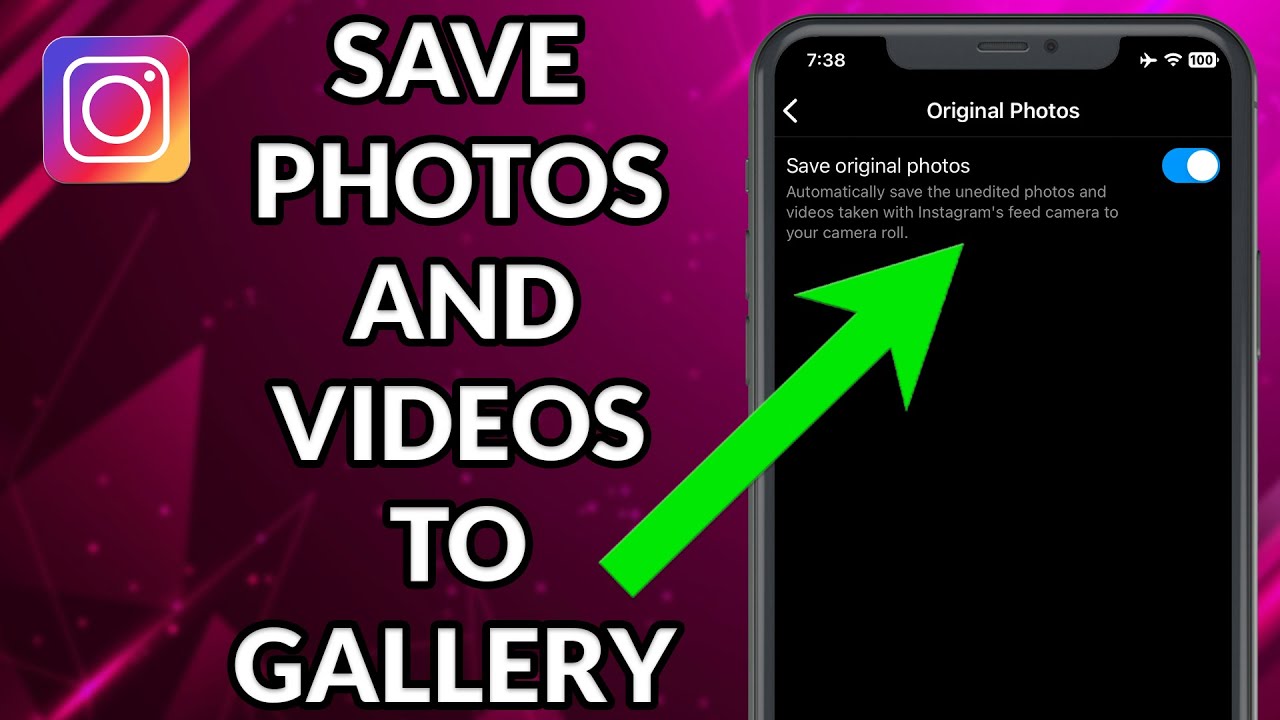
Instagram’s Terms of Use give creators rights to their content and restrict downloading content you don’t own unless you have permission or a clear legal basis. Personal offline viewing often sits in a gray zone depending on jurisdiction. Redistribution, commercial use, or reposting without credit or permission can cause trouble. If you work for a brand or agency, get explicit approval or a license. When in doubt, ask the creator. Most say yes if you explain where and how the clip will be used and commit to attribution.
If you created the video, you can always download your own content directly from Instagram via the Account Center download, or from your drafts if you saved locally. For other creators’ videos, proceed thoughtfully.
Choosing the right method: speed, quality, and reliabilityThe best method depends on your device, frequency, and tolerance for extra steps. On desktop, browser tools give you better control of file names and storage. On mobile, dedicated apps are the fastest once you set them up, but the app stores rotate what's allowed.
A quick mental model helps you pick:
If you download often, use a browser extension on desktop and a trusted app on your phone. It saves time. If you download monthly or less, a clean web‑based instagram video downloader is enough. If you need bulk downloads from your own account, use Instagram’s Account Center export or a Creator Studio‑style asset manager. The cleanest desktop workflowWhen I am at my desk, I prefer the browser route. It keeps everything in a single downloads folder, works for both Reels and standard posts, and lets me verify resolution before I save.
Here’s the streamlined process most people can follow in under a minute:
1) Get the link from Instagram. In the web interface, open the Reel or video post, click the three dots, and copy link. In the mobile app, tap the same three dots and use Copy link, then message it to yourself or open on desktop via a synced notes app.
2) Paste it into a reputable web tool. You want a site with a clean interface, HTTPS, no forced login, and a track record of stable service. Search behavior shifts often, so evaluate freshness by trying a single download and checking for bitrate and resolution labels. A good instagram reel downloader will identify multiple variants, such as 1080 x 1920 for Reels and 720p or 1080p for landscape.
3) Select the highest resolution with audio. Some tools list multiple streams. Pick the one with audio. If the tool offers “no watermark” and “with watermark,” understand that the “watermark” usually comes from re‑upload services, not Instagram. For public posts, the original stream is watermark‑free.
4) Save with sensible metadata. Rename files immediately with creator handle, brief descriptor, and date. Example: @chefmina - knife grip tutorial - 2025‑01‑12.mp4. This pays off when you search later.
5) Verify quality. Open the file in VLC or QuickTime and scrub a few seconds. Check motion blur, stuttering, or audio drift. If the audio is missing, you likely grabbed a video‑only stream. Try the next variant.
If you do this more than a few times per week, a browser extension can shave 20 seconds off each download. Extensions add a small button near the video and fetch the correct stream automatically. Vet extensions carefully: check recent reviews, update cadence, and requested permissions. Anything asking for access to all your data on every site should be avoided.
A fast mobile routine that actually worksOn iPhone and Android, you have three solid approaches: a reputable app from the store, iOS Shortcuts or Android’s Share intents with a minimal helper app, or a browser‑only method. I use an app for speed, a Shortcut for edge cases, and a web fallback when apps misbehave.
The share‑copy‑save loop is straightforward. On iOS, copy the link from a Reel, run a Shortcut that fetches the MP4, then save to Files or Photos. On Android, share the link to the downloader app and press Save. If your app offers background downloads, you can queue multiple Reels and close Instagram without interrupting the fetch.
One caution: free apps sometimes stuff watermark overlays or re‑encode to lower bitrate to conserve bandwidth. If you notice softer video or muted stereo, switch apps or use a browser instead. And always disable any setting that automatically reposts to your own account; you want a local save, not an accidental re‑share.
Handling private accounts and ephemeral contentPrivate accounts are a hard boundary. If you follow the account and can view the video, some tools may still fetch it while you are logged in. Many web downloaders cannot access private streams due to authentication. Respect the boundary here. If you have legitimate permission from the creator, ask them to share the original file via Drive or Dropbox. For ephemeral Stories, timing matters. Some downloaders handle Stories while they are live, but once they expire, only the creator can retrieve them.
Preserving quality: resolution, bitrate, and formatInstagram compresses uploads. Reels commonly end up at 1080 x 1920 with variable bitrate. Landscape posts vary, often 720p to 1080p. When you download, you want the exact MP4 stream without re‑encoding. In practice, web tools fetch an MP4 container with H.264 video and AAC audio. That’s ideal for compatibility.
If you are editing the clip later, keep it in MP4 to avoid generational loss. Transcoding to ProRes for a heavy timeline might be useful for editing performance, but you won’t gain quality. If an instagram video downloader offers multiple variants, pick the one with the highest bitrate label if available, not just resolution. Some 1080p streams at 2.5 Mbps look worse than a 720p at 3.5 Mbps depending on motion.
Audio matters for tutorials and music clips. If you notice tinny audio, the downloader may have split tracks and missed the mux. Try a different variant or tool. For long reels compiled into carousels, you may have to fetch each clip.
Building a tidy offline libraryMost people forget organization until they drown in files named 12345.mp4. Start with a predictable folder structure and naming scheme. I keep a “IG‑Saves” folder with subfolders by download instagram videos category: Food, Fitness, Editing Tips, Travel, Humor. Inside those, filenames include the creator handle, a 3‑5 word descriptor, and date. If something may be used in a project, I add a project tag at the end, like “Q3‑Campaign”.
Add a tiny text note or use your system’s comments field for usage rights: “Saved for personal inspiration. Do not repost” or “Licensed via DM on 2025‑02‑14.” It takes five seconds and saves headaches.
Batch downloads, your own posts, and account exportsIf you need dozens or hundreds of your own posts offline, skip one‑by‑one downloads. Instagram’s Account Center lets you request a copy of your data, including media. It packages everything into downloadable archives. The pro is completeness and authenticity. The con is that it takes time, and the exported filenames are not descriptive. Plan for a post‑processing pass where you add tags, rename, and move files.
Creators who manage multiple accounts sometimes rely on professional asset managers or social media schedulers to keep originals organized outside Instagram. If you have source files, those will always look better than anything you pull down after compression. Save your masters religiously.
Security, privacy, and the adware problemAny site that can fetch someone else’s video has leverage. Do not log in to Instagram through a third‑party downloader’s page. You shouldn’t need to for public posts. Avoid sites that prompt email or phone number verification. Use a content blocker if a site splashes auto‑play ads or fake download buttons. If an extension demands broad permissions, look for an alternative with narrower scope.
On mobile, deny apps permission to your entire photo library if the OS offers a “selected photos” option. If an app won’t work without full access, reconsider whether it’s worth it.
Common issues and how to fix themLink copied, but the downloader returns an error: Check if the post is private or region‑restricted. Try opening the link in an incognito browser window. If it fails there, the problem is access, not your tool.
Audio missing: You grabbed a video‑only stream. Many Reels publish separate audio and video tracks. Switch to a variant labeled with audio or try another downloader that merges streams.
Wrong orientation or black bars: The original might be 9:16, but your player is adding bars. Test in VLC. If you plan to re‑share privately, crop in a video editor with a 1080 x 1920 sequence to avoid pillarboxing.
File won’t play on an older device: Re‑mux the file without re‑encoding using a tool like HandBrake with “Passthru” for audio and “Same as source” for video, or use FFmpeg to copy streams. You keep quality but improve compatibility.
Throttled speed: Free services sometimes cap bandwidth. Switch to another downloader or run a single download at a time. If you frequently hit caps, consider a paid tool you trust.
Speed versus quality: my recommended setupsFor most individuals, a web‑based instagram reel downloader plus one mobile app covers 95 percent of cases. Keep a backup tool or two in your bookmarks for the occasional hiccup. Prioritize sites that show you file size, resolution, and an audio indicator. If you are a power user who downloads daily, install a lightweight browser extension that adds a button on Instagram pages, and keep a portable player like VLC handy to check files quickly.
Teams with brand workflows should define a short internal policy: who can download, where files are stored, how attribution is handled, and when permission is required. This removes ambiguity and keeps everyone out of trouble.
A realistic mobile and desktop quick‑startUse this as a compact runbook you can memorize after a couple of tries.
Desktop, fastest safe route: Open the Instagram post on the web, copy the link, paste into a trusted instagram video downloader, pick the highest resolution with audio, rename the file on save, and spot‑check playback. If you hit an error, try a second site before assuming the link is broken.
Mobile, low friction: Copy link from the Reel, use your chosen downloader app via the Share menu, save to the Photos app or Files, and immediately add a short note in the filename or the Notes field. If your app watermarks or downscales, switch to a browser method.
Saving Reels specificallyReels behave like vertical videos with a different delivery path. Some downloaders label them explicitly as Reels. Others treat them like any video. In 2025, many Reel URLs resolve to DASH or HLS streams that are split into segments. Good downloaders stitch them seamlessly into a single MP4 without quality loss. If you run into Reels that stutter after download, it’s usually a bad merge job. Try a second tool and check for smooth audio sync. A proper instagram reel downloader should give you 1080 x 1920 at the original frame rate, typically 30 fps, sometimes 24 or 60 depending on the upload.
If you only need a clip from within a Reel, it is better to download the whole video and trim on your phone or desktop. That prevents recompression by the site and gives you control of the cut. Use a non‑destructive trim when possible to avoid quality loss.
When a screen recording is the better optionSome edge cases are stubborn: private accounts you follow, age‑restricted content, or reels that only load reliably in the app. If you have permission to keep a copy for reference, a quick screen recording may be your most reliable approach. Modern phones record at 60 fps with decent stereo capture. Turn on Do Not Disturb to avoid notifications in the recording. Set screen brightness properly to avoid banding. Then trim the head and tail. This is not ideal for archival quality, but it beats fighting an hourly rate limiter when you only need the gesture tutorial for tonight’s rehearsal.
Practical etiquette and creditIf you repost even a short segment, credit the creator by handle in the caption and on the video if space allows. Ask for approval when the context changes. A recipe clip re‑used in a brand ad is not the same as a recipe saved to your grocery list. For collaboration, offer a link back, usage window, and a summary of edits you will make. Goodwill goes a long way, and many creators are happy to grant usage if you ask before you download and repurpose.
Troubleshooting checklist for stubborn downloads Confirm the post is public and still live. Open the link in a browser where you are not logged in to test access. Try a second downloader with clear resolution and audio indicators. If audio is missing, pick a muxed variant or a tool that merges tracks. Rename and organize immediately to avoid duplicates and confusion. Final thoughts from the trenchesThe basics have not changed: copy link, use a reputable tool, verify quality, and store your files with intent. The details matter if you do this often. One wrong extension or sketchy app invites headaches. One minute spent on naming saves hours later. And a quick DM to the creator to request permission can turn an awkward situation into a collaborative win.
As long as you respect creators’ rights and keep your own library tidy, downloading Instagram videos can be fast, safe, and quietly efficient. Whether you need to save Instagram videos for personal reference or download Instagram Reels for a mood board, the best workflow is the one you can repeat without thinking. Set it up once, keep a backup tool handy, and you will never stare at a buffering spinner when you need that clip offline.