How to Export Telemetry from Unipro Analyser and Upload it for Your AI Race Engineer
D3CF Technology
This guide will show you how to quickly export your session data from the Unipro Analyser software and send it to our Telegram bot for detailed telemetry analysis.
Part 1. Exporting Data from Unipro Analyser
To allow the bot to analyze your run, the data must be saved in the correct format. Follow these simple steps:
Step 1. Locate your session
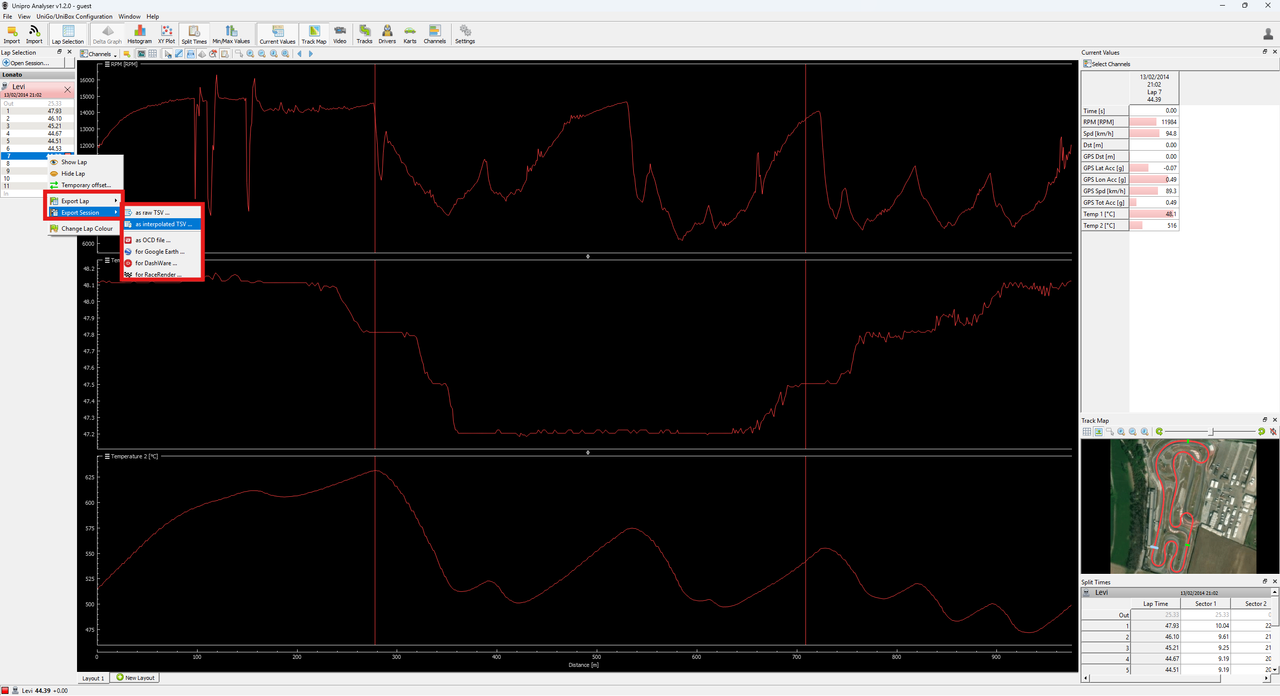
Open the Unipro Analyser software. Look at the Lap Selection panel on the left side of the screen where your laps are listed.
Step 2. Open the context menu
Right-click on any lap within the session you want to analyze (in the example, Lap 7 is selected). A dropdown menu will appear.
Step 3. Select the Export option
In the menu, hover your mouse cursor over Export Session (recommended if you want the bot to analyze all laps) or Export Lap (if you only want to analyze that single specific lap).
Step 4. Choose the TSV format
A small sub-menu will slide out. Click on the option: as interpolated TSV...
Step 5. Save the file
After clicking, the software will ask you where to save the file. Choose a convenient location on your computer (like your Desktop or a dedicated telemetry folder) so you can easily find the .tsv file in the next step.
Part 2. Uploading the File to the Telegram Bot
Now that you have your exported TSV file from Unipro, you just need to send it to the analyzer bot.
- Open Telegram and go to the chat with our bot (@d3racingbot).
- Click the Paperclip 📎 (Attachment) icon next to the message input field.
- In the attachment menu, select File (or Document). Do not try to send it as a photo or media.
- Locate the saved .tsv file on your computer, select it, and click "Send".
- Done! The bot will receive the file, process the Unipro data, and reply with your detailed telemetry analysis.