How to Export AiM MyChron Telemetry for Your AI Race Engineer
D3CF TechnologyFor your virtual race engineer to analyze your stint and find those lost tenths of a second, it needs raw telemetry data in CSV format.
If you are using an AiM system (MyChron 5, MyChron 4) and the Race Studio software, the export process takes less than a minute. Follow this quick guide.
Part 1. Exporting Data from RaceStudio 3
To allow the bot to analyze your telemetry, the data must be saved in CSV format. Follow these simple steps:
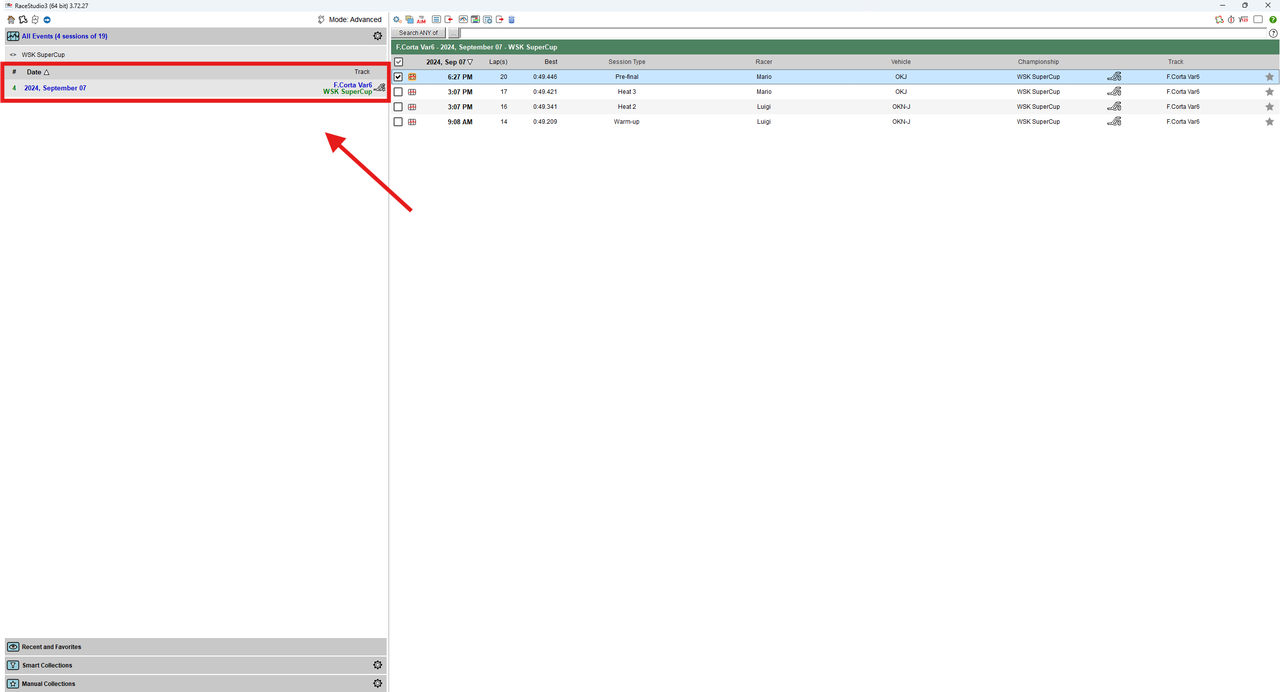
Step 1. Select the session
Open RaceStudio 3 and navigate to your events section (the tab with the graph icon in the top left corner). In the left sidebar, find the date and the specific session you want to analyze.
Step 2. Start the export
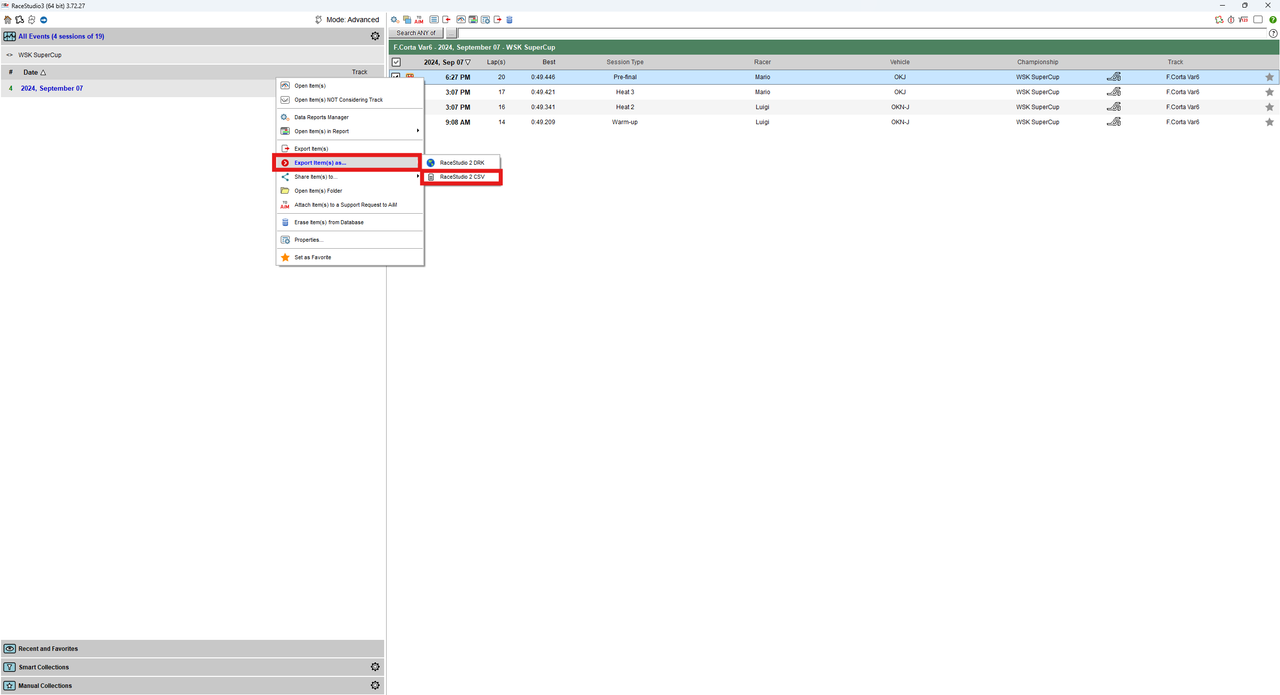
Right-click on the selected session in the left menu. In the context menu that appears, hover your cursor over Export Item(s) as....
Step 3. Choose the CSV format
In the sub-menu that opens, click on RaceStudio 2 CSV.
Step 4. Save the file
After clicking RaceStudio 2 CSV, the software will ask you to choose a destination folder. Save the file in a convenient location on your PC (e.g., your Desktop or a dedicated telemetry folder) so you can easily find it in the next step.
Part 2. Uploading the File to the Telegram Bot
Now that you have your exported CSV file, you just need to send it to the analyzer bot.
- Open Telegram and go to the chat with our bot (you can insert @d3racingbot).
- Click the Paperclip 📎 (Attachment) icon next to the message input field.
- In the attachment menu, select File (or Document). Do not try to send it as a photo or media.
- Locate the saved CSV file from RaceStudio 3 on your computer, select it, and click "Send".
- Done! The bot will receive the file, process the data, and reply with your detailed telemetry analysis.
💡 Tip: Make sure you select the RaceStudio 2 CSV format when exporting. The bot may not be able to read other formats (such as .DRK).