How to Deploy an NGINX Service in a Kubernetes Cluster
https://medium.com/aws-in-plain-english/how-to-deploy-an-nginx-service-in-a-kubernetes-cluster-2139ff565604
Namespace
a namespace is a very important resource in the Kubernetes system. Its main function is to implement resource isolation for multiple environments or resource isolation for multiple tenants.
By default, all Pods in a Kubernetes cluster can access each other. However, in practice, you may not want two Pods to access each other. In this case, you can divide the two Pods into different namespaces. By allocating resources in the cluster to different namespaces, Kubernetes can form “groups” logically, making it easy for resources of different groups to be isolated and managed.
By using Kubernetes’ authorization mechanism, different namespaces can be handed over to different tenants for management, thus achieving resource isolation for multiple tenants. At this time, Kubernetes’ resource quota mechanism can also be combined to limit the resources that different tenants can use, such as CPU usage, memory usage, etc., to manage the available resources for tenants.
After the Kubernetes cluster is started, several namespaces are created by default:
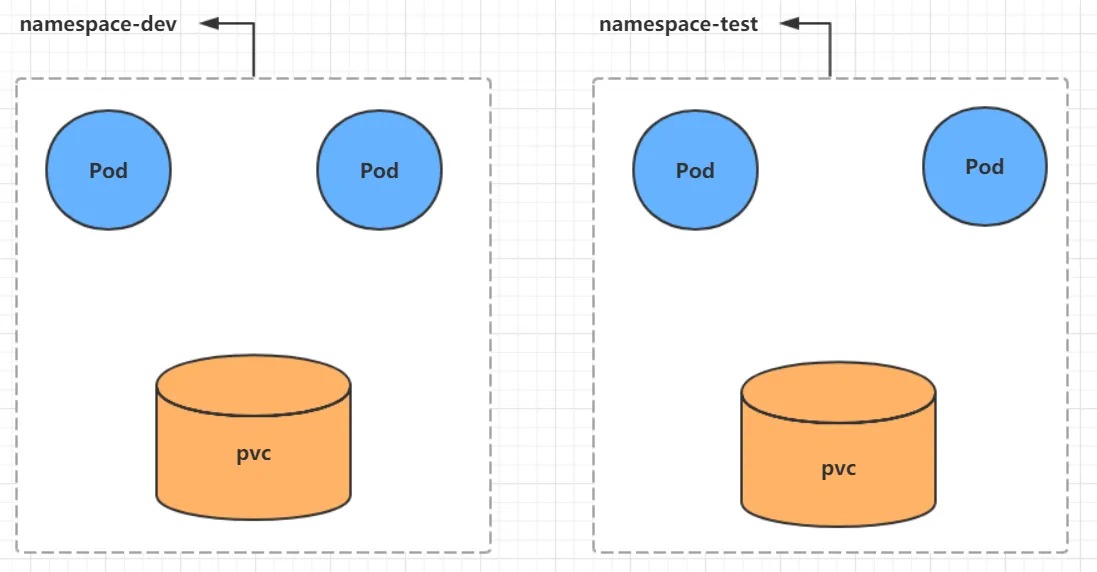
After the Kubernetes cluster is started, several namespaces are created by default:
[root@master ~]# kubectl get namespace
NAME STATUS AGE
default Active 45h # All objects that are not specified in the namespace are assigned to the default namespace
kube-node-lease Active 45h # Heartbeat maintenance between cluster nodes, introduced since v1.13
kube-public Active 45h # Resources under this namespace can be accessed by everyone (including unauthenticated users)
kube-system Active 45h # All resources created by the Kubernetes system are in this namespace
Let’s take a look at the specific operations of namespace resources:
View
# 1 View all namespaces
Command: kubectl get ns
[root@master ~]# kubectl get ns
NAME              STATUS   AGE
default           Active   45h
kube-node-lease   Active   45h
kube-public       Active   45h
kube-system       Active   45h

# 2 View a specific namespace
Command: kubectl get ns <namespace name>
[root@master ~]# kubectl get ns default
NAME      STATUS   AGE
default   Active   45h

# 3 Specify output format
Command: kubectl get ns <namespace name> -o <format>
Kubernetes supports many output formats, including wide, json, and yaml.
[root@master ~]# kubectl get ns default -o yaml
apiVersion: v1
kind: Namespace
metadata:
  creationTimestamp: "2020-04-05T04:44:16Z"
  name: default
  resourceVersion: "151"
  selfLink: /api/v1/namespaces/default
  uid: 7405f73a-e486-43d4-9db6-145f1409f090
spec:
  finalizers:
  - kubernetes
status:
  phase: Active

# 4 View namespace details
Command: kubectl describe ns <namespace name>
[root@master ~]# kubectl describe ns default
Name:         default
Labels:       <none>
Annotations:  <none>
Status:       Active  # Active namespaces are in use, while Terminating namespaces are being deleted.

# ResourceQuota limits resources for a namespace
# LimitRange limits resources for each component in a namespace
No resource quota.
No LimitRange resource.
Create
# Create namespace
[root@master ~]# kubectl create ns dev
namespace/dev created
Delete
# Delete namespace
[root@master ~]# kubectl delete ns dev
namespace "dev" deleted
Configuration method
To configure a namespace, a YAML file named ns-dev.yaml is created with the following contents:
apiVersion: v1
kind: Namespace
metadata:
  name: dev
To create the namespace, the following command is used:
kubectl create -f ns-dev.yaml
To delete the namespace, the following command is used:
kubectl delete -f ns-dev.yaml
Pod
A Pod is the smallest unit managed by the Kubernetes cluster. Programs must be deployed in containers, which must exist in Pods.
A Pod can be considered a container wrapper, and one or more containers can exist in a Pod.
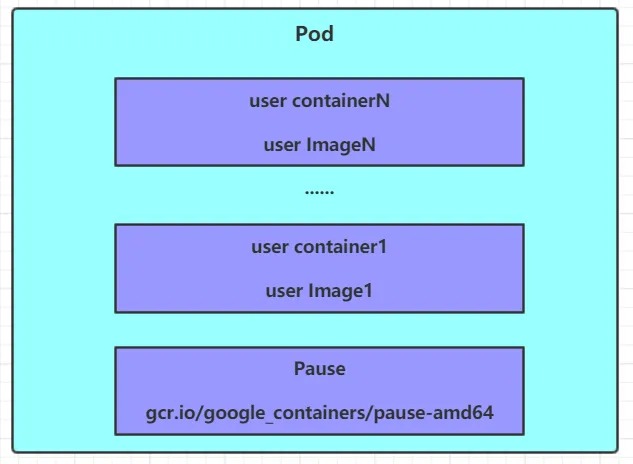
After Kubernetes is started in the cluster, each component in the cluster runs in a Pod. You can use the following command to view them:
[root@master ~]# kubectl get pod -n kube-system
NAMESPACE NAME READY STATUS RESTARTS AGE
kube-system coredns-6955765f44–68g6v 1/1 Running 0 2d1h
kube-system coredns-6955765f44-cs5r8 1/1 Running 0 2d1h
kube-system etcd-master 1/1 Running 0 2d1h
kube-system kube-apiserver-master 1/1 Running 0 2d1h
kube-system kube-controller-manager-master 1/1 Running 0 2d1h
kube-system kube-flannel-ds-amd64–47r25 1/1 Running 0 2d1h
kube-system kube-flannel-ds-amd64-ls5lh 1/1 Running 0 2d1h
kube-system kube-proxy-685tk 1/1 Running 0 2d1h
kube-system kube-proxy-87spt 1/1 Running 0 2d1h
kube-system kube-scheduler-master 1/1 Running 0 2d1h
~~~
To create and run a Pod
Kubernetes does not provide a command to run a Pod separately, but it is implemented through a Pod controller.
# Command format: kubectl run (Pod controller name) [parameter]
# --image specifies the image of the Pod
# --port specifies the port
# --namespace  specifies the namespace
[root@master ~]# kubectl run nginx --image=nginx:1.17.1 --port=80 --namespace dev
deployment.apps/nginx created
View pod information
# View basic pod information
[root@master ~]# kubectl get pods -n dev
NAME                     READY   STATUS    RESTARTS   AGE
nginx-5ff7956ff6-fg2db   1/1     Running   0          43s

# View detailed pod information
[root@master ~]# kubectl describe pod nginx-5ff7956ff6-fg2db -n dev
Name:         nginx-5ff7956ff6-fg2db
Namespace:    dev
Priority:     0
Node:         node1/192.168.109.101
Start Time:   Wed, 08 Apr 2020 09:29:24 +0800
Labels:       pod-template-hash=5ff7956ff6
              run=nginx
Annotations:  <none>
Status:       Running
IP:           10.244.1.23
IPs:
  IP:           10.244.1.23
Controlled By:  ReplicaSet/nginx-5ff7956ff6
Containers:
  nginx:
    Container ID:   docker://4c62b8c0648d2512380f4ffa5da2c99d16e05634979973449c98e9b829f6253c
    Image:          nginx:1.17.1
    Image ID:       docker-pullable://nginx@sha256:485b610fefec7ff6c463ced9623314a04ed67e3945b9c08d7e53a47f6d108dc7
    Port:           80/TCP
    Host Port:      0/TCP
    State:          Running
      Started:      Wed, 08 Apr 2020 09:30:01 +0800
    Ready:          True
    Restart Count:  0
    Environment:    <none>
    Mounts:
      /var/run/secrets/kubernetes.io/serviceaccount from default-token-hwvvw (ro)
Conditions:
  Type              Status
  Initialized       True
  Ready             True
  ContainersReady   True
  PodScheduled      True
Volumes:
  default-token-hwvvw:
    Type:        Secret (a volume populated by a Secret)
    SecretName:  default-token-hwvvw
    Optional:    false
QoS Class:       BestEffort
Node-Selectors:  <none>
Tolerations:     node.kubernetes.io/not-ready:NoExecute for 300s
                 node.kubernetes.io/unreachable:NoExecute for 300s
Events:
  Type    Reason     Age        From               Message
  ----    ------     ----       ----               -------
  Normal  Scheduled  <unknown>  default-scheduler  Successfully assigned dev/nginx-5ff7956ff6-fg2db to node1
  Normal  Pulling    4m11s      kubelet, node1     Pulling image "nginx:1.17.1"
  Normal  Pulled     3m36s      kubelet, node1     Successfully pulled image "nginx:1.17.1"
  Normal  Created    3m36s      kubelet, node1     Created container nginx
  Normal  Started    3m36s      kubelet, node1     Started container nginx
Accessing a Pod
# Get the pod IP
[root@master ~]# kubectl get pods -n dev -o wide
NAME                     READY   STATUS    RESTARTS   AGE    IP             NODE    ...
nginx-5ff7956ff6-fg2db   1/1     Running   0          190s   10.244.1.23   node1   ...

# Access the pod
[root@master ~]# curl http://10.244.1.23:80
<!DOCTYPE html>
<html>
<head>
 <title>Welcome to nginx!</title>
</head>
<body>
 <p><em>Thank you for using nginx.</em></p>
</body>
</html>
Deleting a Specified Pod
# Delete a specified pod
[root@master ~]# kubectl delete pod nginx-5ff7956ff6-fg2db -n dev
pod "nginx-5ff7956ff6-fg2db" deleted

# At this point, the pod deletion was successful, but if we check again, we will see a new pod created
[root@master ~]# kubectl get pods -n dev
NAME                     READY   STATUS    RESTARTS   AGE
nginx-5ff7956ff6-jj4ng   1/1     Running   0          21s

# This is because the pod is created by a pod controller which monitors the pod status and rebuilds the pod once it detects that the pod has died.
# To delete the pod, we need to delete the pod controller.

# First, we need to check the pod controllers in the current namespace
[root@master ~]# kubectl get deploy -n  dev
NAME    READY   UP-TO-DATE   AVAILABLE   AGE
nginx   1/1     1            1           9m7s

# Next, delete the pod controller
[root@master ~]# kubectl delete deploy nginx -n dev
deployment.apps "nginx" deleted

# After a short while, check the pods again, and we will see that the pod has been deleted
[root@master ~]# kubectl get pods -n dev
No resources found in dev namespace.
Configuration Steps
Create a file named pod-nginx.yaml with the following contents:
apiVersion: v1
kind: Pod
metadata:
  name: nginx
  namespace: dev
spec:
  containers:
  - image: nginx:1.17.1
    name: pod
    ports:
    - name: nginx-port
      containerPort: 80
      protocol: TCP
Then we can execute the corresponding create and delete commands:
Create: kubectl create -f pod-nginx.yaml
Delete: kubectl delete -f pod-nginx.yaml
Label
Label is an important concept in the Kubernetes system. Its purpose is to attach a tag to resources to distinguish and select them.
The characteristics of Label are:
- A label is attached to various objects in the form of key/value pairs, such as Node, Pod, Service, etc.
- A resource object can define any number of Labels, and the same Label can also be added to any number of resource objects.
- Labels are usually determined when resource objects are defined, but they can also be dynamically added or deleted after the object is created.
Labels can be used to implement multi-dimensional grouping of resources, making it flexible and convenient to manage resource allocation, scheduling, configuration, deployment, and other management tasks.
Some commonly used Label examples:
Version label: “version”:”release”, “version”:”stable”……
Environment label: “environment”:”dev”, “environment”:”test”, “environment”:”pro”
Architecture label: “tier”:”frontend”, “tier”:”backend”
After the Label is defined, the Label Selector should also be considered for Label selection, that is:
- Label is used to define the identity of a resource object
- Label Selector is used to querying and filtering resource objects that have certain labels
There are currently two types of Label Selectors:
- Equality-based Label Selector
- name = slave: Selects all objects that contain the Label with key=”name” and value=”slave”
- env != production: Selects all objects that contain the Label with key=”env” and value is not “production”
- Set-based Label Selector
- name in (master, slave): Selects all objects that contain the Label with key=”name” and value is “master” or “slave”
- name not in (frontend): Selects all objects that contain the Label with key=”name” and value is not “frontend”
Multiple Label Selector conditions can be used, and they are combined using commas “,”. For example:
name=slave,env!=production
name not in (frontend),env!=production
Command Line
# Add label to the pod resource
[root@master ~]# kubectl label pod nginx-pod version=1.0 -n dev
pod/nginx-pod labeled

# Update label for the pod resource
[root@master ~]# kubectl label pod nginx-pod version=2.0 -n dev --overwrite
pod/nginx-pod labeled

# View the label
[root@master ~]# kubectl get pod nginx-pod  -n dev --show-labels
NAME        READY   STATUS    RESTARTS   AGE   LABELS
nginx-pod   1/1     Running   0          10m   version=2.0

# Filter the label
[root@master ~]# kubectl get pod -n dev -l version=2.0  --show-labels
NAME        READY   STATUS    RESTARTS   AGE   LABELS
nginx-pod   1/1     Running   0          17m   version=2.0
[root@master ~]# kubectl get pod -n dev -l version!=2.0 --show-labels
No resources found in dev namespace.

# Delete the label
[root@master ~]# kubectl label pod nginx-pod version- -n dev
pod/nginx-pod labeled
Configuration method
apiVersion: v1
kind: Pod
metadata:
  name: nginx
  namespace: dev
  labels:
    version: "3.0"
    env: "test"
spec:
  containers:
  - image: nginx:1.17.1
    name: pod
    ports:
    - name: nginx-port
      containerPort: 80
      protocol: TCP
Then you can execute the corresponding update command: kubectl apply -f pod-nginx.yaml.
Deployment
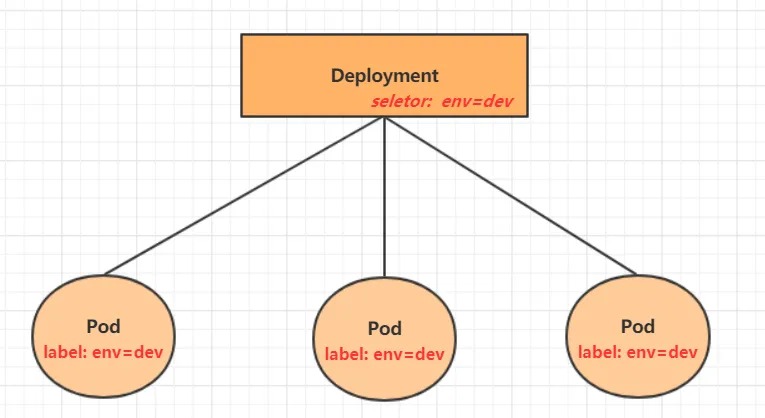
In Kubernetes, the Pod is the smallest unit of control, but Kubernetes rarely directly controls Pods. Instead, Pod controllers are used to managing Pods, ensuring that the Pod resources meet the expected state. When Pod resources fail, the controller will attempt to restart or rebuild the Pod.
There are many types of Pod controllers in Kubernetes, but this chapter will only introduce one: Deployment.
Command Operation
# Command format: kubectl run deployment_name [arguments]
# --image specifies the image of the pod
# --port specifies the port
# --replicas specifies the number of pod replicas to create
# --namespace specifies the namespace
[root@master ~]# kubectl run nginx --image=nginx:1.17.1 --port=80 --replicas=3 -n dev
deployment.apps/nginx created

# View the created pods
[root@master ~]# kubectl get pods -n dev
NAME                     READY   STATUS    RESTARTS   AGE
nginx-5ff7956ff6-6k8cb   1/1     Running   0          19s
nginx-5ff7956ff6-jxfjt   1/1     Running   0          19s
nginx-5ff7956ff6-v6jqw   1/1     Running   0          19s

# View deployment information
[root@master ~]# kubectl get deploy -n dev
NAME    READY   UP-TO-DATE   AVAILABLE   AGE
nginx   3/3     3            3           2m42s

# UP-TO-DATE: number of replicas successfully updated
# AVAILABLE: number of available replicas
[root@master ~]# kubectl get deploy -n dev -o wide
NAME    READY UP-TO-DATE  AVAILABLE   AGE     CONTAINERS   IMAGES              SELECTOR
nginx   3/3     3         3           2m51s   nginx        nginx:1.17.1        run=nginx

# View deployment details
[root@master ~]# kubectl describe deploy nginx -n dev
Name:                   nginx
Namespace:              dev
CreationTimestamp:      Wed, 08 Apr 2020 11:14:14 +0800
Labels:                 run=nginx
Annotations:            deployment.kubernetes.io/revision: 1
Selector:               run=nginx
Replicas:               3 desired | 3 updated | 3 total | 3 available | 0 unavailable
StrategyType:           RollingUpdate
MinReadySeconds:        0
RollingUpdateStrategy:  25% max unavailable, 25% max surge
Pod Template:
  Labels:  run=nginx
  Containers:
   nginx:
    Image:        nginx:1.17.1
    Port:         80/TCP
    Host Port:    0/TCP
    Environment:  <none>
    Mounts:       <none>
  Volumes:        <none>
Conditions:
  Type           Status  Reason
  ----           ------  ------
  Available      True    MinimumReplicasAvailable
  Progressing    True    NewReplicaSetAvailable
OldReplicaSets:  <none>
NewReplicaSet:   nginx-5ff7956ff6 (3/3 replicas created)
Events:
  Type    Reason             Age    From                   Message
  ----    ------             ----   ----                   -------
  Normal  ScalingReplicaSet  5m43s  deployment-controller  Scaled up replicaset nginx-5ff7956ff6 to 3

# Delete
[root@master ~]# kubectl delete deploy nginx -n dev
deployment.apps "nginx" deleted
Configuration Operations
Create a file named deploy-nginx.yaml with the following content:
apiVersion: apps/v1
kind: Deployment
metadata:
  name: nginx
  namespace: dev
spec:
  replicas: 3
  selector:
    matchLabels:
      run: nginx
  template:
    metadata:
      labels:
        run: nginx
    spec:
      containers:
      - image: nginx:1.17.1
        name: nginx
        ports:
        - containerPort: 80
          protocol: TCP
Then, execute the following commands to create and delete the deployment:
- Create:
kubectl create -f deploy-nginx.yaml - Delete:
kubectl delete -f deploy-nginx.yaml
Service
In Kubernetes, a Pod is the smallest unit of control. However, Kubernetes rarely controls Pods directly. Instead, it uses Pod controllers to manage the Pods and ensure that they meet the expected state. When a Pod’s resources fail, the controller will try to restart or rebuild the Pod.
In Kubernetes, there are many types of Pod controllers. In this section, we will only introduce one: Deployment.
Although each Pod is assigned a separate Pod IP, there are two problems:
- Pod IP changes when the Pod is rebuilt.
- Pod IP is a virtual IP that is only visible within the cluster, and cannot be accessed from outside.
This makes it difficult to access the service. Therefore, Kubernetes has designed the Service to solve this problem.
A Service can be seen as an access interface for a group of Pods of the same type to the outside world. With a Service, applications can easily achieve service discovery and load balancing.
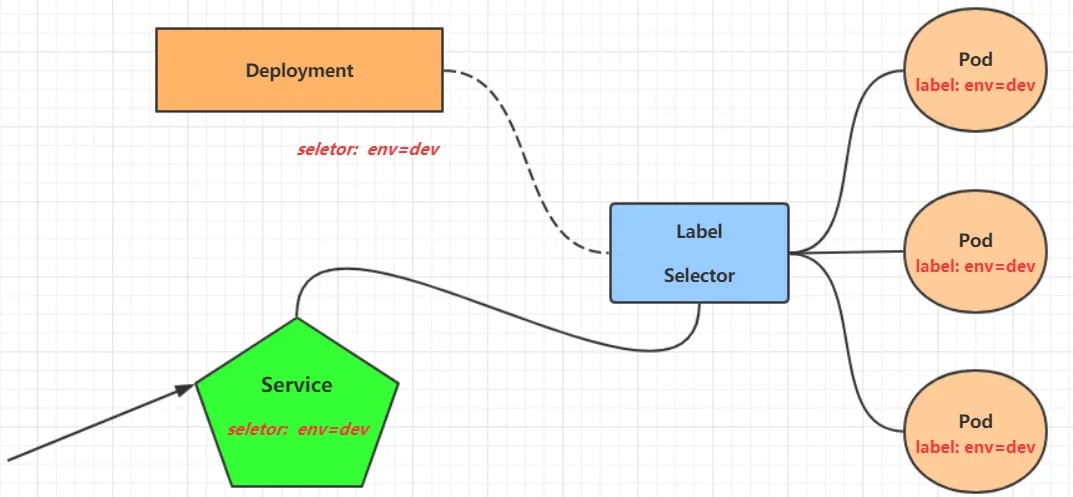
Operation 1: Creating a Service for Internal Cluster Access
# Expose Service
[root@master ~]# kubectl expose deploy nginx --name=svc-nginx1 --type=ClusterIP --port=80 --target-port=80 -n dev
service/svc-nginx1 exposed

# View Service
[root@master ~]# kubectl get svc svc-nginx -n dev -o wide
NAME         TYPE        CLUSTER-IP       EXTERNAL-IP   PORT(S)   AGE     SELECTOR
svc-nginx1   ClusterIP   10.109.179.231   <none>        80/TCP    3m51s   run=nginx

# A CLUSTER-IP is generated here, which is the IP address of the service. This address will not change during the service lifecycle
# The current POD corresponding to this service can be accessed through this IP
[root@master ~]# curl 10.109.179.231:80
<!DOCTYPE html>
<html>
<head>
<title>Welcome to nginx!</title>
</head>
<body>
<h1>Welcome to nginx!</h1>
.......
</body>
</html>
Operation 2: Creating a Service for External Cluster Access
# The type of the service created above is ClusterIP, and this IP address is only accessible within the cluster
# If you need to create a service that can also be accessed from outside the cluster, you need to modify the type to NodePort
[root@master ~]# kubectl expose deploy nginx --name=svc-nginx2 --type=NodePort --port=80 --target-port=80 -n dev
service/svc-nginx2 exposed

# At this point, a NodePort type of service appears, and there is a pair of Ports (80:31928/TC)
[root@master ~]# kubectl get svc svc-nginx-1  -n dev -o wide
NAME          TYPE        CLUSTER-IP       EXTERNAL-IP   PORT(S)        AGE    SELECTOR
svc-nginx2    NodePort    10.100.94.0      <none>        80:31928/TCP   9s     run=nginx

# Next, the service can be accessed through the node IP:31928 from outside the cluster
# For example, access the following address in a computer's browser
http://192.168.109.100:31928/
Deleting a Service
[root@master ~]# kubectl delete svc svc-nginx-1 -n dev service "svc-nginx-1" deleted
Configuration Method
Create a svc-nginx.yaml file with the following content:
apiVersion: v1
kind: Service
metadata:
  name: svc-nginx
  namespace: dev
spec:
  clusterIP: 10.109.179.231
  ports:
  - port: 80
    protocol: TCP
    targetPort: 80
  selector:
    run: nginx
  type: ClusterIP
Then execute the corresponding creation and deletion commands:
Create: kubectl create -f svc-nginx.yaml
Delete: kubectl delete -f svc-nginx.yaml
Summary
With the basic operations of Namespace, Pod, Deployment, and Service resources, a simple deployment and access to a service can be achieved in the Kubernetes cluster. However, to make better use of Kubernetes, it is necessary to delve into the details and principles of these resources.