How VPN Routing Changes a Windows Internet Connection
MiaInstalling VPN software on Windows introduces an additional route between the computer and the internet. Once the connection is active, traffic no longer follows only the ordinary path provided by the local network. It passes through an encrypted VPN connection and a remote server before continuing to online destinations. For Windows users, understanding this route is useful because server location, protocol selection, computer resources, and the type of network being used can each affect a session in different ways.
Begin With the Computer Rather Than the Server List
Before considering countries or protocols, the Windows environment needs to be compatible with the desktop application. The supported systems are 64-bit Windows 10 and Windows 11, covering conventional desktop PCs, laptops, ultrabooks, and hybrid Windows devices.
The listed minimum requirement is 512 MB of RAM, while 1 GB is recommended. Installation occupies approximately 100 MB of storage and requires both an internet connection and administrator privileges.
Users who are unsure about system architecture can check it without installing additional utilities. Pressing Win + R, entering msinfo32, and reading the System Type entry provides the relevant x64, ARM64, or x86 information.
Installation and Connection Should Be Checked Separately
A completed installation confirms that the application is present on the computer, not that a VPN tunnel is currently active. The program still needs to be opened, account access established, and a server connection started.
For a supported computer, https://toggle.org/download-windows-vpn provides the Windows-specific download route and technical information needed before installation. After that stage, attention shifts away from the installer and toward the status of the network connection itself.
Keeping the two stages separate is useful if something goes wrong. An installation error and an inability to reach a server have different causes, so repeating the installer is not automatically the appropriate response to every connection problem.
The Nearest Server Is Not the Only Possible Choice
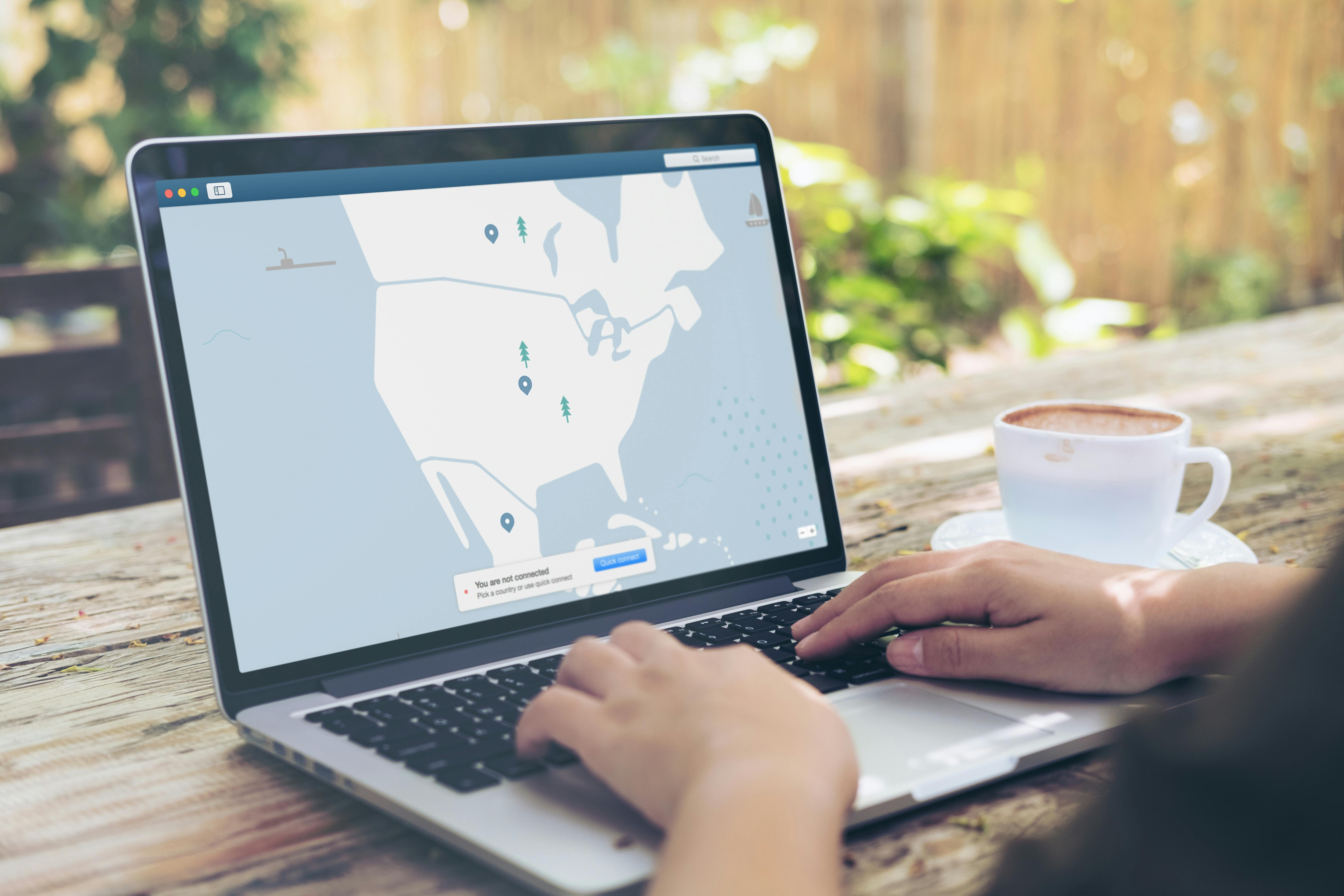
The application offers automatic server selection for situations where the exact location is not important. This reduces routine configuration and allows the connection to be established without searching through the available countries each time.
Manual selection is also available. The server network extends across 32 countries with more than 1,400 servers, giving users alternative endpoints when a particular region is required. A different location can be selected within the Windows application without restarting the operating system.
Server distance is only one element of a VPN route. Local network conditions and the path between the user, VPN server, and destination can also influence how a connection behaves, so choosing a different country is not a universal solution to every performance issue.
Protocols Define Another Layer of the Connection
Windows users can choose between Auto, WireGuard, and ShadowSocks. These options affect the method used to create the VPN connection rather than the geographic location through which traffic travels.
Auto leaves protocol selection to the application. WireGuard is identified for uses such as gaming, streaming, and larger downloads, while ShadowSocks is available as an option focused more strongly on encryption and privacy.
Keeping these controls distinct is useful when changing a configuration. A user can retain the same server location while changing the protocol, or change the location without necessarily modifying the protocol. There is no requirement to adjust both simultaneously.
Different Networks Create Different Conditions
A Windows laptop can experience a wider range of network environments than a desktop that remains at home. Moving from a private router to hotel, airport, café, or other shared Wi-Fi changes the local network even though the VPN application remains the same.
When connected, the VPN encrypts traffic between the Windows device and the remote VPN server. It also substitutes the server's public IP address for the public IP ordinarily associated with the user's connection.
This addresses network routing and privacy, but it should not be interpreted as protection against every type of computer threat. Antivirus and anti-malware tools serve different purposes because malicious files and applications are not the same problem as the handling of internet traffic.
Logging and Traffic Limits Describe Separate Policies
A no-logs policy is stated for browsing history, IP addresses, traffic data, and connection timestamps. This describes data-retention practices rather than the technical process used to encrypt a VPN session.
Traffic volume is another independent consideration. No fixed bandwidth quota is stated, meaning VPN use is not assigned a predefined amount of transferable data. The application is also designed to keep system resource consumption low while running alongside other Windows programs.
Account capacity has its own limit: up to 10 devices can be connected simultaneously. The number of active devices and the volume of network traffic are therefore two separate parts of the service configuration.
Use Windows Settings With a Specific Purpose
VPN software provides several controls, but availability alone is not a reason to modify every one of them. Automatic server and protocol settings can provide a simple starting configuration, while manual controls remain available for situations that require a particular region or connection method.
A more useful approach is to change one variable when there is a clear reason to do so. That makes the effect easier to understand and avoids turning an ordinary Windows network setup into an unnecessarily complicated collection of settings.