How To Flash Stock ROM Properly on Xiaomi Devices!
Arnav PuranikHi there! Wanna know how to flash Stock ROM Properly on Your Device? Here's how!
So Basically, we're going over two methods today on how to flash Stock, One is the Fastboot Method and other is the Recovery ROM Method and I'll be telling you how to flash both!
Prerequisites
For Fastboot Method
• A PC/Laptop with Adb Installed - ADB Drivers Link Is given in Post
• Mi Flash Tool - Link is Given in the post
• Fastboot Stock ROM - You can download that from the link given in post
• USB Cable
• Patience
For Recovery Method
• Custom Recovery - TWRP/OrangeFox is Recommended
• Recovery Stock ROM - YYou can download that from the link given in post
How To Download Proper Variant of Stock ROM?
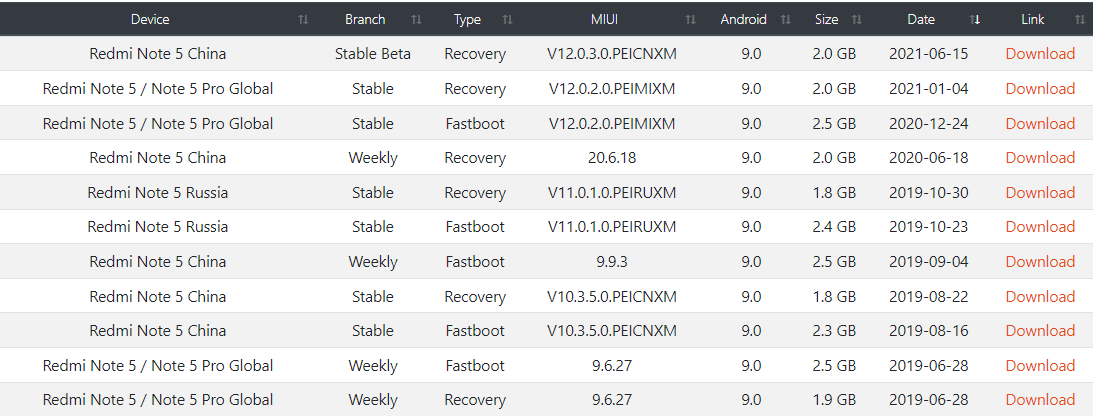
-- You should see such Layout for your device specifically
(Here Layout for the Xiaomi Redmi Note 5 Pro [Whyred] is shown)
-- Let's go through each one individually
- After Device, you see a region like China, Global, Russia Etc, select ROM According to your Region
- Then you should see Branches, let's go through Each One
=> Stable - Your Regular Standard ROM, the one which comes with which device is shipped, should have least number of bugs
=> Weekly - Beta Builds, maybe a bit unstable and might have some bugs
=> Stable Beta - Stable Beta is kind of a pre-release beta thing, here, you might get some features which are eventually pushed to the stable branch or some which may not get pushed to stable branch just to check out and test and give feedback
- Inside Type you can select fastboot/recovery (depends on you)
- You should also see version number and android version and size and date!
Fastboot
Step 1
- Download Fastboot ROM and Mi Flash Tool and run Mi Flash Tool and Connect your Device in Fastboot Mode (General Key Combination for Xiaomi Devices is Power Button + Volume Down button)
Step 2
- Select your ROM Zip inside The Mi Flash tool

- Also make sure to select this option before flashing, you'll find this in the bottom half of the flash tool

- Also make sure to default to normal partition if you changed your partition type (for advanced users)
Step 3
- Click on Flash Button on top right and it should start flashing, it won't flash before you log in into your Mi Account and make sure you're in fastboot mode!

- Give it a few minutes and you should see this, in result you'll see success!

- And you're done! You should see a Mi Bootlogo and MIUI Boot animation soon!
Recovery Method
Step 1
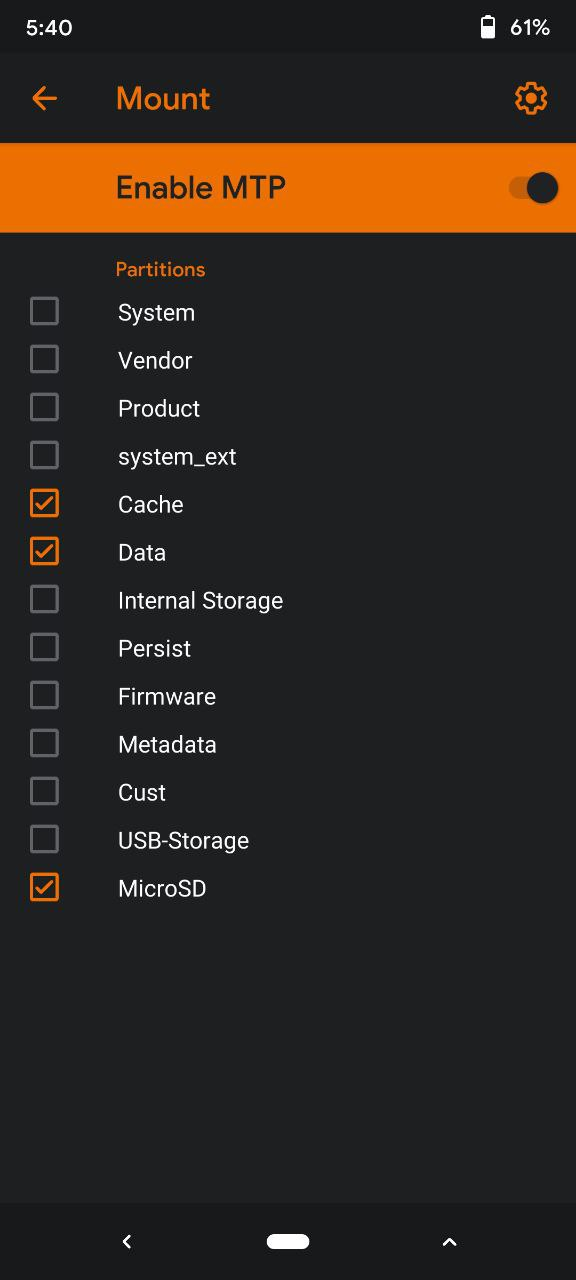
- Copy the Recovery ROM to Your Phone and reboot to recovery and
- Mount Data and Cache Partition in your recovery
Step 2
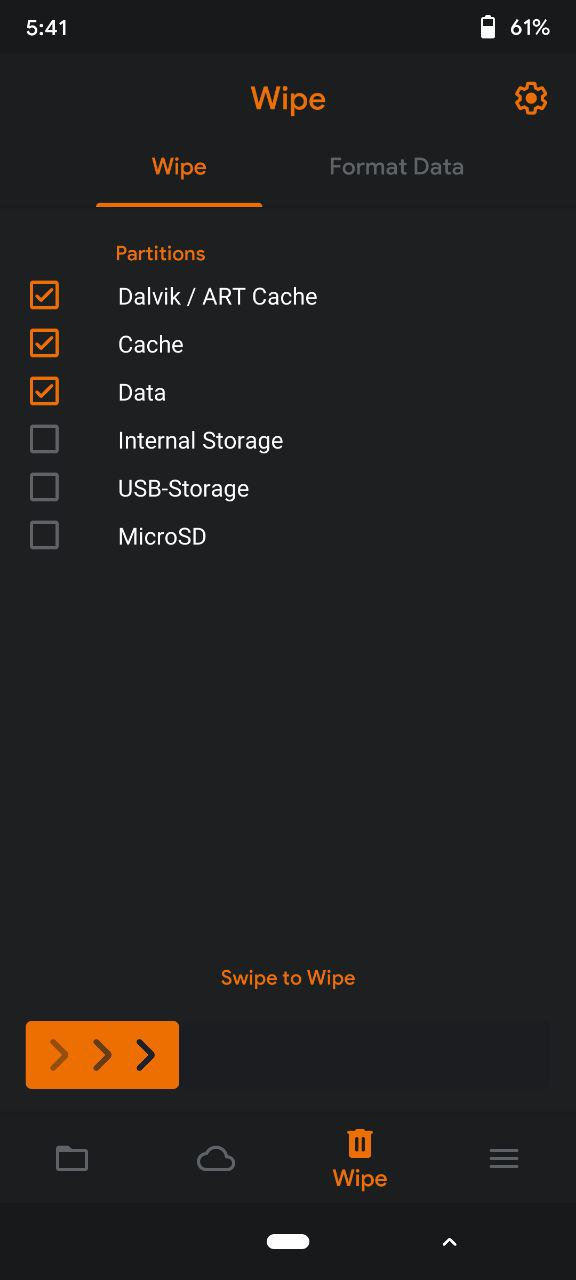
- Wipe Dalvik, System, Data and Cache (you won't see system option in dynamic partition devices though but wipe it if your device has)
- Even Formatting Data is recommended but not mandatory
Step 3
- Select Your Recovery ROM and flash it (Keep default options as they are)
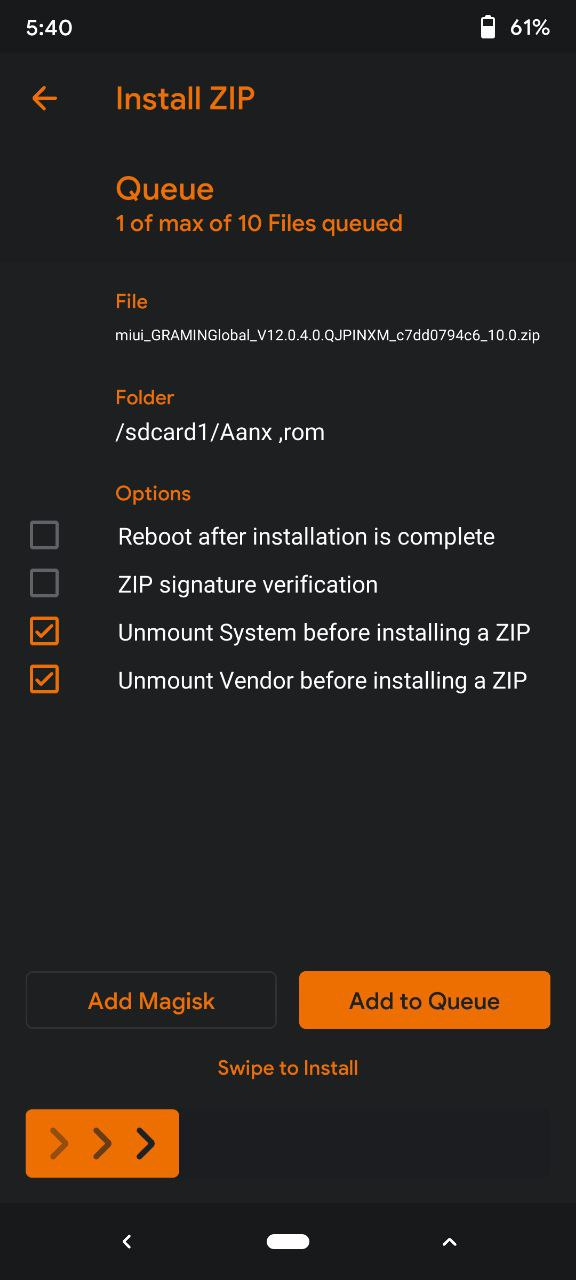
- Give it a few minutes and let it flash the ROM and you're done! You should see a Mi Bootlogo and MIUI Boot animation soon!
Important Notes
- Make sure to take a backup before you flash stock, cus flashing through Fastboot method Will Wipe your data (There's a option to keep userdata but that's not recommended)
- If you flashed through recovery and unable to boot (can happen sometimes) Try force reboot first, if even that doesn't work, come to fastboot mode and run this command on adb and you should be able to boot
fastboot erase userdata
If even that doesn't work, flash fastboot ROM
- If you get errors with fastboot method, reboot to fastboot again and try flashing again! That should definitely fix errors, but if it doesn't, there's a special mode called EDL Mode, but Going to EDL Mode is not recommended (unless you're a very advanced user and are willing to open up your device and short pins in most cases), going to a Service Center is your best option!
Extremely Important Note for Devices with Anti Roll back enabled
- Some Devices (like Whyred for example) Don't let you flash Older Versions of stock due to Anti Roll Back, Here's a YouTube Video which tells everything about anti roll back, but in short -
DO NOT FLASH OLDER VERSION OF STOCK ON AN ANTI ROLL BACK ENABLED DEVICE ELSE IT'LL RESULT IN A HARD BRICK AND YOU WON'T BE ABLE TO DO ANYTHING!
If you're scared rolling back to MIUI on an anti roll back enabled device, watch this video and follow all the instructions properly!
That's it for this one guys! Hope you liked it!
Thanks!