Hosting token.pickle
hitesh920# Step 4: Hosting token.pickle
- Now we need to host our token.pickle
- For that we will use google drive index.
- This is the repo we will be using for our google drive index.
- Go to this link.
- Sign in to get the Authentication Code.
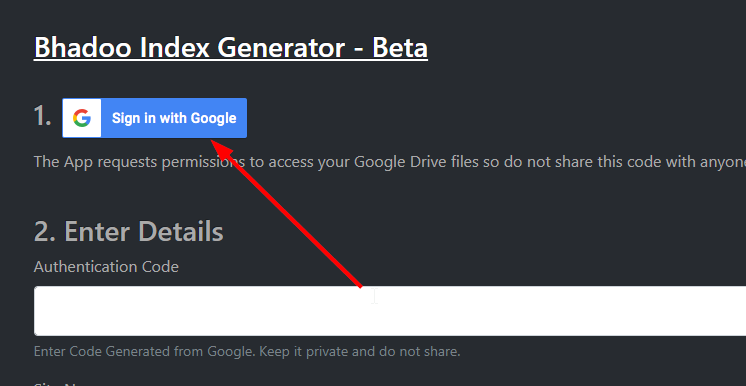
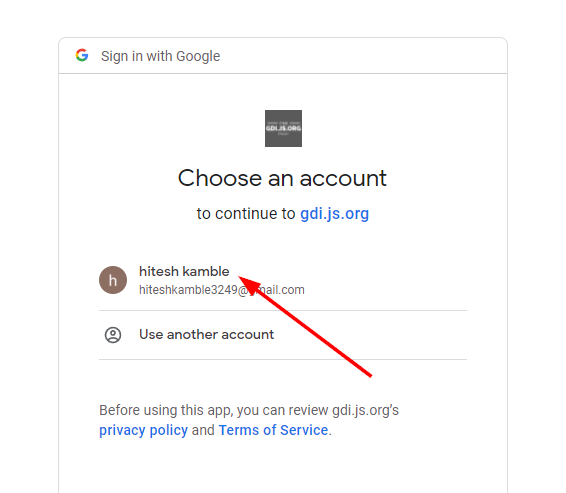
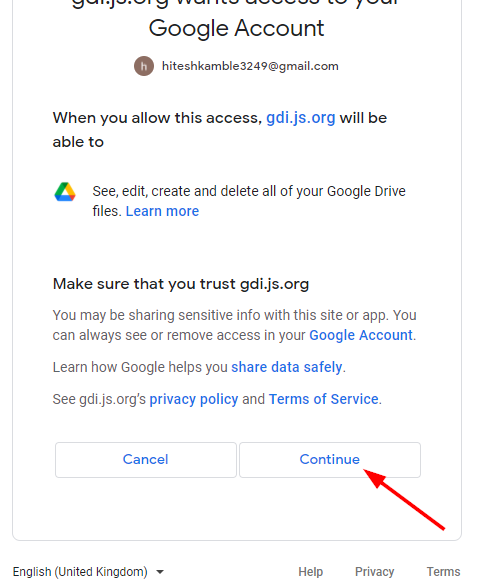
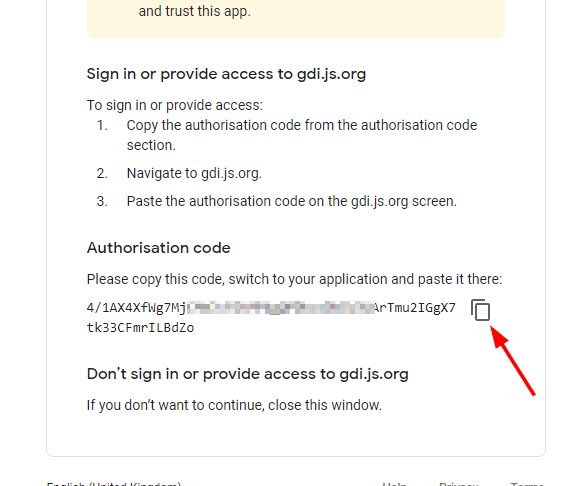
- Paste that code in
Authentication Codevar.

- For
Site Namevar, you can give any name for egpersonal. - For
Share Drive ID or rootvar, goto your drive and create a new folder for your index (don't create this folder in the shared drive).
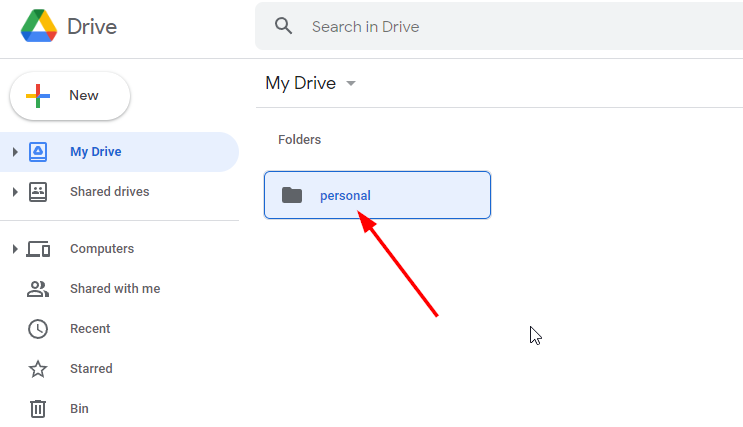
- Go inside that folder and copy the id of that folder.
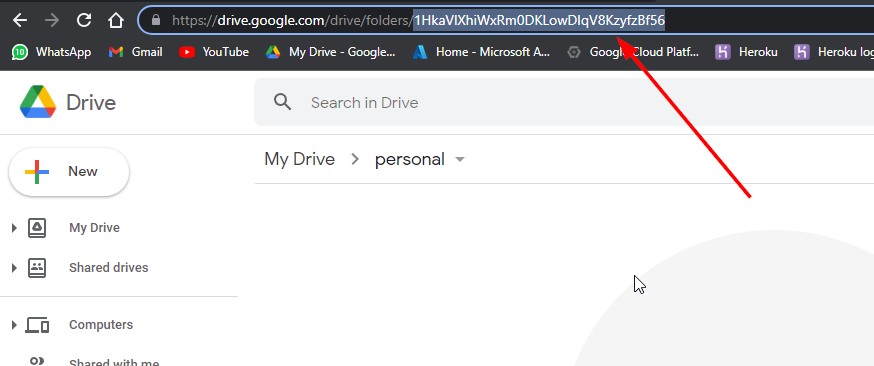
- Use it for
Share Drive ID or rootvar.
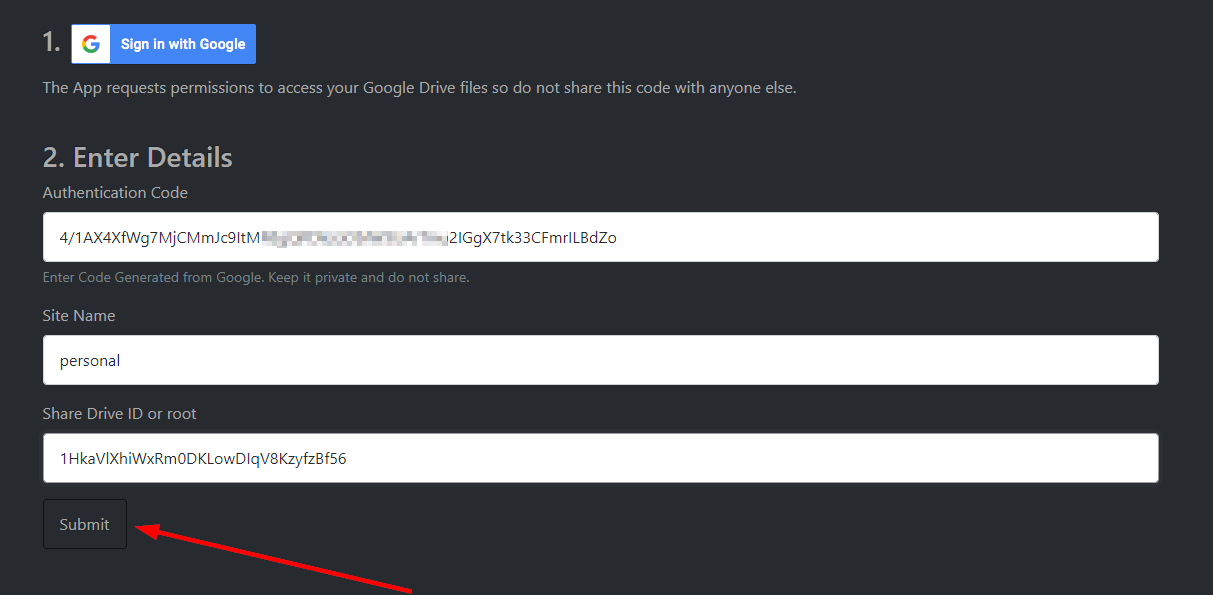
- Then click on submit and copy the genrated code for your index.
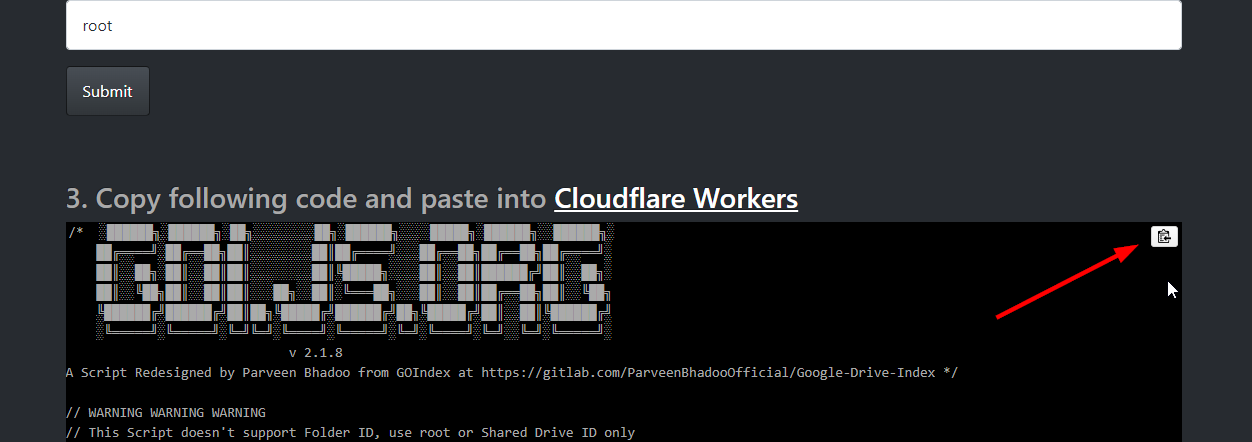
- Now goto cloudflare and sign up for an account.
- Then goto
workers
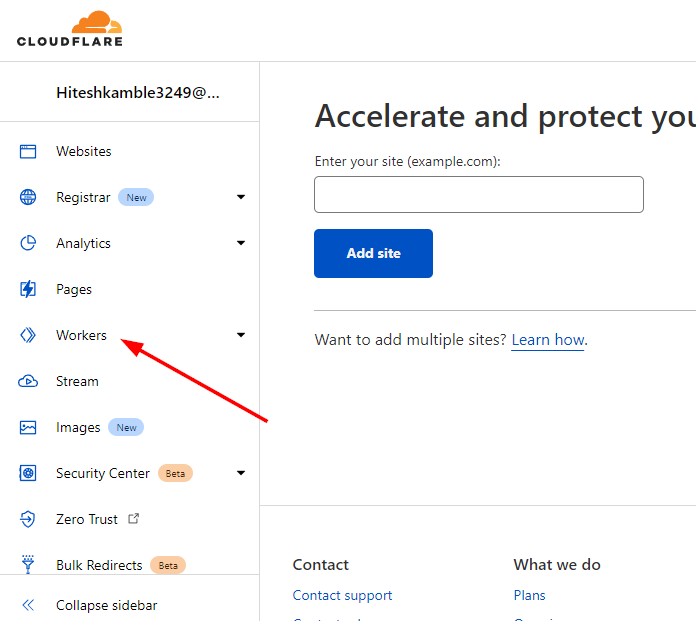
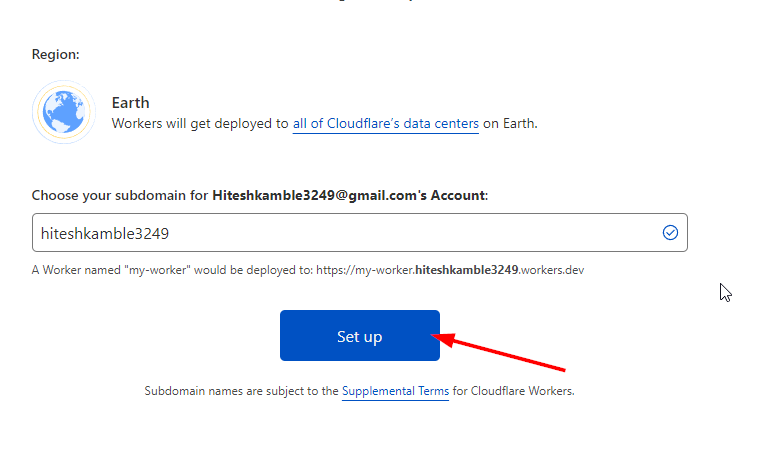
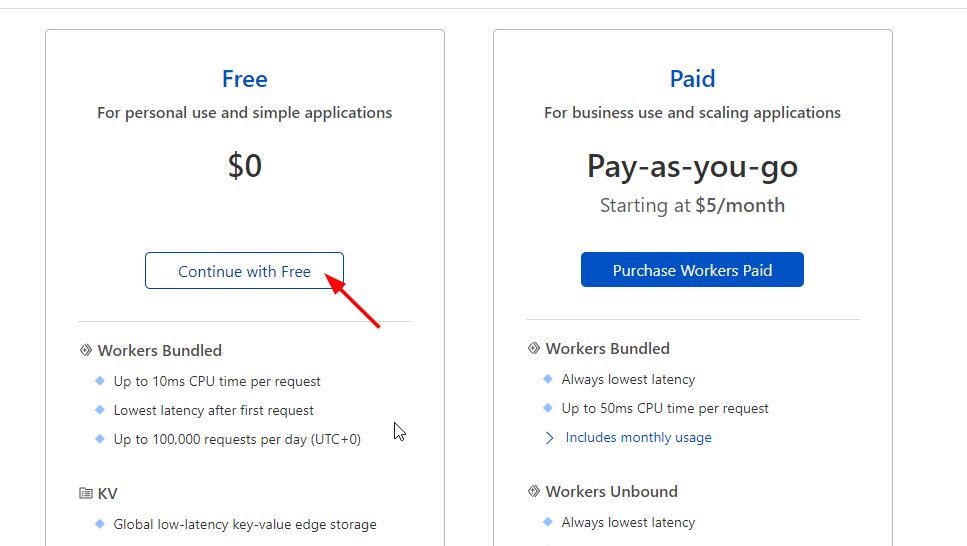
- Then complete the verification process and come back to the
workerssection again.
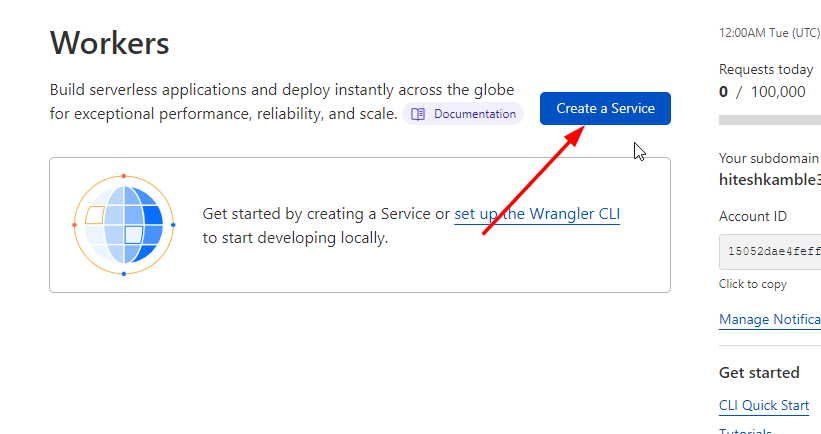
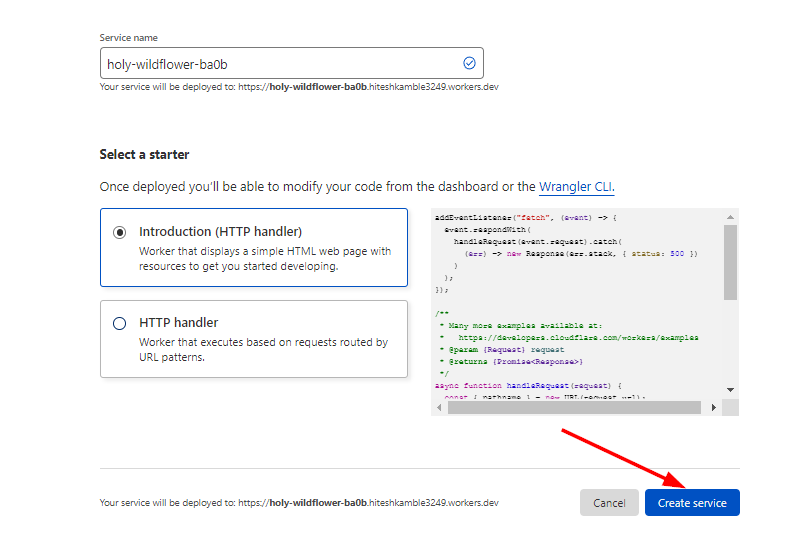
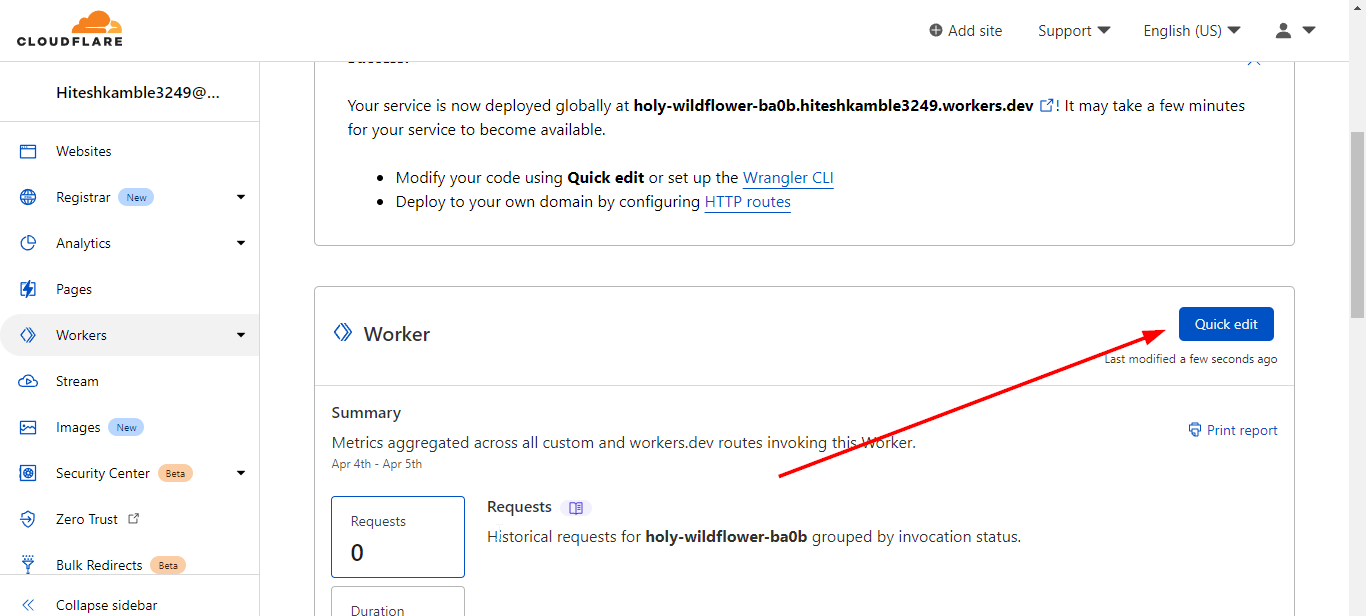
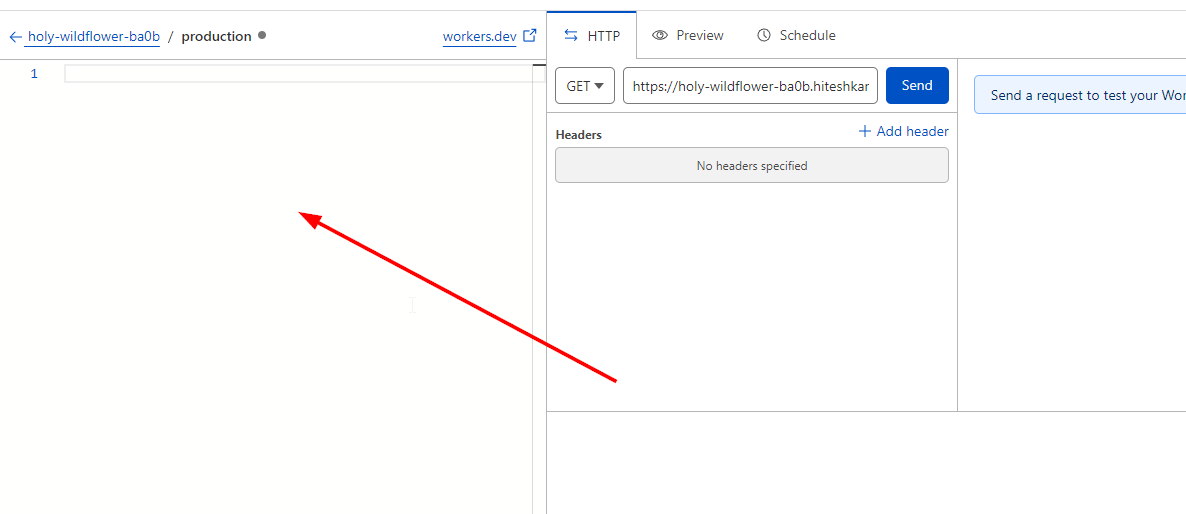
- And paste the code u genrated for your index then click on
save and deploy.


- Now wait for 10 seconds your index will be online.
- Then go here and save the link for your index, it will come handy later.
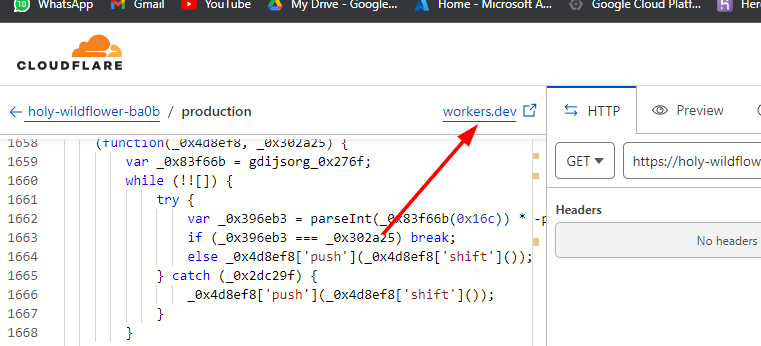
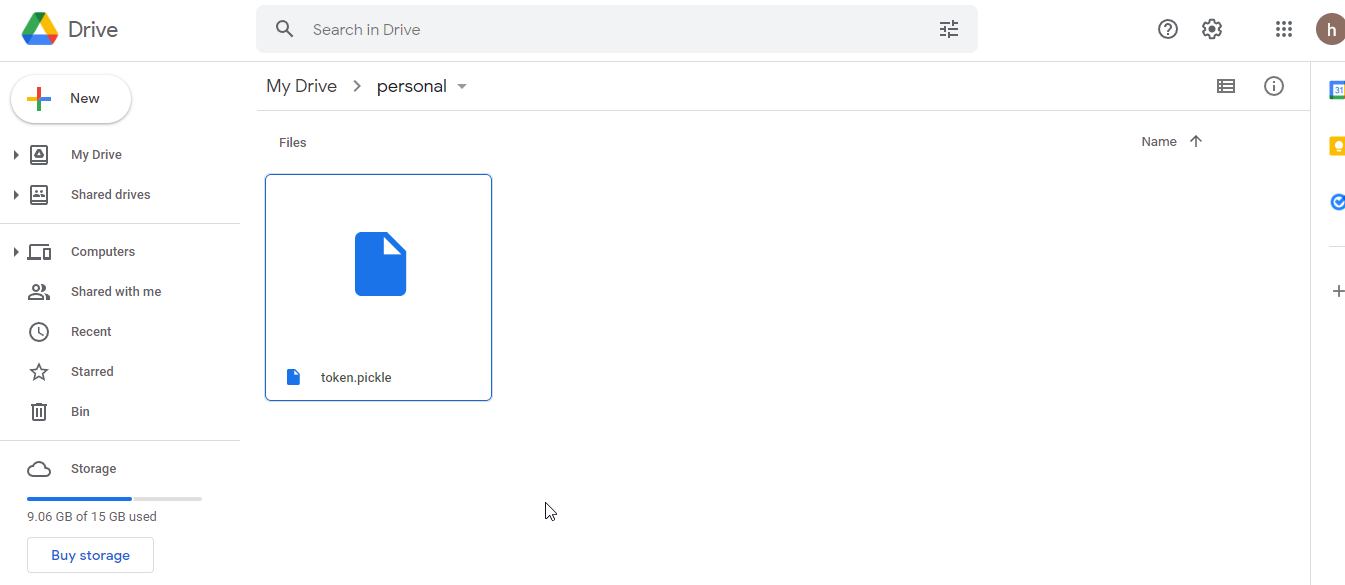
- Now goto that drive folder u create for the index and upload your token.pickle
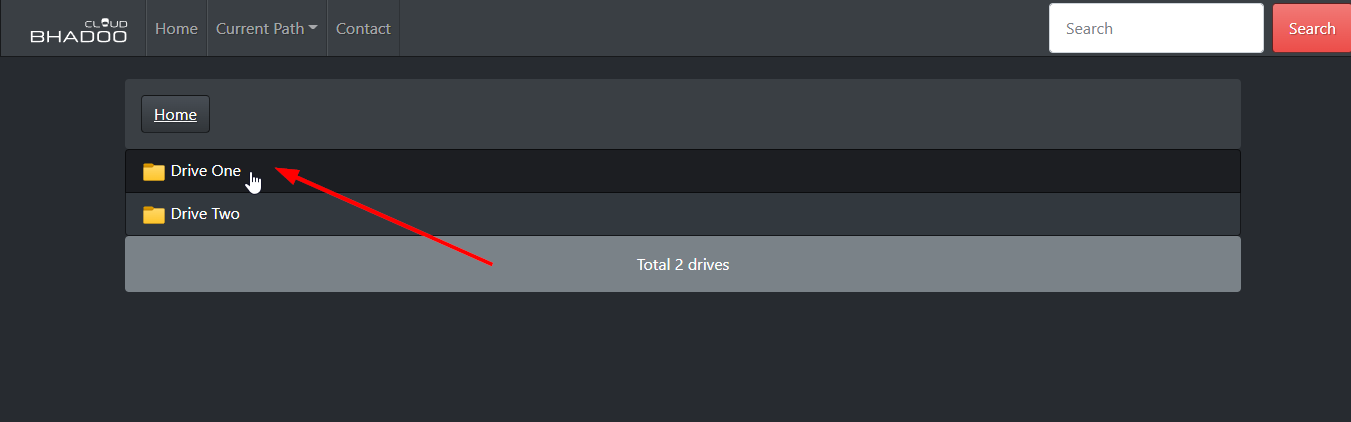
- Then open your index link click on
drive oneyou will see your token.pickle file u just uploaded.
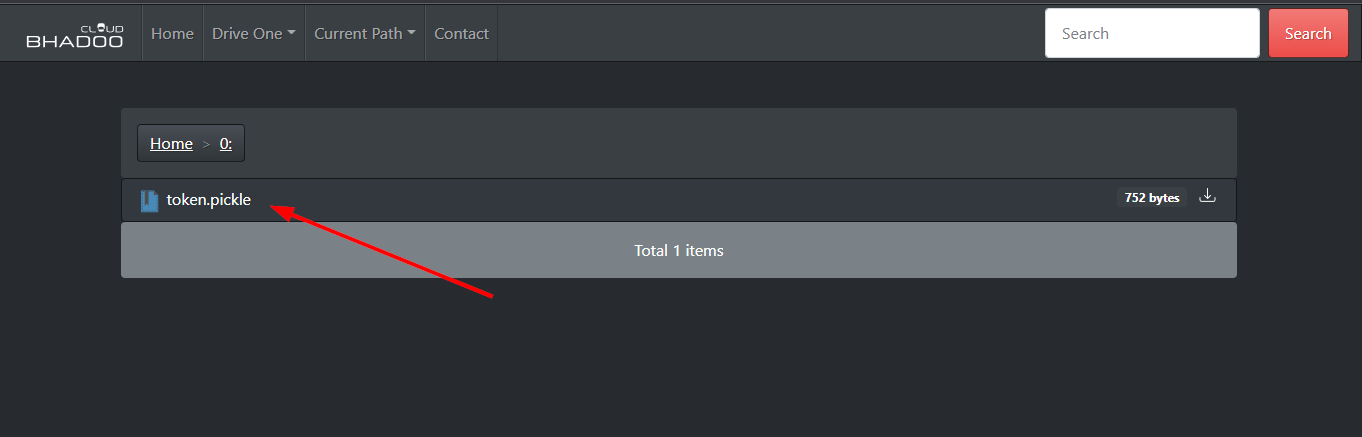
- We successfully hosted our token.pickle in our index. (Just dont share this index link, as it has confidential file.)