How to view your transaction history
History is a thread that connects yesterday with today. It consists of small steps, decisions, and events that form the big picture.
In our bot, the “History” section serves the same purpose: it collects all your operations into a single canvas so that you can see the path of your funds from the first transaction to the last.
In this guide, we will show you how to view your history in the bot and find the transactions you need.
Step 1. In the main menu, click on the “History” button
.png)
Step 2. Select the required category
They can be divided into several subcategories:
▪️Transactions: deposits, withdrawals, and transfers. Here you can easily track when a transaction occurred, in which currency, and its status.
▪️Exchanges and orders: all exchange transactions, as well as market and limit orders. In this section, you can view the details of each exchange and the status of order execution.
▪️Deposit addresses: addresses created for deposits, including one-time addresses.
▪️AML checks: results of checks of transactions and addresses for potential risks. You can return to any check and view its details.
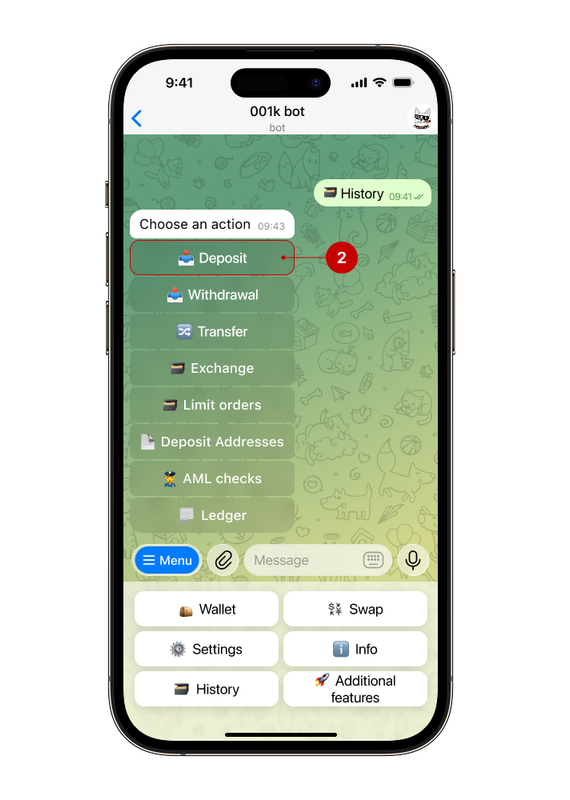
▪️Ledger: account statements.
For example, let's select the deposit history (2).
Step 3. Click on the desired transaction
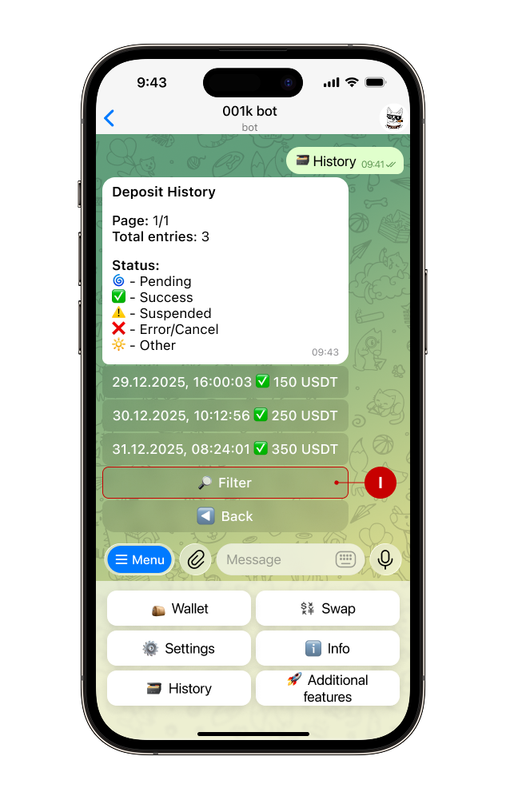
If you need to find a specific transaction, use the “Filter” button (I).
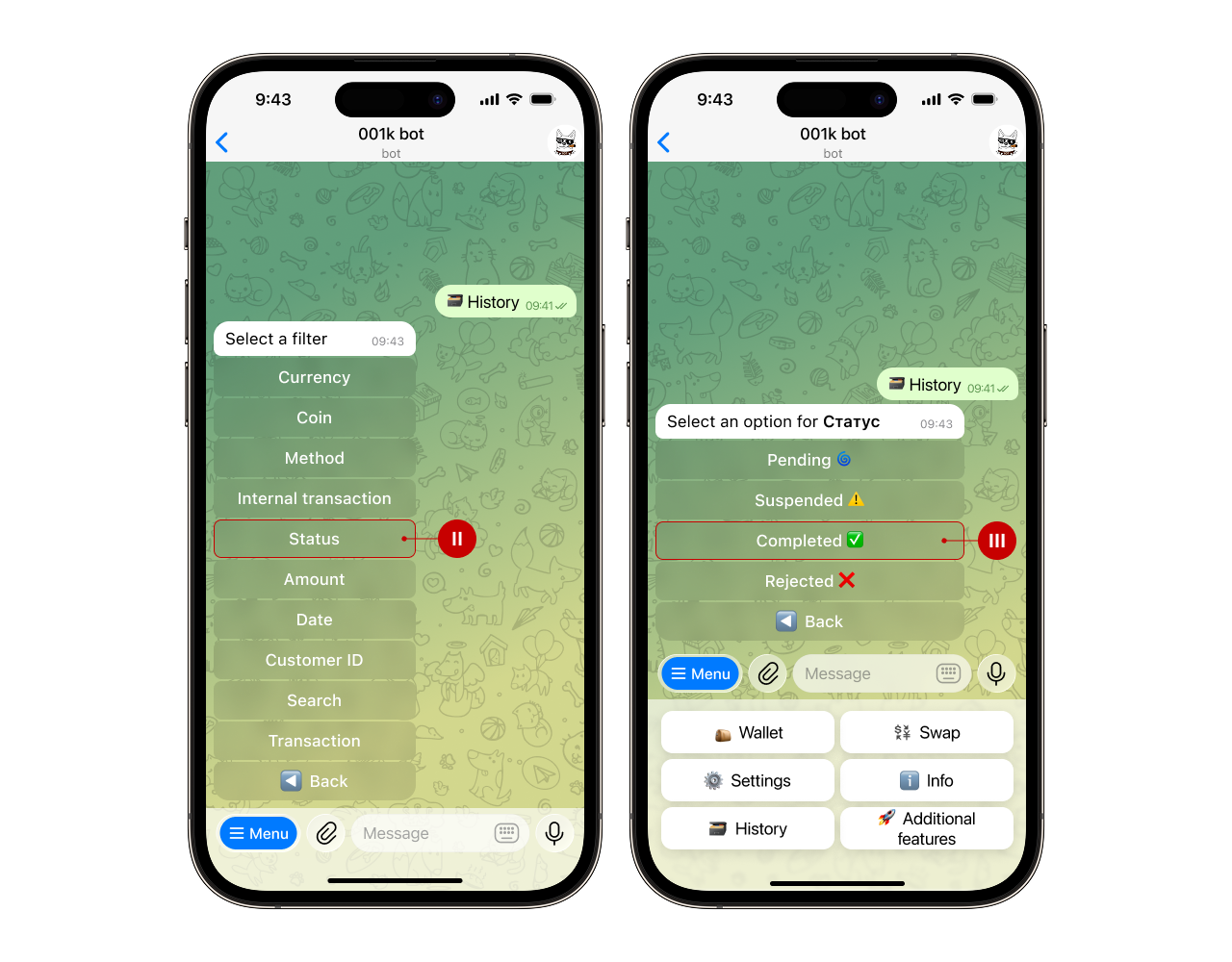
You can sort records by currency, method, status, amount, date, UID (II), and other parameters (III). This is especially convenient when the history is large, and you need only one transaction.
Step 4. Review the details
The message will show you all the key information about the transaction, including:
- Transaction ID;
- Status;
- Transaction link;
- Amount;
- Fee;
- Method;
- Address;
- Transaction time.
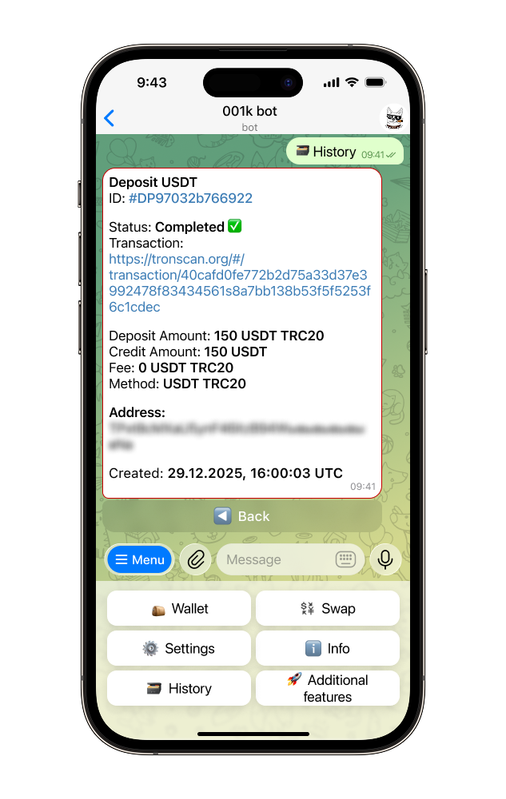
These steps work the same for all subcategories — Transactions, Exchanges and Orders, Deposit Addresses, AML Checks, and Ledger.
💡 Additional features
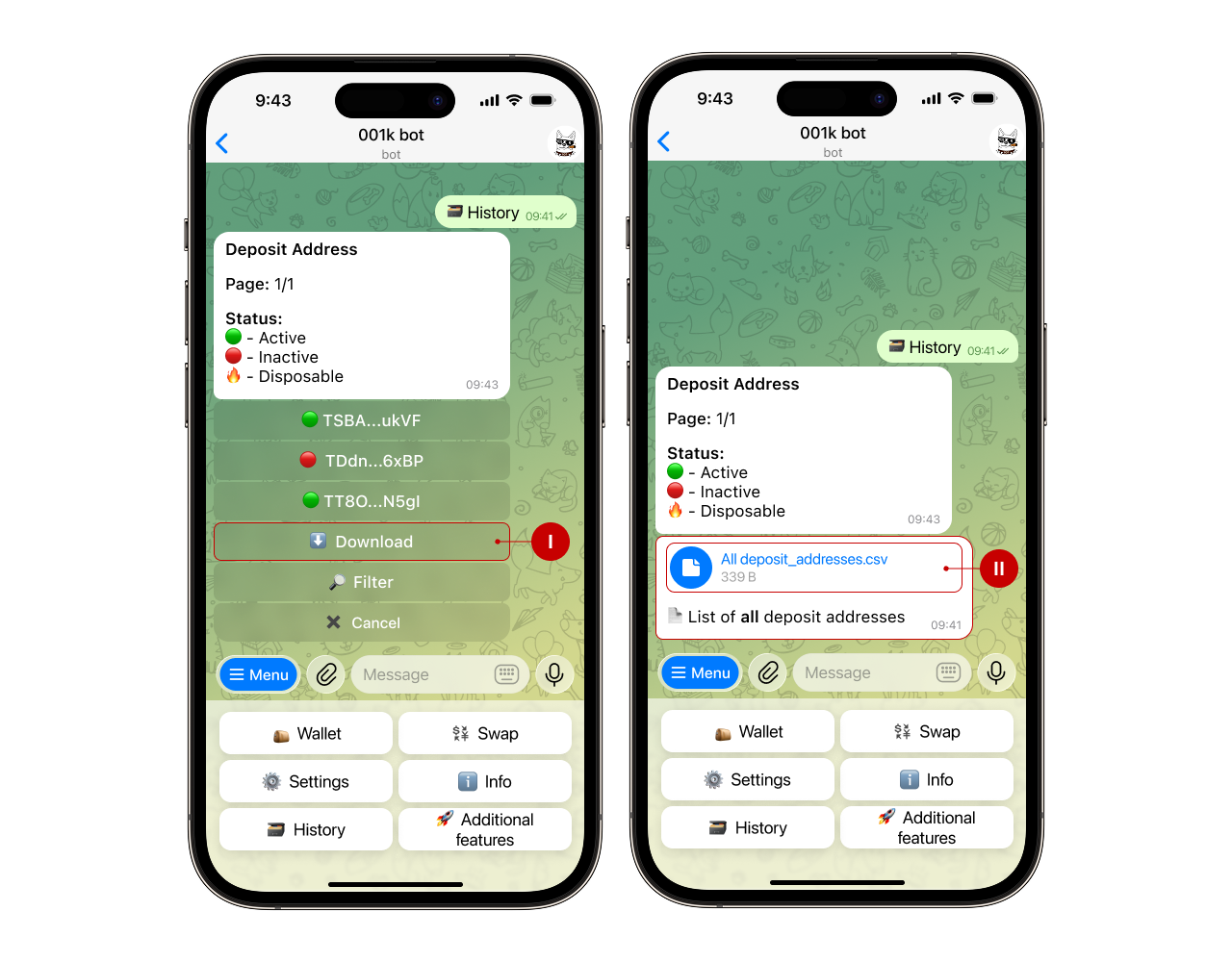
Some subcategories offer advanced features:
- In Deposit Addresses, you can download information about receipts in a convenient format.
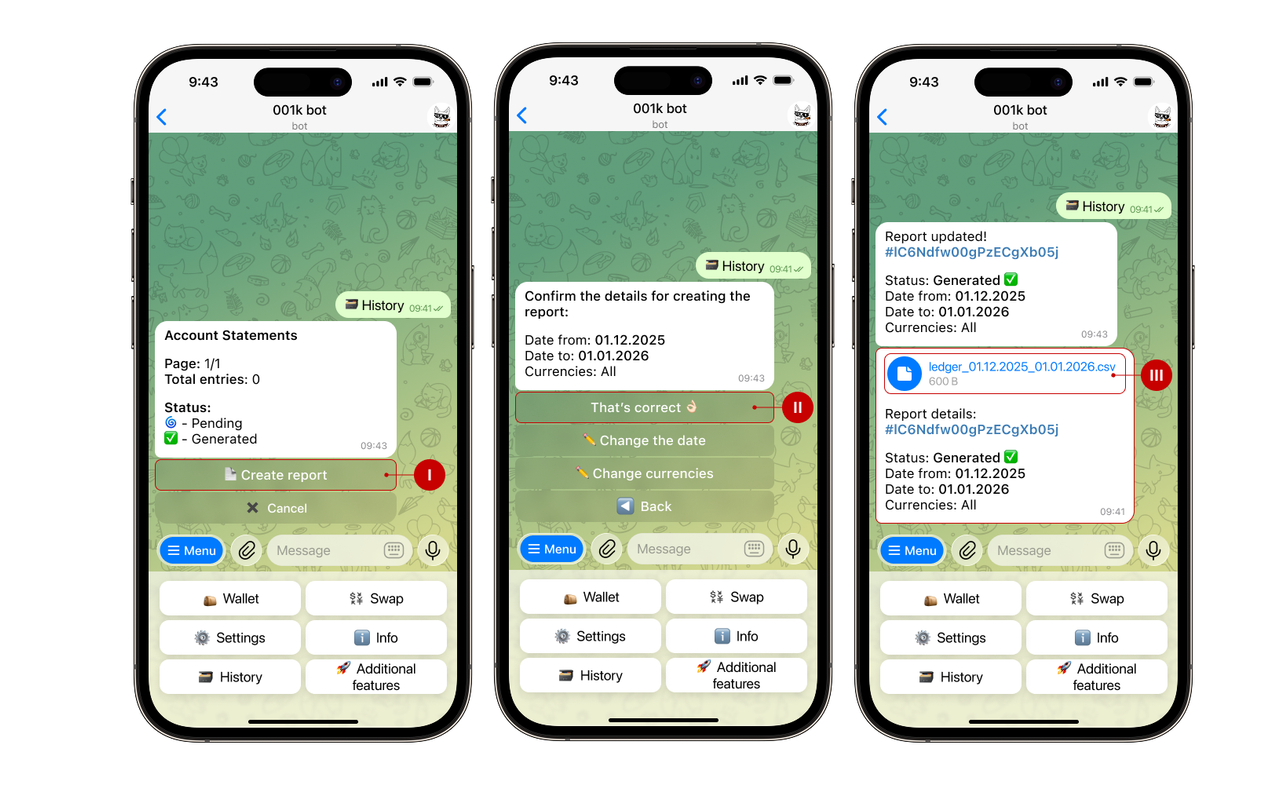
- In Ledger, you can create a new statement for a monthly period (as shown in the screenshots below), a custom date range, or a selected currency.