Guide to buying SCROLL token via Bitget exchange
In this guide, we will detail how to participate in a private sale using Bitget Wallet.
Bitget Wallet is a cryptocurrency wallet designed to provide secure storage, management and exchange of digital assets. Supporting multiple blockchains, Bitget Wallet offers users access to decentralized applications (dApps), DeFi projects, and NFTs.
To get started, you will need to download Bitget to your phone.
The app is available for download at the links:
- on iPhone (via App Store)
- on Android (via Play Market).
After downloading the application you will need to register and verify, because without verification you will not be able to access the necessary options of the application.
If you have any difficulties during the purchase process - at the end of the instructions you can see a block with popular difficulties and their solutions.
After verification, let's proceed to the purchase of Scroll token.
When using this method, you must have funds on the exchange to buy ETH.
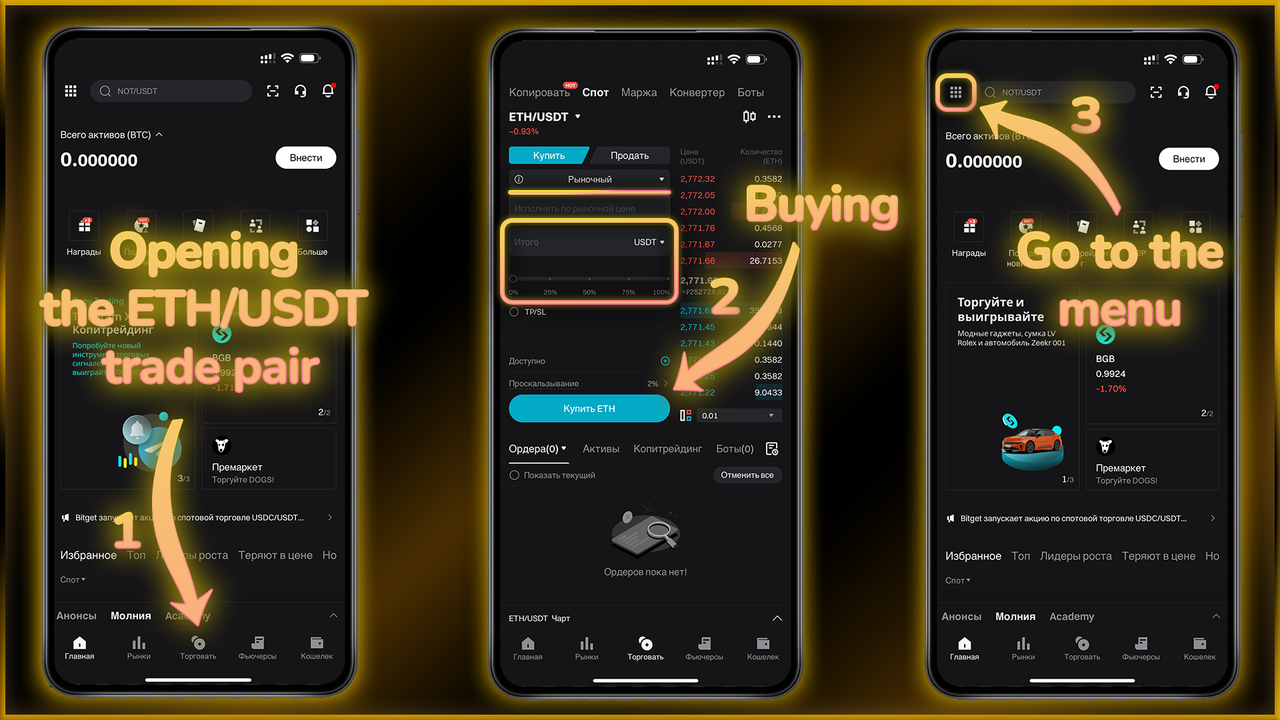
Open the application and go to the “Trading” section (step 1).
Choose the order type - market, enter the amount and buy (step 2).
3 - Go to the services menu to create a Web3 wallet, which we will connect to Uniswap.
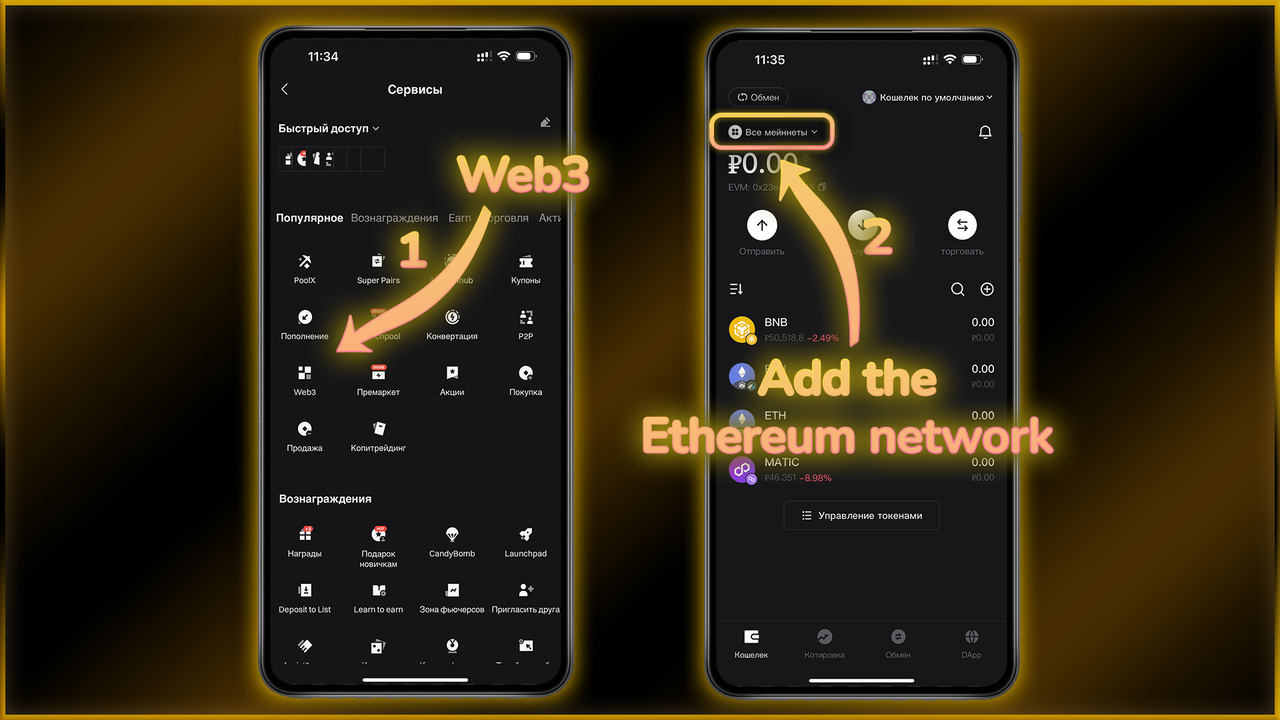
1 - Now select Web3 in the window that appears.
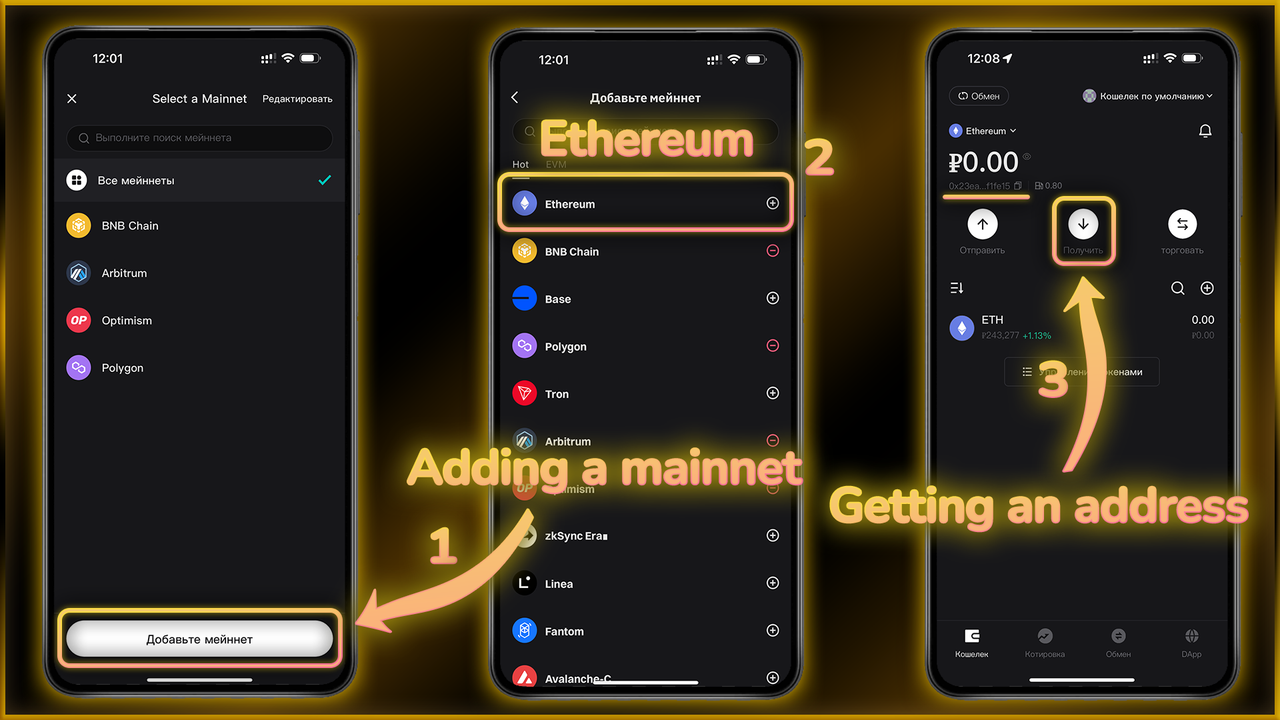
We do not have the Ethereum Core Network (ERC20) displayed, so we can add it manually as shown in the screenshots below (step 2).
1 - Click “Add Mainnet” and search for Ethereum (step 2);
We can then copy the wallet address by clicking on “Get” - step 3.
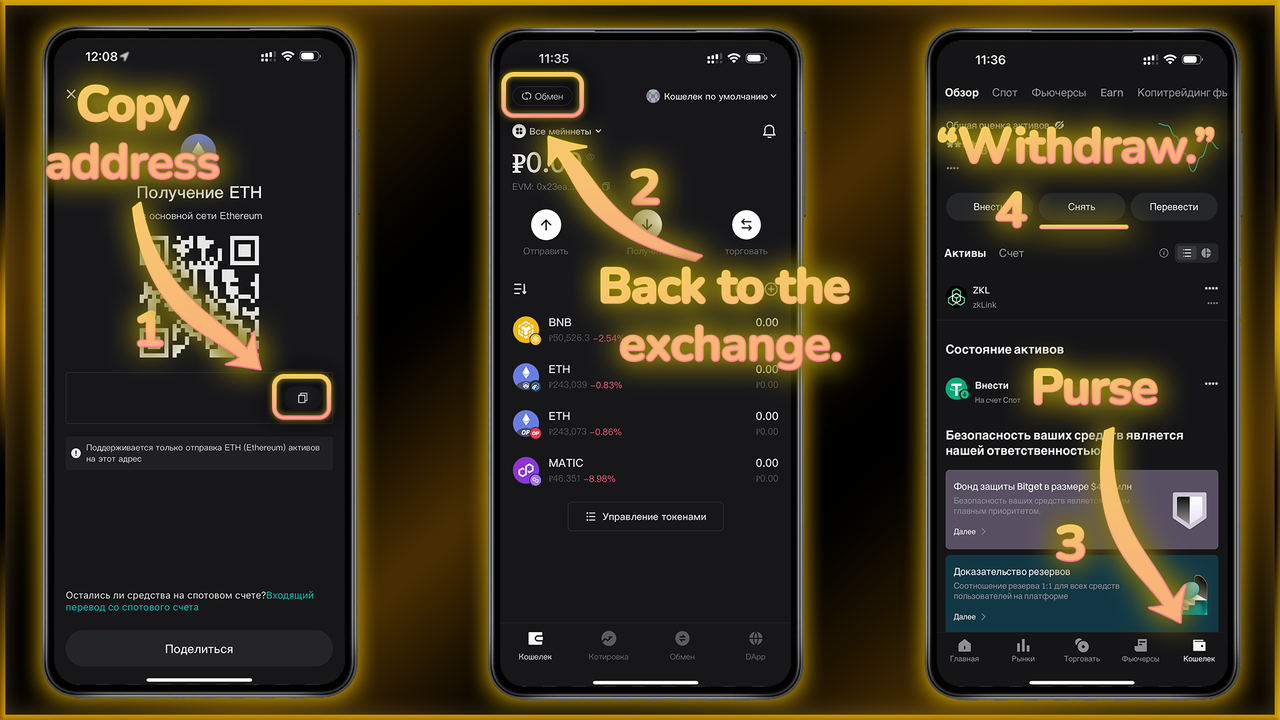
Copy the wallet address and go to the exchange
To do this:
2 - Click the “Exchange” button;
3 - Go to the “Wallet” section;
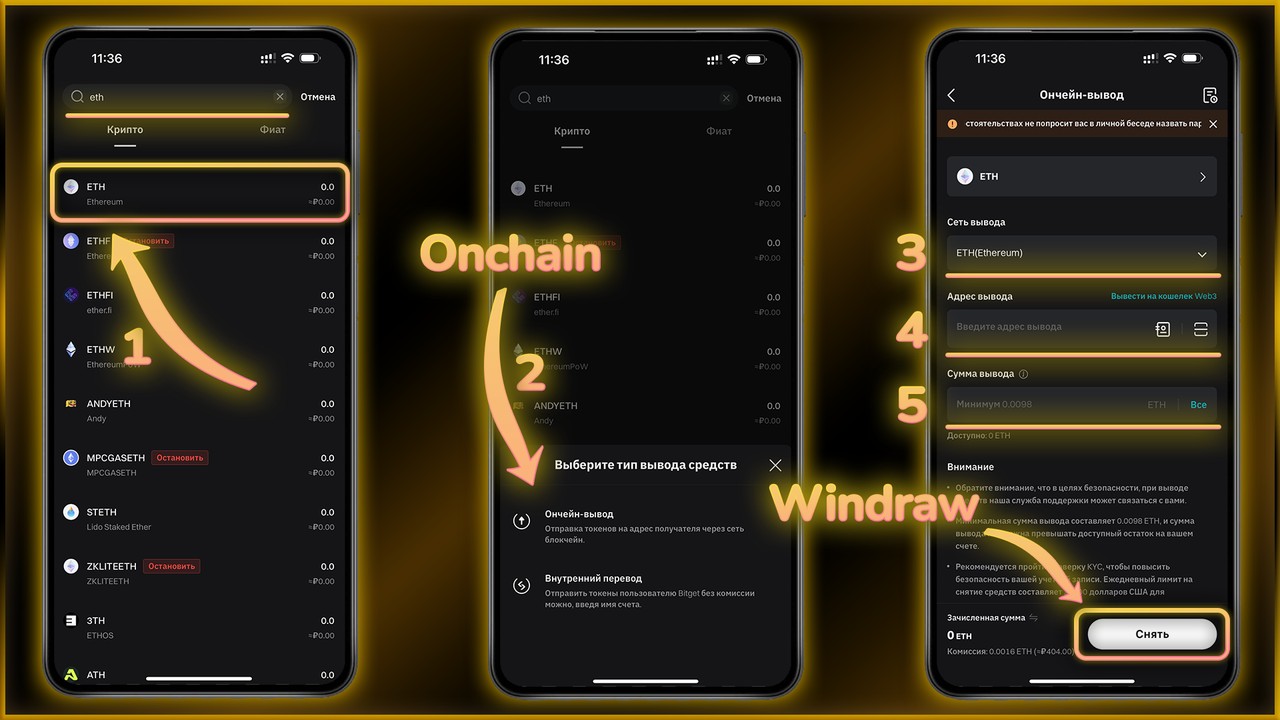
4 - “Withdraw” our ETH;
In the list that appears, select ETH (step 1);
2 - Set the output type to “Onchain”;
3 - Check the network “Ethereum”;
4 - Paste the previously copied wallet address;
5 - Enter the amount;
After that, confirm the withdrawal and wait...
We wait for ETH to enter the wallet, and we can proceed directly to the purchase.
Let's go to the Uniswap platform
To do this, we need to go back to the Web3 section, and repeat the steps shown on the screen:
1 - Go to the DApps section;
2 - Select Uniswap from this menu.
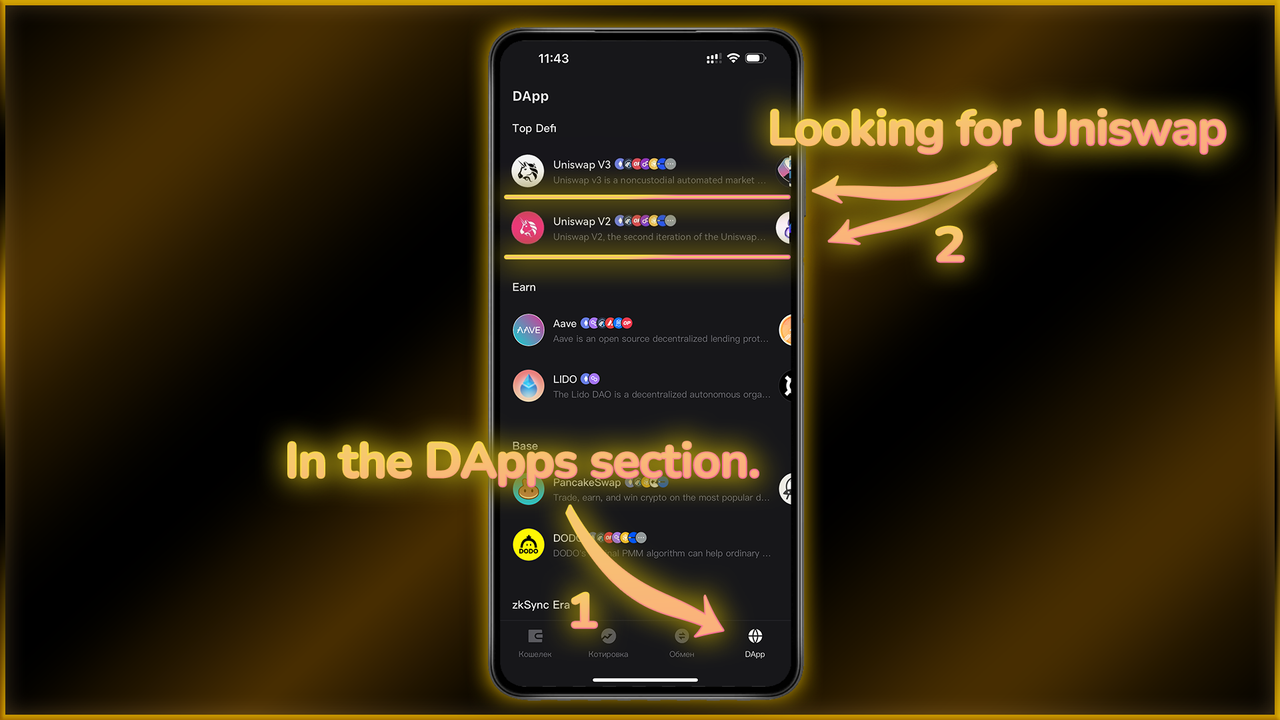
At this stage you may not see Uniswap in the search, to fix this try to use VPN from the block at the end of this instruction.
Connect the wallet to the site, if it does not connect - try to relaunch the page, or try on another device.
1 - Click on the “Connect wallet” button;
2 - Choose our Bitget Wallet;
3 - Start searching for a token;
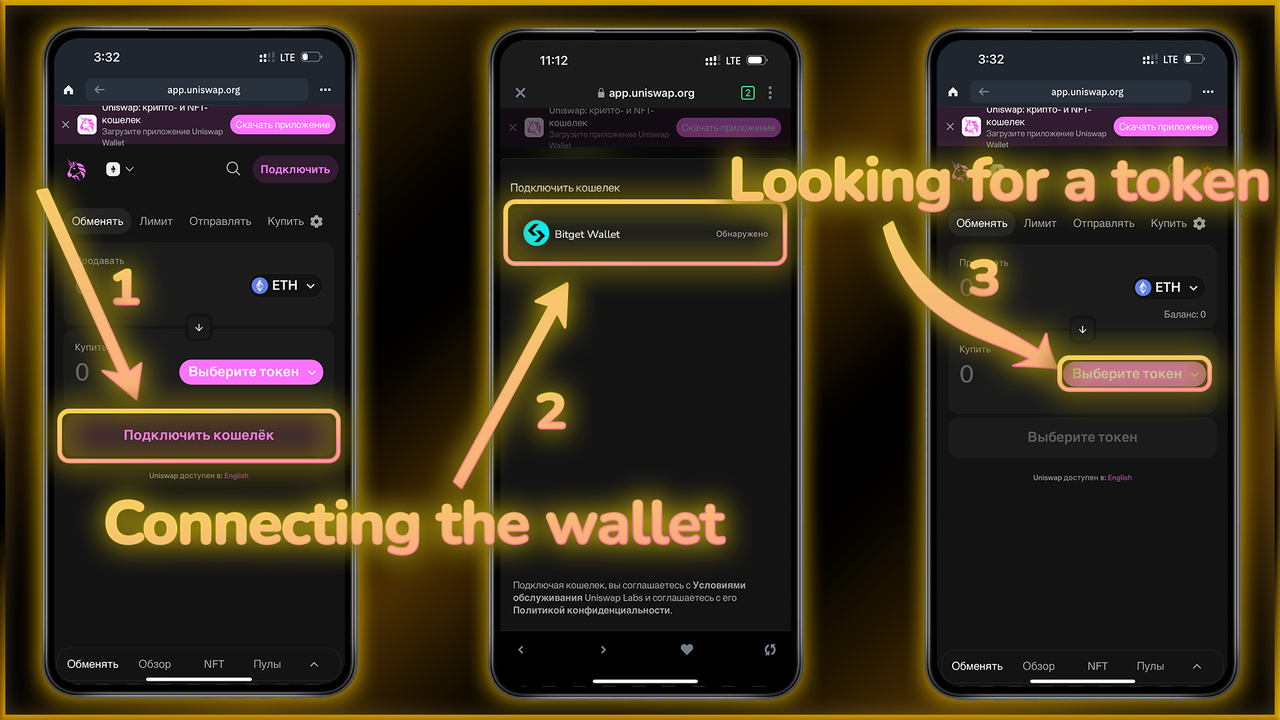
Connecting the wallet to the platform we will find a token to exchange using its contract address:
0xD0f1196Dfb044CA21D6feD0755a5E9B02218AfC4
Follow the steps shown and enter the contract address.

After selecting the token, we need to set the slippage parameter to 49%. Repeat the actions shown in the screenshot:
1 - Click on the settings gear;
2 - Select the adjustable slippage parameter;
3 - Set 49%;

Now all we have to do is enter the desired amount to purchase and exchange the token for ether. For simplicity, everything is shown in the screenshots:
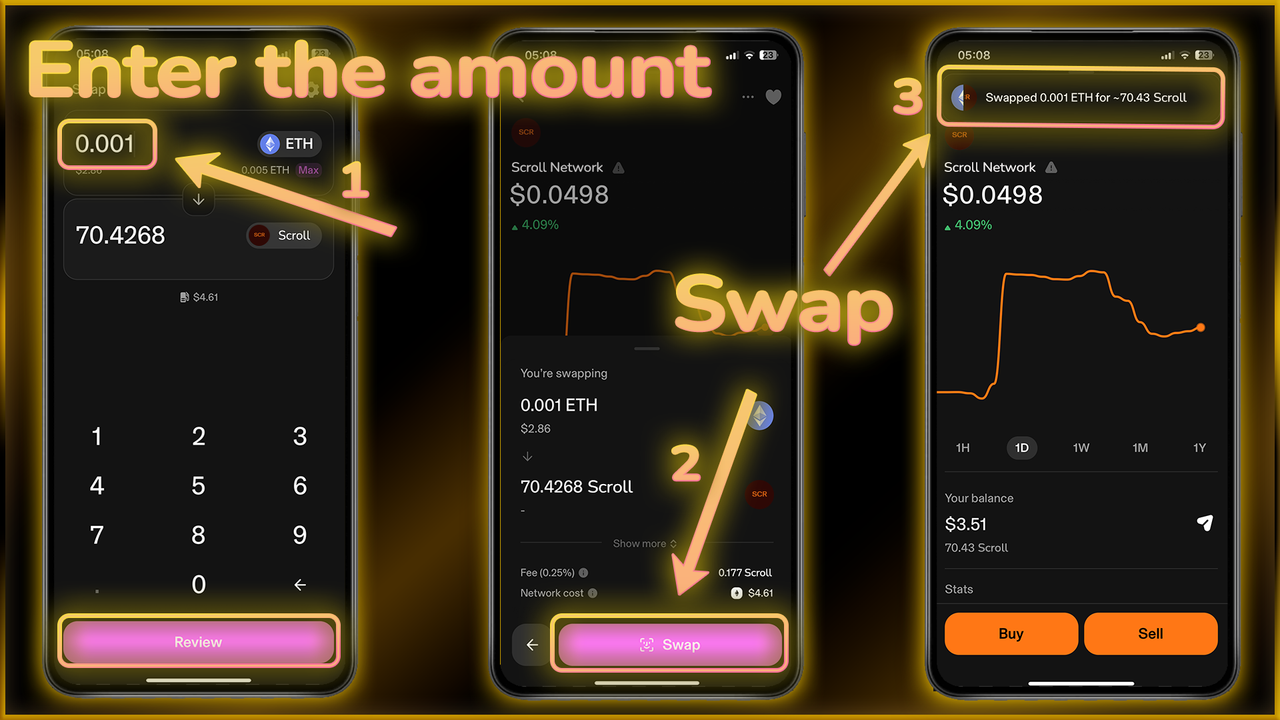
We will need to confirm the transaction in the wallet and wait for it to go through. If something doesn't work out, we have prepared the next block with solutions to possible problems for you.
Solving possible problems during the purchase
Using these tips you will no longer have difficulties when buying tokens on the Uniswap platform
Let's find solutions to the most popular problems you may encounter:
Questions that can be answered here:
1 - Uniswap page won't load
2 - Can't find the token at the contracted address
3 - Difficulties with token purchase (Commission / transaction does not go through).
Let's start with the first point:
Uniswap page does not load
The problem may be due to Uniswap's regional restrictions. To get around this, install a VPN app on your device, refresh the Uniswap page, and try searching for the correct token again.
Often this solves the problem, but sometimes you will need to select the correct region. In my case, Germany always works, and the apps I use are available at the links:
For PC:
For iOS:
For Android:
Cannot find the token at the contracted address
This problem is similar to the previous one, so you should try everything from the previous point, including using different VPN applications, changing your browser and device.
The above steps should help you bypass the geo restrictions and find the token.
Difficulties with token purchase (Commission/ transaction does not go through)
There can be several reasons for this: not enough ETH for the commission, difficulty with the wallet or browser itself, etc.
Always pay attention to what exactly the commission amount is, and whether you have enough ETH to pay for the gas. In addition, it is also important to set the slippage parameter to 49%.
If none of the above helped, or you have another difficulty - try changing your wallet application and browser. In addition, I advise you to repeat the attempt not immediately, but after some time, because due to the huge load on the network during the private sale transactions can go badly.
If the problem is specifically related to the lack of ETH for commission, it is important to pay attention to the range of possible commission, which will be displayed when confirming the transaction. The easiest solution is to simply send more ETH to the wallet for the commission, or try entering fewer tokens for the swap.