Guide to buying SCROLL token using Metamask Wallet
In this guide we will detail how to participate in a private sale using the Metamask wallet .
MetaMask is one of the most popular cryptocurrency wallets designed to interact with decentralized applications (dApps) in the Ethereum ecosystem and other compatible blockchains. Launched in 2016, MetaMask has quickly gained popularity due to its simplicity, reliability, and extensive features.
To get started, you will need to download Metamask to your phone.
Metamask is available for download:
- on iPhone (via the App Store)
- on Android (via Play Market)
You will also need an account in one of the exchanges, through which we will withdraw ETH for the future purchase of SCROLL. In the guide, the withdrawal is made with the help of Binance exchange.
If you have any difficulties in the purchase process - at the end of the guide you can see a block with popular difficulties and the way to solve them.
Let's move on to creating a wallet
After downloading, open the Metamask application and start the process of creating a wallet.
1 - Click the “Get Started” button;
3 - Accept the “Terms of Use” by checking the box and clicking on the “I agree” button.
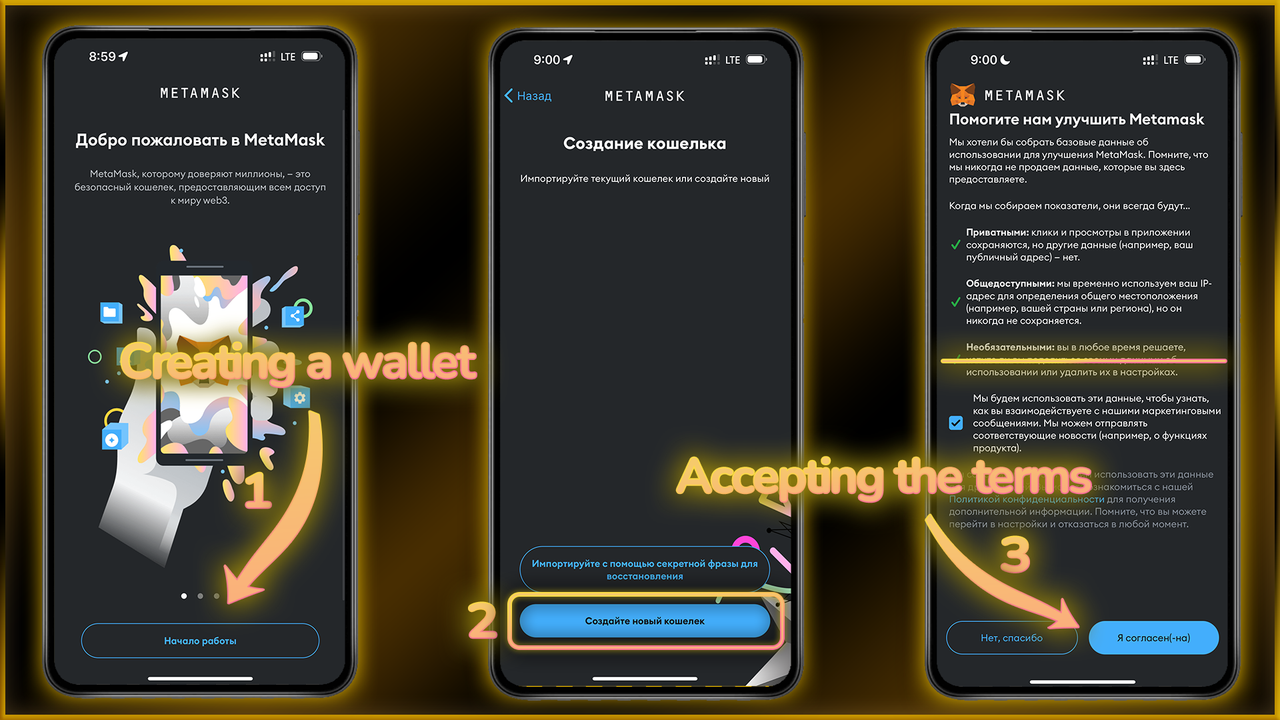
Let's go to the screenshots below:
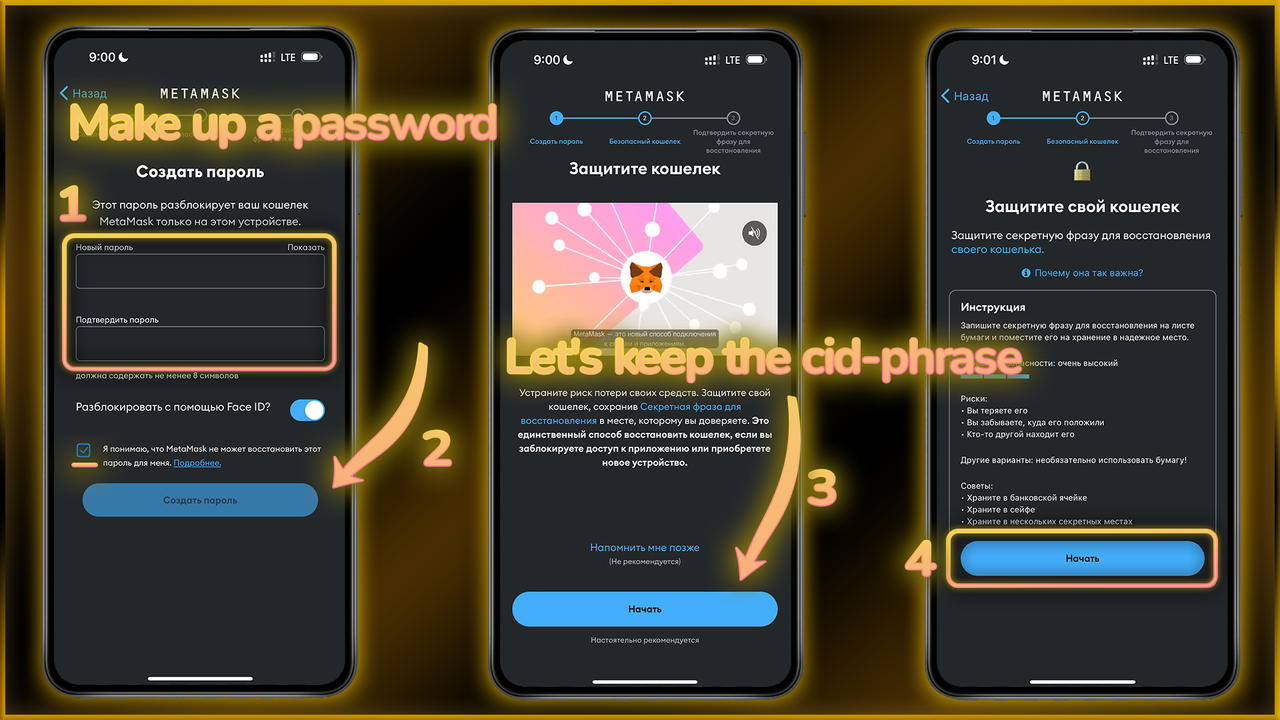
1 - Let's think of a password;
2 - Check the box and click the “Create password” button;
After that we will be offered to protect our wallet with a cid-phrase consisting of 12 words. This is optional, but I recommend not to neglect the safety of your funds and save the passphrase in a safe place - step 4;
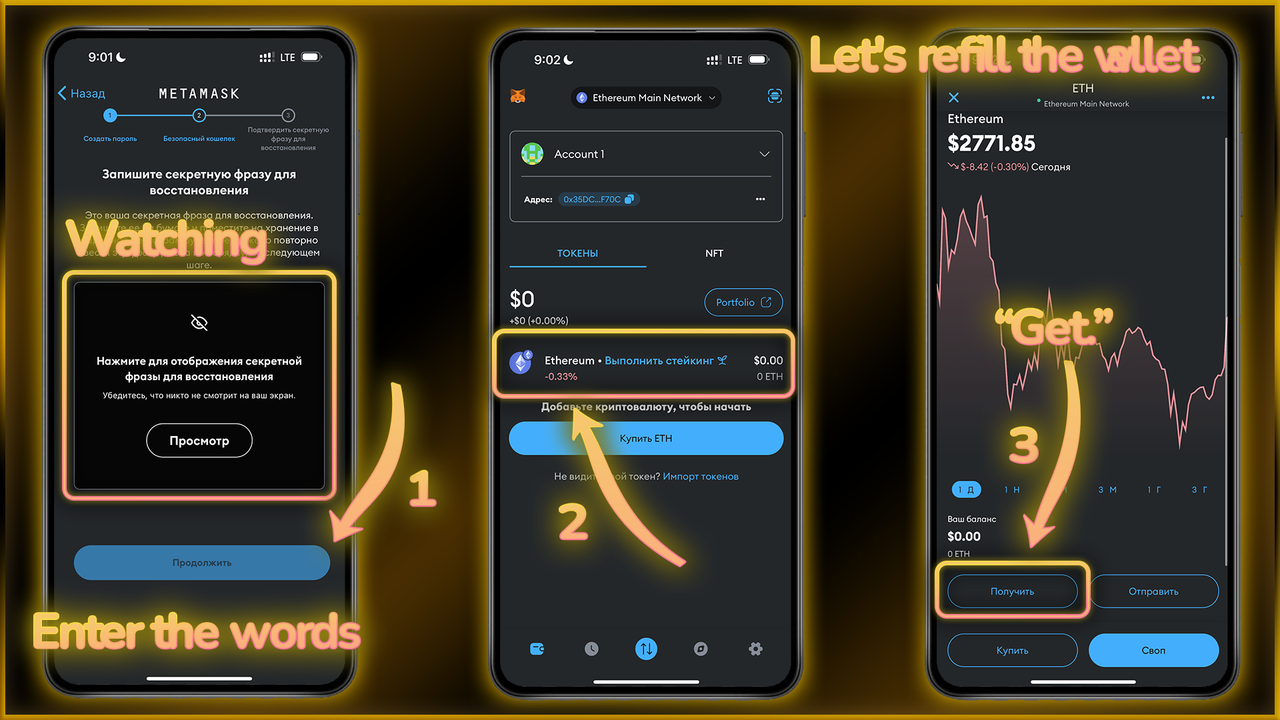
Now we can view our secret words and save them:
1 - Click on “View”, save them and click on “Continue”. After that we will enter them in the correct sequence.
After that we need to fund our wallet with ETH bought from any exchange. For this, we will click on Ethereum (step 2), and get our wallet address (step 3).
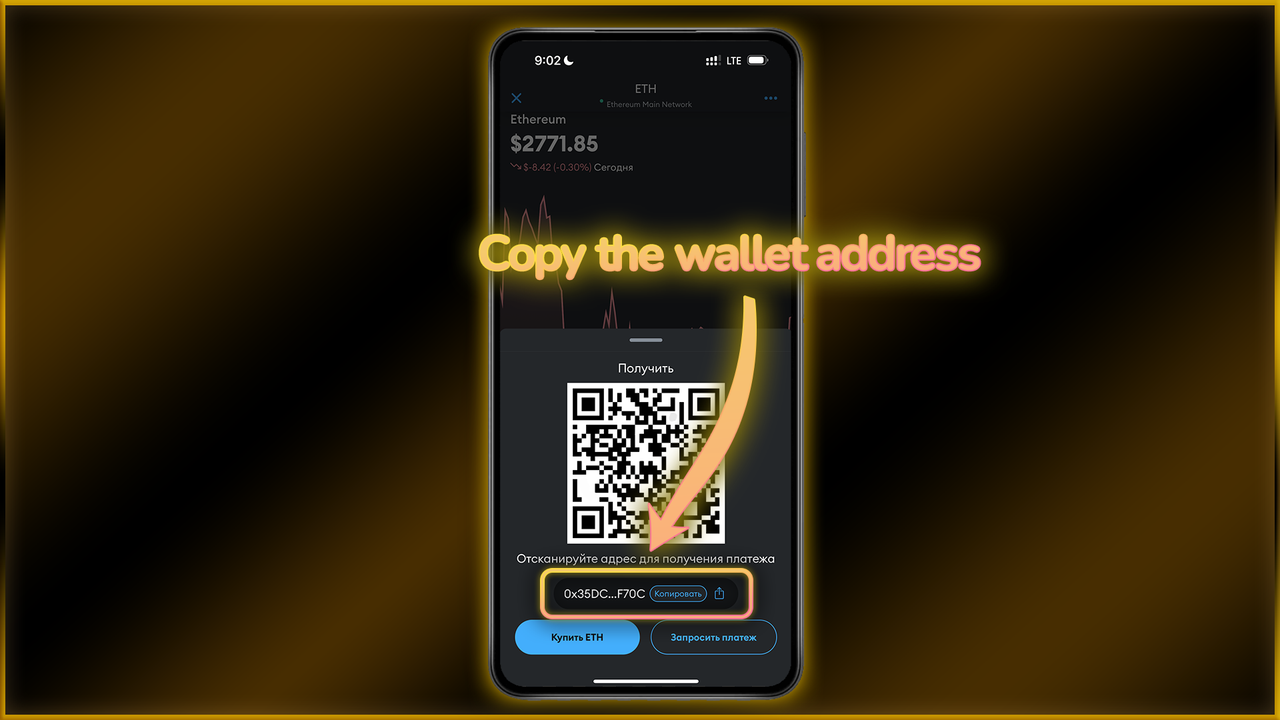
Copy the wallet address and go to the exchange
Next, the steps will be shown using the Binance exchange. Everything is identical for other exchanges.
Let's move on to transfer ETH from the exchange to our wallet
After downloading the application and registering an account (if you have not been registered before), we pass KYC-verification, following the proposed instructions.
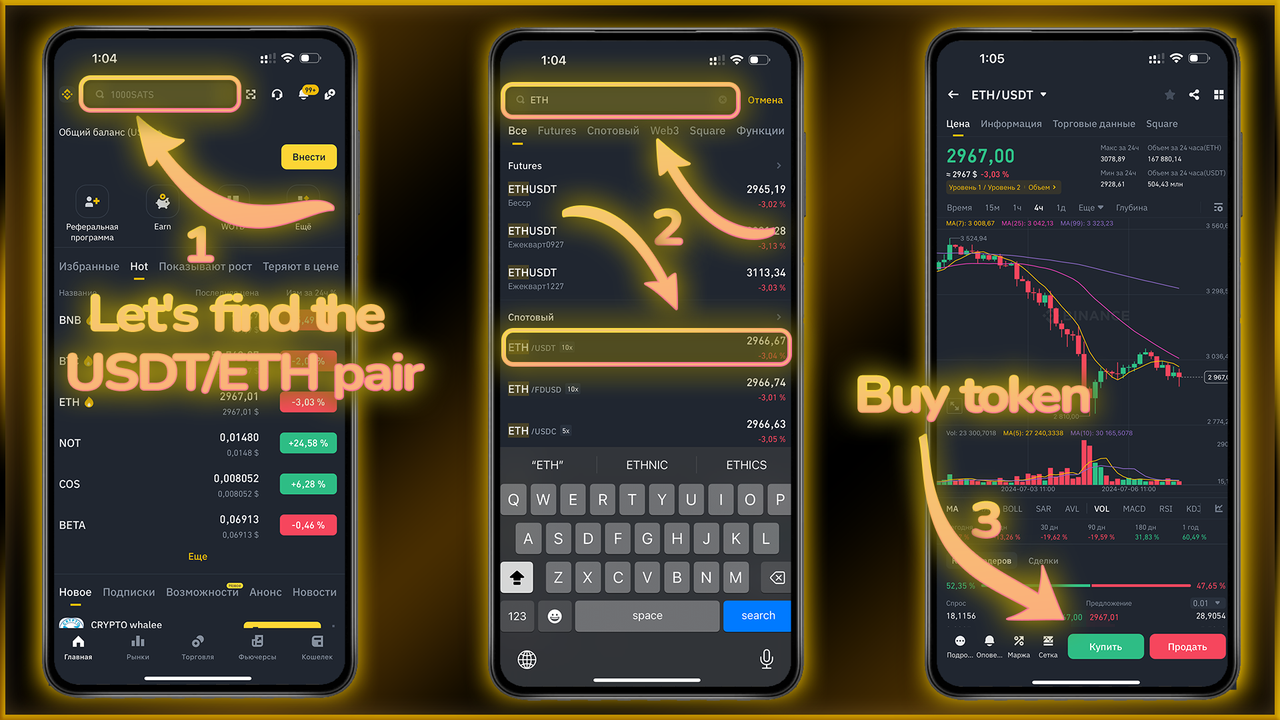
We will need a balance on the exchange wallet so that we can buy ETH for the swap. To do this:
1 - Search for ETH/USDT pair;
3 - Click “Buy”;
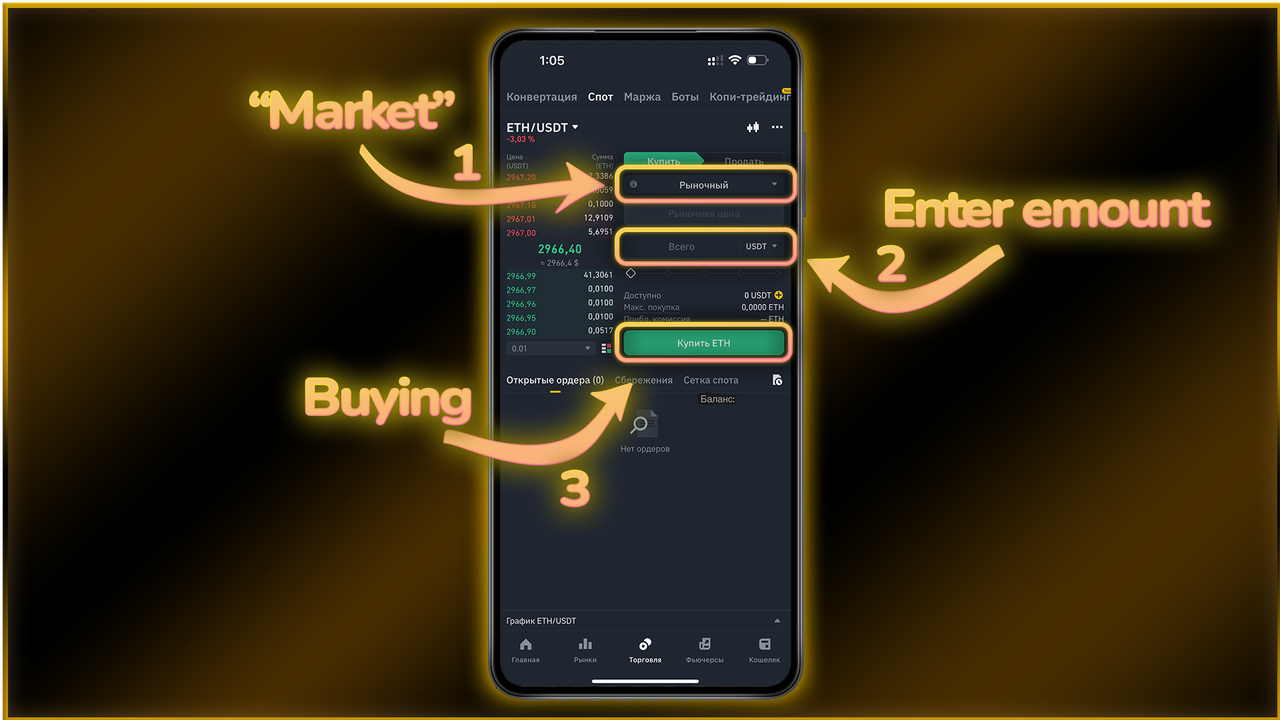
We're taken to the trade menu. Here we have only to:
1 - Select the order type “Market”;
2 - Enter the amount;
3 - Press the “Buy” button;
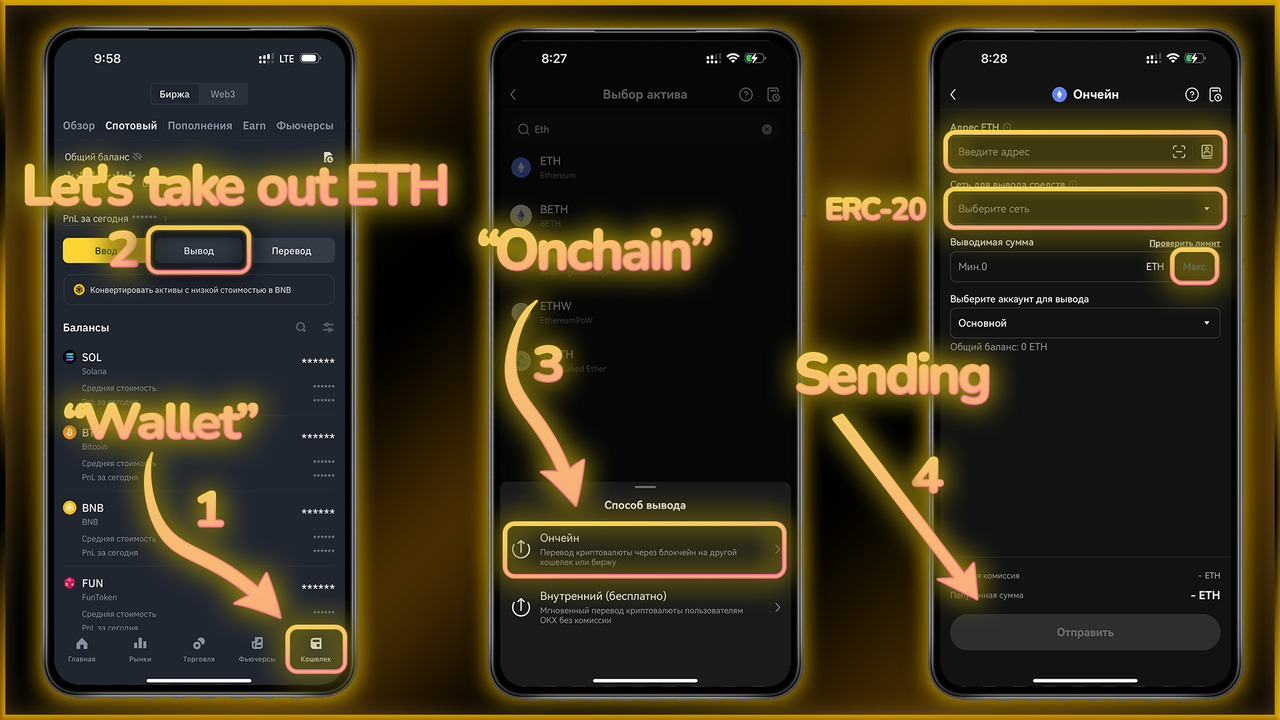
Withdraw the purchased funds to the previously copied Uniswap wallet address:
1 - On the exchange go to the “Wallet” section;
2 - Click the “Withdraw” button;
3 - Choose withdrawal by address in the blockchain network;
4 - Insert the address, the network must be ERC20, the amount and send (step4);
We wait for ETH to enter the wallet, and we can proceed directly to the purchase.
Now let's buy the token directly in the Metamask app
After ETH has entered the wallet, we can open the swap menu and buy SCROLL.
You can do this by following the steps shown in the screenshots below:
1 - On the panel below, look for the button from the first step and click “Swap”;
2 - Select the SCROLL token and look for it at the contract address:
0xD0f1196Dfb044CA21D6feD0755a5E9B02218AfC4
Paste the address and select our token.

Import it by pressing all the buttons.
Now we can enter the amount and swap (step 3);

We check the amounts and swipe to confirm the purchase.

After a short wait, the transaction should go through and the tokens will appear on your balance. If something does not work - try again.
Solving possible problems during the purchase
Using these tips you will no longer have difficulties when buying tokens on the Uniswap platform
Let's find solutions to the most popular problems you may encounter:
Questions that can be answered here:
1 - Uniswap page won't load
2 - Can't find the token at the contracted address
3 - Difficulties with token purchase (Commission / transaction does not go through).
Let's start with the first point:
Uniswap page does not load
The problem may be due to Uniswap's regional restrictions. To get around this, install a VPN app on your device, refresh the Uniswap page, and try searching for the correct token again.
Often this solves the problem, but sometimes you will need to select the correct region. In my case, Germany always works, and the apps I use are available at the links:
For PC:
For iOS:
For Android:
Cannot find the token at the contracted address
This problem is similar to the previous one, so you should try everything from the previous point, including using different VPN applications, changing your browser and device.
The above steps should help you bypass the geo restrictions and find the token.
Difficulties with token purchase (Commission/ transaction does not go through)
There can be several reasons for this: not enough ETH for the commission, difficulty with the wallet or browser itself, etc.
Always pay attention to what exactly the commission amount is, and whether you have enough ETH to pay for the gas. In addition, it is also important to set the slippage parameter to 49%.
If none of the above helped, or you have another difficulty - try changing your wallet application and browser. In addition, I advise you to repeat the attempt not immediately, but after some time, because due to the huge load on the network during the private sale transactions can go badly.
If the problem is specifically related to the lack of ETH for commission, it is important to pay attention to the range of possible commission, which will be displayed when confirming the transaction. The easiest solution is to simply send more ETH to the wallet for the commission, or try entering fewer tokens for the swap.