Guide through Skeepe
Rostislav FutornoyHey, guys! If you're reading this post right now it means you want to take place in developing Skeepe app. What's Skeepe about?
You know nowadays and the century exactly almost everybody has a lack of time. You cannot add additional time to 24 hours a day, but you only can improve the quality of how you're spending your time. By the way, Skeepe's mission is to improve the quality time spent in working time and in your weekends as well.
Skeepe - web application allows you to improve your productivity throughout days, months, years (we'll provide specific tools for it like statistics, recommendations and etc), increase your focus on tasks you are working on.
Excited? So, if you want to try it out, let's get started right now!
Main page
Now, there's no useful information. In the future, it'll be provided! As you can see you can login into Skeepe right now using your Google account. Go to the next page!

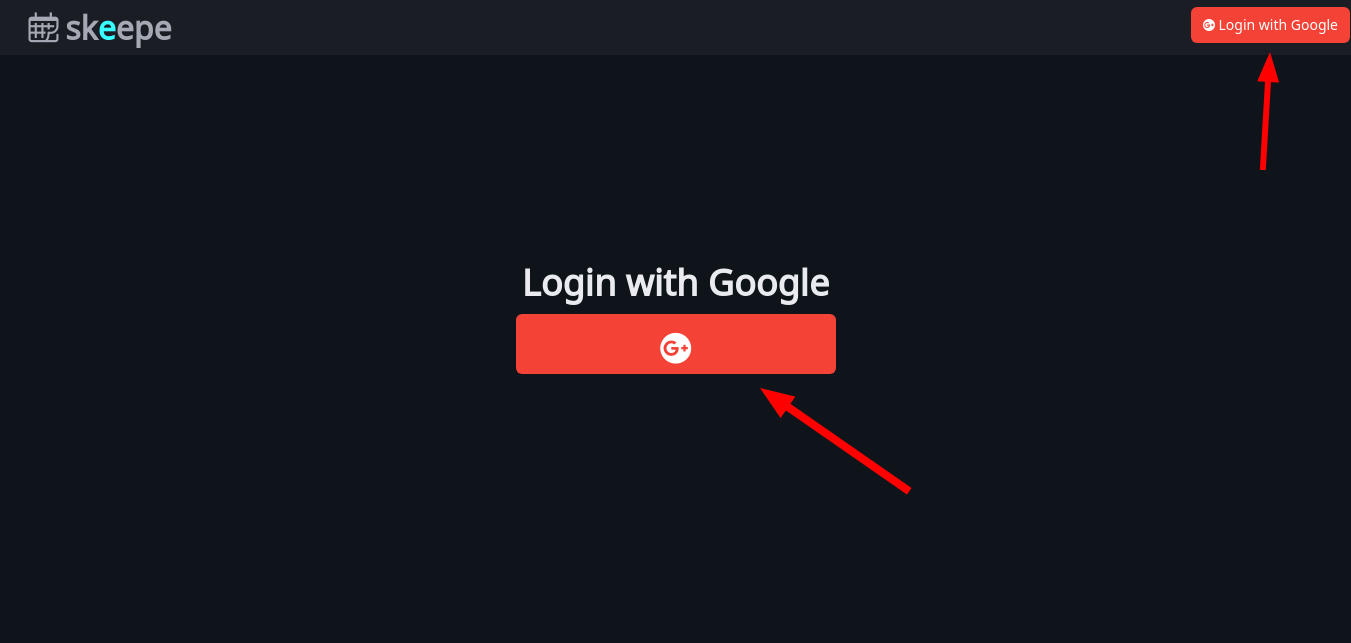
Login
The next and probably the most important page is login page allows you to login into your Skeepe account. You can click on a button your mood for😁
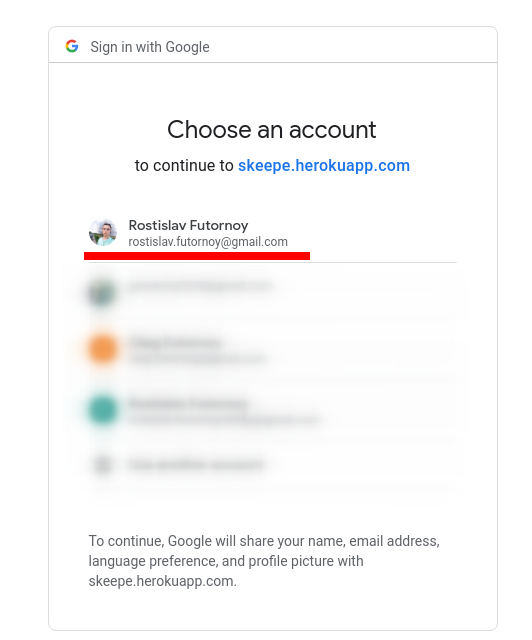
Then you'll redirect to Google Sign-in page. You need to click on your Google account to log in
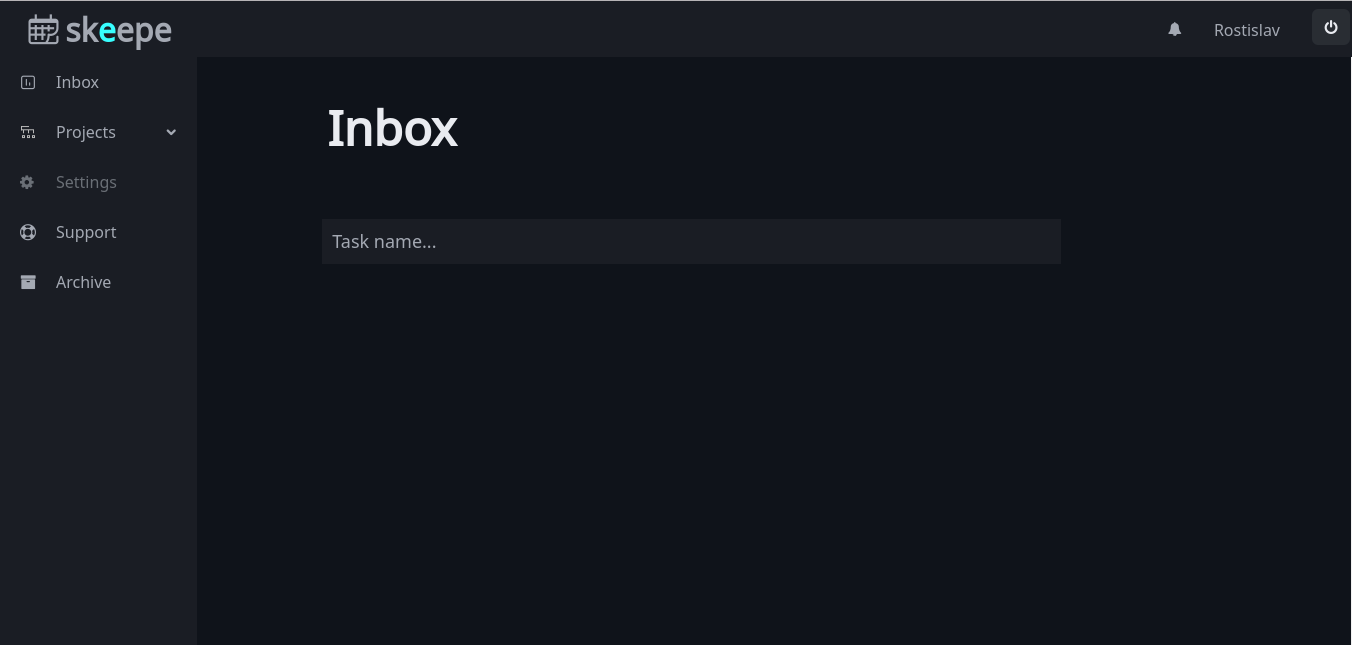
You were redirected to Inbox page. Here you can see sidebar where you can switch between your projects. We'll come back to it later
Now after you're logged in, you'll able to create your first task in Inbox page. Type task name and Enter
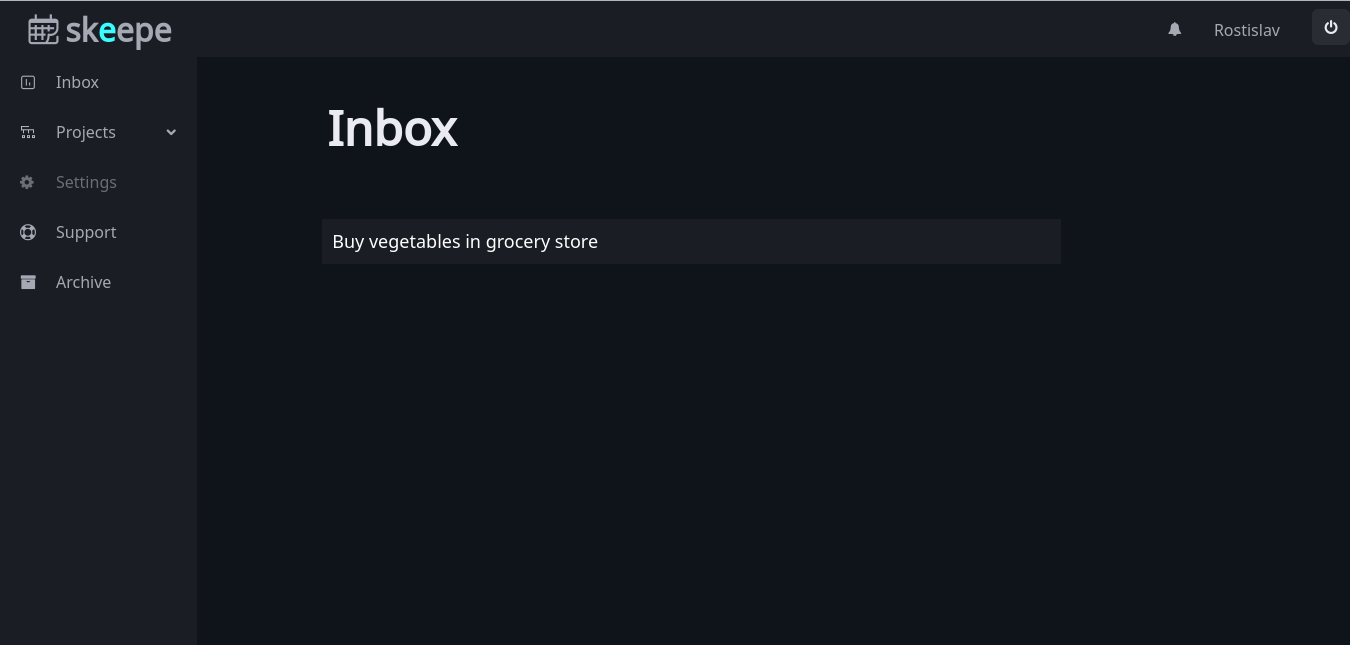
The new task appeared below your input. You can change task priority, task date (when you need to accomplish it). You can click on the circle near task and tap on a color you want to attach to the task. Red is the most important tasks, and gray is a task you can miss or even remove ones. To remove a task you merely need to click on the bin icon



The same you can do click on 'Select Date' button and click on the date you wanna select. Then click on the 'OK' button
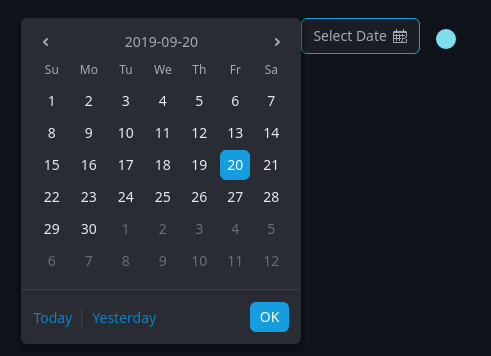

If you decided you accomplished the task click on the checkbox and it will move on the 'Archive' page. About it later.
💡To edit a task you need to click and edit it. It's easy😁

Projects
If you're attentive, you noticed the 'Projects' tab. Firstly, click on it and the modal window appears then
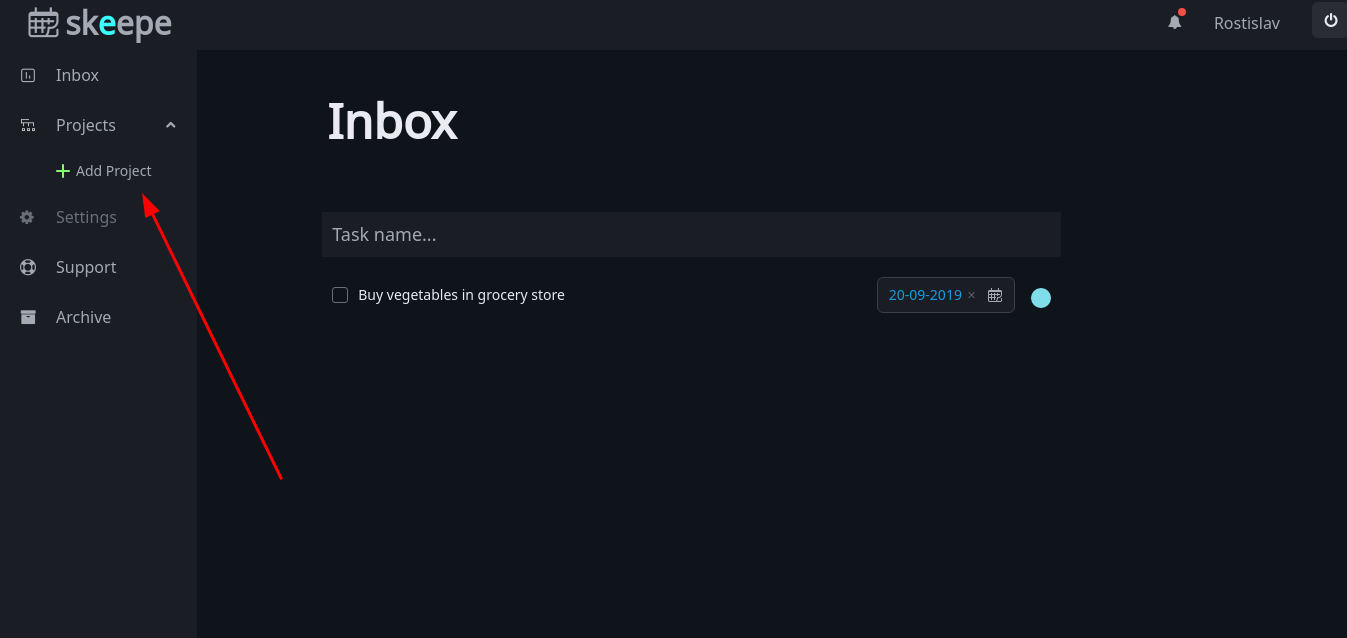
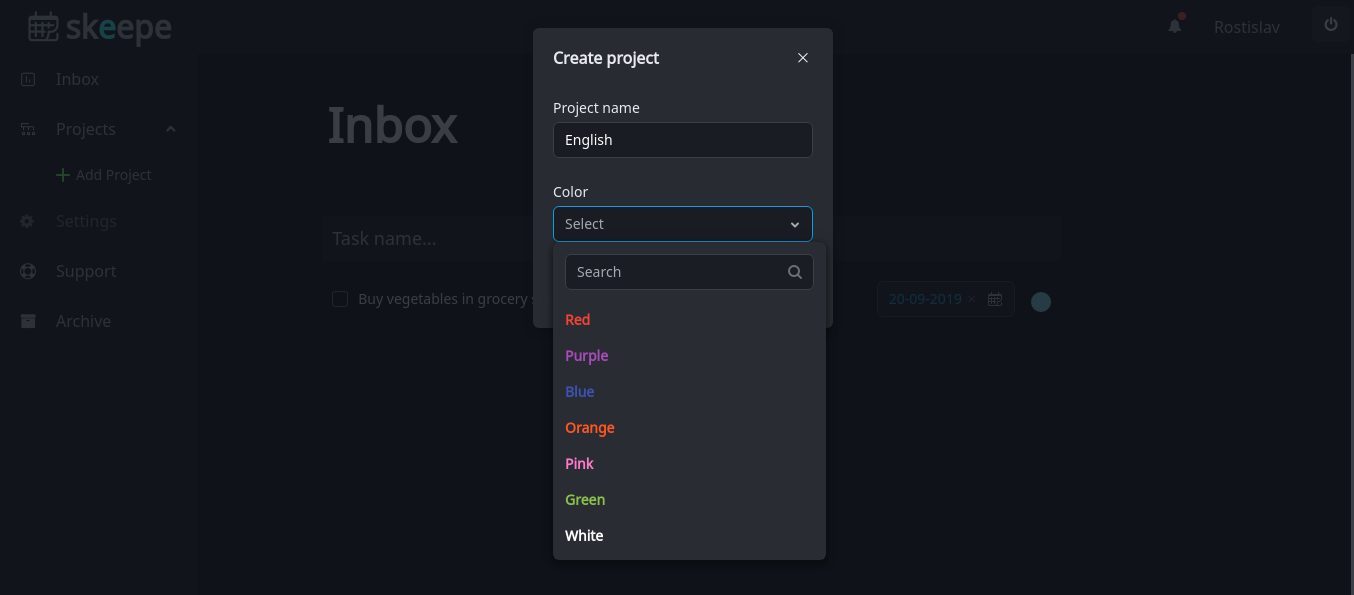
Fill project name (e.g English, Work, College, Business), project color. A click on 'OK' button
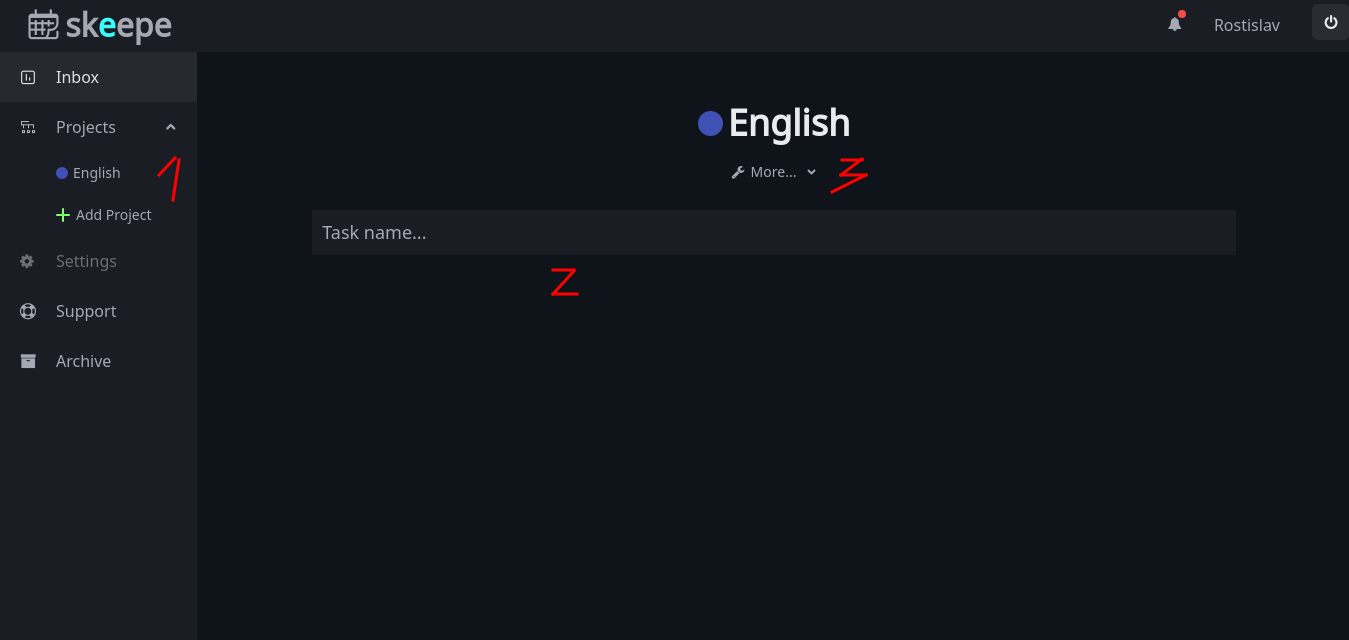
You'll be redirected to your first new project in Skeepe. Congratulations!
1) The new project appeared in your sidebar
2) Input for creating tasks like in Inbox page
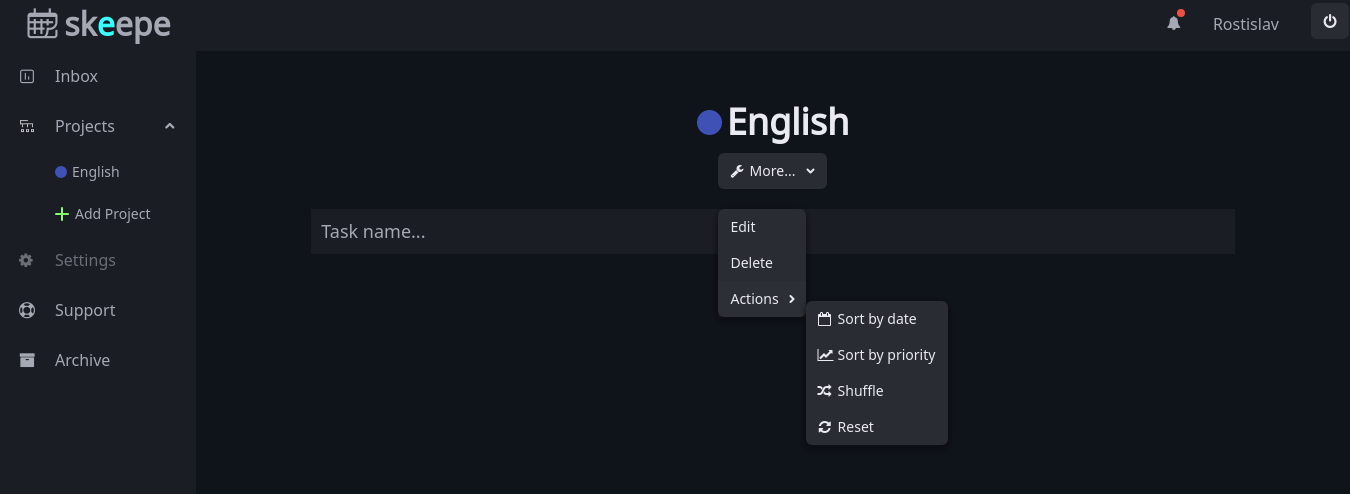
3) 'More...' dropdown
1) 'Edit' button allows you to edit the project. A modal window is familiar with what to create project
2) 'Delete' button allows you to delete the project. A modal window is familiar with what to remove a task
3) Action buttons describe themselves without me
Click on ones and try ones out on your own!
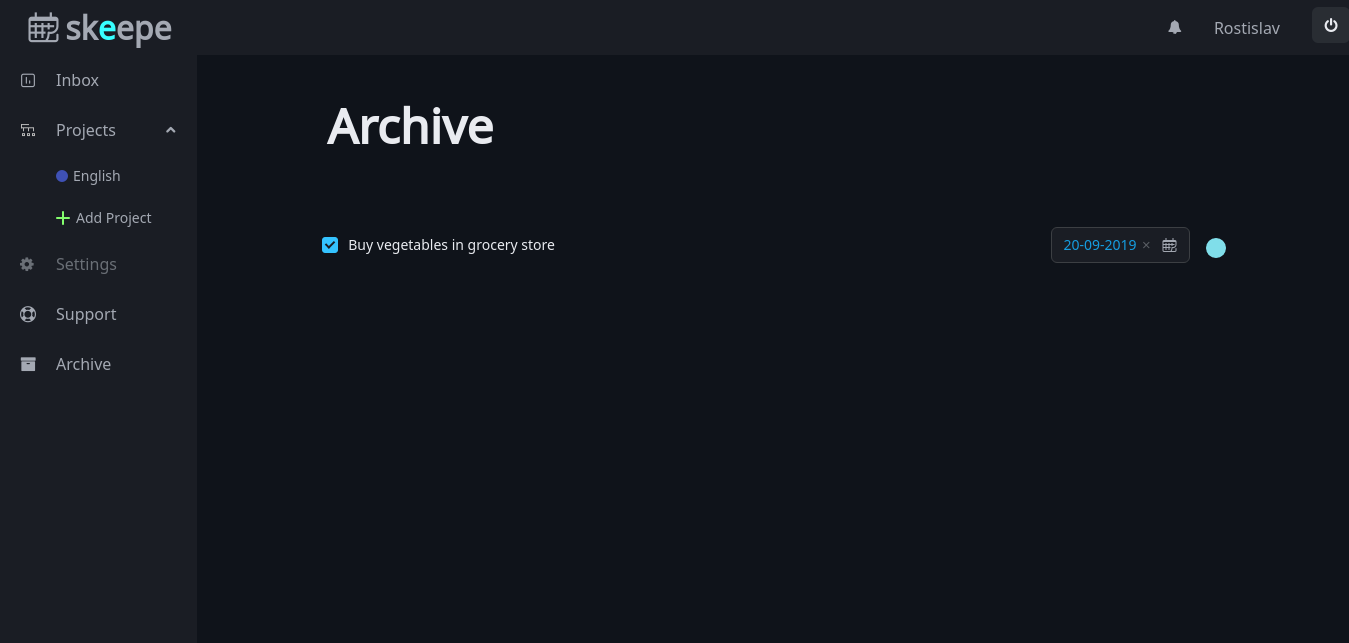
Archive
Here you can manage your completed tasks or come back them.
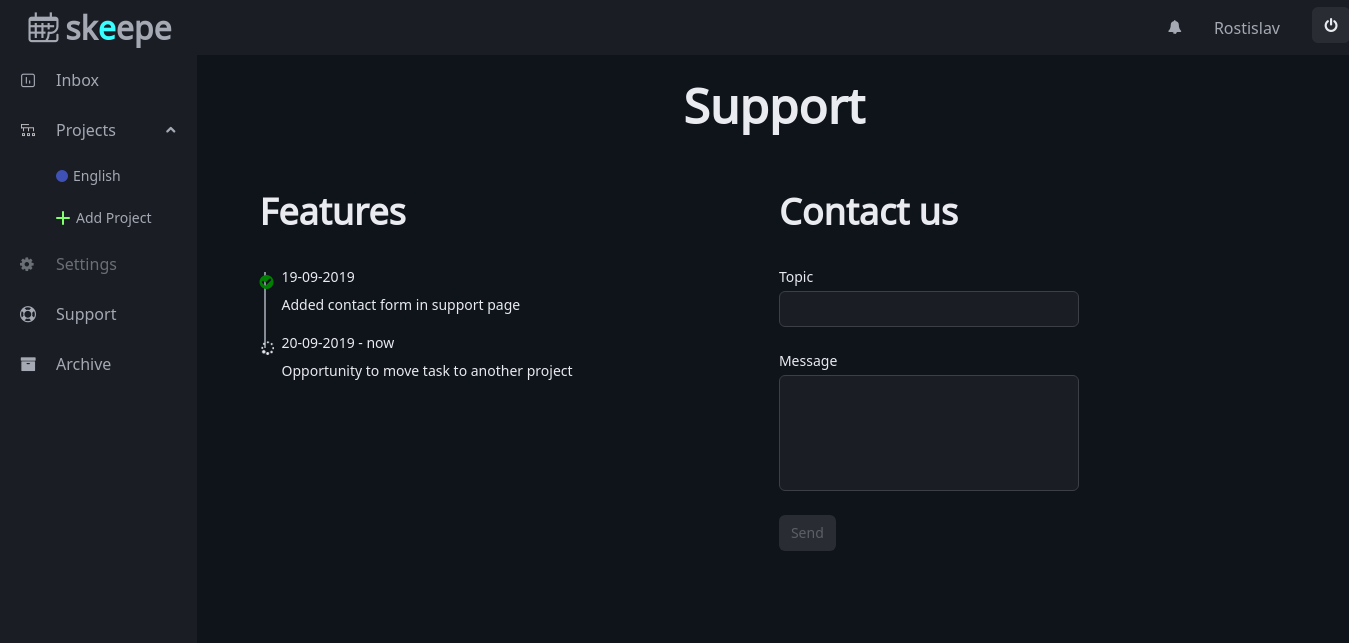
Support
In the support page, you can see what are new features coming on and contact us
The final step is to provide feedback.
https://forms.gle/9U5gPQgXNQmqbk3aA
Thank you so much you spent your valuable minutes to improve our project together! I'll redeem myself, I promise.
Regards,
Rostislav