📝 Groom Guide
Groom is a bot that will help you manage your communities by creating smart rooms for your server users!
👑 Server's owner guide:
To begin with, it is good that you know how to set up the bot.
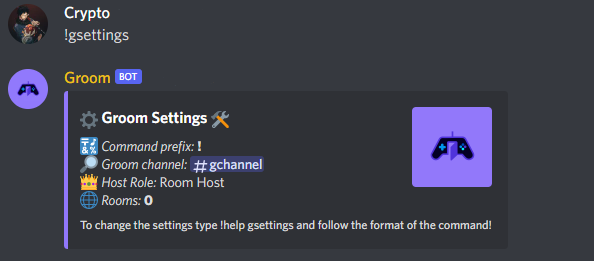
Type --> $gsettings
Without any arguments, this command will show you how the current settings are set.
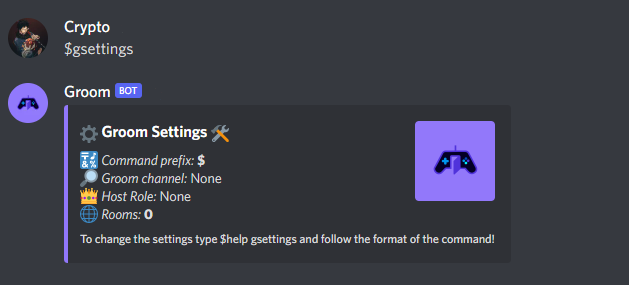
We first set a prefix that will allow the bot to understand what its commands are.
By default it is '$', maximum one character.
Type --> $gsettings -prefix [your prefix]
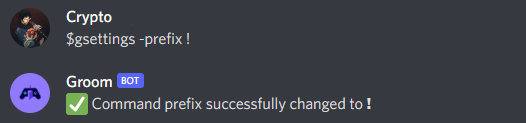
Now that we have set a prefix of our liking, we need to set the one required setting that allows the bot to work.
The groom channel is nothing more than a text channel where the bot will post announcements to enter gaming rooms.
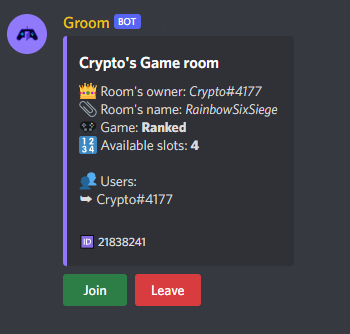
To set up the groom channel you need to know its ID now I will show you how you can safely get an ID on discord
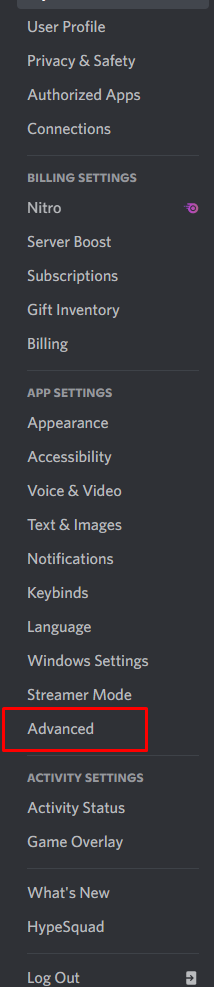

Now you should be able to copy user IDs, channels IDs, etc... by simply right-clicking on the entity you want to copy.
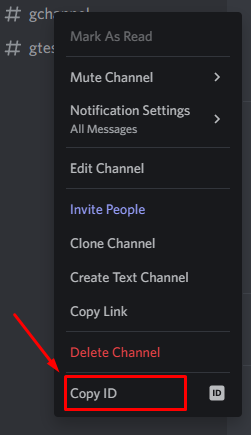
Type --> !gsettings -gchannel [Channel ID]
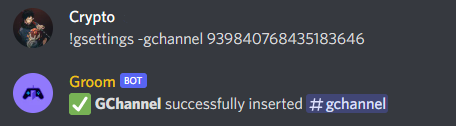
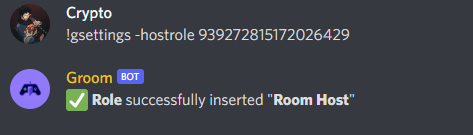
Once you get to this point the bot can work smoothly, however, if you want you can define a role that will be assigned to each person who creates a gaming room.
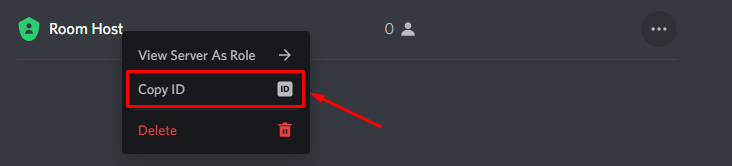
Type --> !gsettings -hostrole [Role ID]
🔰 Room's owner guide:
You can own at most one gaming room in the server!
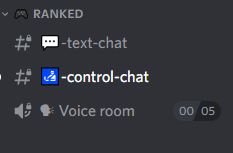
The room owns its own category and 3 channels:
1 💬 Text channel where room members can write
1 🗣 Voice channel where room members can talk
1 🛃 Control channel visible only to the room owner where he can manage the room via commands (explained later).
This collection of channels is visible only to members of the room so as to make the server look cleaner.
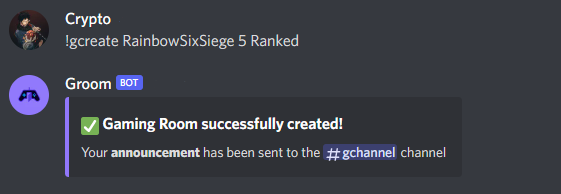
To create a gaming room just specify 3 attributes:
The name of the room, the amount of users allowed, and the name of the game that will be associated with the category that will be created.
Type --> !gcreate [name room] [user limit] [name game]
🔐 First we set a password to the room so only people who know about it can enter.
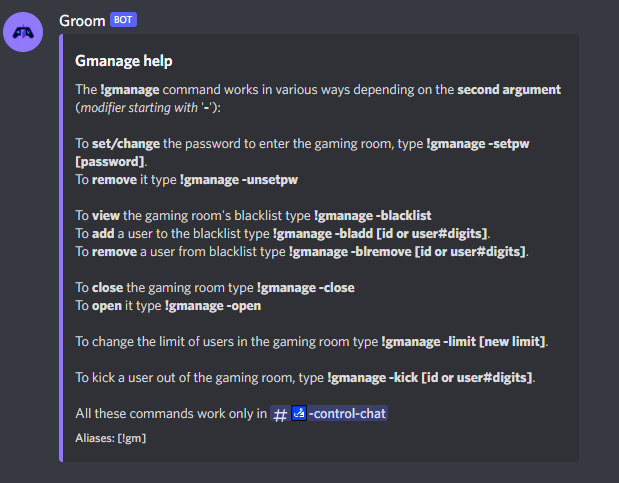
Type --> !gmanage -setpw [pw]
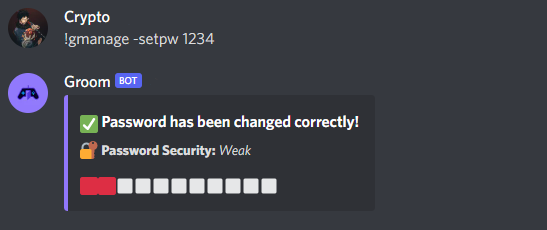
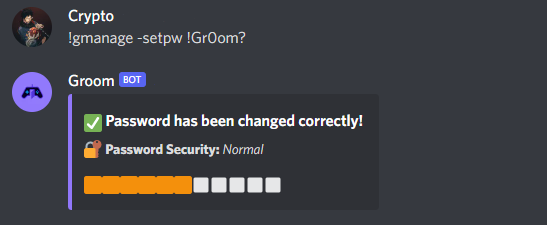

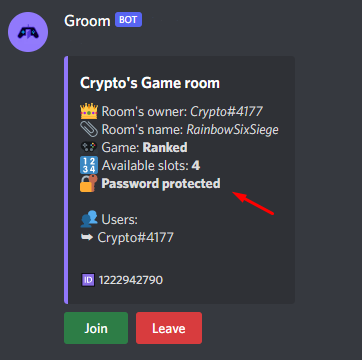
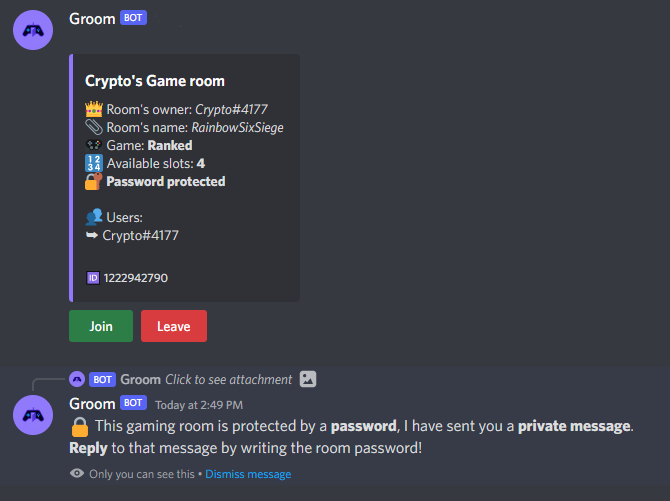
Once a password is set, the ad in the groom channel is automatically changed
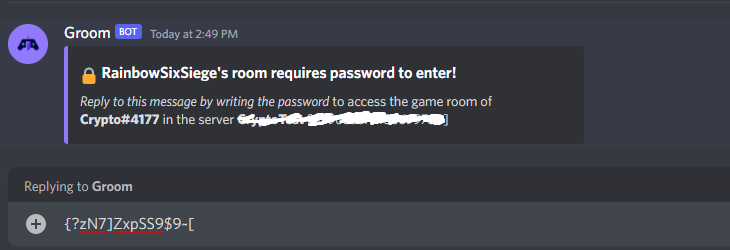
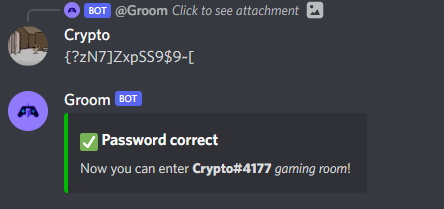
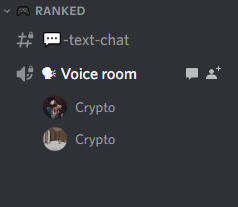
We can also create a blacklist i.e., a list of users who cannot enter.
To view it:
Type --> !gmanage -blacklist
To add a user to the blacklist:
Type --> !gmanage -bladd [ID or user#digits]
To remove a user to the blacklist:
Type --> !gmanage -blremove [ID or user#digits]
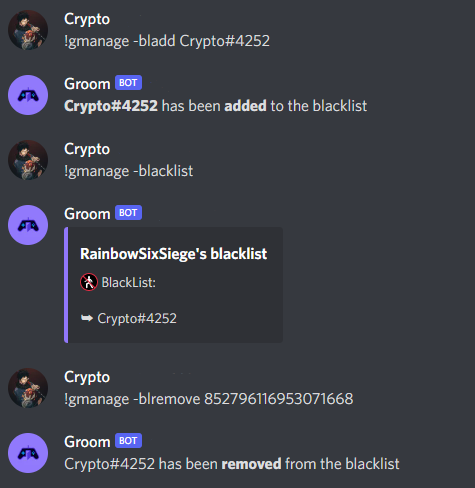
A gaming room closes automatically when it reaches the maximum limit of users who can enter, however, it can also be closed manually.
Type --> !gmanage -close
And of course to open it:
Type --> !gmanage -open
Speaking of user limit obviously that can be changed as well.
Type --> !gmanage -limit [new limit]
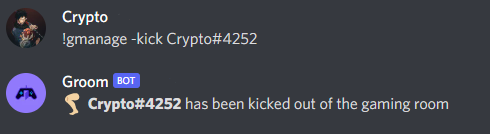
Finally, just so we don't miss anything, you can also kick a user out of the gaming room for bad behavior or to give a slot to another user.
Type --> !gmanage -kick [ID or user#digits]
To delete your gaming room:
Type --> !gdelete
In addition to using the button to exit the gaming room, the user also has a special command available.
Type --> !gleave
📋 NOTES
- Each command has its own help, type !help [command name]
- If desired, aliases exist for each command to make it easier to write, they can be viewed in the help of the command in question.
- Make sure the bot has all the permissions it requires to work properly!
- If the bot does not assign the host role, even though the host role has been set, it is probably because there is a problem in the server role hierarchy.

The role of the bot should always be above that of the room creator (host role)

🔗 Groom Link: Groom
⭐️ Vote Groom!
👤 Contacts
Discord: Crypto#4177
Telegram: Crypto_Code
Github: CarbonCock
Fiverr Team: NullTesting