Gradle Made Simple (Part 1): Gradle Basics Every Flutter Dev Must Know
FlutterPulseThis article was translated specially for the channel FlutterPulseYou'll find lots of interesting things related to Flutter on this channel. Don't hesitate to subscribe!🚀

In this series, we're going to finally make sense of Gradle — that mysterious piece of Android machinery that has scared off more…
Intro
In this series, we're going to finally make sense of Gradle — that mysterious piece of Android machinery that has scared off more developers than Java's checked exceptions.
Back in my initial days of learning Gradle, it was an absolute nightmare. Errors would pop up from every direction — left, right, everywhere — and half the time I had no idea what they were even saying. Some logs looked like a frustrated text from your ex, full of cryptic complaints, and you had to figure out the mistake you made without any clear starting point. Opening a Flutter Android build felt like stepping into a maze blindfolded, tripping over build.gradle files, version mismatches, and terminal messages that seemed determined to confuse me.
I come from a native iOS development background, so moving to Flutter felt exciting — and terrifying. Suddenly, I had to deal with Android builds and Gradle, something I'd never faced before. But over time, I realized Gradle isn't out to get us. It's just badly misunderstood.
So let's break it down in — with a few laughs along the way.
What Even Is Gradle, and What's It For?
Gradle is the build system behind Android basically, it's the tool that takes your code, compiles it, packages it, and gets it ready to run on a device. Think of it as a super-organized kitchen: it takes all your ingredients (code, resources, libraries), follows a recipe (your build.gradle files), and serves up a finished dish (your APK or app bundle).
Its main uses:
- Compile your code — turns your human-readable code into something the device can run.
- Manage dependencies — automatically grabs and updates libraries your app needs.
- Automate tasks — runs tests, builds different versions, signs apps, and more.
- Optimize builds — handles caching and incremental builds so you don't wait forever.
In short, Gradle does all the heavy lifting so you can focus on writing your app, not manually gluing files together.
The Million Dollar Question
Why the heck are there two build.gradle files in the first place, and what exactly do they even do?
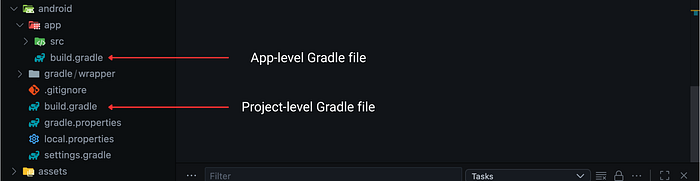
Project-level (android/build.gradle)
Think of this as the lobby of a hotel. It manages the global stuff that affects the entire building:
- Repositories (where to fetch libraries:
google(),mavenCentral()) - The Android Gradle Plugin (AGP) dependency
- Settings that apply across all modules
App-level (android/app/build.gradle)
This is the room service menu — specific to your app. It defines:
- Your app's
applicationId(unique package name) - SDK versions (which Android versions your app can run on)
- Build types (debug/release)
- Dependencies your app actually needs
The project-level build.gradle sets the stage, and the app-level build.gradle runs the show.
The Important Fields in app/build.gradle.
Let's open up android/app/build.gradle. Don't panic. Breathe. Here are the big fields you'll see:
- compileSdkVersion
This is like saying: "I know the latest Android slang, so I can compile using Android's newest words."
- It's the SDK your code is compiled against.
- It doesn't mean your app can only run on that version — just that it understands features up to it.
android {
    compileSdkVersion 34
}
2. minSdkVersion
The minimum age of Android your app is willing to babysit.
- Set this too high → you cut off older devices.
- Set this too low → expect bugs because your code may rely on features that don't exist there.
defaultConfig {
    minSdkVersion 21
}
3. targetSdkVersion
This is Android asking: "Hey dev, which version did you test on? Which house rules should I apply?"
- Tells Google Play you've tested up to this version.
- If you lag behind too much, you'll get warnings or be forced to update.
defaultConfig {
    targetSdkVersion 34
}
4. applicationId
Your app's unique passport number. Two apps can't share the same one.
defaultConfig {
    applicationId "com.example.myflutterapp"
}
5. versionCode / versionName
Think of versionName as the number you brag about to users (like 1.0.3).
versionCode is the boring integer that Play Store actually cares about. Each release → increment it.
defaultConfig {
    versionCode 3
    versionName "1.0.2"
}
Dependencies Block (implementation, classpath)
This is where your app says: "I need help — bring in these libraries."
At the project level, you'll often see:
Old Gradle:
dependencies {
    classpath "com.android.tools.build:gradle:8.6.0"
}
New Way (settings.gradle + app/build.gradle):
In settings.gradle:
 plugins {
        id "com.android.application" version "8.6.0"

    }
In app/build.gradle:
plugins {
    id "com.android.application"
}
This pulls in the Android Gradle Plugin. You can check which AGP versions are compatible with your Gradle version here.
At the app level, you'll see:
dependencies {
    implementation "com.google.firebase:firebase-analytics:21.3.0"
    implementation "androidx.core:core-ktx:1.13.1"
}
This pulls in specific libraries your app uses.
So, to recap:
- Gradle = the chef who cooks your Android app.
- Flutter needs Gradle to actually build Android packages.
- Two
build.gradlefiles exist for a reason (global vs app-specific). - Key fields like
compileSdkVersion,minSdkVersion, andapplicationIddecide how your app behaves.
In Part 2, we'll tackle the real headaches: Gradle versions, AGP mismatches, and common errors Flutter devs face (a.k.a. "Gradle Hell"). Stay tuned.
Got a Gradle fun story, a tip, or a suggestion to make this article better? Drop it in the comments! I'd love to hear how you tackle Gradle chaos.
Android’s 16KB Page Size Explained: Flutter Migration Made SimpleGoogle announced that starting November 1, 2025, all new app submissions and updates to Google Play must support the…
medium.com
Flutter’s Hero Widget Has a Hidden Superpower (Most Devs Never Use It)Flutter’s Hero widget is famous. Everyone has seen it: tap on an image, and it smoothly transitions to a new screen…
medium.com
Null, Nil, None: The Ghost Values That Make Programming PossibleRecently, I was trying to print the memory address of a variable. To my surprise, it turned out to be null. Not a…
medium.com