Google Camera support levels.
Artem KorotkevichTo understand the issue of Google Camera support on different devices, you need to understand what is the Camera2 API.
What is the Camera2 API and how does it work?
In simple words, the Camera2 API is an intermediary utility between the hardware component (processor and photo module) of a smartphone and its software part (third-party programs for controlling the camera). The Camera2 API allows programs to access important data such as ISO, shutter speed, raw capture (data directly from the camera sensor), and so on.
Despite the importance of this utility, it is not activated on all smartphones, even on all flagships. You can check the activity of the Camera2 API with a special program called Camera2 API Probe, which can be easily found and installed from Google Play.
In the program, you can find information about how the Camera2 API driver is supported by the smartphone. There are four levels of support, from the initial with a minimum of features to the most advanced. Let's take a closer look at the driver levels:
- Legacy - there is only support for the old Camera 1 API driver, which was relevant for Android 4.4. In other words, you can install Google Camera, but it will not work.
- Limited - Camera2 API support is provided on a limited level. Some features are available, and some are not (HDR+ will not work);
- Full - full driver support;
- Level3 - full driver support with some advanced functionality;
- External - support is similar to Limited. Information about some sensors or lenses is not reported or has an unstable frame rate.
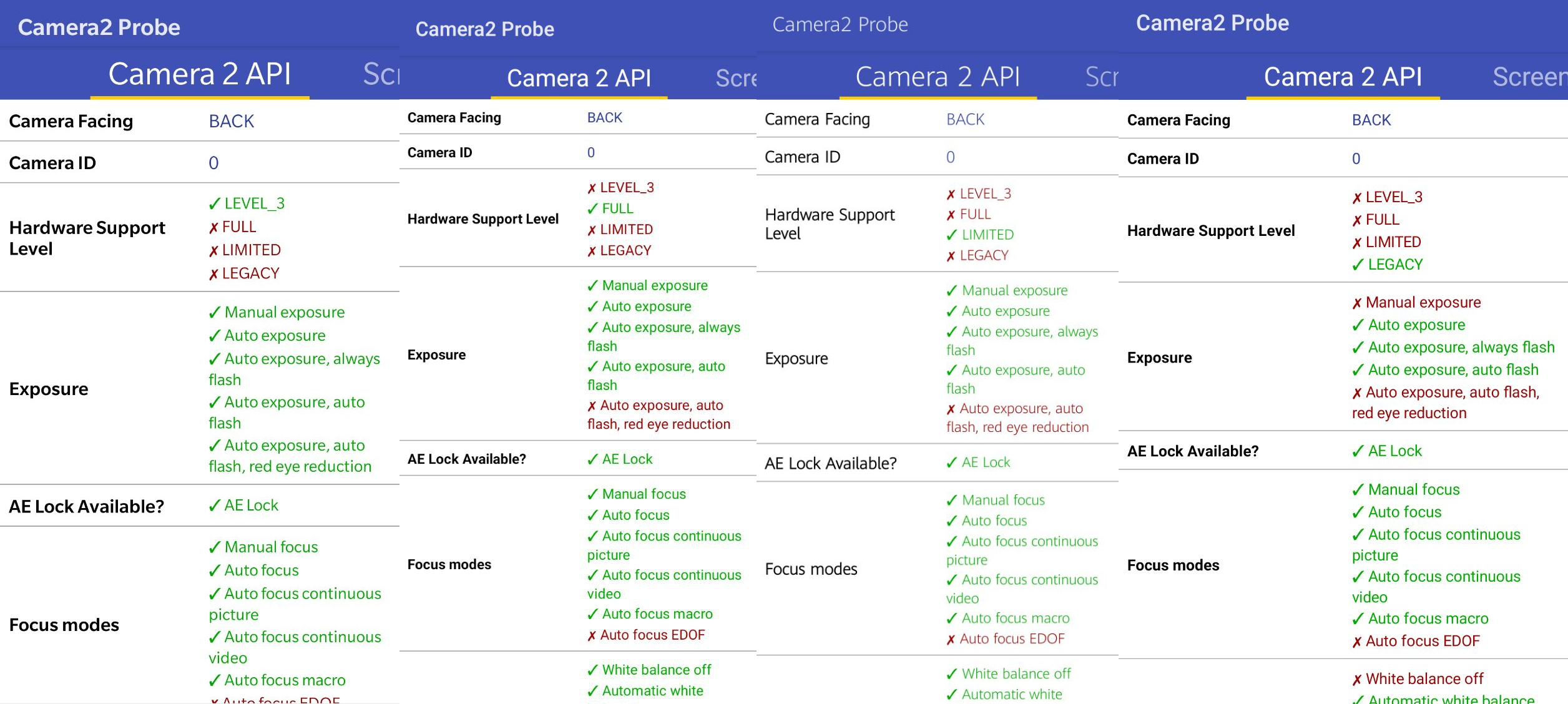
To get all the benefits that Google Camera provides, you need to have Full or Level3 support for the Camera2 API. Otherwise, installing Google Camera will not give you any increase in quality at all, or it will be almost invisible.
You can activate the Camera2 API on almost any modern smartphone. There are three ways to do it(activation of the Camera2 API is not possible on all devices):
- Installing custom ROM. In this case, you do not need to make any more manipulations, as ROM creators did everything for you;
- Getting Root rights on the native firmware and activating the driver manually or with special programs;
- Installing custom Recovery (TWRP) with a unlocked bootloader.
Once again, we repeat that all the details of each of the methods are described on the 4PDA forum. There is also all the information on XDA, the forum is in English.
Group Google Camera by B-S-G - https://t.me/BSG_googlecamera
Technical channel Google Camera - https://t.me/ModBSG