Flutter. Using An Image for a Screen Background
FlutterPulseThis article was translated specially for the channel FlutterPulseYou'll find lots of interesting things related to Flutter on this channel. Don't hesitate to subscribe!🚀
I tried to use a gradient as a background for the screen. Got "shader compilation too long" exception (or warning?). My Android device has…
I tried to use a gradient as a background for the screen. Got "shader compilation too long" exception (or warning?). My Android device has a really weak GPU.
So, I started to think, "Why not use the image instead?"
If you are a member, please continue;otherwise, read the full story here.
Performance
Obviously, we should not use heavy high resolution images for backgrounds. For both examples below, I use WebP images 10KB in size.
The performance impact of loading a 10KB WebP image from assets can be negligible, especially if we precache images on startup.
It can still be observable for the first time, so we should define the surface color of the ColorSchemeto be close to the main color of the image.
Examples
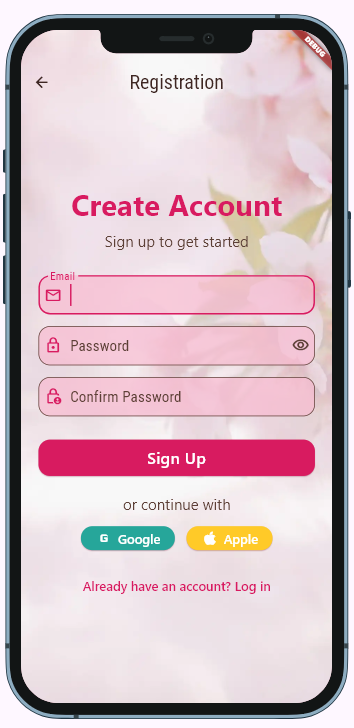
Here are two examples of the registration page, displayed on both a light and dark image background.
ColorShemes were generated by ChatGPT. One for the surface color pink.shade100, second for the surface color grey.shade800.
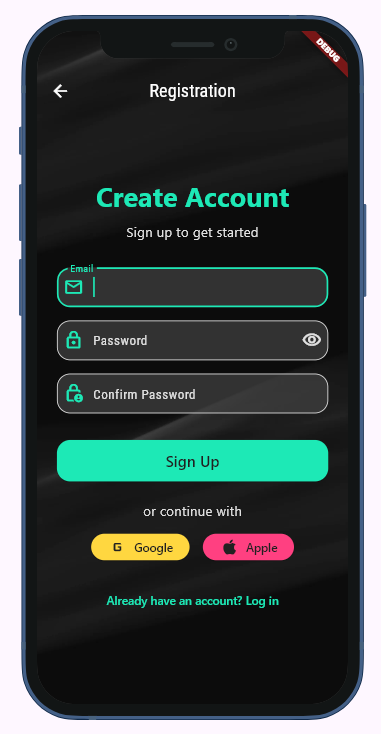
A bit too playful for my taste, but as I said, ChatGPT is here to blame. Also, button colors are not the point. The background is. And the background looks good.
Obviously, we should put images into assets:
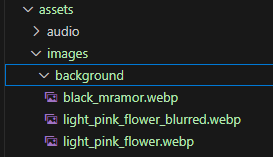
And mention paths in pubspec.yaml:
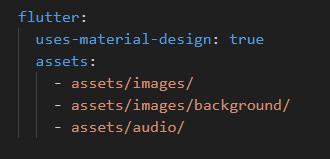
I took my images from Canva, but it is possible to just take any photo, blur it, add a translucent layer, and save as WebP with average quality.
Here is the main hero of the article, BgScaffold:
import 'package:flutter/material.dart';
import 'package:getx_miscellanous/app/data/memory_settings_service.dart';

class BgScaffold  extends StatelessWidget {
  final Widget? body;
  final PreferredSizeWidget? appBar;
  final Widget? floatingActionButton;
  final FloatingActionButtonLocation? floatingActionButtonLocation;
  final Widget? bottomNavigationBar;
  final Widget? drawer;
  final Widget? endDrawer;
  final String? lightBackgroundImagePath;
  final String? darkBackgroundImagePath;

  const BgScaffold({
    super.key,
    this.body,
    this.appBar,
    this.floatingActionButton,
    this.floatingActionButtonLocation,
    this.bottomNavigationBar,
    this.drawer,
    this.endDrawer,
    this.lightBackgroundImagePath,
    this.darkBackgroundImagePath,
  }) : assert(
          lightBackgroundImagePath != null || darkBackgroundImagePath != null,
          'At least one background image path must be provided',
        );

  @override
  Widget build(BuildContext context) {
    cacheImages(context, darkBackgroundImagePath, lightBackgroundImagePath);
    ThemeData theme = Theme.of(context);

    final isDark = theme.brightness == Brightness.dark;
    final imagePath = isDark
        ? (darkBackgroundImagePath ?? lightBackgroundImagePath!)
        : (lightBackgroundImagePath ?? darkBackgroundImagePath!);
    final loadingColor = Theme.of(context).colorScheme.surface;

    return Scaffold(
      backgroundColor: Colors.transparent,
      extendBodyBehindAppBar: true,
      appBar: appBar,
      drawer: drawer,
      endDrawer: endDrawer,
      floatingActionButton: floatingActionButton,
      floatingActionButtonLocation: floatingActionButtonLocation,
      bottomNavigationBar: bottomNavigationBar,
      body: Stack(
        children: [
          // Background image container with loading color
          Container(
            width: double.infinity,
            height: double.infinity,
            color: loadingColor,
            child: Image.asset(
              imagePath,
              fit: BoxFit.cover,
              cacheWidth: null,
              cacheHeight: null,
              frameBuilder: (context, child, frame, wasSynchronouslyLoaded) {
                if (wasSynchronouslyLoaded || frame != null) {
                  return child;
                }
                return Container(color: loadingColor);
              },
              errorBuilder: (context, error, stackTrace) {
                return Container(color: loadingColor);
              },
            ),
          ),
          // Actual body content
          if (body != null) body!,
        ],
      ),
    );
  }

  void cacheImages(
    BuildContext context,
    String? darkBackgroundImagePath,
    String? lightBackgroundImagePath,
  ) {
    if (MemorySettingsService().bgImagesCached){
      return;
    }
    if (darkBackgroundImagePath != null){
      precacheImage(AssetImage(darkBackgroundImagePath), context);
    }
    if (lightBackgroundImagePath != null){
      precacheImage(AssetImage(lightBackgroundImagePath), context);
    }
    MemorySettingsService().bgImagesCached = true;
  }
}
Notice the extendBodyBehindAppBarproperty. I didn't know that it existed.
This is how we use the BgScaffold:
   return BgScaffold(
      darkBackgroundImagePath: 'assets/images/background/black_mramor.webp',
      lightBackgroundImagePath: 'assets/images/background/light_pink_flower.webp',
      appBar: AppBar(
        title: const Text('Registration'),
        centerTitle: true,
        backgroundColor: Colors.transparent,
      ),
      body: RegistrationPage(),
    );
The only difference from the regular Scaffoldis that we provide paths to background images.
The frameBuilder is a callback that gets called every time Flutter decodes a frame of the image. It's mainly useful for two things: showing loading states and handling animations.
Here's what each parameter means:
frameBuilder: (context, child, frame, wasSynchronouslyLoaded) {
  // context - standard BuildContext
  // child - the actual Image widget that's been decoded
  // frame - which frame number we're on (0, 1, 2...), null if not loaded yet
  // wasSynchronouslyLoaded - true if image was cached, false if loading from disk/network
}
In our code:
if (wasSynchronouslyLoaded || frame != null) {
  return child;
}
return Container(color: loadingColor);
This says: "If the image was already in cache (wasSynchronouslyLoaded) or if we've decoded at least one frame (frame != null), show the image. Otherwise, show the loading color."
The thing is, for asset images that are precached, wasSynchronouslyLoaded is almost always true, so the loading color rarely shows. That's actually what we want - instant display.
We call the cacheImagesmethod on every build, which is a bit not very efficient, but all we do (besides the first time) is check the MemorySettingsService().bgImagesCached variable. I chose this approach to make the BgScaffoldself-contained.
Alternatively, we can cache images on startup:
return MaterialApp(
      home: Builder(
        builder: (context) {
          cacheImages(context, darkBackgroundImagePath,
                               lightBackgroundImagePath);

          return RegistrationScreen();
        },
      ),
and, probably, get rid of MemorySettingsService().bgImagesCached. since the MaterialAppwidget is very rarely rebuilt.
With both approaches, actual image loading and caching happen only once, so there is not a big difference here.
That's practically all that I wanted to share today.
Thank you for reading!