Flash with Fastboot
Ash1. Be on the appropriate security patch level. For example if you are flashing a ROM with the February 2024 security patch you must already be on the February 2024 security patch before flashing. It doesn't have to be stock, it can be another ROM.
2. Download platform tools v34.0.4 from the links below. Once downloaded extract the platform tools zip and open the main extracted folder. Other platform tools versions may be ok but this is the version I would recommend right now. You can install platform tools system wide, instructions are in the #flash group note
https://dl.google.com/android/repository/platform-tools_r34.0.4-windows.zip
https://dl.google.com/android/repository/platform-tools_r34.0.4-linux.zip
3. Open a cmd by typing CMD in the path/title of the platform tools folder and hitting enter.
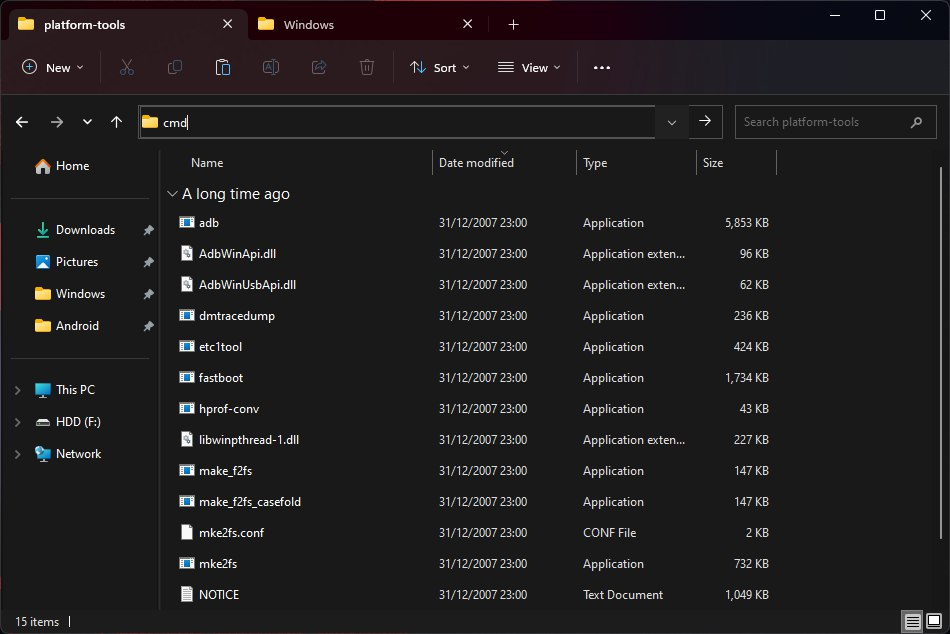
4. Boot device to bootloader with CMD or hardware buttons
adb reboot bootloader
5. fastboot -w && fastboot update rom.zip
And let it complete. When it has completed it will boot on it's own.
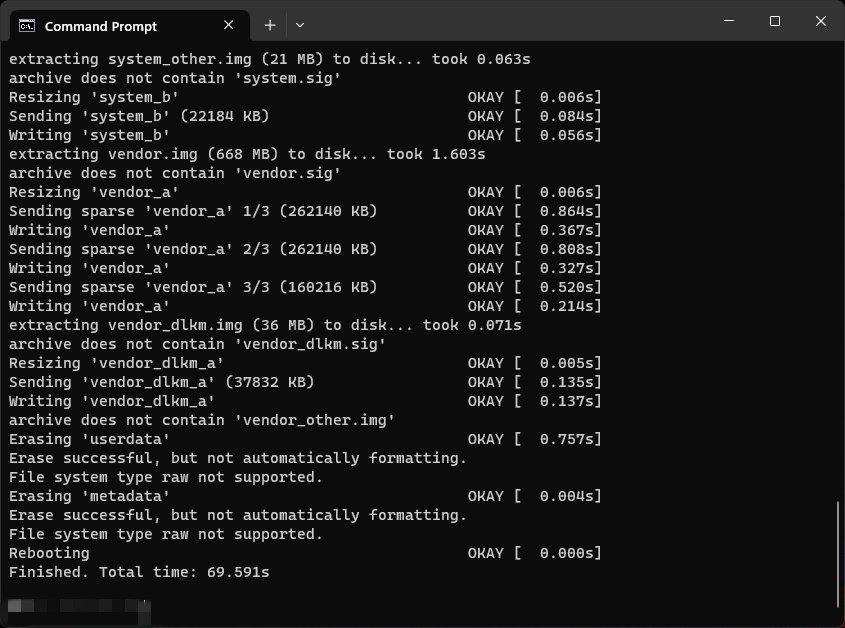
Notes:
• The more common command of fastboot -w update may not wipe data so using the command fastboot -w && fastboot update ensures data is wiped. This can be done separately but the command I have typed out allows you to wipe and flash in the same command.
• rom.zip is not literal, don't type it out.
• With Fastboot flashing the -w part of the command wipes data and you don't need to include that when updating the same rom. But you must WIPE DATA when switching from stock to any custom ROM or from a custom ROM to any other custom ROM. This is a must!
• After typing fastboot update command you can drag and drop the zip. Example: fastboot update <drag and drop rom.zip>
• You can check recognition by typing "fastboot devices" in CMD.
• As above, you can boot the phone to bootloader or recovery with CMD by typing "adb reboot bootloader" or "adb reboot recovery". You will need to give the permission the first time for adb. Check the always allow box to skip this going forward.
• If you plan to use custom kernels you will need to add something else to the same command as above, so it will look like this:
fastboot --disable-verity --disable-verification && fastboot update -w rom.zip
* Use the @GooglePixel7Chat group notes for other guides and useful information.