EmlUnloader - downloads files from emails.
EmlUnloader - downloads files from emails.Dont use not with your accounts!
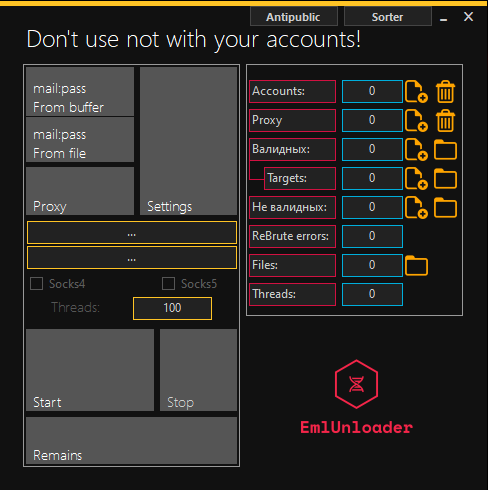
General principle.
The program runs through the mails and downloads the found attachments according to the criteria that you specify in the settings. The search is conducted using the IMAP protocol. There is a system for configuring it, incl. you can configure the proxy policy for each individual domain.
Possibilities.
*I describe the features at the time of the start of sales - there is a high probability that I will score a fuck and will not update them in this list with the advent of updates Proxy support: Socks4 and Socks5. Support auto-update proxy and download from txt Multithreading (no flow limit) Extension filter support: Only specified extensions can be downloaded. Search for emails with keywords: it is possible to download attachments only from emails where keywords were found (in the title of the letter or in its body) Download attachments if a specific word was found in their name. Search 2 folders: Inbox and Sent Items Ability to save attachments to a separate folder for each mail.**Sort downloaded images by parameters. Client-side anti-public file. Screens out files that you have downloaded before and run through this utility. Possibility to ignore some types of errors. Ignore - i.e. re-roll. Be careful, if you add the wrong thing, the software can go into an eternal twist. Also we have a support English language in software. The ability to close messages "unread" after the check, which allows you not to burn your presence at the post office. The ability to save a copy of the email from which the attachment was downloaded. The format is.eml. Ability to scan all folders, not just "Inbox" and "Outbox". Filter downloaded files by size - now you can specify the minimum and maximum file size by size in kilobytes. If you do not want to use this option, set the minimum size to 0 and the maximum size to 1000000The file name prefix can now be changed. Additional variables: $UID$ = unique identifier of the letter (required parameter), $MAIL$ = Original mail, $DATE$ - Date of receipt of the letter, $SENDER$ - sender. * For example, earlier files were saved with the prefix $MAIL$ $UID$, i.e. if you were satisfied with everything before, do not change anything here. Ability to download mail:pass not only from the file, but also from the clipboard! Ability to check the files you are interested in in archives (.rar.zip.7z.gzip.tar.bzip2 are supported). At the same time, if the file size limit is set, then only the upper limit is applied for downloading archives, and within the archives the files are not checked for size at all. Works with all popular domains, and with many not popular ones. gmail, hotmail, aol, gmx, etc. - they all work, but on gmail, for example, IMAP is disabled by the standard (and the software works on IMAP), so on the mail it will work only with mails where it is enabled. Search by words in the file name.
How to work with software.
About proxies.
I recommend using databases already checked for validation for the check, and checking them without a proxy. With proxies, the valid drops, in places (depends on the domains) strongly. Proxies, although they give their benefit when checking, but they also harm the connection between you and the server with mail. If suddenly during the check or download of the attachment from the server an error comes, then the mail will be considered invalid. This is done to ensure that the software does not go into an endless loop, when it will check the same mail and an error will pop up at the same moment - this is the principle of "scratched CDs" Fans for use in this software are prohibited due to their absolute uselessness - the protocol for working with mail (IMAP) is closed on them.
About the statistics block.
If you're familiar with starley programs, then not many things will be new to you. Firstly, it is a block of "Necessary" items allocated in the "sub-column". These are valid mails, among which were found letters with attachments according to the specified criteria. "Clear" buttons next to the "Accounts" and "Proxy" blocks — when you click on them, the proxies loaded into the software will be unloaded from memory and it will be possible to download them again. The "File" buttons next to almost all parameters open log files for each of the parameters. The "Folder" buttons do the same thing as the "File", only they do not open files, but folders.
About optimization.
Work on the optimization of statistics is still underway. For example, now with the standard settings you may encounter a problem in which the software will check the last 10-20 accounts for a very long time (it can reach up to 3 hours), this is due to the configuration of the number of messages that need to be checked. By default, this parameter is at 2000, if you don't like such crap - put 200, or your 100. But, as the logic told me during the development, the owners of such software should not hover the time that the softin will work, so in the standard config I set the value to 2000.As for the number of files in the setting and in the folders, you can pay attention to the fact that the number of files in the statistics is greater than the number of files in reality. Unfortunately, I have not yet found a method that would accurately control the download of attachments, so sometimes hidden Thumbs files are downloaded.db, and some files are not downloaded at all due to random lags on the server, or due to the fact that the files stored there are initially broken. I've minimized that asshole, but it shows up nonetheless. After filtering the files with the built-in utility "Sorter" - everything will be 100% OK.
Settings.
Folder.
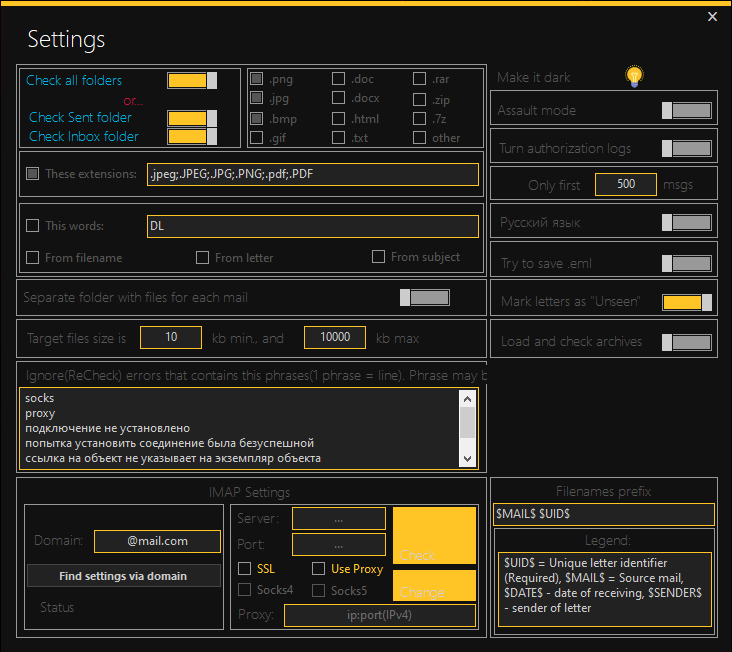
For the most impatient, I made it possible to search for attachments only in the "Inbox" or only in the "Sent". Hint: if you are impatient, and as soon as possible want to mint, put a check only on "Sent".
FILTER BUILT-IN extensions (ticks).
Here everything is simple, but at the same time not everyone understands. I tried to make it as logical as possible, but in order not to make a huge interface, I had to abandon the long descriptive passages inside the software. How the other tick works: if it is not marked, but there are other ticks, then the software will download only those files whose extensions coincide with those that you have marked. If the checkmarks are partially (for example, only ".png" and ".bmp") + there is a tick other, then all other extensions not marked with ticks will be included in the "black list", and all extensions will be downloaded, except for.jpg,.gif,.doc,.docx, etc. In a word, unmarked ticks create a black list of extensions with the "other" check mark set.
Checkbox "These extensions". If you need some specific extensions that are not available as a tick, you can use the "These extensions" block. It is enough to put a tick in this checkbox and in the input field opposite (where on the screen ".gzip;. tar;. bzip2") with a semicolon (symbol 😉 to list those extensions that you need.
Checkbox "These words". You can filter the emails from which attachments will be downloaded. You can search for the necessary words in the body of the message, in the header, or in the name of the file name. At the same time, the settings are combined, you can put a disjunction sign between them. This means that if you put all three ticks, then first the software will check all the letters where these words are in the header, then all the letters where it is in the body of the letter, and then the terrible thing will happen: Since there is no direct search for attachments in IMAP, if you check the box "In file names", the program will check each message in the mail (in the specified folders) in turn, even if there are no attachments there. It is very slow, so I recommend using this feature to exceptional adventurers. P.S. Phrases, as well as whole sentences - can also be entered. Separate them with a semicolon (;).
English language. To activate English in the program, you need to deactivate the "Русский язык" selector.
Only the first N posts. If you do not tick the box "These words" or vice versa, tick the "In file names", then this setting becomes relevant. This is the number of letters after which the software will not check further. Receiving emails in this way is slow, I recommend not to drive this setting into sky-high numbers, and if speed is very important to you - your lower it.
A separate folder with files for each mail. This setting is set by default. When you check, another folder with the date and time that the scan started is created in the Results folder, and another Files folder is created in the results folder. So, when this setting is activated, subfolders with mail names will be created in the Files folder, and files corresponding to mail will be downloaded to them. If this setting is not set, then the files will lie in the files shared folder, but they will still be signed - you can understand which mail this file comes from.
IMAP settings. To add a new setting, enter the domain in the left block, as shown on the screen (there is a domain "@mail.com". Then click on the "Find settings through the domain" button. If there is a domain in the database, then under the button there will be an inscription in green: "Status: OK", if there is no domain, the message "Status: NOT FOUND" will be issued in red. If the domain is not found, you will be asked to add settings. I recommend adding them ONLY knowing the exact settings of the server. You can determine them through Mozilla Thunderbird. How to do this - see under the spoiler. I described them using the example of the @yahoo.com domain. You will only need to replace the @yahoo.com domain with your own.
Assault Mode. Assault mode is needed for mail mail.ru, if you search by the text / headers of the letter. If you disable this option, but leave the search by the content of the message (or by the headers of the messages), then mail.ru domains will fly to the backs.
Sorter.
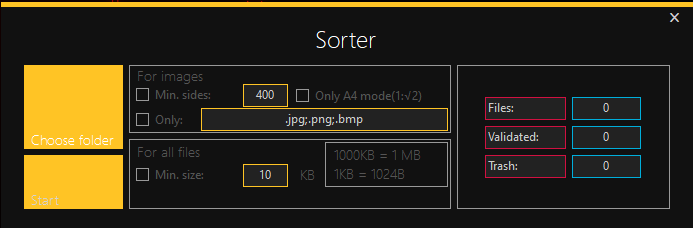
This is a built-in utility that allows you to sort already downloaded files by specified parameters. Using the "Select Folder" button, select the folder in which you need to sort (by the way, it works not only with the results folders of the program, but also with any folders on your PC). NOTE: This utility scans not only one folder, but also all subfolders and files in them. Be careful not to randomly select the entire hard drive. There is nothing much to describe here, but I will try to explain the moments that may become incomprehensible.First, it's the tick "Min. sides", with it you can set the minimum dimensions of the sides (height and width) for the image. And if the image is smaller than the set parameter on one (or two at once) sides, it will be moved to the #Sort_Trash folder. Secondly, there is an option to save only images that, according to the format of the aspect ratio (height to width), relate as 1 to √2. [ This is an A4 paper size - in this format the files scanned by the scanner are saved]And also, there is an option to select only the images of the specified extensions - be careful, this applies only to the images, and you need to list the extensions through the "semicolon" symbol, and do not forget about the dots before the name of the extension. [ Correct:.png ] [ Not correct: png]
ATTENTION: The settings here are combined according to the principle of conjunction! This means that if you have set all possible settings, and the file for some of the settings does not fit, then it will be classified as junk, even if all other conditions are met! P.S. In the folder you choose, 2 folders will be created: #Sort_Good and #Sort_Bad - sorted files will be copied (and not moved) there. Is the principle by which they will move to this or that folder need to be explained?
Who might need the software? Well, for example, if you have a lot of mail (your own, of course), and you need to download from them from all the documents that you sent to someone, or intimate photos... Or maybe you sent something more interesting by mail? All this you can do through this software.
Purchase.
Telegram: https://t.me/SMacGregor
By purchasing the software, you agree to the License Agreement. https://telegra.ph/Licenzionnoe-soglashenie-07-14-2