Desktop application
YAJC become Java programmer
Hello everybody 👋
Today we will have a look at how to create a simple desktop based Java application. We will implement a very simple application and you will ensure that making desktop applications is super easy if you are a Java developer.
Task: display a button and a message showing how many times a user has clicked on the button.
Implementation
Let's start the implementation of the task.
As the first step we need to create a main class which will contain main method as well as the code which solves the given task.
In our implementation we will use MainSwing class which has main method. It's straightforward, we just create a new object of MainSwing class and execute its start method. That's it, the entry point is ready.
Next we need to implement the window functionality. The great thing is that the creators of Java have already implemented all the required classes which encapsulate the communication to OS API.
To achieve our goal we need to use classes from javax.swing package:
- JFrame - the representation of the window itself. It behaves as a container for other components.
- JLabel - a read-only text area
- JButton - a button, you can add functions-handlers for click events
- other auxiliary classes.
The final code available on GitHub: https://gist.github.com/yajcjava/e46a8d0188a5610beaab920c2e0d8f47
Let's walk through the most important parts to understand what's going on.
Create objects which represent the components we would like to see with initial values.
private final JButton jButton = new JButton("Increment");
private final JLabel jLabel = new JLabel("", SwingConstants.CENTER);
private final JFrame frame = new JFrame("YAJC Swing Desktop");
There are plenty of different components and each can be configured in different ways. We need to configure JFrame to make it behave as a common window application.
This setting will set the default handler when you click X button - close the window and finish the application lifetime.
frame.setDefaultCloseOperation(JFrame.EXIT_ON_CLOSE);
Order the things
The most important configuration here is layouting, everybody wants an application to look beautiful 🎨👨🎨
Swing allows you to place components in any order so you always can align them as you wish. In our example we create a grid layout with 1 column and 2 rows.
GridLayout gridLayout = new GridLayout(2, 1);
frame.setLayout(gridLayout);
As soon as we configure a component we add it to the frame like this:
frame.getContentPane().add(jButton);
Dynamics
We've looked at configuration and made it to be pleasing to the eye but we have no actioning until now. So this is time to configure a button handler:
jButton.addActionListener(event -> {
    numberOfClicks[0]++;
    updateMessageText(numberOfClicks[0]);
});
Here we use a reference to a number which increments on each call and updates the text jLabel holds.
Show it to us
The final step is making our frame visible to the world:
frame.setSize(250, 150);
frame.setSize(frame.getWidth() + 25, frame.getHeight() + 25); // expand the window a bit
frame.setLocationRelativeTo(null); // put the windows in the center
frame.setVisible(true);
A call to setVisible should be the last one, until you want to show all the configurations
The Result
After running the code expect to see something similar to this:
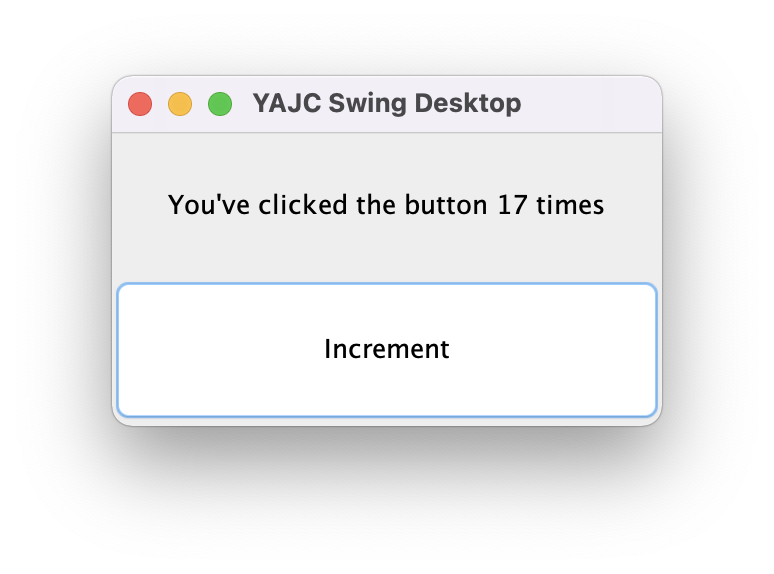
Today we've learned how to create a desktop application using Java. Very exciting isn't it?
Thank you for your time and keep learning new and cool things! 😎