Data Storage
https://medium.com/javarevisited/data-storage-ba32bc4db0b5
As mentioned earlier, containers may have short lifetimes and are frequently created and destroyed. When a container is terminated, the data stored within the container is also cleared, which may be undesirable for users in certain situations. To persistently store container data, Kubernetes introduced the concept of Volume.
Volume is a shared directory in a Pod that can be accessed by multiple containers, defined at the Pod level, and mounted to specific file directories by multiple containers within the Pod. Kubernetes uses Volume to enable data sharing and persistent storage among different containers within the same Pod. The lifetime of Volume is not tied to the lifecycle of a single container in the Pod, meaning that the data stored in Volume will not be lost when a container is terminated or restarted.
Kubernetes supports various types of Volumes, among which the following are commonly used:
- Basic storage: EmptyDir, HostPath, NFS
- Advanced storage: PV, PVC
- Configuration storage: ConfigMap, Secret.
Basic Storage
EmptyDir
EmptyDir is the most basic type of Volume, which is an empty directory on the host. EmptyDir is created when a Pod is assigned to a Node, with no initial content and no need to specify a corresponding directory file on the host machine, as Kubernetes automatically allocates a directory. When a Pod is terminated, the data in EmptyDir will also be permanently deleted. EmptyDir is used for the following purposes:
- Temporary space, such as temporary directories required for certain applications to run, which do not need to be permanently retained.
- A directory that one container needs to obtain data from another container (shared directory for multiple containers).
Next, we will use an example of file sharing between containers to demonstrate the use of EmptyDir.
Prepare two containers, nginx, and busybox, in a Pod, then declare a Volume that is mounted to the directories of both containers. The nginx container is responsible for writing logs to the Volume, while the busybox container reads the log contents to the console using a command.
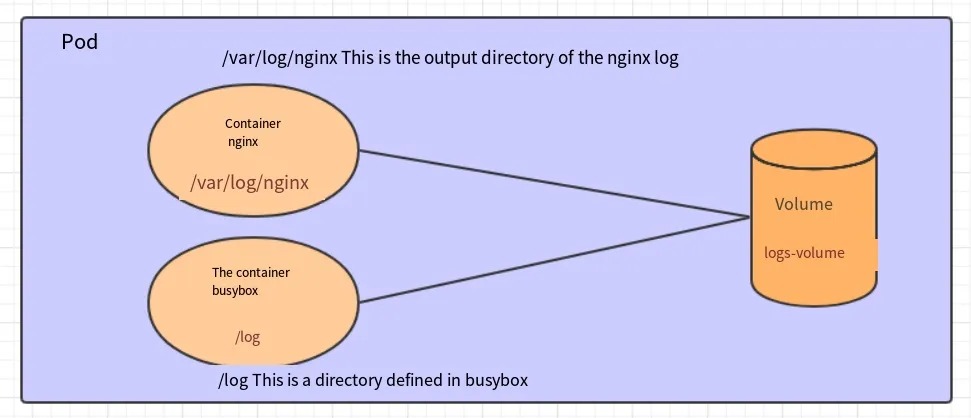
Create a file named volume-emptydir.yaml:
apiVersion: v1
kind: Pod
metadata:
  name: volume-emptydir
  namespace: dev
spec:
  containers:
  - name: nginx
    image: nginx:1.14-alpine
    ports:
    - containerPort: 80
    volumeMounts:
    - name: logs-volume
      mountPath: /var/log/nginx
  - name: busybox
    image: busybox:1.30
    command: ["/bin/sh","-c","tail -f /logs/access.log"]
    volumeMounts:
    - name: logs-volume
      mountPath: /logs
  volumes:
  - name: logs-volume
    emptyDir: {}
Create the Pod:

[root@master ~]# kubectl create -f volume-emptydir.yaml
pod/volume-emptydir created

Check the Pod:
[root@master ~]# kubectl get pods volume-emptydir -n dev -o wide
NAME                  READY   STATUS    RESTARTS   AGE   IP             NODE   ......
volume-emptydir   2/2     Running   0          97s   10.244.1.100   node1  ......

Access nginx through the Pod IP:

[root@master ~]# curl 10.244.1.100
......

Check the standard output of the specified container using the kubectl logs command:

[root@master ~]# kubectl logs -f volume-emptydir -n dev -c busybox
10.244.0.0 - - [13/Apr/2020:10:58:47 +0000] "GET / HTTP/1.1" 200 612 "-" "curl/7.29.0" "-"
HostPath
As mentioned in the previous section, data in EmptyDir is not persistent and will be destroyed when the Pod ends. If you want to simply persist data to the host machine, you can use HostPath.
HostPath mounts a directory on the Node host machine to a Pod, allowing containers to use it. This design ensures that data can still exist on the Node host machine even if the Pod is destroyed.

Create a file named volume-hostpath.yaml:
apiVersion: v1
kind: Pod
metadata:
  name: volume-hostpath
  namespace: dev
spec:
  containers:
  - name: nginx
    image: nginx:1.17.1
    ports:
    - containerPort: 80
    volumeMounts:
    - name: logs-volume
      mountPath: /var/log/nginx
  - name: busybox
    image: busybox:1.30
    command: ["/bin/sh","-c","tail -f /logs/access.log"]
    volumeMounts:
    - name: logs-volume
      mountPath: /logs
  volumes:
  - name: logs-volume
    hostPath:
      path: /root/logs
      type: DirectoryOrCreate
Note about the value of “type”:
- DirectoryOrCreate: Use if the directory exists or create it if it does not exist.
- Directory: The directory must exist.
- FileOrCreate: Use if the file exists or create it if it does not exist.
- File: The file must exist.
- Socket: The Unix socket must exist.
- CharDevice: The character device must exist.
- BlockDevice: The block device must exist.
# Create the Pod:
[root@master ~]# kubectl create -f volume-hostpath.yaml
pod/volume-hostpath created

# Check the Pod:
[root@master ~]# kubectl get pods volume-hostpath -n dev -o wide
NAME                  READY   STATUS    RESTARTS   AGE   IP             NODE   ......
pod-volume-hostpath   2/2     Running   0          16s   10.244.1.104   node1  ......

# Access nginx:
[root@master ~]# curl 10.244.1.104

# You can now check the stored files in the /root/logs directory on the host:
### Note: The following operations need to be performed on the node where the Pod is located (in this case, node1)
[root@node1 ~]# ls /root/logs/
access.log  error.log

# Similarly, if you create a file in this directory, you can see it in the container.
NFS
While HostPath can solve the problem of data persistence, if a Node fails and the Pod is moved to another Node, new problems can arise. To address this issue, a separate network storage system is needed. Common systems include NFS and CIFS.
NFS is a network file storage system that can be used to set up an NFS server and connect the Pod’s storage directly to the NFS system. This way, as long as the Node and NFS can be properly connected, the data can be accessed regardless of where the Pod is located.
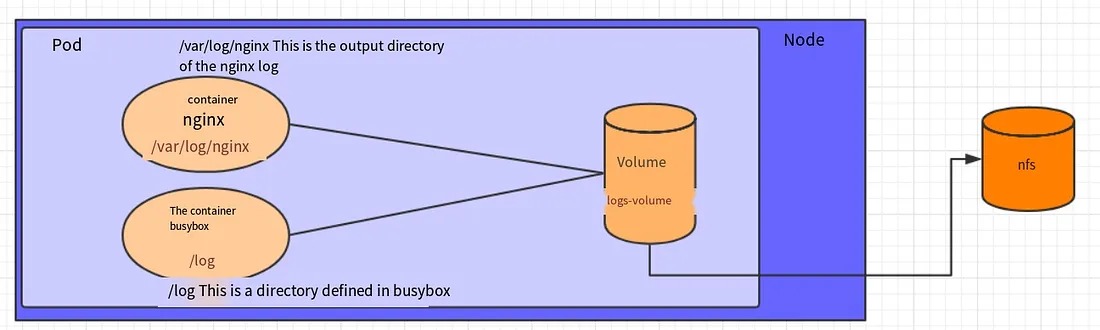
- First, an NFS server needs to be set up. For simplicity, in this example, the master node will serve as the NFS server.
# Install NFS service on the master node
[root@master ~]# yum install nfs-utils -y

# Create a shared directory
[root@master ~]# mkdir /root/data/nfs -pv

# Expose the shared directory to all hosts in the 192.168.109.0/24 network segment with read/write permissions
[root@master ~]# vim /etc/exports
[root@master ~]# more /etc/exports
/root/data/nfs     192.168.109.0/24(rw,no_root_squash)

# Start the NFS service
[root@master ~]# systemctl start nfs
2. Next, NFS needs to be installed on each node so that the nodes can drive the NFS device.
# Install NFS service on the node, but do not start it
[root@master ~]# yum install nfs-utils -y
3. Then, the configuration file for the Pod needs to be written. Create volume-nfs.yaml:
apiVersion: v1
kind: Pod
metadata:
  name: volume-nfs
  namespace: dev
spec:
  containers:
  - name: nginx
    image: nginx:1.17.1
    ports:
    - containerPort: 80
    volumeMounts:
    - name: logs-volume
      mountPath: /var/log/nginx
  - name: busybox
    image: busybox:1.30
    command: ["/bin/sh","-c","tail -f /logs/access.log"]
    volumeMounts:
    - name: logs-volume
      mountPath: /logs
  volumes:
  - name: logs-volume
    nfs:
      server: 192.168.109.100  #nfs server address
      path: /root/data/nfs #shared file path
4. Finally, run the Pod and observe the results.
# Create the Pod
[root@master ~]# kubectl create -f volume-nfs.yaml
pod/volume-nfs created

# Check the Pod
[root@master ~]# kubectl get pods volume-nfs -n dev
NAME                  READY   STATUS    RESTARTS   AGE
volume-nfs        2/2     Running   0          2m9s

# Check the shared directory on the NFS server and see that files have been created
[root@master ~]# ls /root/data/
access.log  error.log
Advanced Storage
PV and PVC
In earlier sections, we learned how to use NFS to provide storage, which requires users to set up an NFS system and configure it in YAML. However, Kubernetes supports many storage systems, and it is unrealistic to expect users to master them all. To simplify the usage of storage systems and hide the details of underlying storage implementations, Kubernetes introduces two resource objects: PV and PVC.
PV (Persistent Volume) is an abstraction of underlying shared storage. In general, PV is created and configured by Kubernetes administrators, and it is associated with specific shared storage technology and integrated through plugins.
PVC (Persistent Volume Claim) is a declaration of a user’s storage requirement. In other words, PVC is a resource demand request issued by the user to the Kubernetes system.
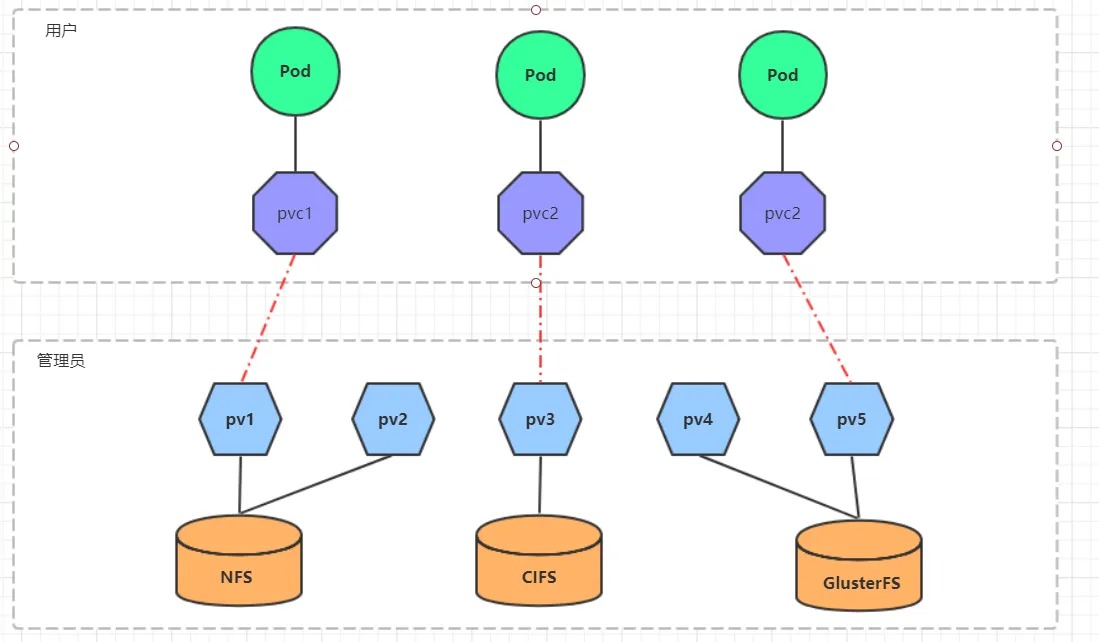
After using PV and PVC, work can be further divided:
- Storage: maintained by storage engineers
- PV: maintained by Kubernetes administrators
- PVC: maintained by Kubernetes users
PV
PV is an abstraction of storage resources. Below is an example of a PV resource manifest:
apiVersion: v1
kind: PersistentVolume
metadata:
  name: pv2
spec:
  nfs: # Storage type, corresponding to the actual storage backend
  capacity:  # Storage capacity, currently only supports setting storage space
    storage: 2Gi
  accessModes:  # Access modes
  storageClassName: # Storage class
  persistentVolumeReclaimPolicy: # Reclaim policy
Key configuration parameters for PV:
- Storage type
The actual type of underlying storage, Kubernetes supports multiple storage types, and the configuration for each storage type differs.
- Capacity
Currently, only storage space can be set (storage=1Gi). In the future, other metrics such as IOPS and throughput may be added.
- Access modes
Used to describe the access permissions of user applications to storage resources, which include the following:
- ReadWriteOnce (RWO): read-write permission, but can only be mounted by a single node.
- ReadOnlyMany (ROX): read-only permission, can be mounted by multiple nodes.
- ReadWriteMany (RWX): read-write permission, can be mounted by multiple nodes.
It should be noted that different storage types may support different access modes.- Reclaim policy
How to handle the PV after it is no longer in use. Currently, three policies are supported:
- Retain: keep the data and require the administrator to manually clean it up.
- Recycle: clear the data in the PV, equivalent to running rm -rf /thevolume/*
- Delete: the backend storage associated with the PV completes the volume deletion operation, which is common in cloud storage services.
It should be noted that different storage types may support different reclaim policies.- Storage class
PV can specify a storage class by the storageClassName parameter.
- PVs with a specific class can only be bound to PVCs that request that class.
- PVs without a class can only be bound to PVCs that do not request any class.
- Status
During the lifecycle of a PV, it may be in one of four different stages:
- Available: Indicates that the PV is available and has not been bound to any PVC.
- Bound: Indicates that the PV has been bound to a PVC.
- Released: Indicates that the PVC has been deleted, but the resource has not been reclaimed by the cluster.
- Failed: Indicates that the automatic reclamation of the PV failed.
Experiment
Use NFS as storage to demonstrate the use of PV and create three PVs corresponding to the three exposed paths in NFS.
- Prepare the NFS environment
# Create a directory
[root@master ~]# mkdir /root/data/{pv1,pv2,pv3} -pv

# Expose the service
[root@master ~]# more /etc/exports
/root/data/pv1     192.168.109.0/24(rw,no_root_squash)
/root/data/pv2     192.168.109.0/24(rw,no_root_squash)
/root/data/pv3     192.168.109.0/24(rw,no_root_squash)

# Restart the service
[root@master ~]#  systemctl restart nfs
2. Create pv.yaml
apiVersion: v1
kind: PersistentVolume
metadata:
  name:  pv1
spec:
  capacity:
    storage: 1Gi
  accessModes:
  - ReadWriteMany
  persistentVolumeReclaimPolicy: Retain
  nfs:
    path: /root/data/pv1
    server: 192.168.109.100

---

apiVersion: v1
kind: PersistentVolume
metadata:
  name:  pv2
spec:
  capacity:
    storage: 2Gi
  accessModes:
  - ReadWriteMany
  persistentVolumeReclaimPolicy: Retain
  nfs:
    path: /root/data/pv2
    server: 192.168.109.100

---

apiVersion: v1
kind: PersistentVolume
metadata:
  name:  pv3
spec:
  capacity:
    storage: 3Gi
  accessModes:
  - ReadWriteMany
  persistentVolumeReclaimPolicy: Retain
  nfs:
    path: /root/data/pv3
    server: 192.168.109.100
# Create pv
[root@master ~]# kubectl create -f pv.yaml
persistentvolume/pv1 created
persistentvolume/pv2 created
persistentvolume/pv3 created

# Chech pv
[root@master ~]# kubectl get pv -o wide
NAME   CAPACITY   ACCESS MODES  RECLAIM POLICY  STATUS      AGE   VOLUMEMODE
pv1    1Gi        RWX            Retain        Available    10s   Filesystem
pv2    2Gi        RWX            Retain        Available    10s   Filesystem
pv3    3Gi        RWX            Retain        Available    9s    Filesystem
PVC
PVC is a resource request that declares the requirements for storage space, access mode, and storage class. Below is the resource manifest file:
apiVersion: v1
kind: PersistentVolumeClaim
metadata:
  name: pvc
  namespace: dev
spec:
  accessModes: # Access mode
  selector: # Use labels to select PVs
  storageClassName: # Storage class
  resources: # Requested storage space
    requests:
      storage: 5Gi
Key configuration parameters for PVC include:
- Access mode
Describes the access permissions for the storage resource required by the user application.
- Selector
Through label selectors, PVC can filter out existing PVs in the system.
- Storage class
PVC can specify the type of backend storage needed when defining the PVC. Only PVs with this class can be selected by the system.
- Resources request
Describes the requested storage resources.
Experiment
- Create pvc.yaml to request PVs:
apiVersion: v1
kind: PersistentVolumeClaim
metadata:
  name: pvc1
  namespace: dev
spec:
  accessModes:
  - ReadWriteMany
  resources:
    requests:
      storage: 1Gi

---

apiVersion: v1
kind: PersistentVolumeClaim
metadata:
  name: pvc2
  namespace: dev
spec:
  accessModes:
  - ReadWriteMany
  resources:
    requests:
      storage: 1Gi

---

apiVersion: v1
kind: PersistentVolumeClaim
metadata:
  name: pvc3
  namespace: dev
spec:
  accessModes:
  - ReadWriteMany
  resources:
    requests:
      storage: 1Gi
# Create PVC
[root@master ~]# kubectl create -f pvc.yaml
persistentvolumeclaim/pvc1 created
persistentvolumeclaim/pvc2 created
persistentvolumeclaim/pvc3 created

# Check PVC
[root@master ~]# kubectl get pvc -n dev -o wide
NAME   STATUS   VOLUME   CAPACITY   ACCESS MODES      STORAGECLASS   AGE     VOLUMEMODE
pvc1   Bound    pv1      1Gi        RWX                             15s     Filesystem
pvc2   Bound    pv2      2Gi        RWX                             15s     Filesystem
pvc3   Bound    pv3      3Gi        RWX                             15s     Filesystem

# Check PV
[root@master ~]# kubectl get pv -o wide
NAME  CAPACITY ACCESS MODES  RECLAIM POLICY  STATUS    CLAIM       AGE     VOLUMEMODE
pv1    1Gi      RWx          Retain          Bound     dev/pvc1    3h37m   Filesystem
pv2    2Gi      RWX          Retain          Bound     dev/pvc2    3h37m   Filesystem
pv3    3Gi      RWX          Retain          Bound     dev/pvc3    3h37m   Filesystem
2. Create pods.yaml to use PV:
apiVersion: v1
kind: Pod
metadata:
  name: pod1
  namespace: dev
spec:
  containers:
  - name: busybox
    image: busybox:1.30
    command: ["/bin/sh","-c","while true;do echo pod1 >> /root/out.txt; sleep 10; done;"]
    volumeMounts:
    - name: volume
      mountPath: /root/
  volumes:
    - name: volume
      persistentVolumeClaim:
        claimName: pvc1
        readOnly: false
---
apiVersion: v1
kind: Pod
metadata:
  name: pod2
  namespace: dev
spec:
  containers:
  - name: busybox
    image: busybox:1.30
    command: ["/bin/sh","-c","while true;do echo pod2 >> /root/out.txt; sleep 10; done;"]
    volumeMounts:
    - name: volume
      mountPath: /root/
  volumes:
    - name: volume
      persistentVolumeClaim:
        claimName: pvc2
        readOnly: false
# 创建pod
[root@master ~]# kubectl create -f pods.yaml
pod/pod1 created
pod/pod2 created

# 查看pod
[root@master ~]# kubectl get pods -n dev -o wide
NAME   READY   STATUS    RESTARTS   AGE   IP            NODE
pod1   1/1     Running   0          14s   10.244.1.69   node1
pod2   1/1     Running   0          14s   10.244.1.70   node1

# 查看pvc
[root@master ~]# kubectl get pvc -n dev -o wide
NAME   STATUS   VOLUME   CAPACITY   ACCESS MODES      AGE   VOLUMEMODE
pvc1   Bound    pv1      1Gi        RWX               94m   Filesystem
pvc2   Bound    pv2      2Gi        RWX               94m   Filesystem
pvc3   Bound    pv3      3Gi        RWX               94m   Filesystem

# 查看pv
[root@master ~]# kubectl get pv -n dev -o wide
NAME   CAPACITY   ACCESS MODES   RECLAIM POLICY   STATUS   CLAIM       AGE     VOLUMEMODE
pv1    1Gi        RWX            Retain           Bound    dev/pvc1    5h11m   Filesystem
pv2    2Gi        RWX            Retain           Bound    dev/pvc2    5h11m   Filesystem
pv3    3Gi        RWX            Retain           Bound    dev/pvc3    5h11m   Filesystem

# 查看nfs中的文件存储
[root@master ~]# more /root/data/pv1/out.txt
node1
node1
[root@master ~]# more /root/data/pv2/out.txt
node2
node2
Lifecycle
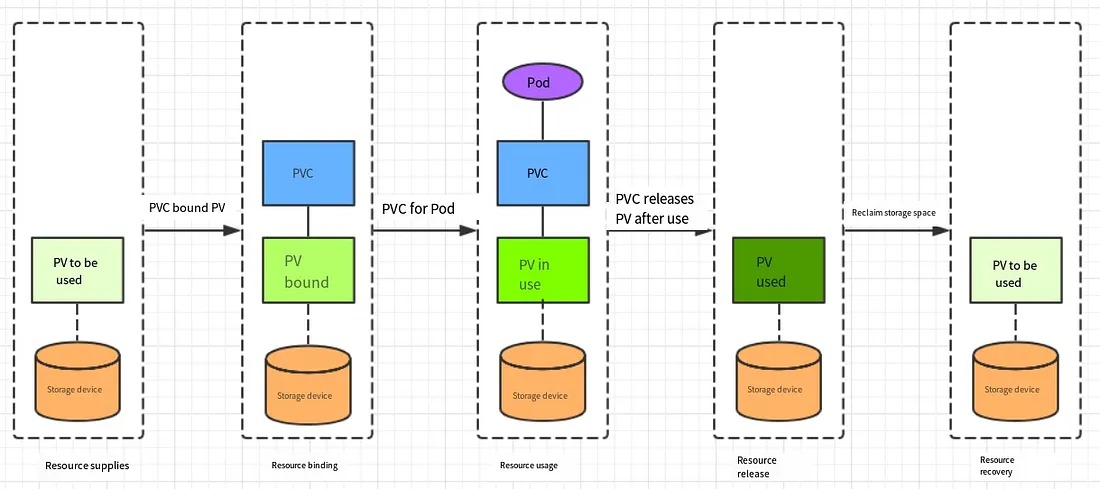
PVC and PV are one-to-one mappings, and the interaction between PV and PVC follows the following lifecycle:
- Resource Provisioning: Administrators manually create the underlying storage and PV.
- Resource Binding: Users create PVCs, and Kubernetes is responsible for finding and binding PVs based on the PVC declaration.
After the user defines the PVC, the system will select one PV that meets the condition according to the PVC’s request for storage resources.
- Once found, the PV is bound to the user-defined PVC, and the user’s application can use this PVC.
- If not found, the PVC will be in a Pending state indefinitely until the system administrator creates a PV that meets its requirements.
Once a PV is bound to a PVC, it is exclusively used by this PVC and cannot be bound to other PVCs.
- Resource Usage: Users can use PVCs in Pods like volumes.
The definition of the Pod using the volume mounts the PVC to a certain path inside the container for use.
- Resource Release: Users delete PVCs to release PVs.
When the storage resource is used up, the user can delete the PVC and the PV bound to it will be marked as “released,” but it cannot be immediately bound to other PVCs. The data written by the previous PVC may still be left on the storage device, and the PV can only be used again after clearing it.
- Resource Reclamation: Kubernetes performs resource reclamation based on the PV’s set reclamation policy.
For PVs, administrators can set a reclamation policy to address the issue of what to do with residual data after the PVC bound to it is released. Only after the PV’s storage space is reclaimed, can it be bound to and used by a new PVC.
Configuring Storage
ConfigMap
ConfigMap is a special type of storage volume mainly used for storing configuration information.
Create a configmap.yaml file with the following content:
apiVersion: v1
kind: ConfigMap
metadata:
  name: configmap
  namespace: dev
data:
  info: |
    username:admin
    password:123456
Next, create the ConfigMap using this configuration file:
# Create ConfigMap
[root@master ~]# kubectl create -f configmap.yaml
configmap/configmap created

# View ConfigMap details
[root@master ~]# kubectl describe cm configmap -n dev
Name:         configmap
Namespace:    dev
Labels:       <none>
Annotations:  <none>

Data
====
info:
----
username:admin
password:123456

Events:  <none>
Next, create a pod-configmap.yaml and mount the ConfigMap created above into it:
apiVersion: v1
kind: Pod
metadata:
  name: pod-configmap
  namespace: dev
spec:
  containers:
  - name: nginx
    image: nginx:1.17.1
    volumeMounts: # Mount ConfigMap to directory
    - name: config
      mountPath: /configmap/config
  volumes: # Reference ConfigMap
  - name: config
    configMap:
      name: configmap
# Create Pod
[root@master ~]# kubectl create -f pod-configmap.yaml
pod/pod-configmap created

# View Pod
[root@master ~]# kubectl get pod pod-configmap -n dev
NAME            READY   STATUS    RESTARTS   AGE
pod-configmap   1/1     Running   0          6s

# Enter Container
[root@master ~]# kubectl exec -it pod-configmap -n dev /bin/sh
# cd /configmap/config/
# ls
info
# more info
username:admin
password:123456

# You can see that the mapping is successful, with each ConfigMap mapped to a directory
# key--->file     value---->content of the file
# If the content of the ConfigMap is updated, the value in the container will also be dynamically updated.
Secret
In Kubernetes, there is another object similar to ConfigMap called Secret, which is mainly used to store sensitive information such as passwords, keys, and certificates.
- First, use base64 to encode the data:
[root@master ~]# echo -n 'admin' | base64 # prepare username
YWRtaW4=
[root@master ~]# echo -n '123456' | base64 # prepare password
MTIzNDU2
2. Next, write secret.yaml and create a Secret:
apiVersion: v1
kind: Secret
metadata:
  name: secret
  namespace: dev
type: Opaque
data:
  username: YWRtaW4=
  password: MTIzNDU2
# create Secret
[root@master ~]# kubectl create -f secret.yaml
secret/secret created

# view Secret details
[root@master ~]# kubectl describe secret secret -n dev
Name:         secret
Namespace:    dev
Labels:       <none>
Annotations:  <none>
Type:  Opaque
Data
====
password:  6 bytes
username:  5 bytes
3. Create pod-secret.yaml and mount the created Secret into it:
apiVersion: v1
kind: Pod
metadata:
  name: pod-secret
  namespace: dev
spec:
  containers:
  - name: nginx
    image: nginx:1.17.1
    volumeMounts:
    - name: config
      mountPath: /secret/config
    volumes:
  - name: config
    secret:
      secretName: secret
# create Pod
[root@master ~]# kubectl create -f pod-secret.yaml
pod/pod-secret created

# view Pod details
[root@master ~]# kubectl get pod pod-secret -n dev
NAME            READY   STATUS    RESTARTS   AGE
pod-secret      1/1     Running   0          2m28s

# enter the container and view the Secret information, which has been automatically decoded
[root@master ~]# kubectl exec -it pod-secret /bin/sh -n dev
/ # ls /secret/config/
password  username
/ # more /secret/config/username
admin
/ # more /secret/config/password
123456
In this way, encoding of sensitive information has been achieved using Secret.