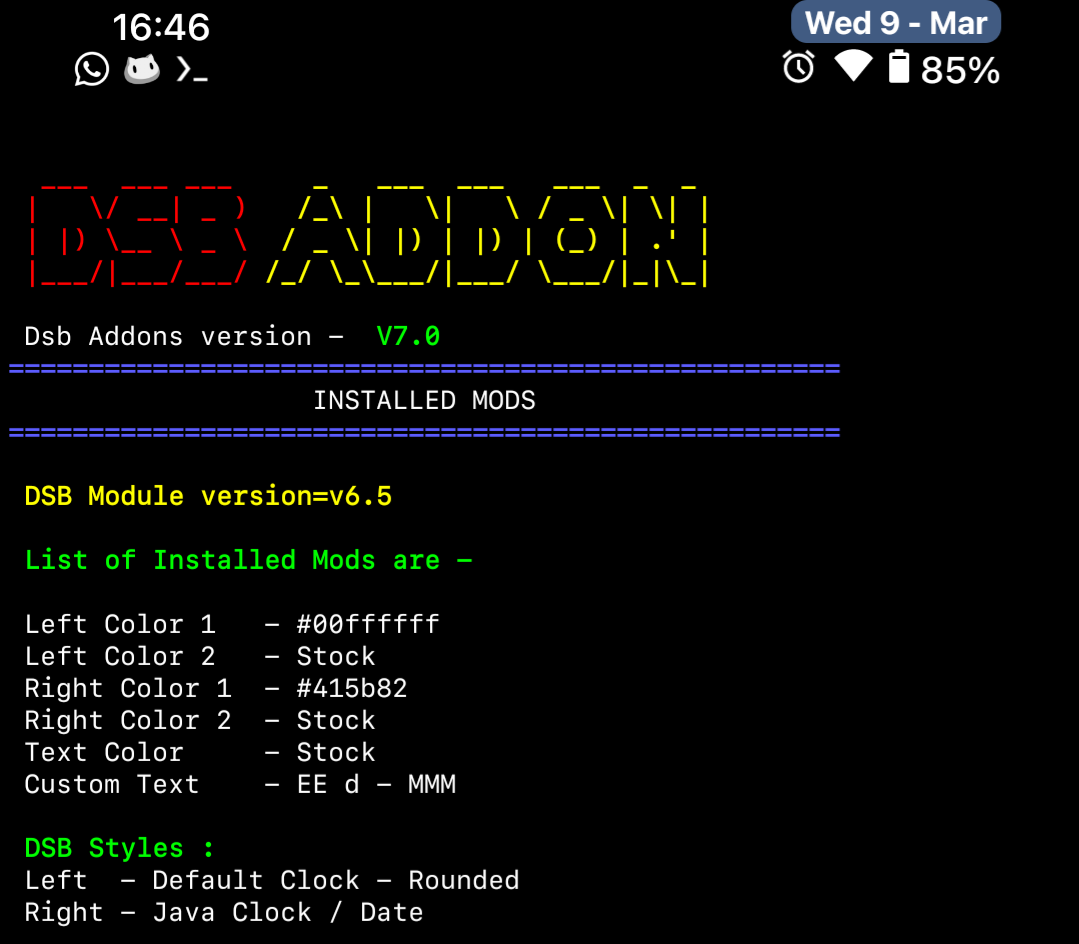
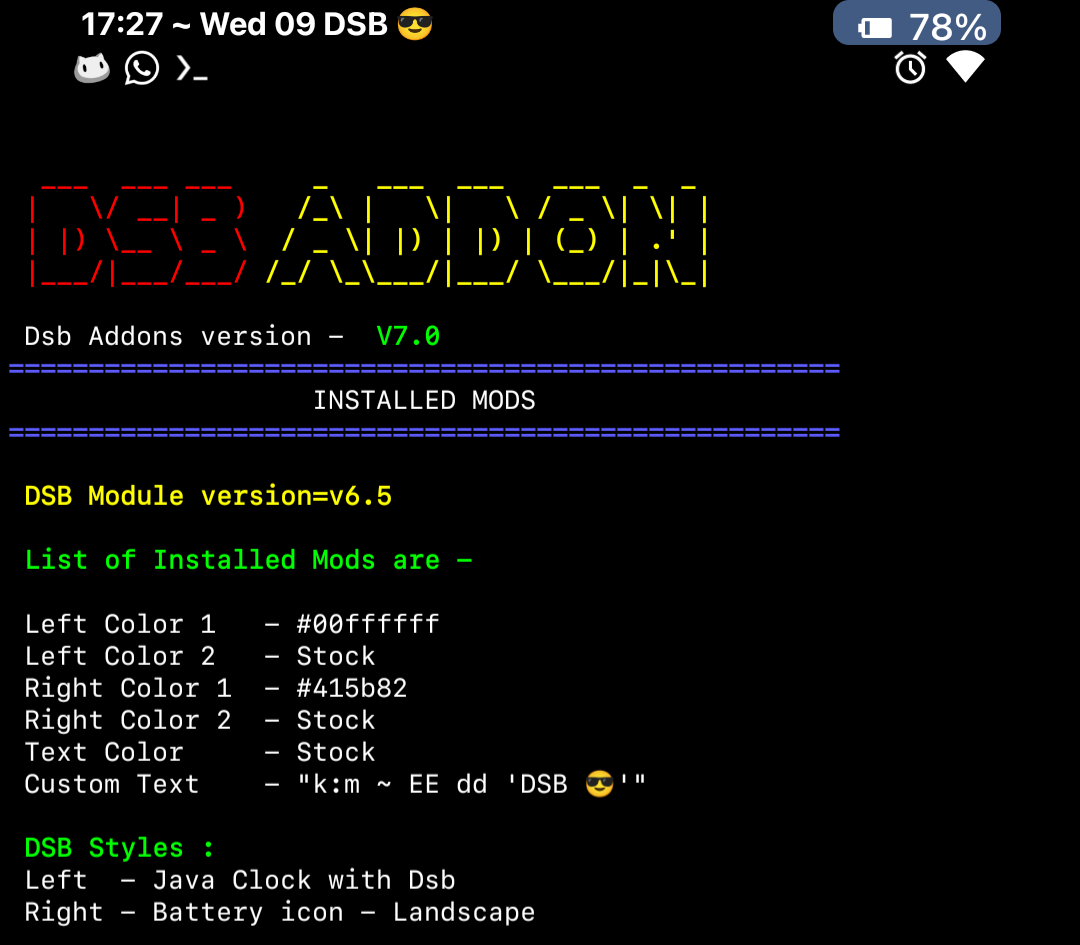
Custom Java clock in DSB
@DSB_TeamSo, you want to have your own custom date format in your statusbar?
You'll need:
- DualStatusBar module - Download by reading #guide in @dualstatusbar
- DSB Addons module - Download here
- Terminal emulator app - Download in Google Play, Termux is suggested
First things first
We have to understand how "Java clock" works, it's simple: Certain letters mean something, and they will be interpreted like "that" by your device. For example: "E" means "day name", "d" means "day of the month", and so on.
So, if today is March 8th of 2022 and we tell the system to read "E d", it'll display "Tuesday 8"
Some values have "variants" depending in the amount of letters: "E" is the complete name of a day, but "EE" is the short name of a day. "d" is just the lone number of your date, but "dd" forces the number to be two digits.
So, following the previous example, if we tell the system to read "EE dd" it'll display "Tue 08"
You can find the complete list of symbols in this link!
Well, what to do?
Now Addons comes into action: Open your terminal app, write "su", hit enter. Write "dsb", hit enter again.
You'll find Addon's main menu, select "Customize Text / Java Clock" to input your own custom string to display a date format in any way you want! Remember that symbols like ":" or "-" can also be added, they'll be useful if you want to create a clock, or to separate something.
Finally, go back to Addon's main menu and select "Stlye changer", select a side, and choose a style which includes "Java Clock" in its name. Adding a background color in the side you've chosen (that's the first option in Addon's main menu) is suggested to be sure that your time format will always be readable.
If you want to include a custom date format and a custom text at the same time, enclose everything with double quotes ( " ) and enclose your custom text with single quote ( ' ) symbols
Some examples
Notice that you have the info about the styles, background color, and custom text in each screenshot!