Common mistakes with TextFormFields in Flutter
FlutterPulseThis article was translated specially for the channel FlutterPulseYou'll find lots of interesting things related to Flutter on this channel. Don't hesitate to subscribe!🚀

When it comes to mobile development, even small missteps in designing forms can have a big impact, not just on user experience but also on…
When it comes to mobile development, even small missteps in designing forms can have a big impact, not just on user experience but also on the app's conversion rates. Poorly configured input fields create user frustration and drop-offs, which in turn hurt conversion metrics. In this article, we'll explore common mistakes made with TextFormFields in Flutter and fix them.
1. Not implementing textInputAction
To make the user flow convenient it is important to properly set up text input actions. While testing on the computer it might be non obvious how the app would behave with the virtual keyboard. To enable it in the iOS Simulator, press Cmd+K.
Let's implement the simplest example of a Form and try it:
Form(
  child: Column(
    children: [
      TextFormField(
        decoration: const InputDecoration(
          labelText: 'Field 1',
        ),
      ),
      TextFormField(
        decoration: const InputDecoration(
          labelText: 'Field 2',
        ),
      ),
      TextFormField(
        decoration: const InputDecoration(
          labelText: 'Field 3',
        ),
      ),
    ],
  ),
)

As you can see, the virtual keyboard has a "done" button, pressing on which hides the keyboard. As a user, I'd prefer it to focus (blur, if you are coming from the web frontend world) on the next field. Fortunately, it is straightforward to implement:
TextFormField(
  decoration: const InputDecoration(
    labelText: 'Field 1',
  ),
  textInputAction: TextInputAction.next, // <--
),
Add this line to all the form fields that should pass the focus next:

Besides passing the focus next, there are other useful text input actions:
newline: inserts a new line instead of unfocusing the field.previous: focuses on the previous field
Other actions are closing the keyboard and calling the onFieldSubmitted() callback:
done,go,search,send
Some of them are supported only on iOS:
continueAction,emergencyCall,route,join
And there's one action available only on Android:
none: according to the documentation:
Represents that no action is expected from the keyboard. Keyboard might choose to show an action which mostly will be a newline, however, this action will never be sent as the performed action to IME action callbacks.
2. Not implementing submit action
The last input area in the form can trigger onFieldSubmitted() callback and you'd save your users a couple of clicks if the main action would trigger right from the keyboard. Let's see how it looks:

TextFormField(
  decoration: const InputDecoration(
    labelText: 'Field 3',
  ),
  onFieldSubmitted: (_) {
    startLoading();
  },
),
As you can see, the onFieldSubmitted() callback was triggered when the user pressed the Done button.
3. Not using proper input types
It is important that text input fields would show the correct keyboard. If that's a phone number, then use keyboardType: TextInputType.phoneNumber, if that's an email, use keyboardType: TextInputType.emailAddress, etc.

Ufortunately, Flutter doesn't yet support hints for what language should be applied to the onscreen keyboard as in native Android development, however, you can check this issue on GitHub.
4. Not using TextCapitalization
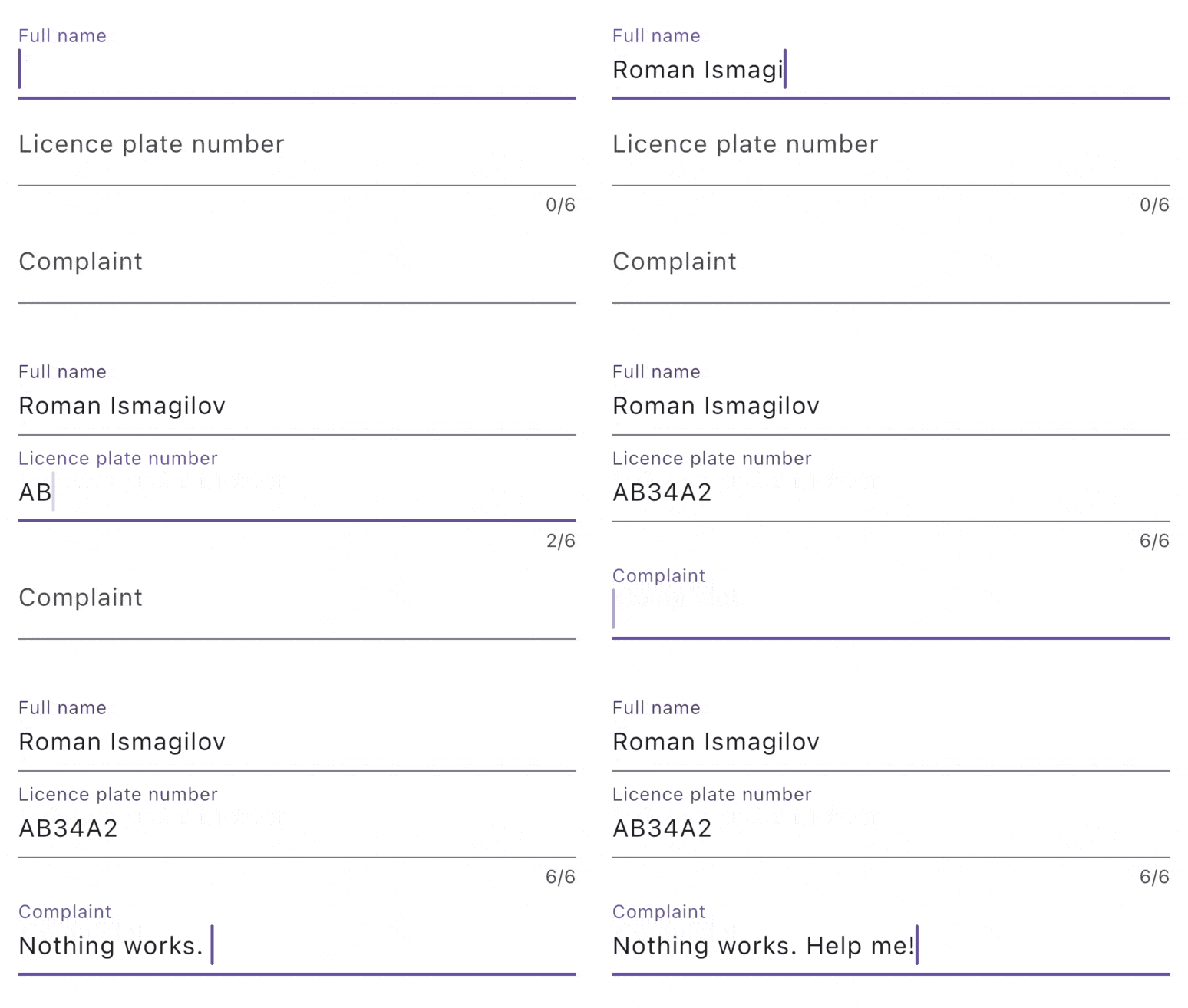
For some fields we expect that it should start with an uppercase letter, if that is a title or a message, for some, on contrary, we would prefer it to start with a lowercase, or, if that's a name, every new word should start from a capital letter. It is pretty straightforward to implement that in Flutter.
Let's use 3 different capitalization strategies and see the result:
// first field
textCapitalization: TextCapitalization.words,
// second field
textCapitalization: TextCapitalization.characters,
maxLength: 6,
// third field
textCapitalization: TextCapitalization.sentences,
5. Not using TextInputFormatter
Flutter provides us with a convenient way to format the inputs. Imagine these scenarios: card number input, a licence key, etc.
Also, you can filter out specific symbols from the input as well, for example, you want to forbid to use emojis in name field, you can either validate on submission or just don't allow it like that:
TextFormField(
  inputFormatters: [FilteringTextInputFormatter.deny(emojiRegex)],
  decoration: const InputDecoration(
    labelText: 'Field 3',
  ),
),
Note, that LLMs are quite good at generating regular expressions.

As you can see user can't type emojis. Might be a bit more convenient than showing a validation error, especially if that's a long mulistep form.
You can read more about formatting inputs here.
6. Not using autofill hints and groups
User has already typed his name, email, and other fields many many times in different apps and on different websites. No need to force him type that again and lower your conversion rate. Let's make a form that would have a an email and a password fields.
Note, that some autofillHintsrequire specific keyboardTypes.
TextFormField(
  decoration: const InputDecoration(
    labelText: 'Email',
  ),
  autofillHints: const [AutofillHints.email], // <-- this
  keyboardType: TextInputType.emailAddress, // <-- and this
  textInputAction: TextInputAction.next,
),
TextFormField(
  keyboardType: TextInputType.visiblePassword, // <-- this
  obscureText: true, // <-- this
  autofillHints: const [AutofillHints.password], // <-- this
  inputFormatters: [
    FilteringTextInputFormatter.deny(emojiRegex),
  ],
  decoration: const InputDecoration(
    labelText: 'Password',
  ),
),
As a result, user will be prompted to autofill the fields.

However, there's one problems. These emails are not associated with the app and the password is not autofilled. Would be more convenient, to fill everything at once. In order to do that, wrap it all with a AutofillGroup:
Form(
  child: AutofillGroup( // <--
    child: Column(
      children: [
        TextFormField(),
        ...
      ],
    ),
  ),
),
And then, update theonFieldSubmitted() callback of the last text field:
TextFormField(
  ...
  decoration: const InputDecoration(
    labelText: 'Password',
  ),
  onFieldSubmitted: (value) {
    TextInput.finishAutofillContext(); // <-- this
  },
),
When user types his data in your app it will be prompted to save the values.

Next time user opens your app, the saved autofill group would be suggested by the system:

Hope you've learned something new. I will update this article whenever I find something useful. Follow me on Twitter or Telegram to stay updated.