Chainik: A CMC for Minter
@Chainik_io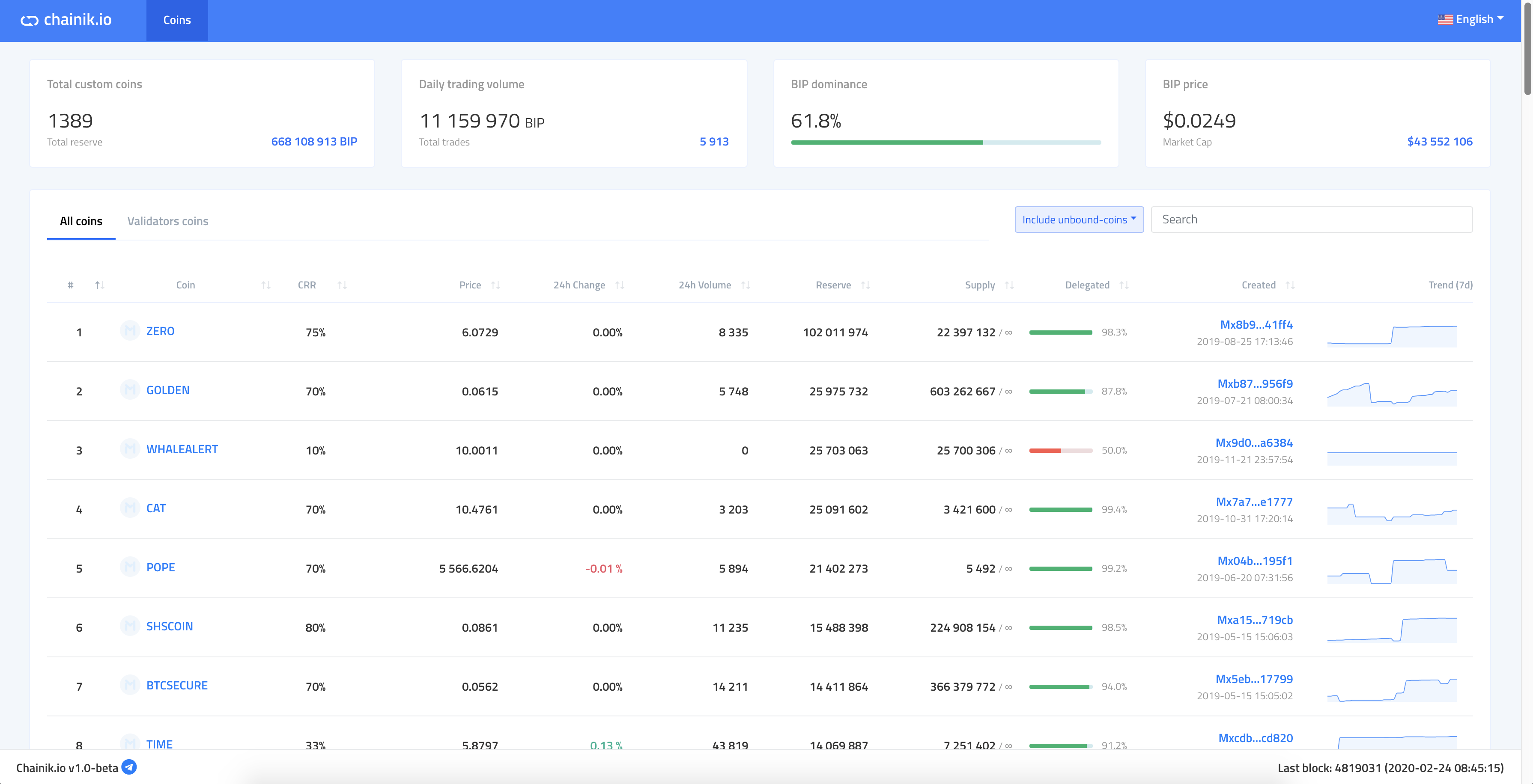
Chainik.io is an explorer for Minter-issued coins that offers advanced statistics, rankings, charts, and analyses.
Unlike other explorer solutions, Chainik does not use a full node. Instead, the parameters of all coins are recalculated on a transaction-to-transaction basis, with the blockchain being reconstructed. This allows us to provide the most recent and accurate data, not depend on external resources, and show superb performance.
The promising idea is to gather all blockchains that support atomic swaps and free conversion. In plain English, the service will have all coins that can be exchanged for one another without exchanges or third parties in one place. Please note that Chainik does not, and never will, accept listing applications.
Review of the Functionality
Right now, the functionality is centered around two typical pages:
- Homepage (index)
- Coin page
Homepage
First off, let’s have a look at these four widgets:

Total custom coins
- The number of coins on the Minter network
- Total reserve—the amount of reserves backing all custom coins (capitalization expressed in BIP)
Daily trading volume
- The total volume of trades in the last 24 hours (“trades” here refer to coin conversion operations)
- Total trades—the number of trades in the last 24 hours (BIP<>CUSTOM or CUSTOM<>CUSTOM)
BIP dominance
- BIP’s dominance in the current total supply compared to custom coins (% of the “pure” BIP that has not been put into reserves of custom coins)
BIP price
- BIP’s price in U.S. dollars
- Market Cap—BIP’s capitalization in U.S. dollars (price * supply)
Ranking of the Coins
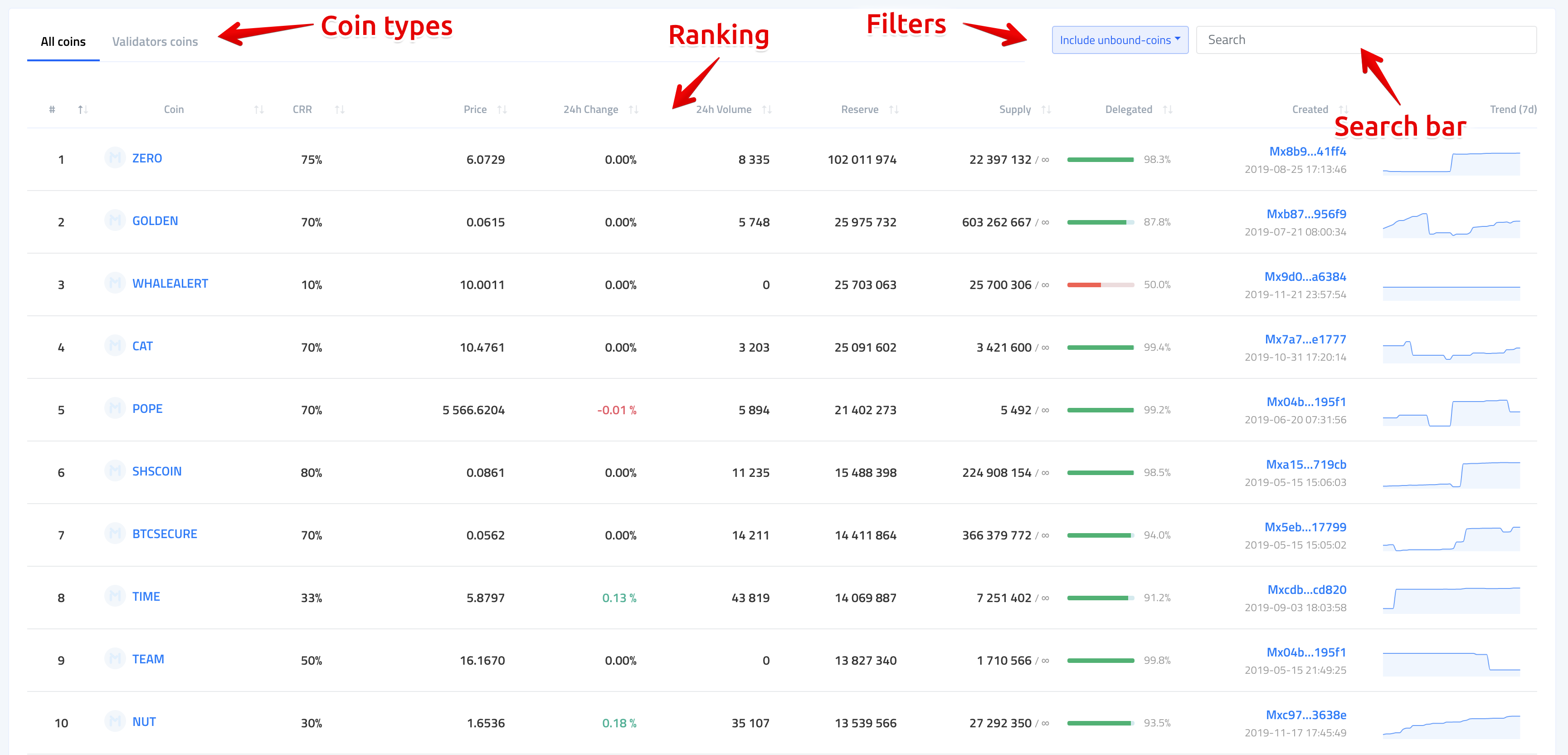
To view coins with a specific purpose, choose a coin type you need. At this point, there’s only validator coins.
Filters allow users to exclude coins that do not meet certain criteria from ranking. Filter settings do not reset when switching between coin types. As of now, there’s only unbond coins, and here’s how they are detected:
- CRR = 10%
- Creator has delegated 40 to 59 percent of the initial supply
By default, the coins are ranked by reserve, but you can sort by any available fields.
- Place—the position of a coin in the general ranking (by reserve). It does not depend on the type of coin or enabled filters
- Coin—the ticker of a coin and its icon. We will make it available for creators to upload custom icons and manage their coins in future updates
- CRR—the ratio of the coin’s reserve to its supply (ranges from 10 to 100 percent). The parameter is set when creating a coin
- Price—the current price of one coin in BIP
- 24h Change—price change (%) in the last 24 hours
- 24h Volume—the volume of trades in the last 24 hours in BIP (coin conversion, purchase + sale)
- Reserve—the current reserve in BIP
- Supply—the current supply (number of coins)
- Delegated—the share of delegated coins in the supply (the progress bar turns green at 60%)
- Created—creator address, the date and time a coin was created
- Trend (7d)—a mini chart showing a 7-day change in the coin’s price

In the footer, you can always see the current version of the service, latest block, and time (UTC) the data was last synced.
Coin Page
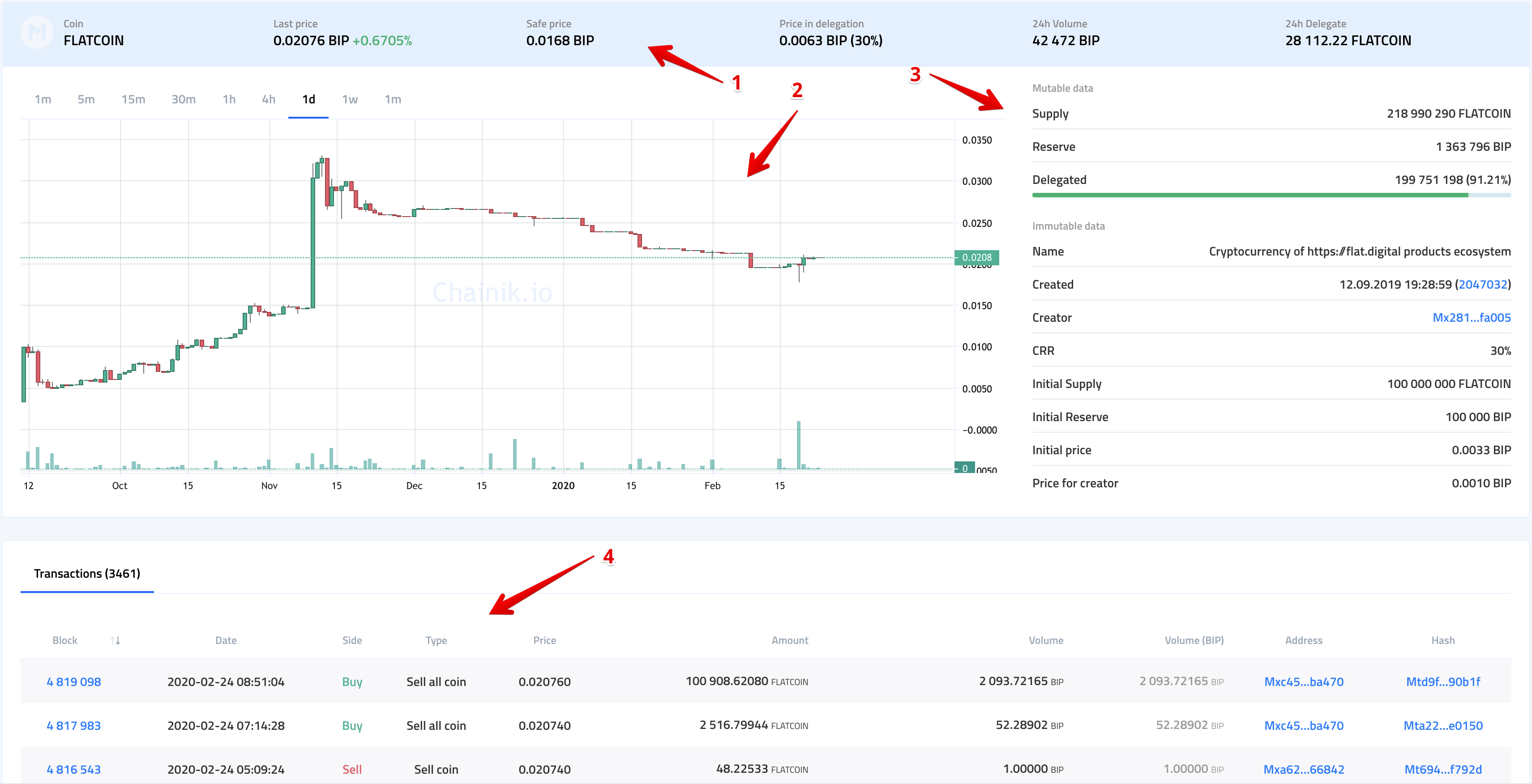
1. The Header of a Coin with Its Main Parameters
- Coin—the ticker and icon
- Last price—the current price in BIP
- Safe price—the safe price of a coin. Predicts the price below which the coin cannot fall in case of a one-time sale of the entire free float (non-delegated coins)
- Price in delegation—the price of one delegated coin and how it compares against the current price (%)
- 24h Volume—trading volume over the last 24 hours (purchase + sale)
- 24h Delegate—number of coins delegated over the last 24 hours (delegation + unbond). If the value is negative, it means the volume of unbonded coins exceeds that of delegated coins
2. Price Change Chart
A TradingView candlestick chart with the ability to use different timeframes (which determines the size of one candlestick) and observe trading volumes.
3. Coin Parameters
Mutable data (data that can be changed):
- Supply—the current supply
- Reserve—the current reserve
- Delegated—the current number of delegated coins + share in the current supply
Immutable data (data that cannot be changed and is set when creating a coin):
- Name—the name of a coin
- Created—the creation date and block
- Creator—the address that created a coin
- CRR—the ratio of the coin’s reserve to its supply (ranges from 10 to 100). The parameter is set when creating a coin
- Initial Supply—the initial supply (number of issued coins)
- Initial Reserve—the initial reserve that a coin is backed by
- Initial price—the price of a coin right after creation
- Price for creator—the price that creator paid for each of the coins issued initially
4. Data Table
At the moment, only trades are included—i.e., transactions that affect the coin’s price. These transactions include the purchase, sale, and use of a coin to pay commission fees.
- Block—the block that a transaction was included in
- Date—the date and time of a transaction (UTC)
- Side—the type of operation that affects the price: Sell—the sale of a coin (reduces the price), Buy—the purchase of a coin (increases the price), Fee—the use of a coin to pay a commission fee in any transaction (reduces the price)
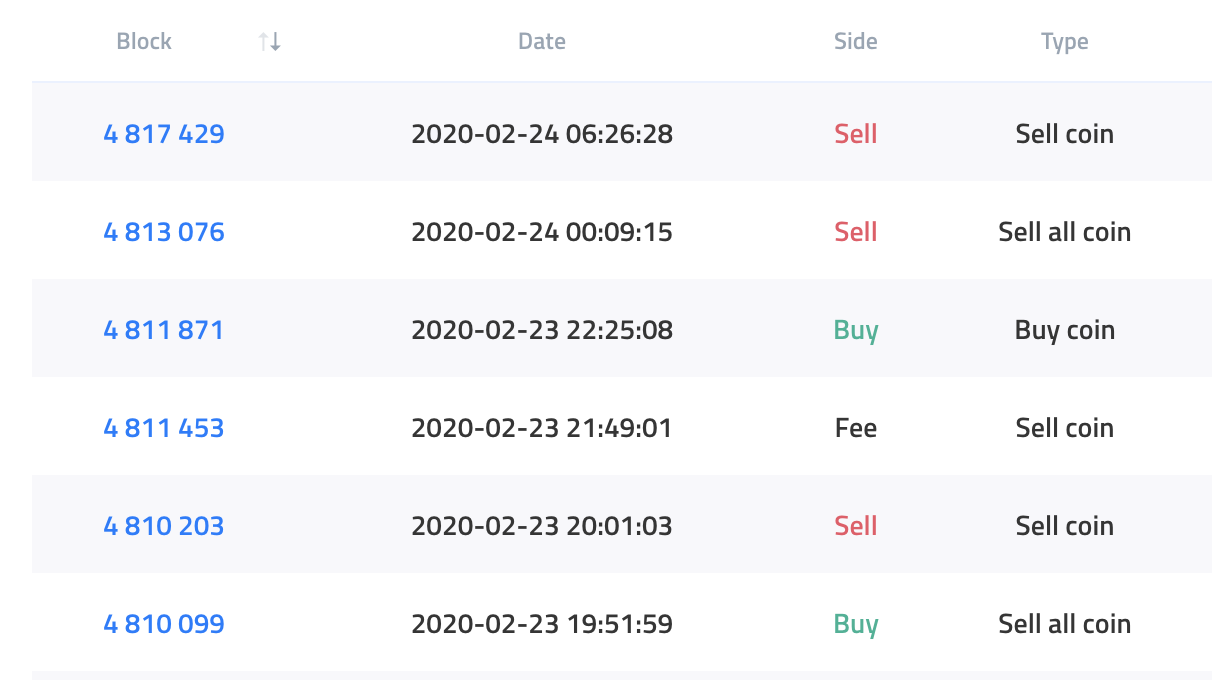
- Type—the type of transaction. There are several types of transactions on Minter. An inexperienced user may think, for example, that “Sell all coin” reduces the price. The screenshot above shows, however, that the sale of coins may increase the price (in this case, because BIP is sold, not the selected coin). That is why we’ve introduced Side described before.
- Price—the price of a coin at the time of a transaction
- Amount—the amount of a selected coin that participates in a transaction
- Volume—the number of coins that have been converted to the selected coin or that the selected coin has been converted to
- Volume (BIP)—the volume of a trade transaction expressed in BIP (comes handy when converting one custom coin into another CUSTOM <> CUSTOM)
- Address—an Mx address that made a transaction
- Hash—a link to the transaction itself
For better usability, each page displays 15 transactions. The very first transaction is the one that created a coin:

This is a short overview of chainik.io’s beta version. We will roll out more features soon and have already started working on additional tools.
Want to stay tuned? Don’t forget to join our channel @chainik_io.
If you’ve got anything to discuss or suggest, feel free to drop us a line in our Chainik CHAT.