Appeal
YeezyPayGuide to unbanning a Google Ads account
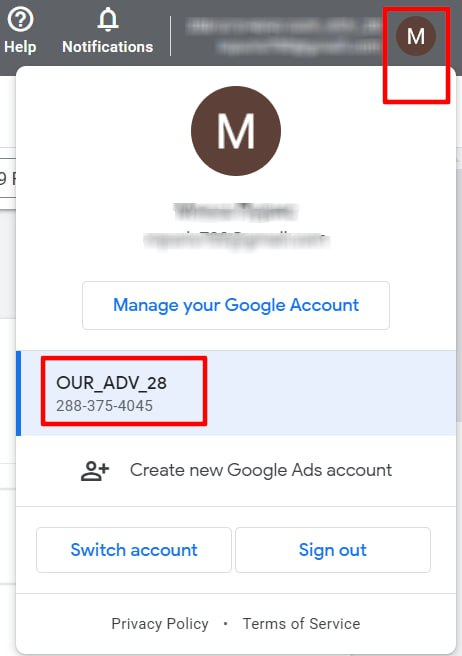
Where do i see my ad account's ID?
1. Option one: click the question mark at the top of your account page
2. Option two: follow the instructions on the screenshot. It'll show you the following account info: first and last name, the email used to register the account, title and ID.
Where do I see my payment profile? Step 1.
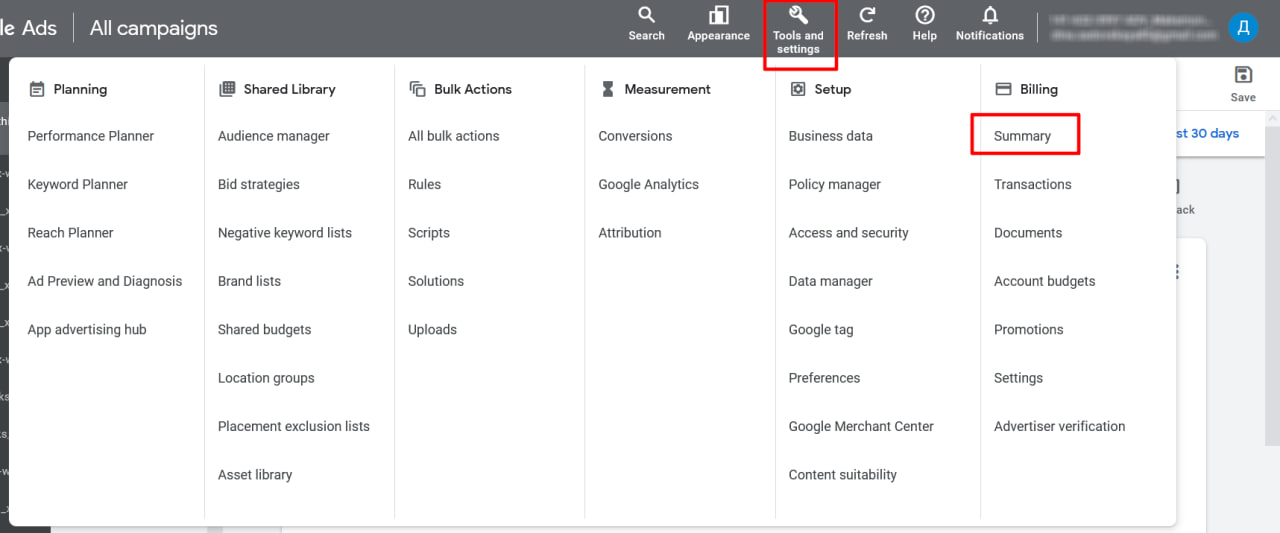
Step 2.
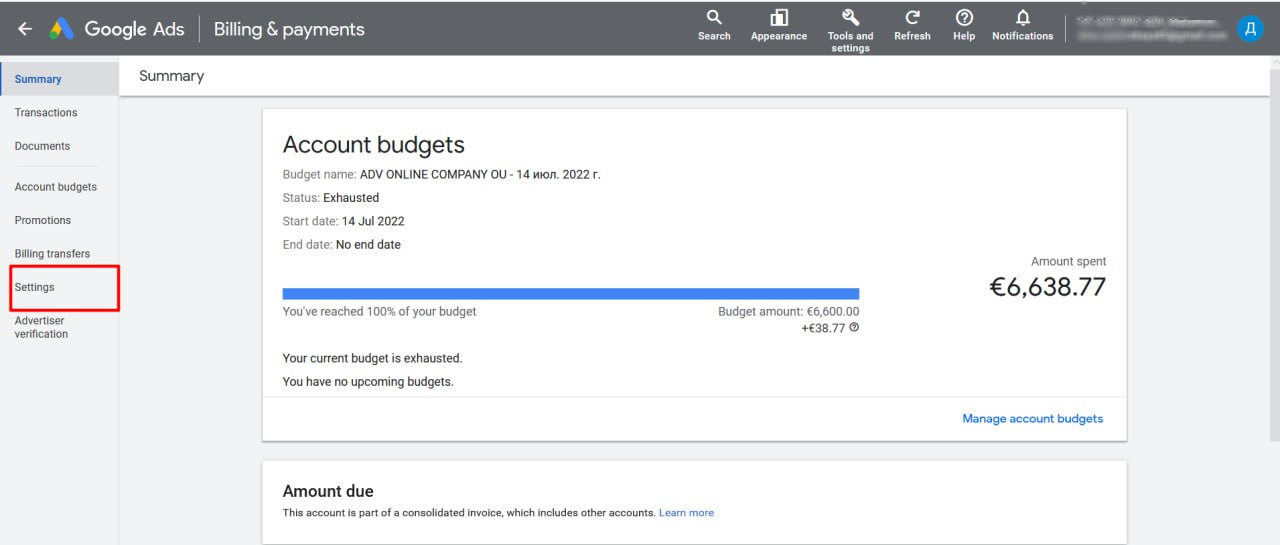
Step 3.
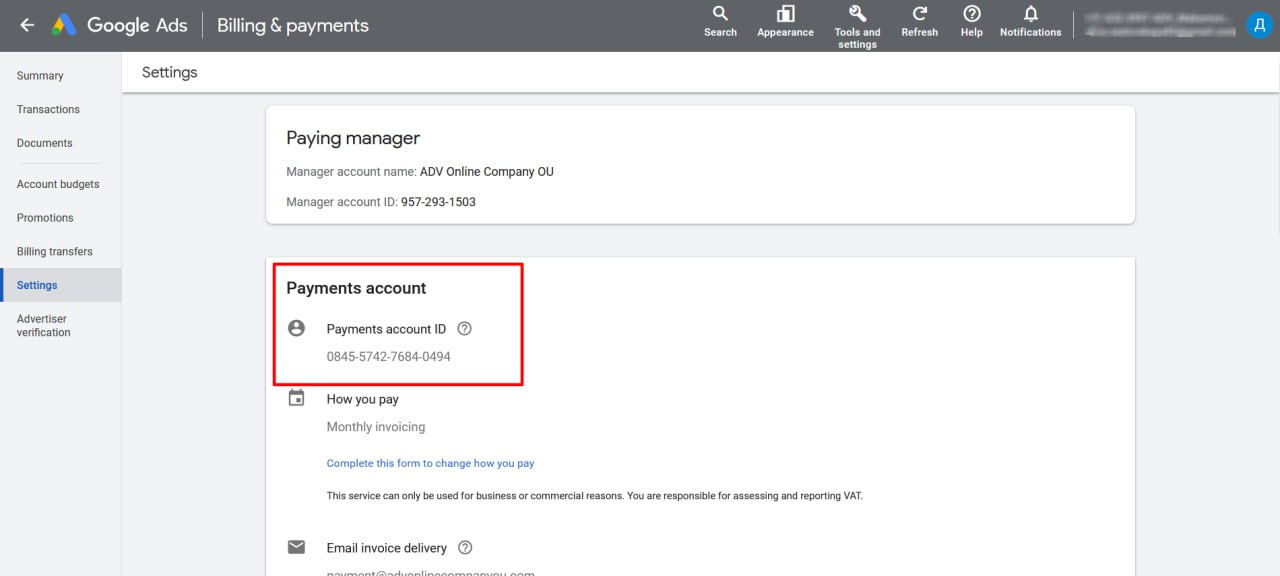
Step 4.
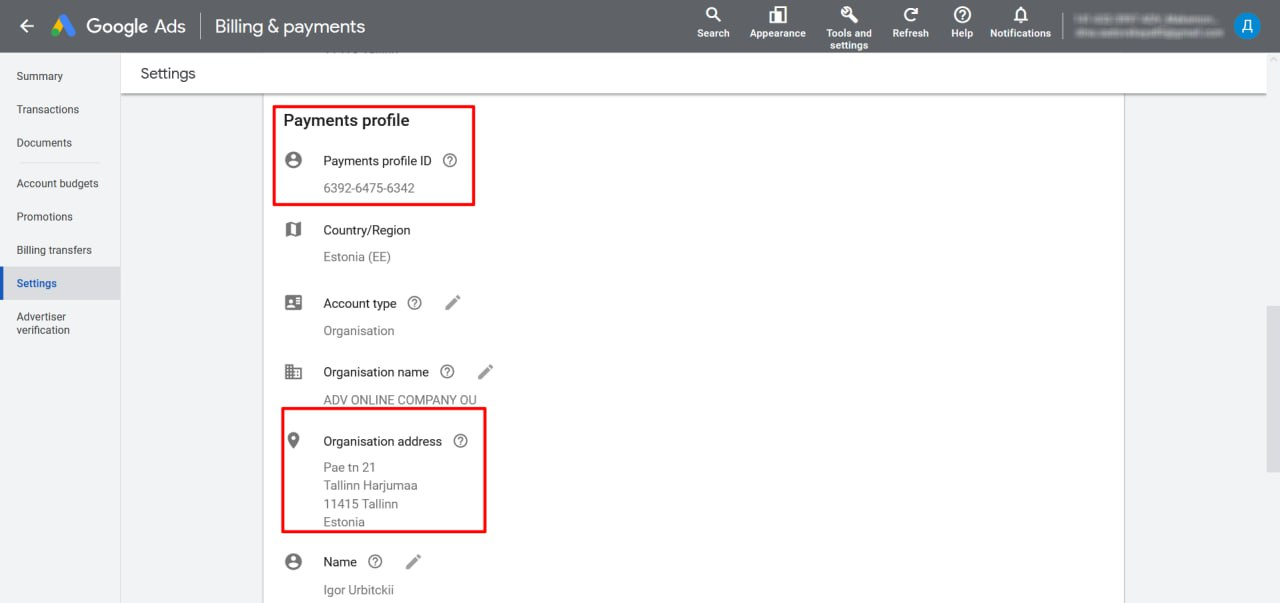
Main reasons for Google Ads account bans Bypassing the system You're violating Google's policy:
1. The email linked to your account has already been banned in some other Google service. Could just be a suspicious email, automatically registered by the program, without an attached phone number.
2. You logged into your account not from the GEO it was registered in.
3. Cloaking tools, banned keywords and other strategies where you try to manipulate the ad network.
Inappropriate business models Google suspects that users are being deceived on your website or app. Collecting personal data to then utilize it for fraud, scams and other gray- and black-hat strategies. Suspicious payments An issue related to account billing or billing info. The following may be the reason:
● incorrectly entered payment data;
● attaching a bank card of another country;
● attaching an expired bank card;
● attaching a stolen bank card;
● a failed (not enough funds on the card) deposit to the account over 3 times;
● making a very large deposit to a newly registered account
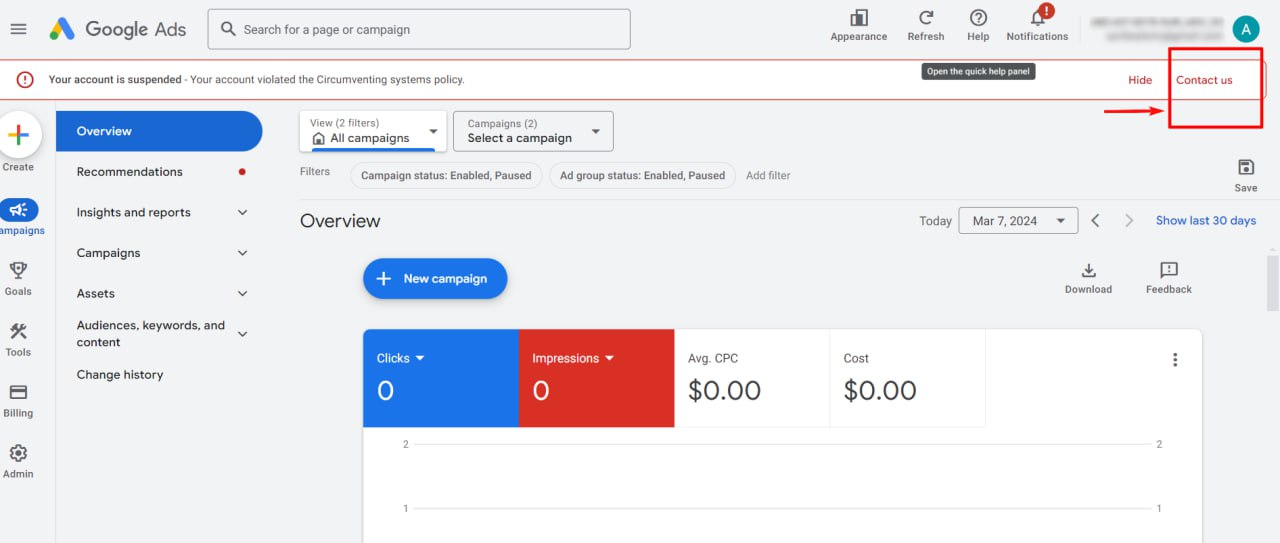
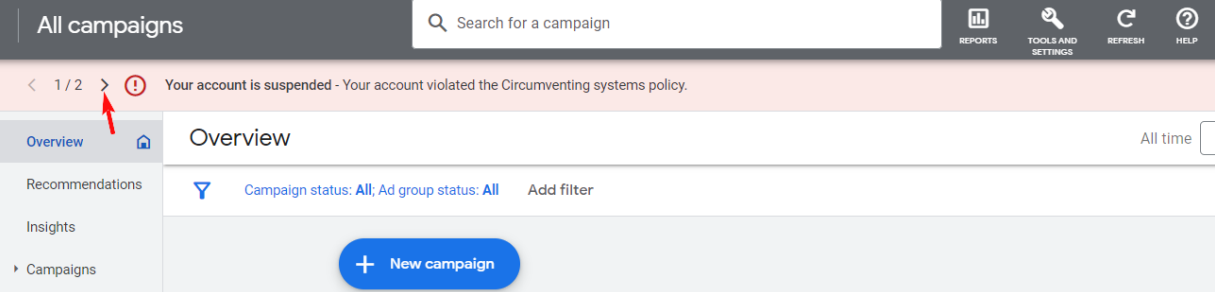
Filing an unban appeal for a Google Ads account Check the reason for your account getting banned. There can be more than one. Then click the arrow (like on the screenshot) and study all the reasons.
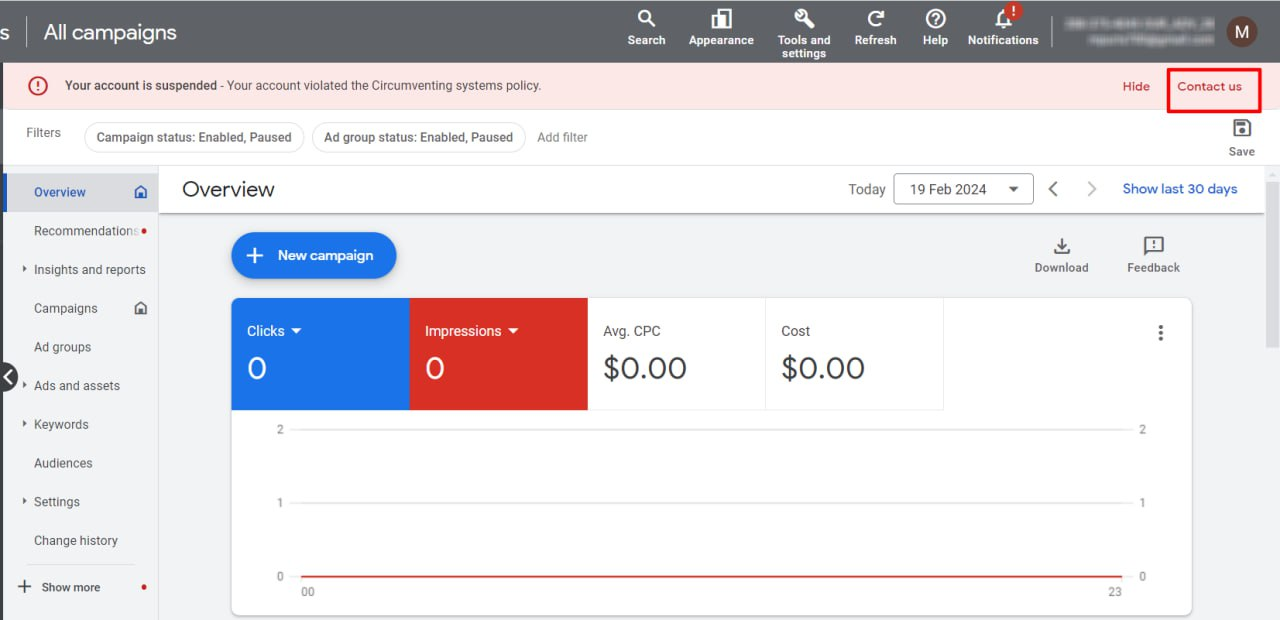
Step 1. In the account, click Contact Google. The button appears in the top right after the account gets banned.
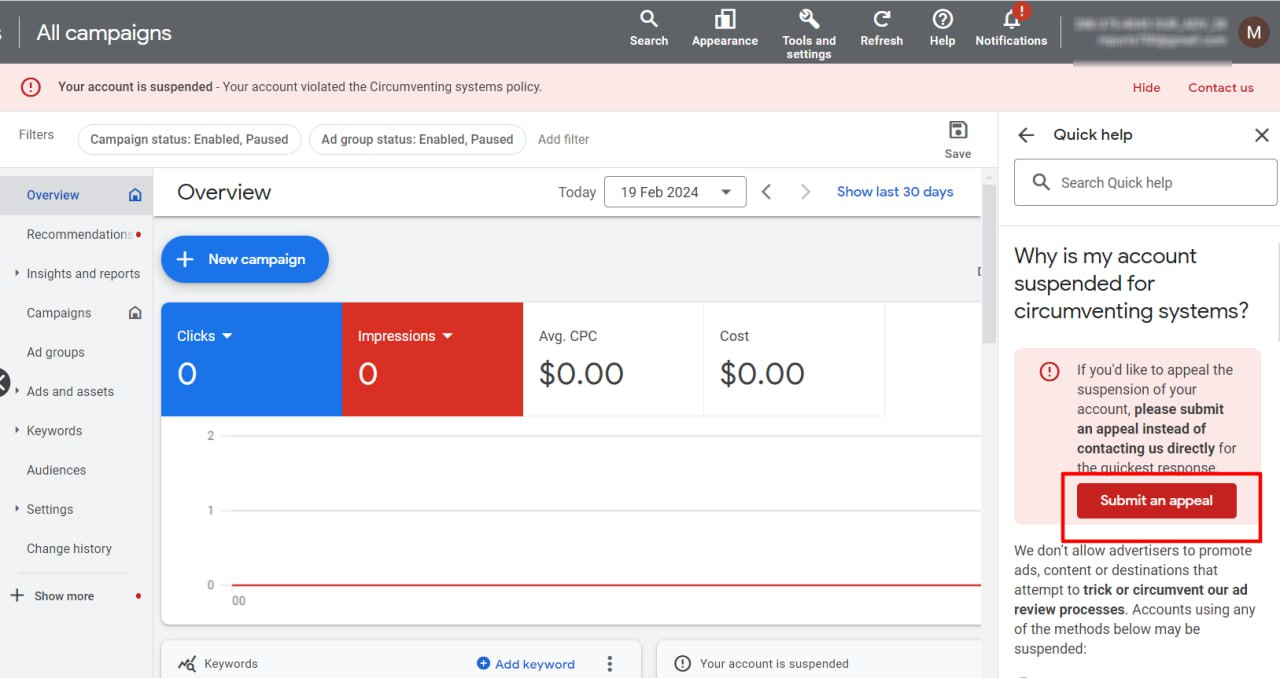
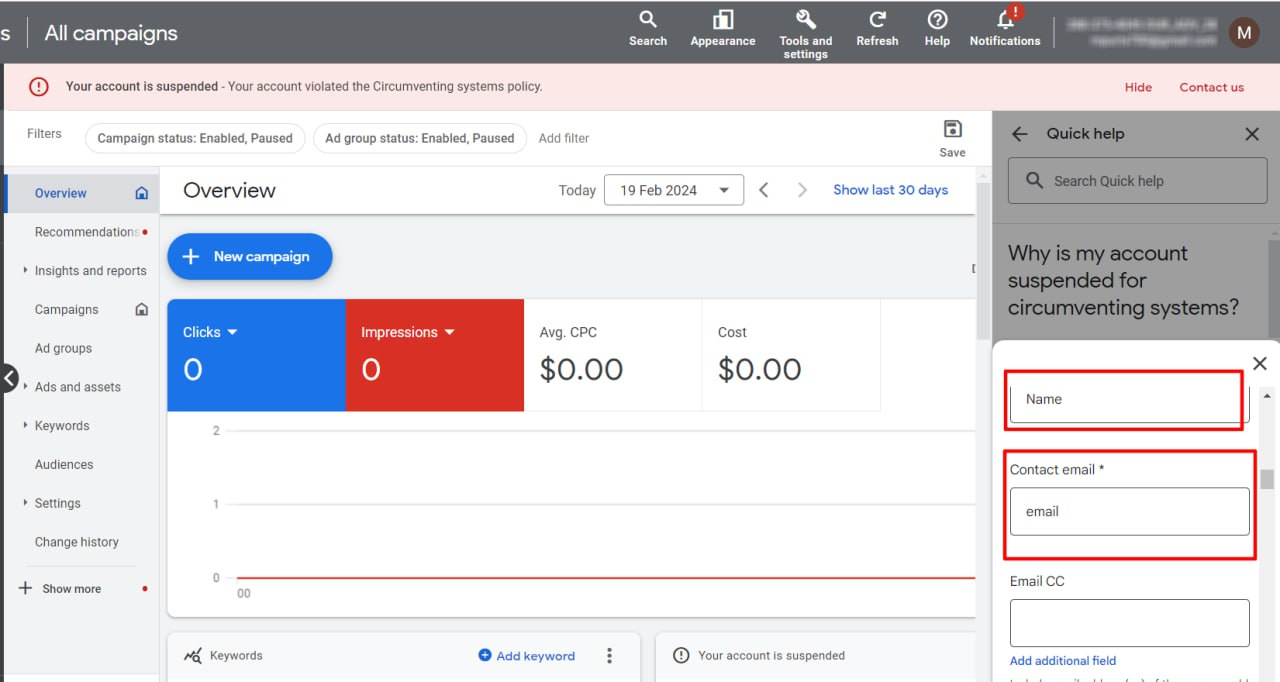
Step 2. Fill in your contact person and email. No need to mention the copy recipient.
Step 3. Fill in your ad account. If there's only 1 account attached to your email, it will automatically show the ID you need. If there's more of them, click the field and select the ID you need. Fill in the promoted website and the link to the app.
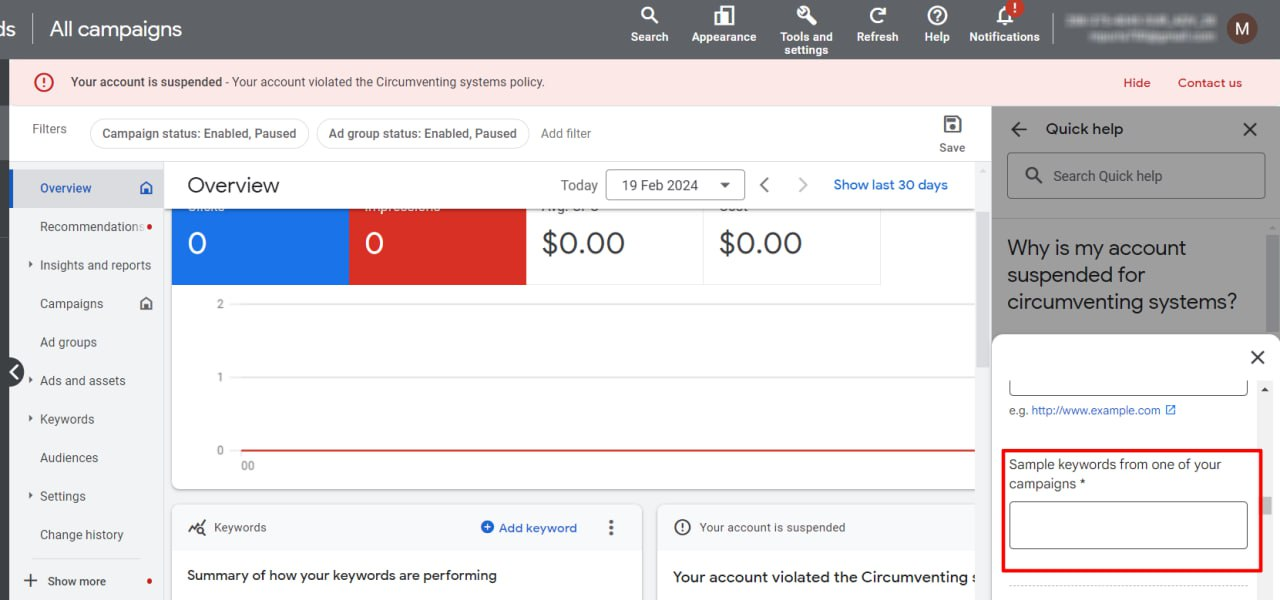
Step 4. Fill in several keywords from your ad campaign if there are any. When promoting apps, indicate that no keywords were used. Promoting apps via a UAC campaign
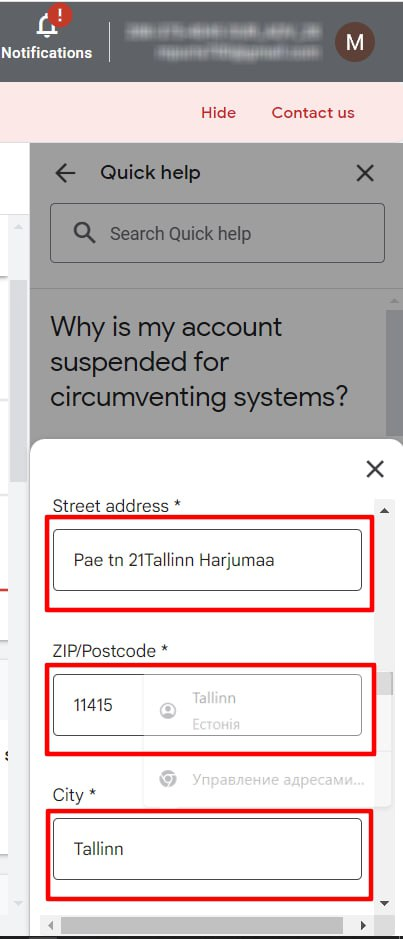
Step 5. Fill in the info from your payment profile: address, postal code, city, country.
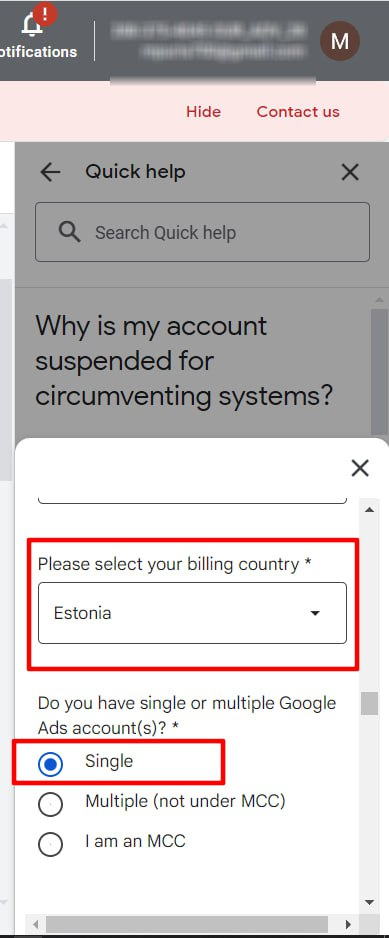
Step 6. Mention that you have only one ad account
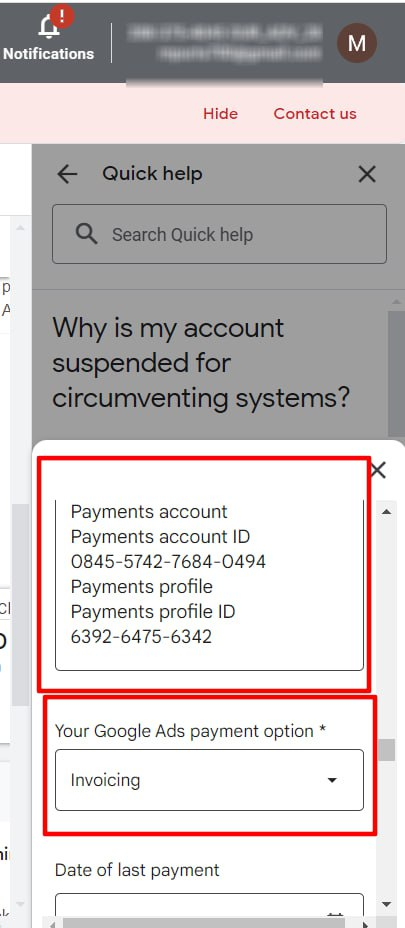
Step 7. Fill in the info from your payment profile. Select a payment method - Billing.
Step 8. Continue filling our your profile. In our case, you can skip filling in the date of the latest payment. If you pay yourself using credit cards or payment systems, mention that. Select one of the countries you've launched ad campaigns for
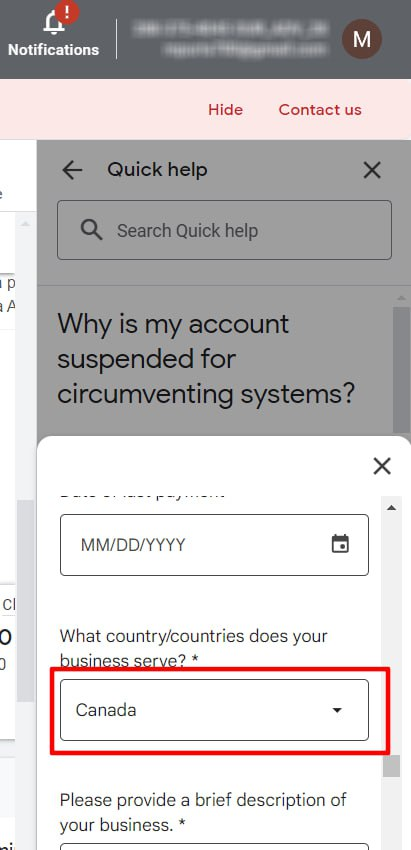
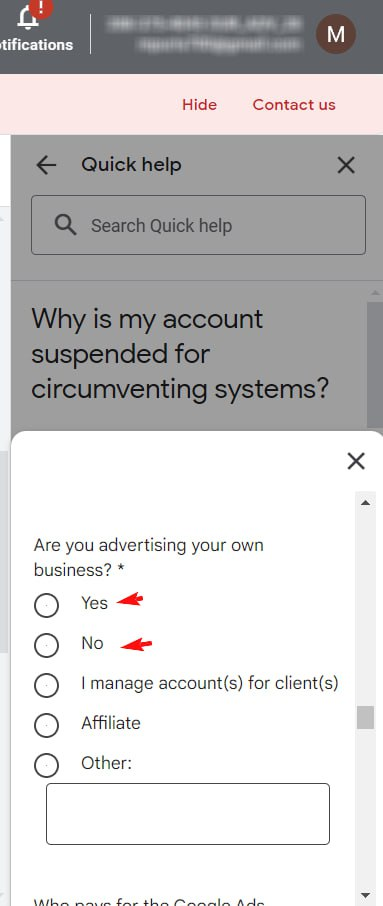
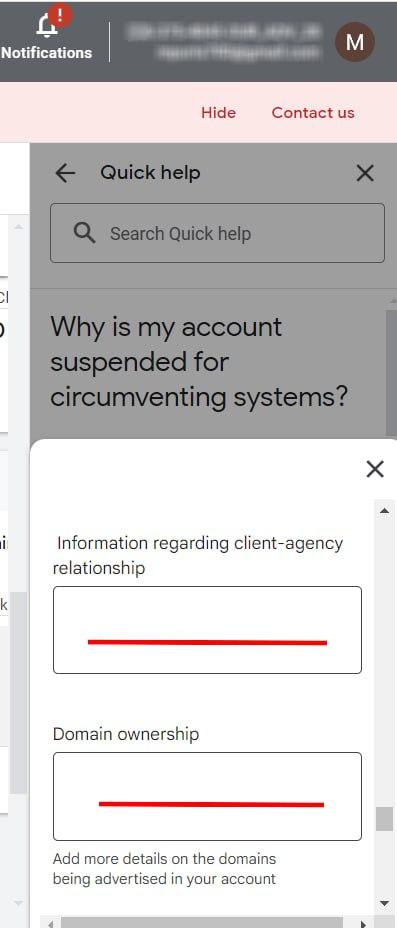
Step 9. Briefly describe your business activities. Example. I use Google Ads to advertise and promote my app. You can list the countries your ad campaigns target. Skip the client-agency relations field
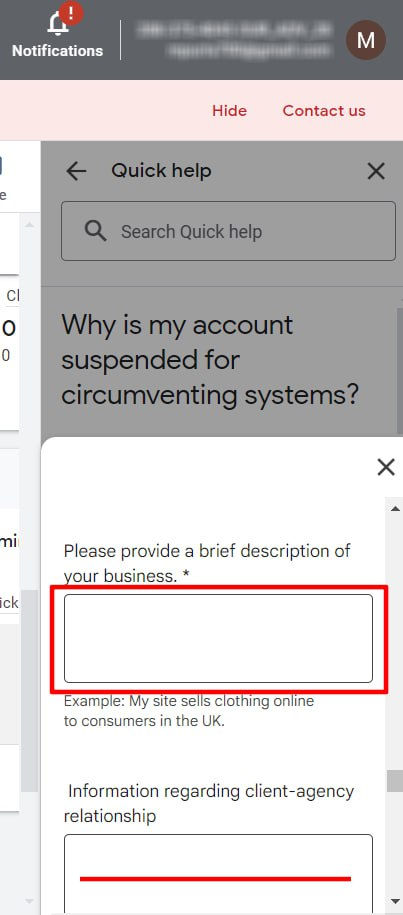
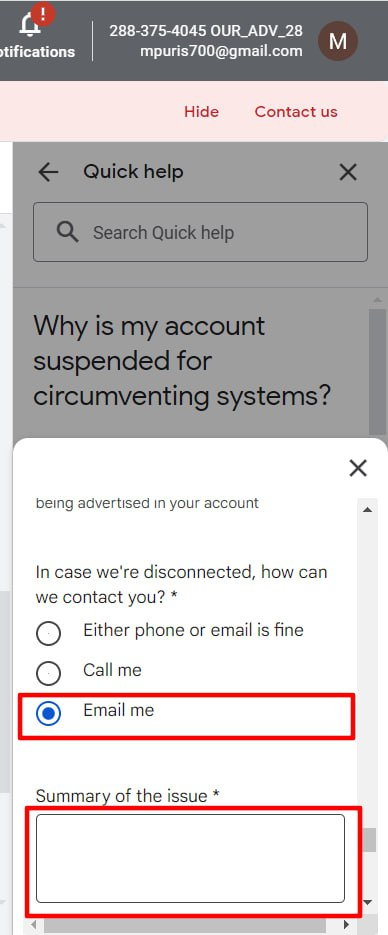
Step 10. Don't fill in the domain ownership right field. In the part with the problem description, write arbitrarily but, preferrably, avoiding a trite and used style. Example. Good day, I set up an ad campaign (mention the type and the country/ies). Describe the ban situation. Say, your ad campaign passed moderation, started getting views and the next day the account got banned. The reason given: bypassing the system (or whichever one you have in your account). Important! Google doesn't take kindly to affiliates nor to affiliate programs. Don't mention your affiliation anywhere!
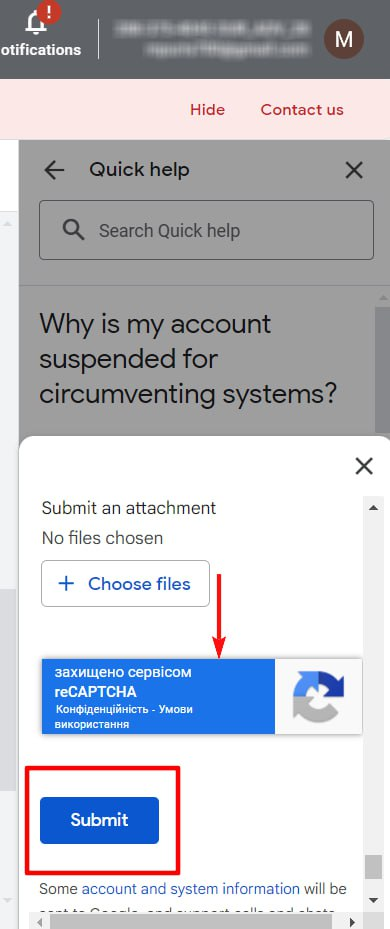
Step 11. Final step. Tick the checkbox, pass the reCAPCTCHA if there's one. Click Send. You'll get a response to the email the account is attached to and the one you mentioned when filing the form. Response times vary between one day and a week.
You're definitely getting an answer whether your account has been unbanned or not. No precise info on the timeframes though
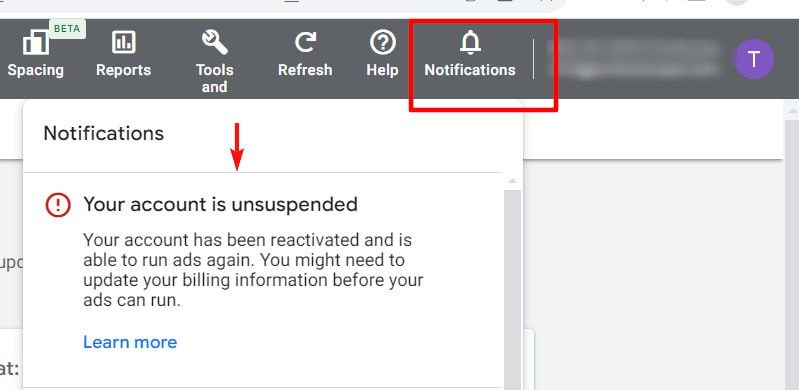
Step 12. After getting unbanned, you'll get a notification like the one on the screenshot.