Android Emulators for Windows, mac and Linux
Aswanth RoyAndroid is one of the best mobile OS right now and billions of devices are already running the famous operating system on them from Google. Android has millions of apps for it. A variety of apps and games are available in the Google Play Store and anyone can freely download it on their device.
But you can only run these apps and games only if you have an android device. Let's say that you wanted to run a game on your PC. What will you do? As you all know, one cannot natively run APK files on your PC, Mac or Linux. This is where Android emulators come into play.
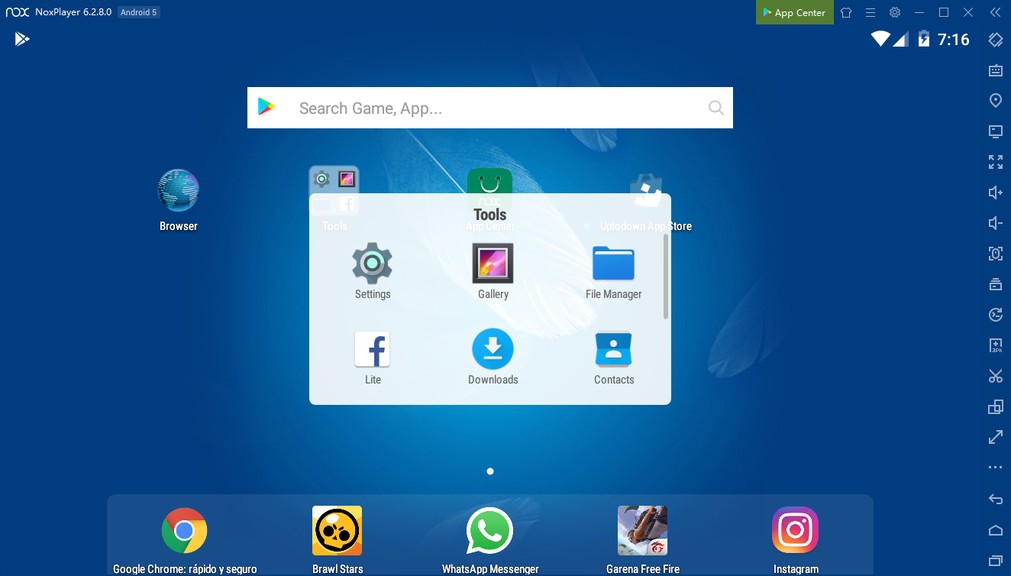
When talking about Android emulators. There are two of them. The first one is cloud-based online Android emulator and the second one is the offline Android emulator that comes as an installer package. Courage and you know to install it on your PC to actually access the game or installed apps and use it right away. Let's say that you wanted to play a popular Android game on your PC like PubG or Call of Duty in this situation. You can use the Android emulator and install the actual game on it and then open PUBG Mobile in the Android emulator and play the game right over there.
Best Android Emulators
In this article, we will have a look at some of these so-called Android emulators and their features and also find installation guides and other necessary Support articles in their official website .
Bluestacks
The first one in our list is BlueStacks when talking about Android emulators we cannot leave BlueStacks behind. BlueStacks is one of the oldest and one the powerful Android emulator available in the market. It comes with the latest version of Android and the user interface is so good. It has support for a good number of games and apps natively and you can also get Google Play store and is also pre-rooted by default.
The latest version of BlueStacks, BlueStacks 4 is the latest addition to the family and it is almost 5 times faster than a regular Android phone. You can imagine having an Android operating system and PC processor and altogether how power will it be.
With the help of some third-party applications, you can even root BlueStacks and install rooted applications and install it or use it without any problem. So that's it for BlueStacks. BlueStacks is available for mac and windows and you can download it from the official website.
MEmu Play
The second Android emulator in our list is Memu play. Memu is one of the best Android emulators for PC that is available in the market. One of the most liked features of memu is that you can set up key mapping for every game as you wish. Memu comes with an already configurable keymap for games like Pubg, COD, Clash of Clans Etc. But if you want you can even further customize it and get a better result. The graphical output and the system resource usage is also Optimum and you will get a best gaming experience with memu play.
Nox App Player
Next in our list is Nox app player. When talking about Nox App player, it is quite similar to memu, the user interface, the way in which everything is presented the key mapping features and the graphical output. Everything seems pretty similar to memu. But actual difference comes into branding and brand proprietary features that is available in Memu. Nox App player comes with Google Play Store pre-installed. So you can just open the Google Play Store and search for favorite apps and games and install them right away. Let's say that you wanted to install WhatsApp on your PC then all you have to do is just open Nox App Player then go to Play Store search for WhatsApp install it and you're all good to go.
So in short, these are my top three picks for best Android emulator for PC. The majority of the Android emulator is mentioned in this article is available for Windows and Linux and Mac. Also, BlueStacks is the best when it comes to Mac operating system and MEmu and Nox work well with Windows and you can also get Linux versions of the same. If you don't want to install this software on your PC and make a huge storage space on your desk, then you can also go with online Android emulators by which you are not required to use any sort of applications. All you have to do is just open up a website in Google Chrome or any other similar web browser and start using Android apps of your choice, and that's how you do it.