Alpha Helper Guide

Always download and install only the latest version of the extension from the Alpha Helper channel.
Instructions for installing the browser extension.
You can get a one-week test key from @AlphaHelperKeys_bot.
A test key can only be activated on an operator where the bot has not been used before. The key is linked to your operator when it is activated. The bot will not work with your key on another operator.
The bot sends messages only through Chances. Chats in the All chats tab are not processed.
Quick Start
First, you need to set up automatic replies to likes, winks, and other standard reactions from men.
In your Chances, it looks like this:

Go to the Winks tab in the extension.
For each reaction, you need to add prepared replies that the bot will send in response to the man’s reaction. For the 3rd and 4th reactions, replies are combined in one tab.
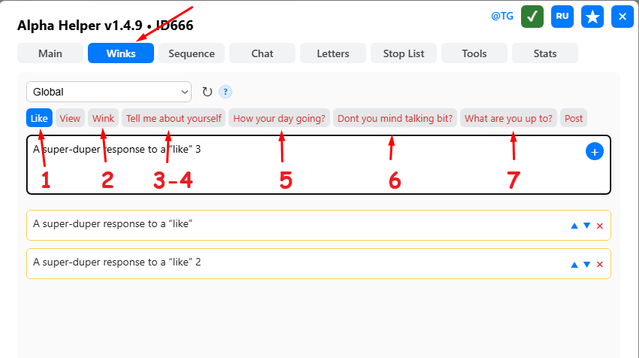
In the dropdown list where it says Global, leave the selection as it is. Templates from this list will work for all profiles.
Add 2–3 replies for each reaction in every tab. Write them thoughtfully. If a man sends you something like “How is your day going?”, and your prepared reply is completely unrelated, he is unlikely to continue chatting with your profile.
The View tab. When a new daddy views your profile, a notification appears, for example:
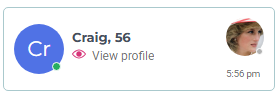
If this man has not previously appeared in Chances for this profile, the site may add an available chat action. Only in this case will the bot send a template from the View tab.
The Global list is used for all profiles that do not have individual templates configured. This is enough to get started. Later, you can take the time to set up individual templates for each reaction separately for each of your profiles, while the templates from Global will remain available for random or temporary profiles that were given to you to cover another translator.
Now go to the Chat tab.

In the dropdown list, select the first profile and add at least one invite that will be sent out. To start, you can add text-only invites. Or you can click the area to the left of the text field and add any media file from your gallery, which will be sent together with the invite.
If the Media first checkbox is enabled, the media will be sent first, followed immediately by the text template. If it is not enabled, they will be sent in the opposite order.
Add at least one invite for each profile.
Go to the Letters tab.
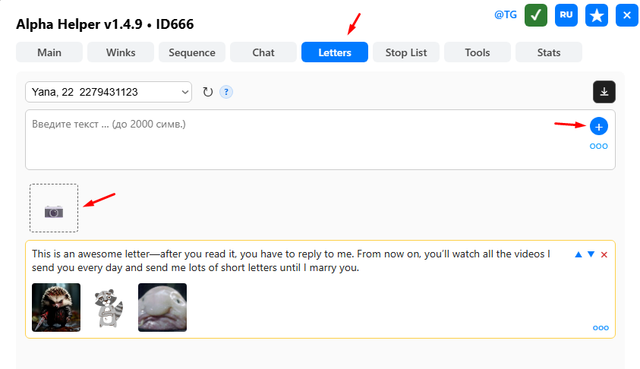
Everything here works the same way as in the Chat tab. Select a profile, insert the letter text, choose the media files that will be attached to the letter, and click + to save it.
Add at least one letter for each profile.
The first media attachment in a letter does not update the available chat actions with the man when opened, so do not be lazy — attach at least two files.
Main Tab
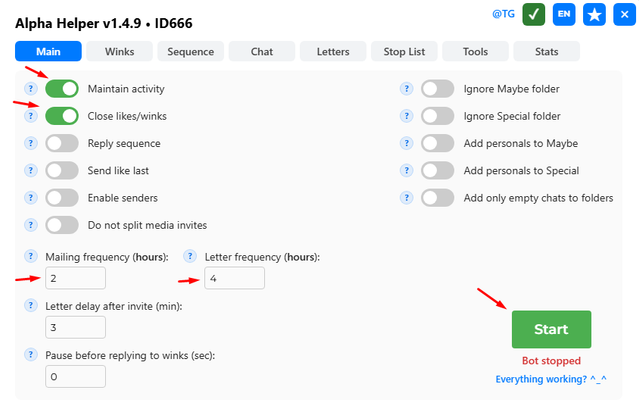
Enable the toggles Maintain activity and Close likes/winks.
I will separately explain how the Mailing frequency and Letter frequency settings work.
Go to Chances.
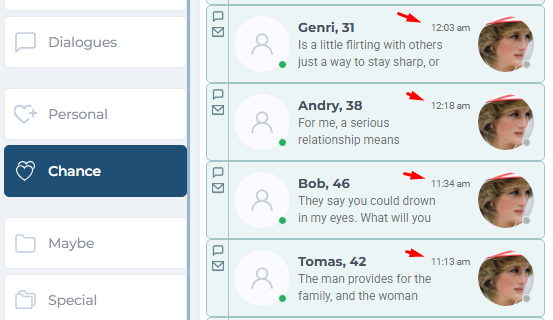
Each chat card shows the time of the last message.
The bot requests Chances approximately once every 5 minutes and checks each chat separately. If the number of minutes or hours specified in your Mailing frequency setting has already passed since the last message in the chat, the bot will try to send the invite you added for that profile.
If no invites have been added for the profile, or if all of them have already been sent to this man, the chat will simply be skipped until you add a new invite.
Letters and the Letter frequency setting work the same way.
If you did not understand anything, just leave the settings as shown in the screenshot: 2 hours for Mailing frequency and 4 hours for Letter frequency.
Do not change the other settings if you do not understand what they are for or how they affect the bot’s behavior.
That completes the quick setup.
You have added templates for each reaction in the Winks tab, and you have added invites for chats and letters. The Close likes/winks toggle is enabled.
Now click the Start button and close the extension window.
Check Chances after 10 minutes.
Advanced Level
Let’s look at additional features and settings.
There is a help icon (?) next to each setting and in all tabs. Hover over it and read what it says. I will explain some features in more detail below.
Reply Series / Sequence
The toggle in Main that enables this mode, together with the Sequence section, controls a series of invites that will be sent to a man after a like or wink.
First, the bot replies to the man’s reaction with the corresponding template from the Winks tab. After that, every 4–6 minutes, it sends templates from the sequence.
This works only for a new man on the profile who has not previously received invites.
If you use well-thought-out invites for the sequence, it can help you pull in free users more effectively.
Do Not Split Media Invites
This is a toggle setting in the main window.
A media invite is a chat invite to which you have additionally attached media. The text and media are sent together.
To send both text and media, two available chat actions are required. But sometimes only one action remains in the chat, while your invite requires two. In this case, only the text part of that invite will be sent.
If you enable the Do not split media invites setting, then when only one available message remains in the chat, the bot will skip the media invite and look for a text-only invite without media for the same profile.
If no text-only invite is found, the bot will skip this chat.
Filters
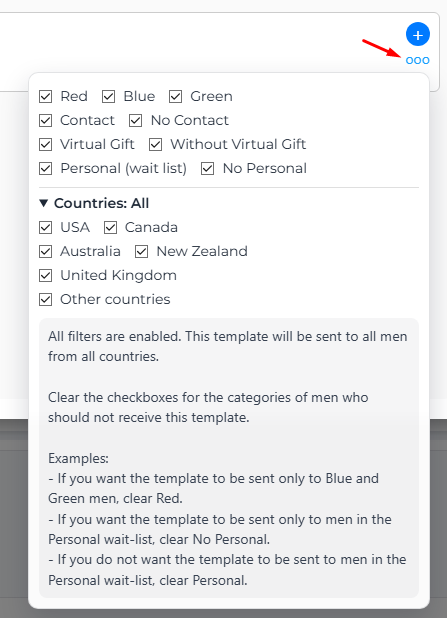
In the Chat and Letters tabs, filters are available for templates. They open when you click ooo under the plus button.
Filters allow you to configure your mailing more flexibly. For example, you can write separate invites for red men, personals, or other groups shown in the screenshot. You can also filter men by country.
Try experimenting with one filter first, see how it works, and only then expand filters to other templates and cases.
Placeholders
%name%
%country%
%age%
In your invites, these placeholders will be replaced with the man’s name, country, or age.
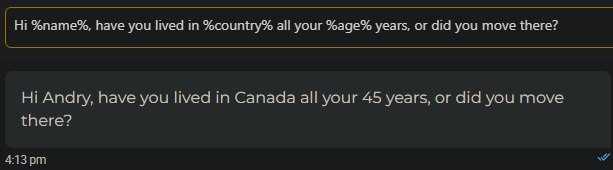
Keep in mind that men’s names often contain junk, and in some cases the result may look bad.
The bot slightly processes the name before inserting it:
- It takes only the first part before the space.
- It removes digits at the beginning and at the end.
- If the name contains the @ symbol, the symbol itself and everything to the right of it are removed.
If after all these changes nothing is left of the name, the name is sent exactly as it originally was, without any changes.
The countries United Kingdom and United States are replaced with UK and US. This looks more natural in conversation.
If the man’s country is not specified in his profile or cannot be detected, %country% will be replaced with your country.
If you are going to use placeholders, first add them to just one invite, for example to a reply to a like, and check how it works. Only after that should you add them to your other invites.
⚠️ When using placeholders, do not write invites too close to the 300-character limit. After the man’s name or country is inserted, the invite may exceed the limit and will not be sent.