5 Best WordPress Image Compression Plugins
Blog HacksMost of the WordPress plugins that are available online offer a small quota of free compression, and then you have to pay.
So in this post, I thought it would be a good idea to look at all the existing image compression tools out there (free and paid).
Those who have a small or medium-sized WordPress blog can use multiple WordPress plugins to optimize all of their existing or future uploads for free. It might be time-consuming, but I know that when you are starting out, money is more important than time.
For those who have a medium-sized or a large blog, you may want to consider going for a paid option. This will help you load your blog faster and will keep your readers happy.
Here’s the formula: Happy readers = Good blog = Better ranking = More money.
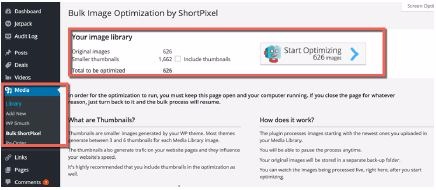
1. ShortPixel.
ShortPixel is a developer, specifically for WordPress. They offer both free and paid accounts (like all the others).
Features:
. Supports lossy and lossless optimization.
. JPG, PNG, GIF, and PDF are supported.
. Restore the original image anytime.
. Compress all old uploads with a single click.
. Process new images automatically on upload.
. No file size limit.
. you always have 100 free image compressions.
. Save and keep a backup of your original images in a separate folder.
. Option to optimize all images (thumbnail images) or only the original image.
. Option to keep or remove the EXIF of the image.
Free account:
. 100 free image compressions every month.
. Refer a friend program: For every referred user you get another 100 images every month.
Paid account (10,000 images):
. $9.98 for 10K images.
. Purchased quota never expires.
. Offers monthly subscription.
. Supported payment mode is PayPal
2. Imagify Image Optimizer.

This plugin is from the developer of the WP-Rocket plugin. It has all the essential features, such as bulk compression and image resizing.
It offers three different levels of compression, and depending on your blog type, you should pick one of the three:
1. Normal, a lossless compression algorithm. The image quality won’t be altered at all.
2. Aggressive, a lossy compression algorithm. Stronger compression with a tiny loss of quality, which, most of the time, is not noticeable at all.
3. Ultra, the strongest compression method using a lossy algorithm.
With the backup option, you can change your mind whenever you want by restoring your images to their original version or optimising them at another compression level. This plugin is also compatible with WooCommerce and NextGen Gallery.
Features:
. Supports JPG, PNG & GIF.
. Resize images on the õly.
. Resize based on percentage.
. Support for PrestaShop, Magento, , and Joomla coming soon.
. Images above 5 MB will only be compressed with the paid account.
Free account:
. 25 MB free every month.
. Bonus 25MB at sign-up.
Paid account (10,000 images):
. $4.99/month for 1 GB of data.

3. Optimus
This is another popular solution, which I’m sure many of you will like. Optimus seems to be a great alternative to Smush. This plugin will let you compress all images <100 KB for free.
Features:
. Support JPEG, PNG.
. Bulk compression.
Paid account:
. $19 one time fees for unlimited image compression.
. Maximum õile size 5MB.
. Supports WebP conversion.
For the price, Optimus HQ is worth every penny. But I would really like to see improvements in their bulk compression feature. If you stop the bulk compression in between and start the process later, it will start compressing all images again. It would be better if it could skip those images that have already been processed.
4. TinyPNG: Compress JPEG and PNG images
TinyPNG is a somewhat popular online service to compress images.
Features:
. Supports JPEG & PNG õiles only.
. Bulk optimization.
. Resize image feature.
. Convert CMYK to RGB.
. A single API can be used for multiple sites.
. No file size limits.
Free account:
. 500 images are compressed each month.
Paid account (10,000 images):
. 10,000 images cost $85.50 (one of the most expensive for heavy users).
Using the plugin: After activating the plugin, go to Settings > Media. Get your free PI key from their website, add it, and configure any additional settings you want.
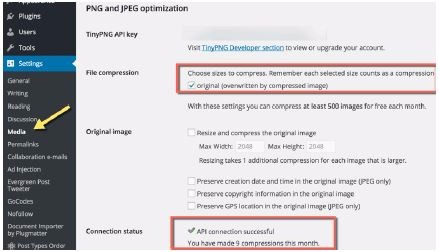
Go to Media > Compress All Images and start compressing all of your old images. You can also go to the media uploader and selectively compress individual images, (which is a good idea to conserve your quota).
5. ImageRecycle
One cool thing about this plugin is that it lists all the images in your theme folder. You can select individual ones, or you can select all and compress those images.
Features:
. Supports JPG, PNG, GIF & PDF õiles.
. All plans support multiple websites.
. Supports sub-accounts, and you can design a quota for it (good for agencies).
. Supports restoration of original files (images and PDFs) for one month.
. Compress all previous images in WordPress with one click or compress images selectively.
Free account:
. 15-day trial.
. 100 MB quota.
Paid account (10,000 images):
. $30 for 10K images.
. Valid for one year.
Ease of use: The plugin is pretty easy to use, and in most cases, it auto-detects your API if you are logged into their online portal from the same browser.
Note: It directly leads to the media uploader for compression, which might not be good for users. The first screen after activating the API should be the plugin settings. Anyway, you can access it by going to Settings > ImageRecycle.
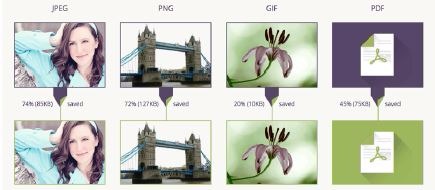
One big thing missing from this plugin is bulk image optimization. So it’s not ideal for those who are looking to optimize existing images. You will need to manually compress them.
Imagify is what I would recommend for a paid image compression service. You can use Imagify with Optimus to get the best compression.