4IFIR FAQ
Important information
For any validation of your settings, you need to disable the Governor setting in sys-clk-OC (Miscellaneous -> Frequency Governor).

Q: How to install (Clean install)
2) Connect the SD card to the computer.
3) Delete everything except the Nintendo and emuMMC folders on the SD card.
4) Unpack the contents of the archive to the SD card.
5) To boot your console, use the included payload.bin.
Q: Update from old 4IFIR version

1) Open hbmenu, select "All-in-One Switch Updater" application.
2) Go to "Custom downloads".
3) Scroll down and select "Refresh". (to the request to overwrite .ini files, we agree).
4) Go back, scroll up and select "4IFIR (Version)".
5) Agree to the request to overwrite .ini files.
6) Refuse to install "hekate_ctcaer" (it is already included).

Q: How to overclock your Switch by 4IFIR
1) Open the Tesla overlay (simultaneously hold L + R + ▲).
2) Scroll down and select sys-clk-OC

There are several menu items here. Let's take a look at them.
"Edit app profile": allows you to set overclocking for a specific game/program.
"Temporary overrides": allows you to set a temporary override that will hang on top of any other settings.
"Global profile": permanent overclock settings.
"Miscellaneous": Additional settings for sys-clk-OC. (in particular, the Frequency Governor setting is turned on and off here)
3. Start a heavy game (like Doom Eternal with 4MODS) and go to "Temporary overrides".
Usually, overclocking for a particular game is done in the following steps:
- We set the "Memory" value to the maximum available (depending on the console, it may vary.)
- Disable the Frequency Governor setting in the Miscellaneous sys-clk-OC menu.
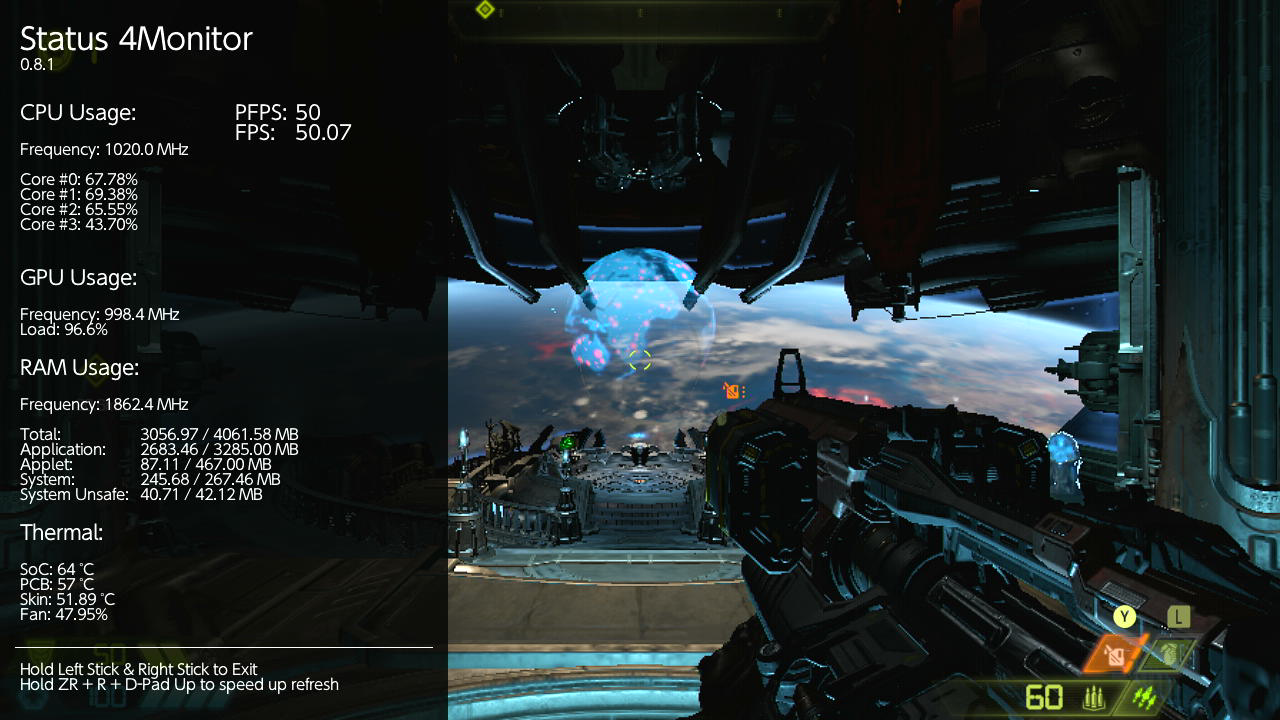
- Return to the Tesla main menu, and select the Status Monitor item.
- Select Full (or Mini for the more experienced) to view information about the status of the set-top box.

- If we see that our load on the GPU is close to the maximum (95~100%), then we return to the sys-clk-OC -> Temporary Overrides menu, and increase the GPU value, higher than that seen in the Status Monitor by 1-2 points (by default it is ~380 Mhz in portable mode and 768 Mhz in dock mode).
- If the GPU load is not close to maximum, but the console still does not reach the required FPS, then look at the CPU Core load.
- If most of the cores are loaded almost to the maximum (95~100%), go back to the Temporary Overrides menu, increase the CPU value by 1-2 points (default is 1020 Mhz).
- Repeat the previous points until we have achieved the desired performance.
Have you achieved the desired performance? Copy the settings from Temporary Overrides to Edit app profile.

Here, for each mode of operation of the set-top box, it is possible to set your own settings:
- "Docked": dock mode.
- Handheld": handheld mode.
- "Charging": The set-top box in portable mode is connected to charging.
- "Official Charger": The set-top box in handheld mode is connected to an official (or PD compatible) charger.
- "USB Charger": the set-top box in portable mode is connected to a "normal" (not PD, 5V 2A) charger.
We specify the settings for Temporary Overrides, in the mode in which we tested.
Charging items are optional (then sys-clk-OC will take the setting from the "Handheld" or "Docked" state).
- In Temporary Overrides, set the settings back to "Default".
- Turn the Frequency Governor setting back on the Miscellaneous menu.
Congratulations! You overclocked the console for the game in which you checked :)
Q: STAGE
STAGE allows you to reduce the power consumption of your console by lowering the voltage of the GPU, CPU and RAM.
Using overclocking, you can increase the power consumption to the standard, and increase the performance above the standard with the same power consumption.
The higher the STAGE value, the more selective (on a smaller number of consoles to run) overclocking becomes.
To install STAGE:
1) Go to "All-in-One Switch Updater"
2) Select "Custom downloads", scroll down.
3) Click on the STAGE you are interested in and agree to download.

After that, reboot your Switch and test STAGE stability (below).
Q: STAGE stability check
Switch the set-top Switch to portable mode and plug in the charger.
1) Go to the Miscellaneous sys-clk-OC menu and disable the Frequency Governor item.
2) Start a heavy game (recommended game for testing: Doom Eternal, downloaded 4MODS from the "All-in-One Switch Updater", in the scene on the ship at the beginning of the game).
3) If overclocking has already been set in the game, disable it.
4) Go to the Temporary Overrides menu.
6) Set "Memory" to the maximum value.
7) Check if the game works (play for 10 minutes), look for possible anomalies (crashes, artifacts, etc.).
8) Were there any anomalies? Set STAGE below (if it was 6, reinstall 4IFIR).
9) There were no problems? Go on: set each "GPU" value (starting at 6XX.Mhz) and test if it works until you run out of GPU values.
10) Do all GPU values (starting from 6XX.mhz) work? Congratulations, you can either try the STAGE above, or leave it as is and enjoy the lower power consumption of the console.
11) Turn Frequency Governor back on.
Q: Why is it necessary to disable Frequency Governor during a health check?
Good question.
Frequency Governor is a feature that allows you to save power consumption if the CPU or GPU is not fully loaded by lowering their frequency.
Depending on what kind of "heavy" game you take as a health check, your console may not be fully loaded (a common situation with the CPU), and Frequency Governor will automatically lower the frequency, since the game does not require it.
This interferes with the health check, since, for example, the maximum frequency of the CPU and GPU without Frequency Governor will automatically turn off the prefix of the first revision (Erista) due to too high consumption.
Also, if the GPU is not fully loaded, and there is no sense in "overclocking" it, Frequency Governor will automatically lower the frequency to the level necessary for the game to work. Accordingly, you do not check whether the selected GPU frequency works for you and whether it is enough, since in fact it is lower than what you have chosen.
Because of this, when checking the performance, it is required to disable the Frequency Governor.
But since Frequency Governor gives a reduction in power consumption (more battery life), then in normal use, it is recommended to turn it on.