1Password Secrets Automation with HashiCorp Vault - HashiCorp Solutions Engineering Blog - Medium
HashiCorp Solutions Engineering Blog - Medium
Summary: Learn how to set up 1Password with HashiCorp Vault to secure, orchestrate, and manage your company’s infrastructure secrets. With this integration, passwords managed on 1Password can be translated into secrets on HashiCorp Vault, which in turn allows easier consumption for applications and non-human users.
Introduction
Cloud infrastructure offers a great way to consume these services at scale, however, it also means more passwords and credentials to manage. There is no shortage of password management tools on the market to help tackle some of these issues—1Password being one of the frontrunners. However, those tools are not entirely designed to run cloud native workflows with distributed systems, due to the lack of CLI/API compatibility. Lots of manual work has to be done for developers or system administrators to consume passwords from 1Password, causing inefficiency while potentially injecting security flaws into theprocess.
In 2021, 1Password released their Secrets Automation workflow feature to address such shortfall. This workflow allows 1Password to be integrated with tools like HashiCorp Vault, Kubernetes operators, Ansible, and more. This allows users to leverage current existing workflows with other DevOps tools, making it safer and efficient for applications to consume secrets from 1Password.
In this tutorial, I’ll walk through the setup for integrating the 1Password Secrets Automation workflow with HashiCorp Vault.
Setting itUp
Secrets Automation works with an API server (1Password Connect) in between your environment and 1Password server as seen below. In this particular example, configuration is done with 1Password and HashiCorp Vault.
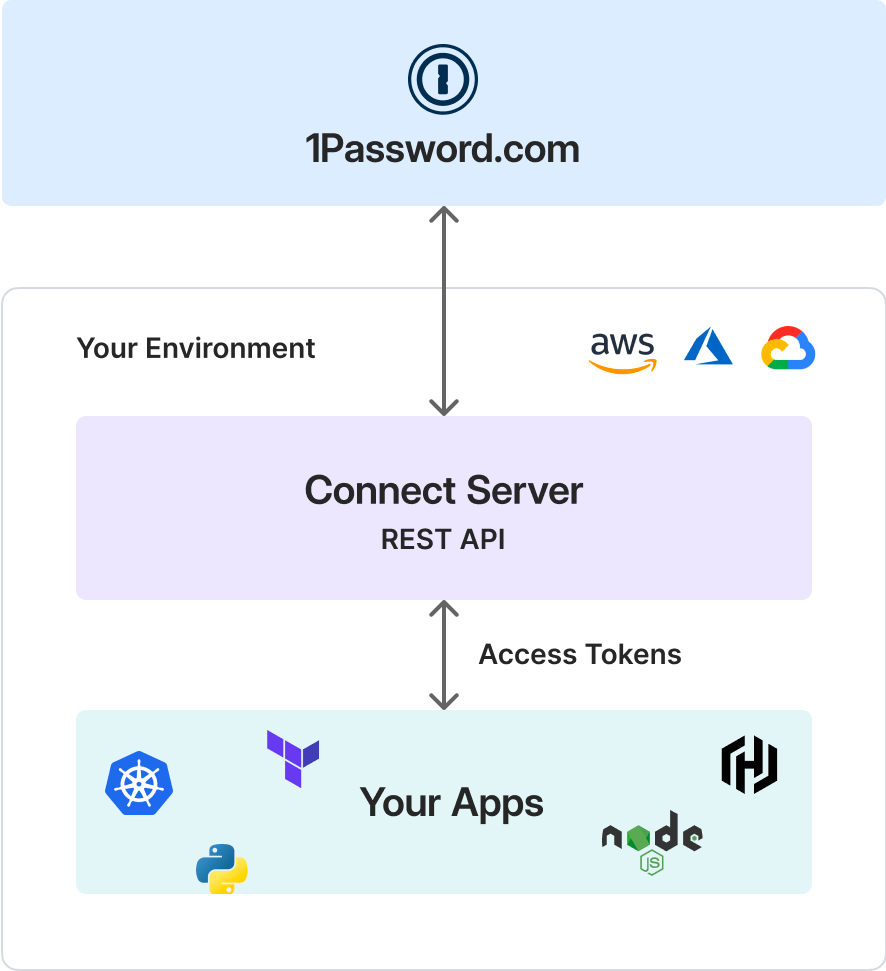
HashiCorp Vault works using components called secrets engines, which are essentially paths where the secrets are stored for different services. It also supports the use of custom secrets engines. 1Password has a custom secrets engine that I will use to set up the workflowbelow.
Prerequisites
The steps shown in setting up 1Password Secrets Automation integration with HashiCorp Vault assumes the prerequisites below:
- 1Password Teams and Business license (You can use the 14 day trial) (https://1password.com/teams/pricing/)
- Docker, Go, Vault CLI installed
- Some working knowledge with HashiCorp Vault
Setting up 1Password Secrets Automation
Steps as documented here: https://support.1password.com/secrets-automation/
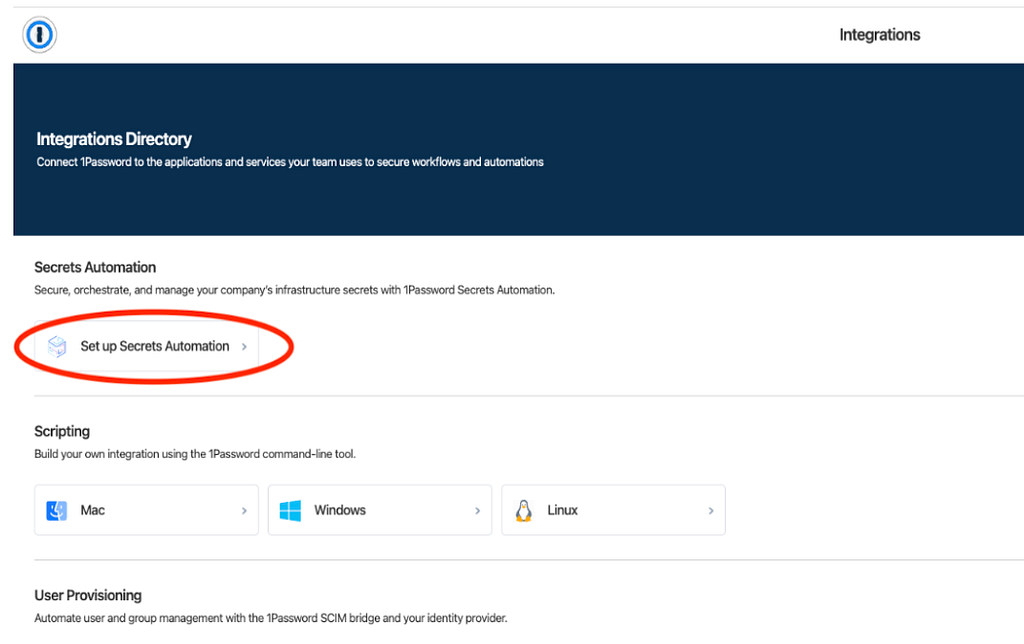
Log in to your 1Password account. On the menu bar on the right, click on Integrations > Set up Secrets Automation
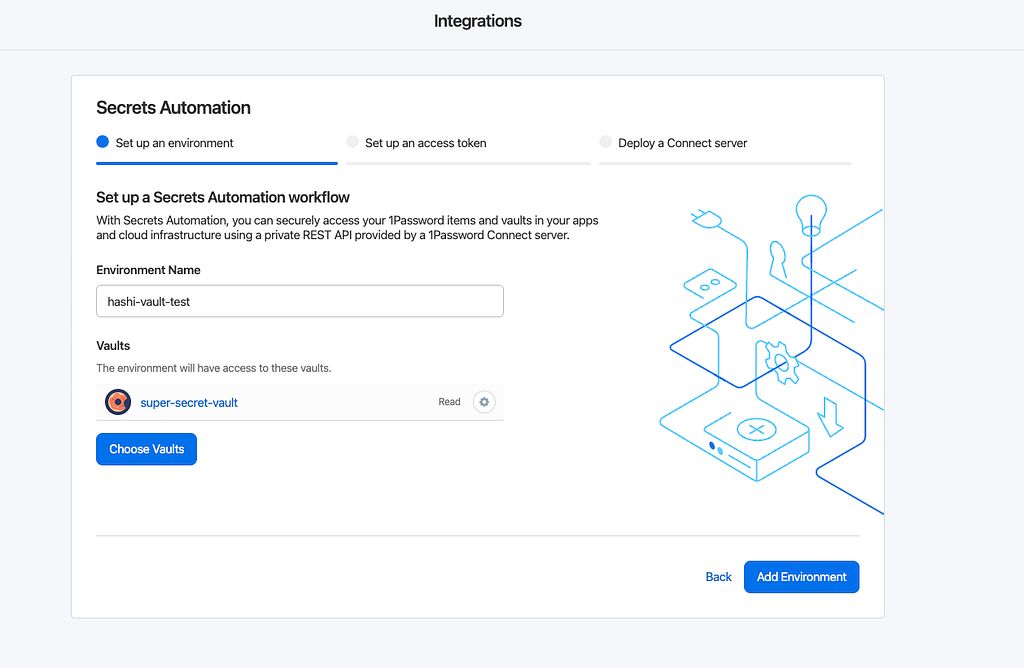
Next, set up the environment, give it a name and link it to the vault in 1Password that it has accessto.
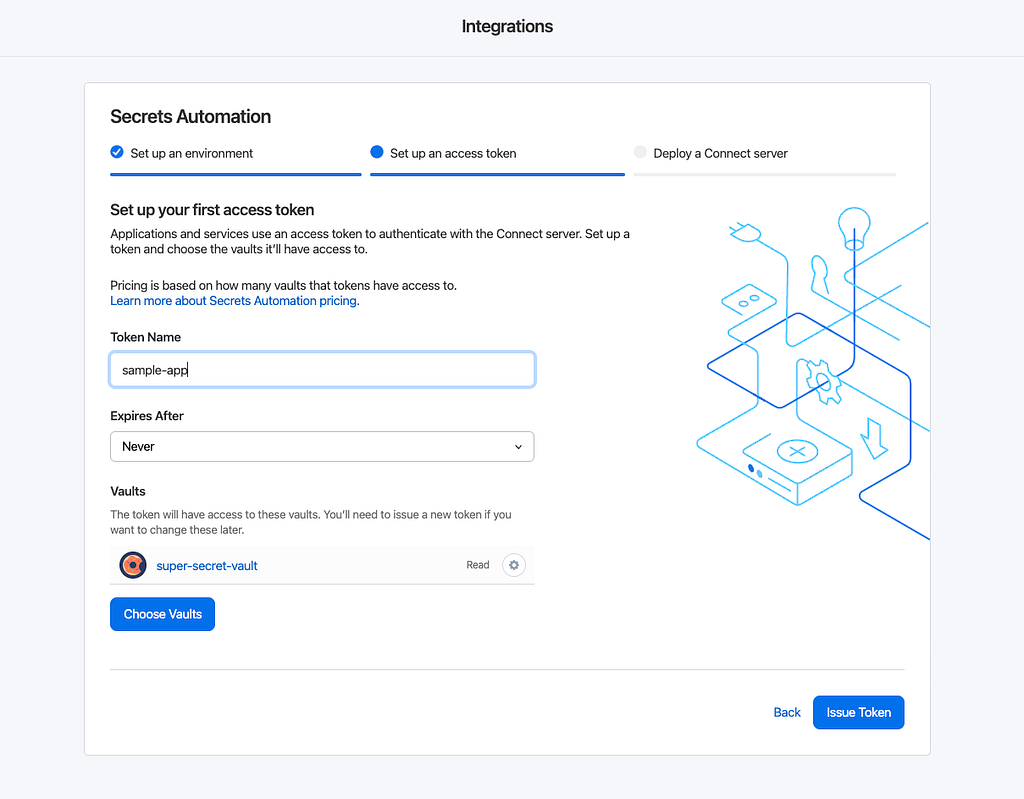
Then generate the access token. Best practice would be to set an expiration date on the token, but in this scenario it’s set to“Never”.
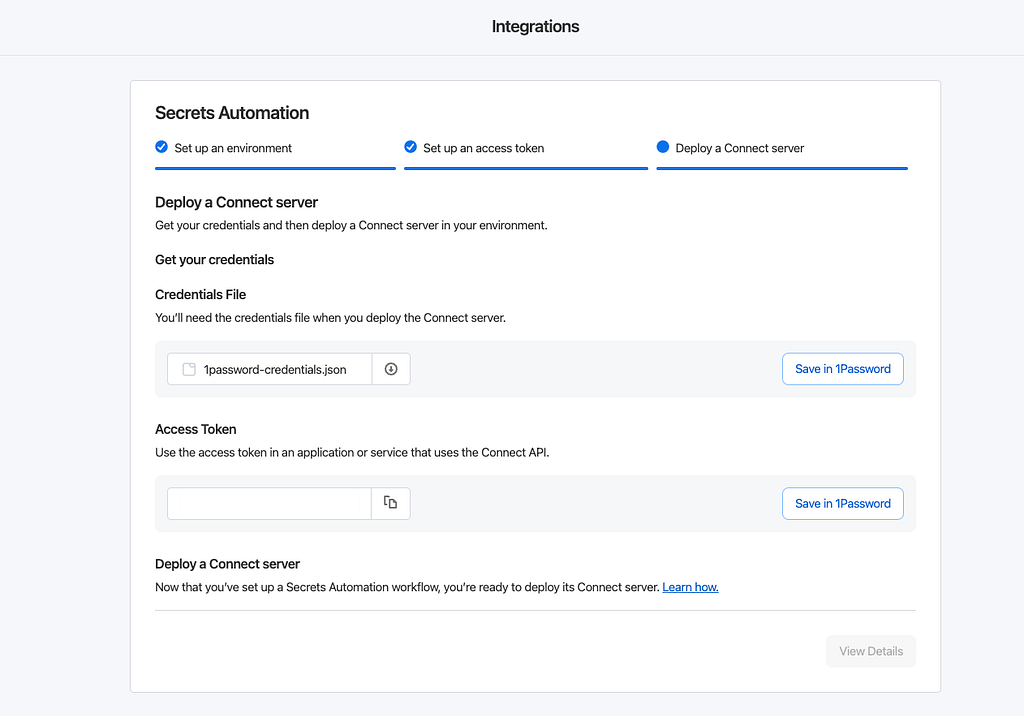
You should be able to see the generated 1password-credentials.json and Access Token. The JSON credentials are required to deploy 1Password Connect API server, while the access token is required from your backend to communicate with the 1Password API server, which in this case, is HashiCorp Vault. Save these credentials (in 1Password if you wish), and you are ready to deploy the 1Password APIserver.
Deploying 1Password Connectserver
Next, you’ll have to deploy the 1Password Connect server. You have the option of setting up in Docker container or Kubernetes, for simplicity I am using Docker. Using the provided docker compose file, you will be able to spin up the server. Make sure that the 1password-credentials.json path that is being defined here is correct for yourcase.
version: "3.4"
services:
  op-connect-api:
    image: 1password/connect-api:latest
    ports:
      - "8080:8080"
    volumes:
      - "./1password-credentials.json:/home/opuser/.op/1password-credentials.json"
      - "data:/home/opuser/.op/data"
  op-connect-sync:
    image: 1password/connect-sync:latest
    ports:
      - "8081:8080"
    volumes:
      - "./1password-credentials.json:/home/opuser/.op/1password-credentials.json"
      - "data:/home/opuser/.op/data"
volumes:
  data:
Run docker compose up -d and spin up the containers.
Build 1Password custom plugin in HashiCorp Vault
Next, we have to set up 1Password plugin in HashiCorp Vault. The assets have been provided by 1Password already here: https://github.com/1Password/vault-plugin-secrets-onepassword. Clone this repo to your working directory and follow the instructions given and build the plugin. I am showing the quickstart steps to simplify the HashiCorp deployment process.
go build -o vault/plugins/op-connect .
Next start a dev HashiCorp Vaultcluster.
vault server -dev -dev-root-token-id=root -dev-plugin-dir=./vault/plugins -log-level=debug
Next check that the 1Password plugin is loaded and can be enabled onVault.
vault secrets enable — path=”op” op-connect
Success! Enabled the op-connect secrets engine at: op/
vault secrets list
Path Type Accessor Description
---- ---- -------- -----------
cubbyhole/ cubbyhole cubbyhole_8d35fd4c per-token private secret storage
identity/ identity identity_bb977953 identity store
op/ op-connect op-connect_1212dd32 n/a
secret/ kv kv_b6a8c3b2 key/value secret storage
sys/ system system_8f9851a2 system endpoints used for control, policy and debugging
Plugin Configuration
In order to configure your plugin to access the 1Password Connect API, create a configuration json file with the token that you have generated earlier with 1Password Secrets Automation. I am running my docker container on localhost, so my config looks like the following.
cat config.json
{“op_connect_host”: “http://localhost:8080",
“op_connect_token”: “”
}
Then write the config above to the 1Password plugin (Secrets Engine) createdearlier.
vault write op/config @config.json
Success! Data written to: op/config
Test out the connection
Next, we can check if Vault is able to access passwords stored in 1Password. Here my token is configured to access two Vaults in 1Passwords—Security and super-secret-vault
I have a Vault called super-secret-vault with some secrets stored init.
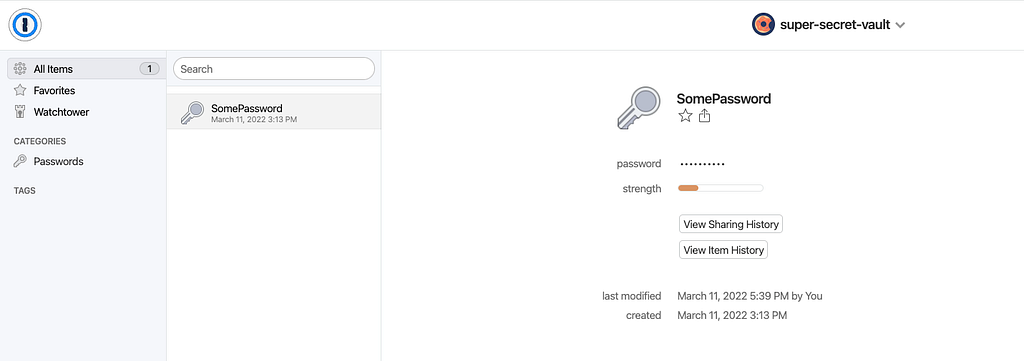
If the connection is done right, I should be able to query the secrets from HashiCorp Vault.
vault list op/vaults/
Keys
----
super-secret-vault <some ID>
You can also test out other capabilities that the token can do, including read,write,update,delete items from HashiCorp Vault -> 1Password Vault. Of course subject to permissions which were granted to the token in the first place on 1Password.
vault list op/vaults/super-secret-vault/items/
Keys
— —
SomePassword <some ID>
vault read op/vaults/super-secret-vault/items/SomePassword
Key Value
--- -----
notesPlain n/a
password 12345
Now your applications can consume secrets from 1Password, thanks to this particular integration.
Key Takeaways
The main benefits of using such an integration is to help 1Password users to easily manage passwords for non-human applications, which is mainly driven by APIs/scripts/cloud native automation. In this case, users can continue to use 1Password as their main password management tool across their daily cloud native operations aswell.
That being said, HashiCorp Vault is actually an essential tool in terms of DevOps related workflows, and is more suitable for such use cases in the first place. It is already capable of performing such integration with applications on its own without 1Password, given its API rich features. Nonetheless, on a more balanced front, 1Password is designed to be more suitable for human users, with a relatively better UI/UX. This secrets automation sort will allow users to have the best of both worlds, and could more beneficial to organisations which are already heavy on 1Password.
Useful Links
- https://www.hashicorp.com/partners/tech/1password#all
- https://medium.com/@nng.grace/automated-kubernetes-secret-injection-with-1password-secret-automation-and-hashicorp-vault-8db826c50c1d
- https://1password.com/products/secrets/integrations/
1Password Secrets Automation with HashiCorp Vault was originally published in HashiCorp Solutions Engineering Blog on Medium, where people are continuing the conversation by highlighting and responding to this story.
本文章由 flowerss 抓取自RSS,版权归源站点所有。
查看原文:1Password Secrets Automation with HashiCorp Vault - HashiCorp Solutions Engineering Blog - Medium