10 Things Framer Does Better than Figma
SourceI’ll be the first to say that Figma is a godsend for designers.
It’s made my design process more efficient and made me a better designer.
Figma has rocketed to its well-earned position of superiority in the design community not by accident. Still, though, we as designers can’t rely on one tool to do EVERYTHING.
Even as Figma has seemingly gobbled up Abstract, Invision, Zeplin, Sketch, and anything else in its path, Framer may still be a contender.
I still use Figma for all of my UI work, managing design systems, team collaboration, and more. When it comes to creating clickable prototypes for user testing or creating sexy animation for Dribbble, though, I’ve been impressed with the power of Framer.
Why is the design community sleeping on Framer???
Let’s talk about all the ways we can flex Framer to improve our designs.
What is Framer?As UX Lord put it in his Figma vs Framer article –– “Framer is a prototyping design tool but one that can use real code to create or customize components. While the coding tool may scare designers away, Framer functions perfectly and works great as a stand alone design tool even if you choose not to use coding at all.”
1. Inputs fields
Framer Documentation –– Read More
Input fields play a role in practically every interface in some form or another. With interactive components in Figma you can hack together something that kind of mimicks typing into an input field but it will take forever to create and sitll doesn’t come close to the default input field in Framer.
It’s as easy as clicking insert then dragging and dropping an input field and stylizing however you like. Your design will immediately have the ability for real user input without any headaches or hackiness.
2. Sticky Scroll ElementsFramer Tutorial –– Watch on YouTube
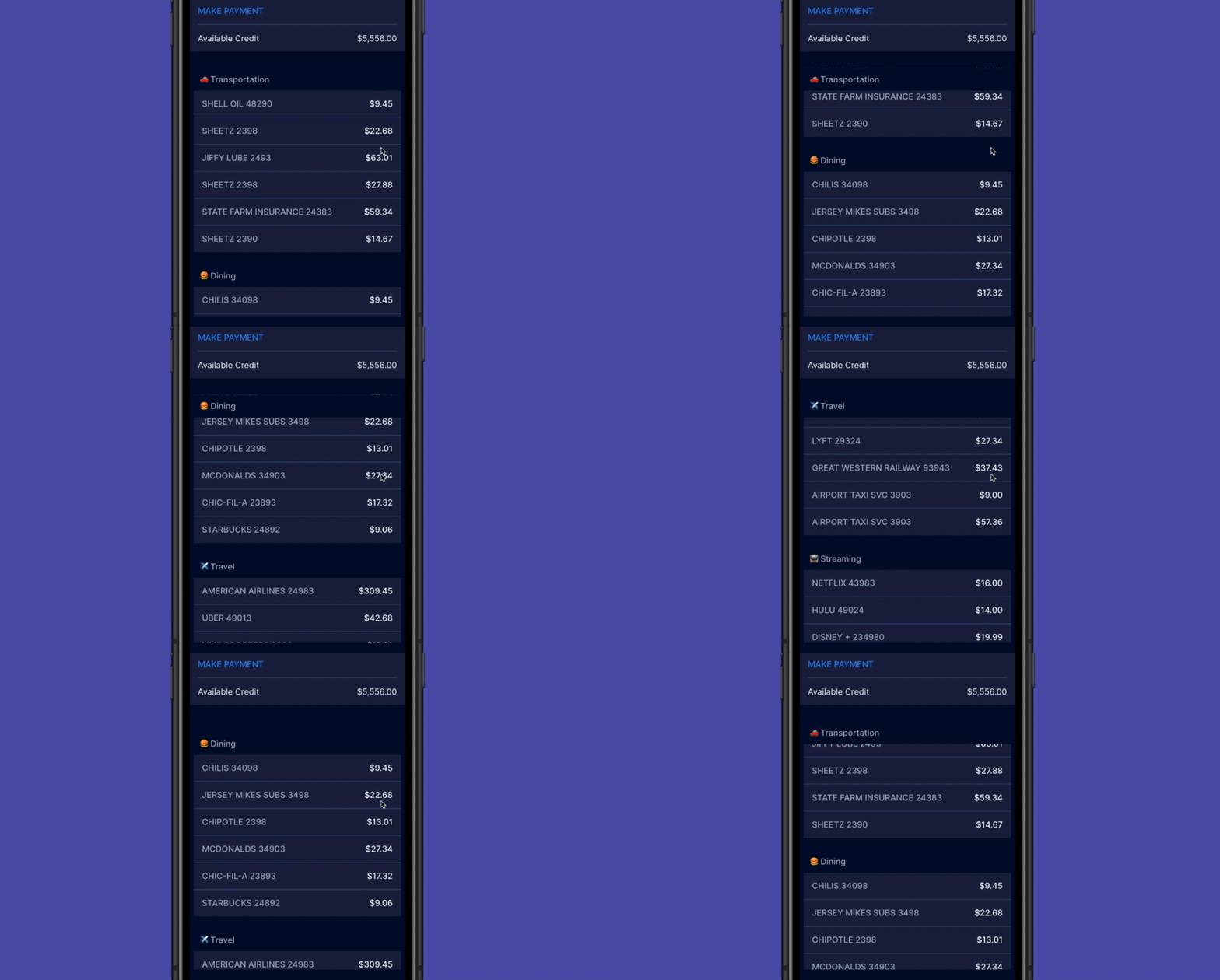
Occasionally a certain frame should to stick to a position while scrolling. This is especially helpful for section headers and floating navigation. It’s really difficult to do in Figma though, so we have to rely on 3rd party examples and documentation to explain this feature to our developers.
In Framer objects in a scrollable stack can be set as a “sticky” object and rules can be set to adjust how it behaves. I recommend following Framer’s tutorial to wrap your head around how it works.
3. SlidersFramer Documentation –– Read More

I recently created a tutorial on how to create an auto layout slider in Figma and it received great feedback but many people asked, “how do I make it work in prototyping?”
Well you can’t do it in Figma but Framer has a default component that can be dragged around in prototyping just like the real thing. You can also easily attach it to a number value with a small code snippet.
4. Swipe EffectsFramer Documentation –– Read More
The different swipe effects are really fun to play with and easy to use. It reminds me of the old windows movie maker — just drag an effect onto a screen and you’re done!
Cover Flow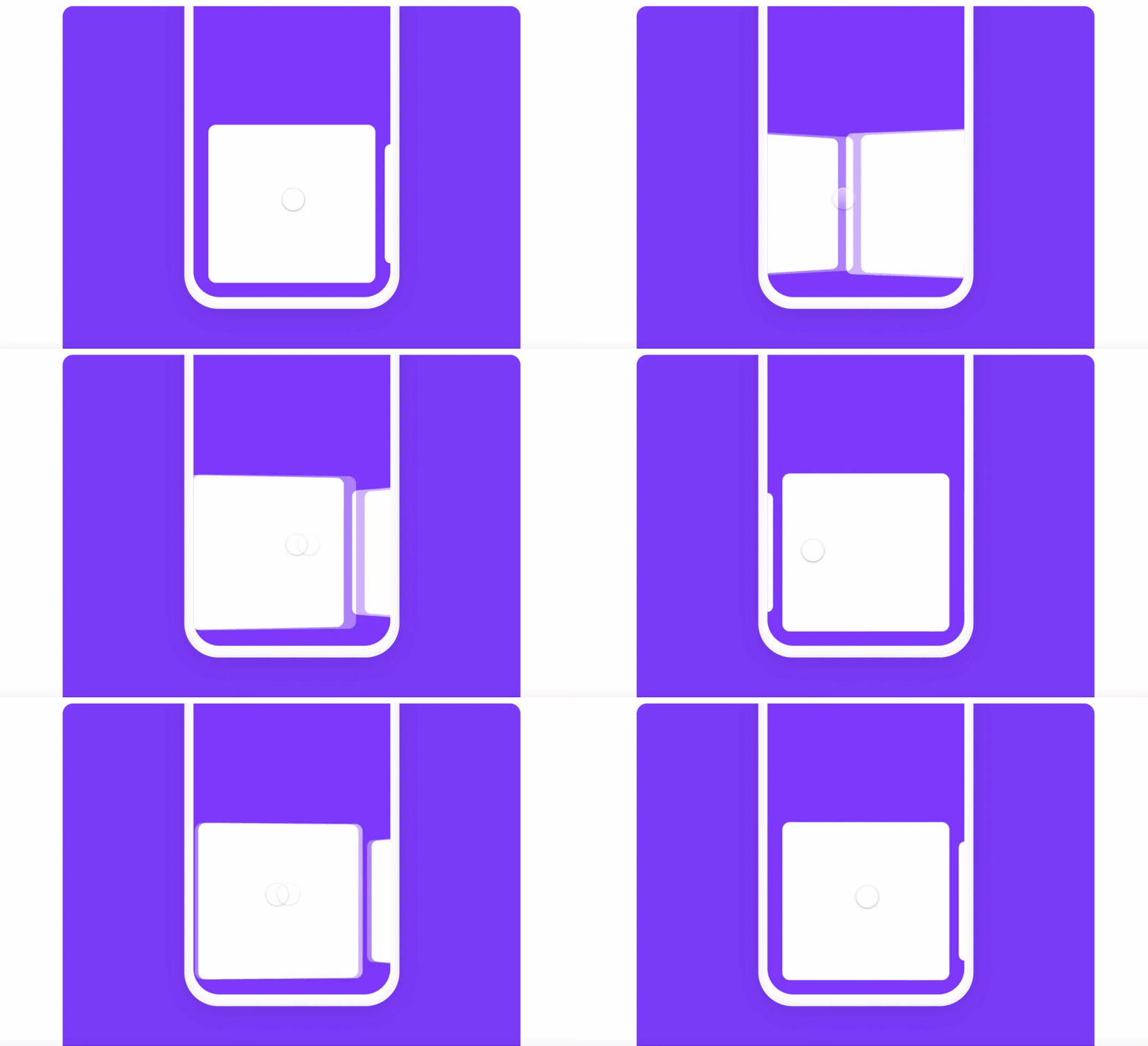
It’s frustrating how much time I’ve spent creating a swipe-able prototype with a cover flow effect in Figma. Yes, it can be done but you will need a new screen for every card and it’s a huge pain to manage.
Framer makes this experience a breeze. You can drag out a “page” frame and then just connect the cards that you’d like to be swiped and it works instantly with no auto animate needed.
Cube Effect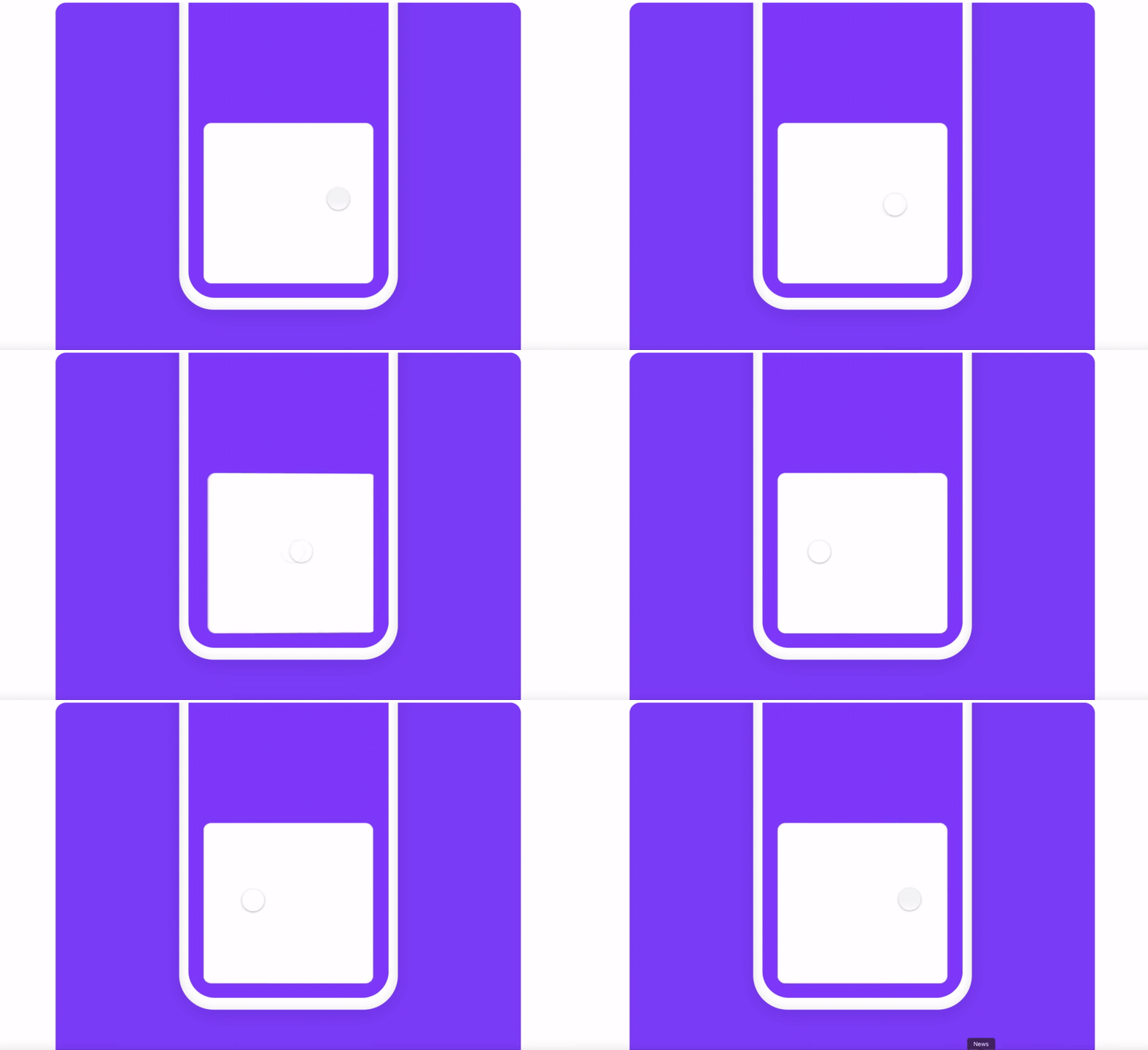
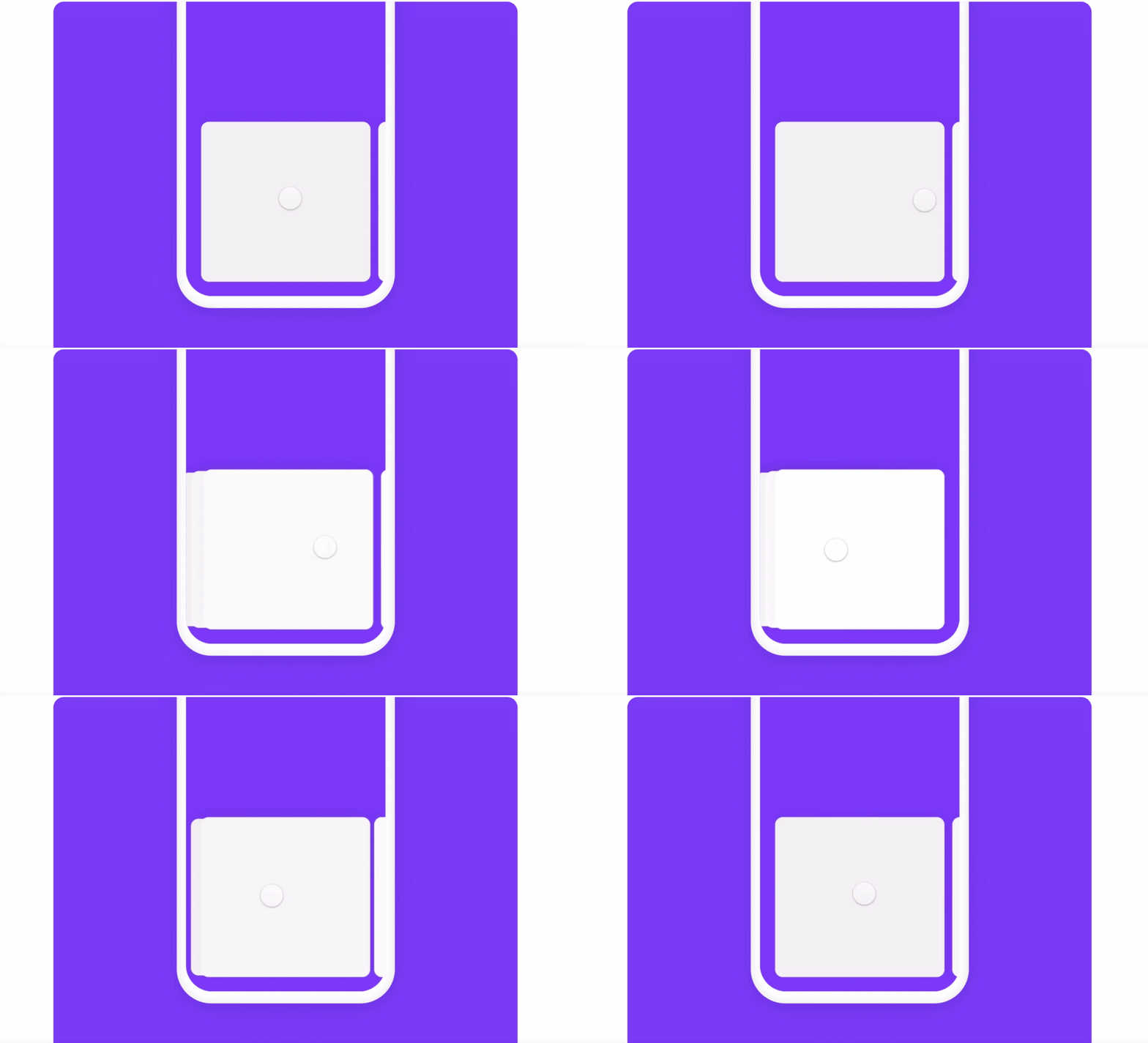
A pile effect is tricky to accomplish in Figma but fun to play around with for achieving something similar to the stacked credit cards like in Apple Wallet.
5. Map IntegrationFramer Documentation –– Read More
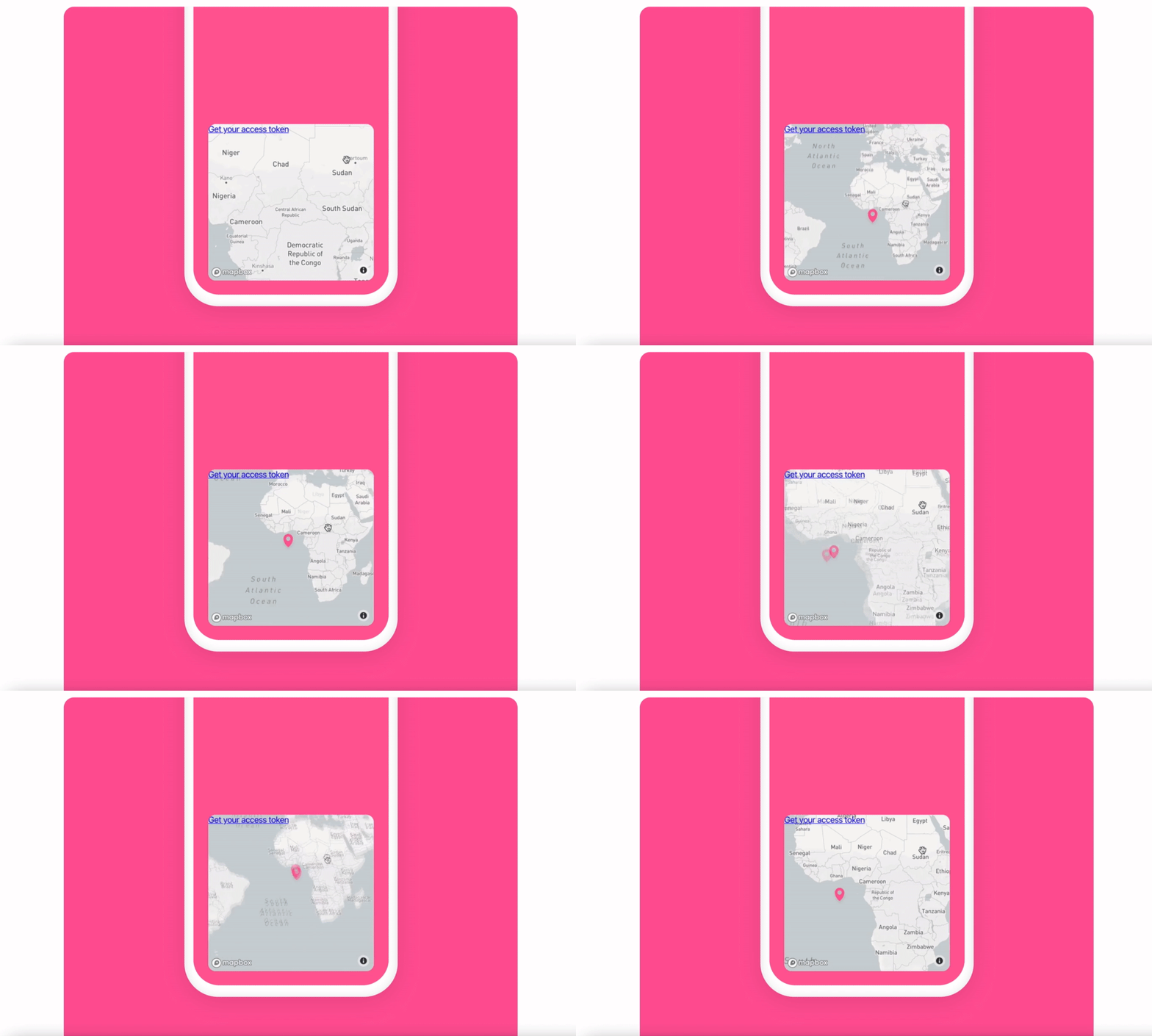
The map integration is one of hundreds of different integrations that can be used in Framer. Head on over to Framer Packages and browse all the different ways you can blow your design team’s minds.
6. Perspective Hover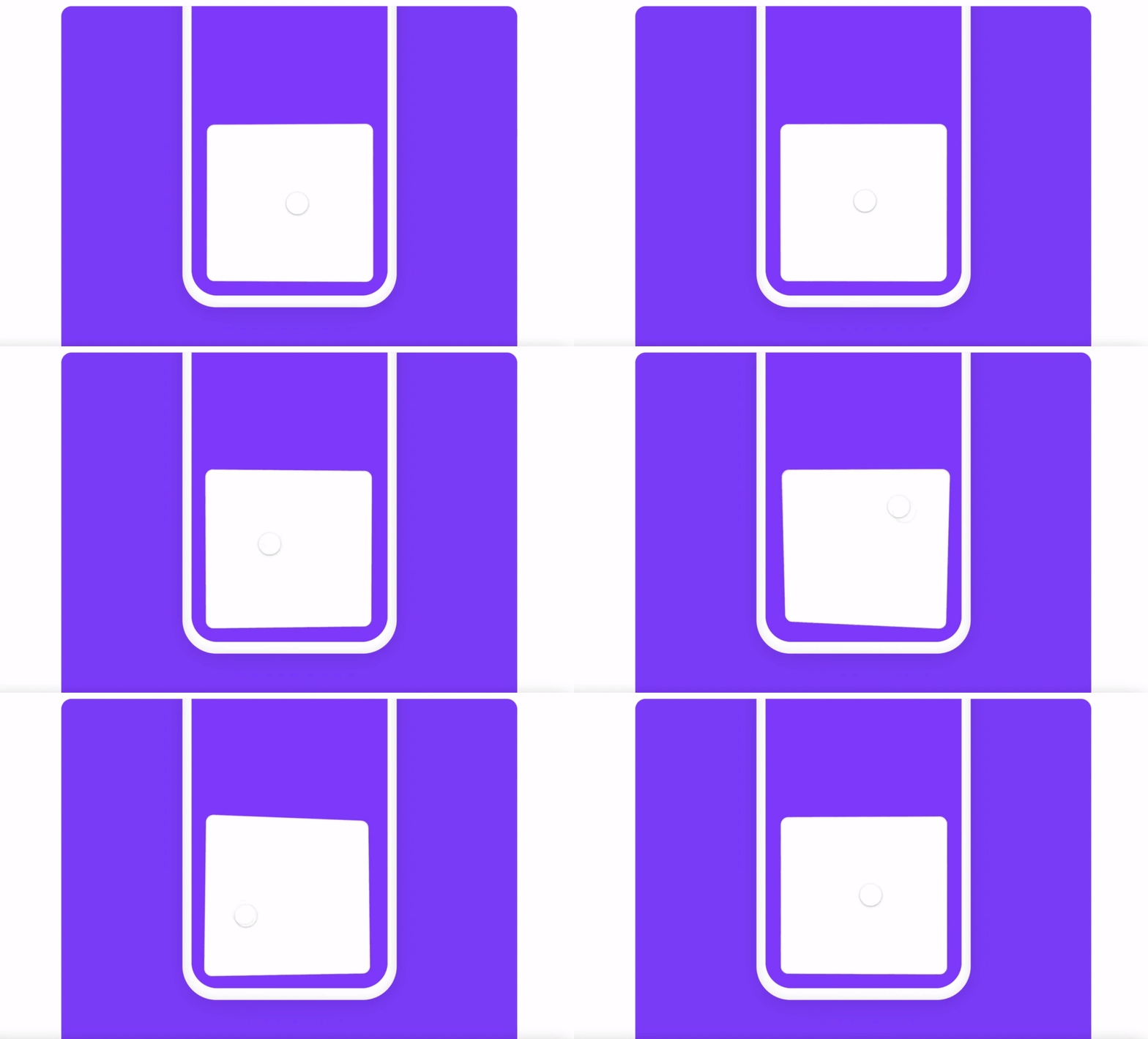
This is another package that is really neat and easy to implement. Again, there are hundreds of these packages so go and check them out to see what’s out there — Check it out
7. Sound Effects & Media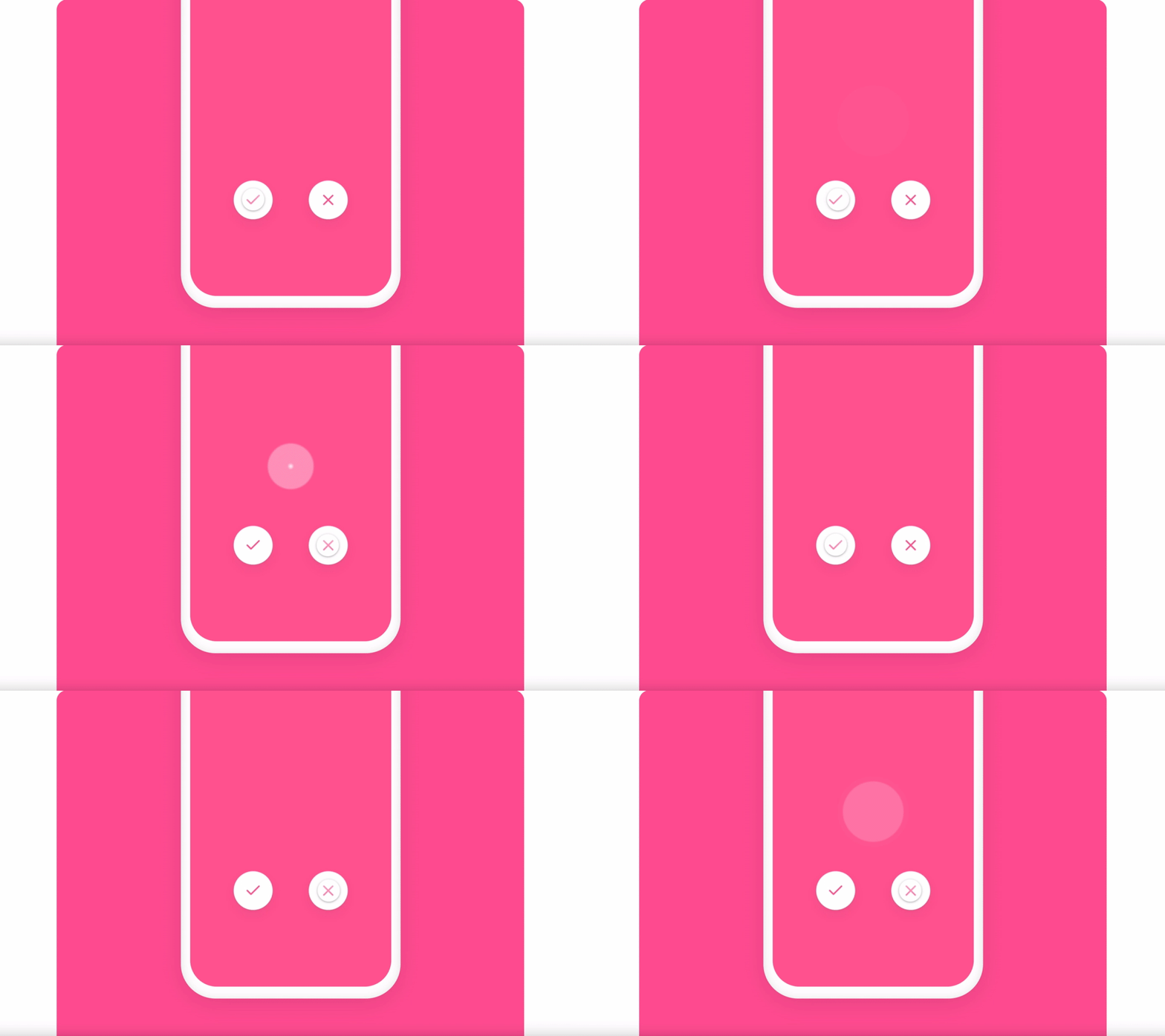
If your app has sound effects Framer has you covered. You can also play music, vidoes, GIFs, Youtube videos and other types of content right inside of your prototype.
8. Wheel EffectFramer Documentation –– Read More
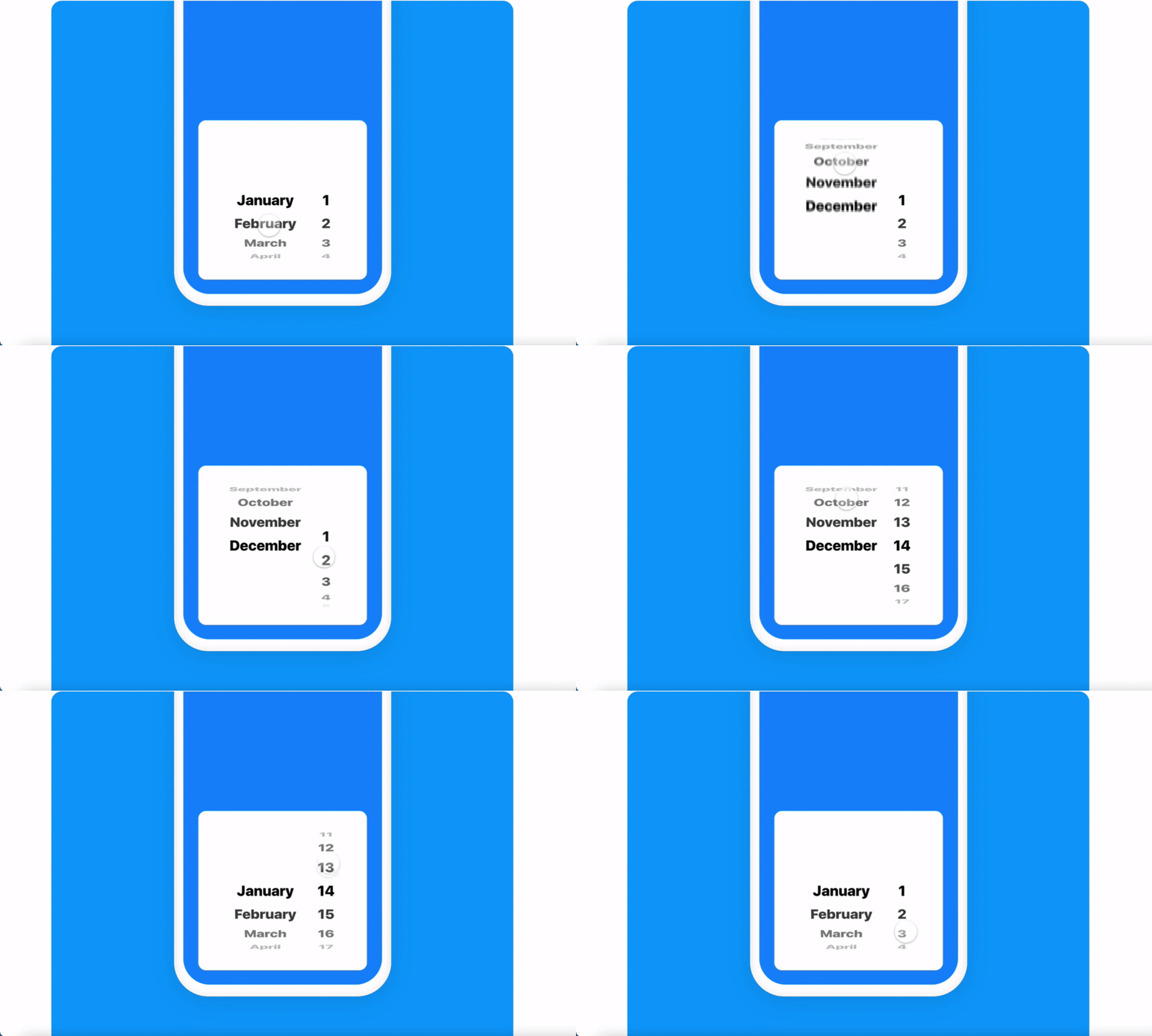
Framer Documentation –– Read More
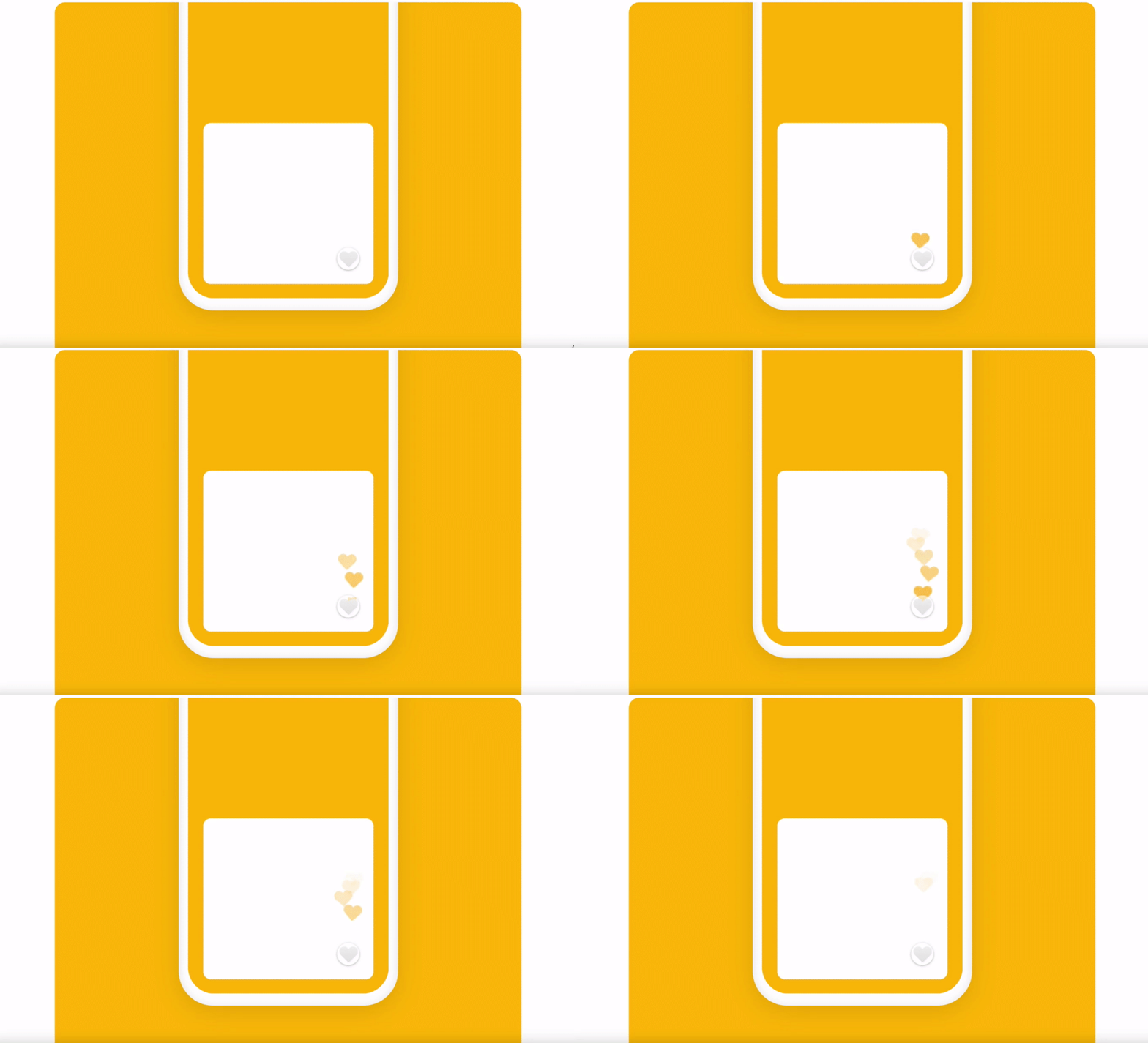
Framer has an infinite number of possibilities when it comes to code overrides. This is one of them. In Framer you can write functions and apply them to any element on your canvas.
Overrides can be used to pass data between text inputs, dynamically display data from an API and create custom gesture animations.
Code overrides are more complicated than the other options I’ve shared but most of the time copying and pasting a code snippet is all you need to do. See more code overrides here.
10. Drawing PadFramer Documentation –– Read More
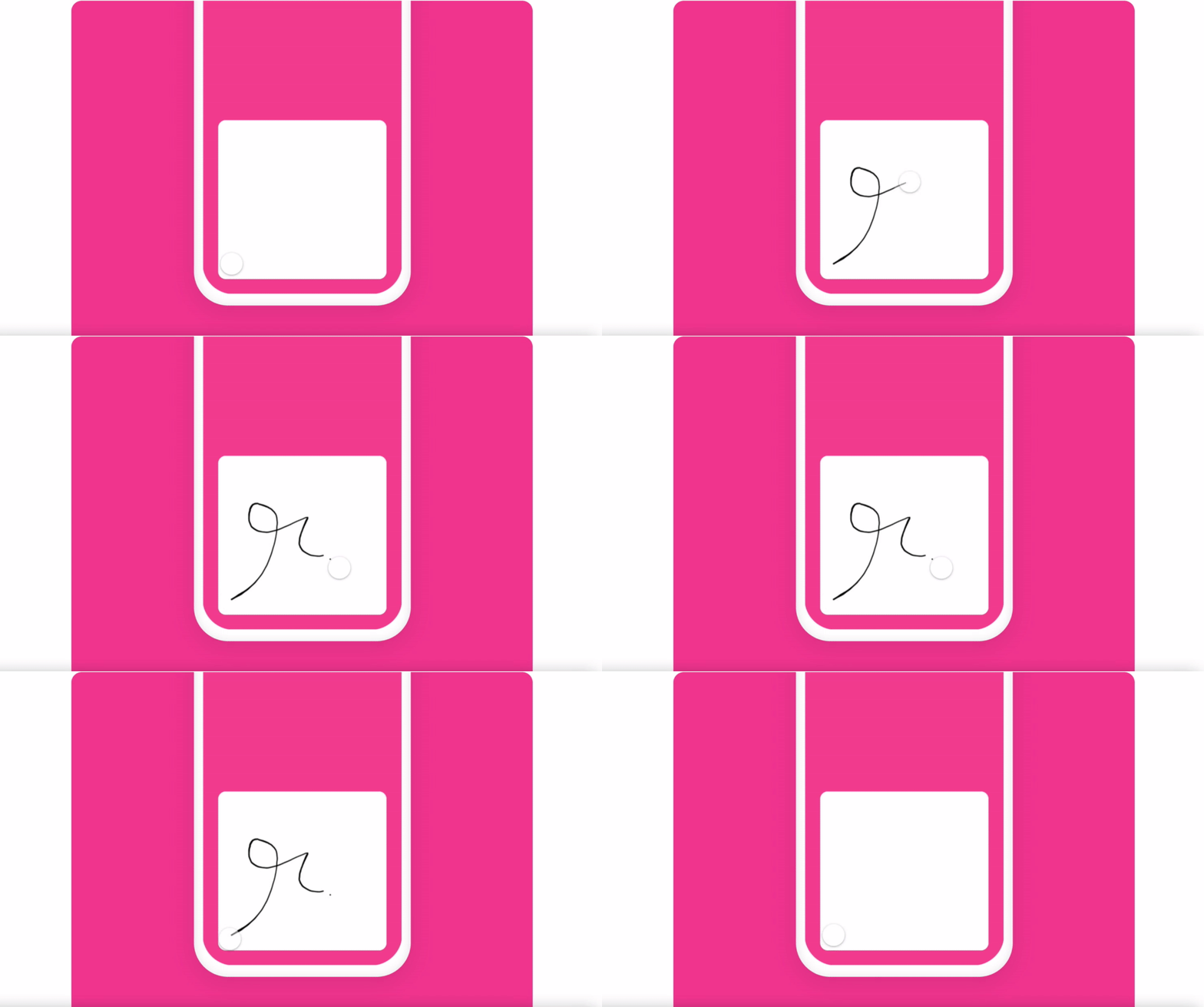
Having a signature or drawing pad in a prototype seems like black magic but it’s all possible with Framer’s package integrations.