How To Get Left App Slider Feature On Any Android Device
learnandroideasilyWith the help of the app, a slider will get added to the left of your screen, and you can easily manage the apps from slider according to your wish. Moreover, this can be accessed in the lock screen too. So have a look on complete guide discussed to proceed.
Steps To Add Left App Slider Using Glovebox App
Step 1. First of all, download and install this Android app Glovebox – Side launcher in your Android.

Add Left App Slider Using Glovebox App
Step 2. Now after installing the app, launch it in your Android and then Slide left to get started in it.

Add Left App Slider Using Glovebox App
Step 3. Now tap on the “+”(plus button) at the top right corner in the app.

Add Left App Slider Using Glovebox App
Step 4. Now you will see the list of apps that are currently installed in your Android.
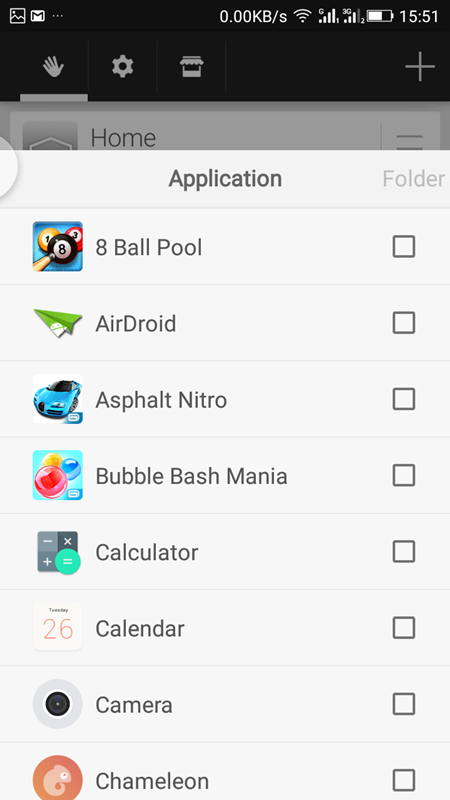
Add Left App Slider Using Glovebox App
Step 5. Now tap on the apps that you wish to add in your slider and then click on tick sign button present there.
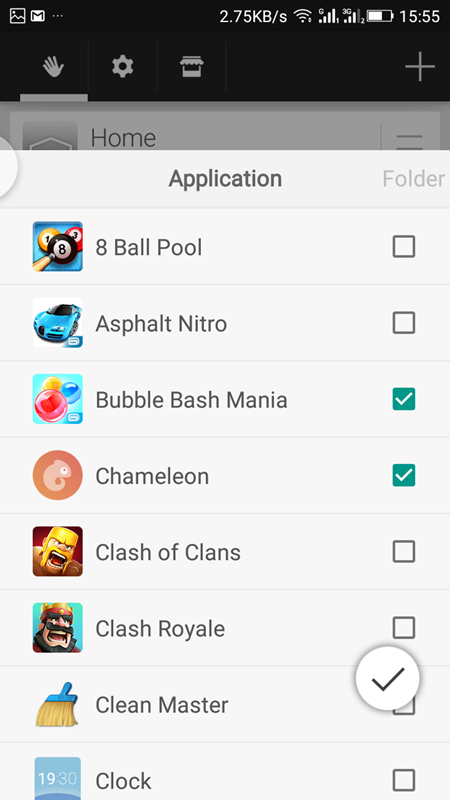
Add Left App Slider Using Glovebox App
Step 6. Now you will see that all apps that you have selected will be there on the main screen of the app.
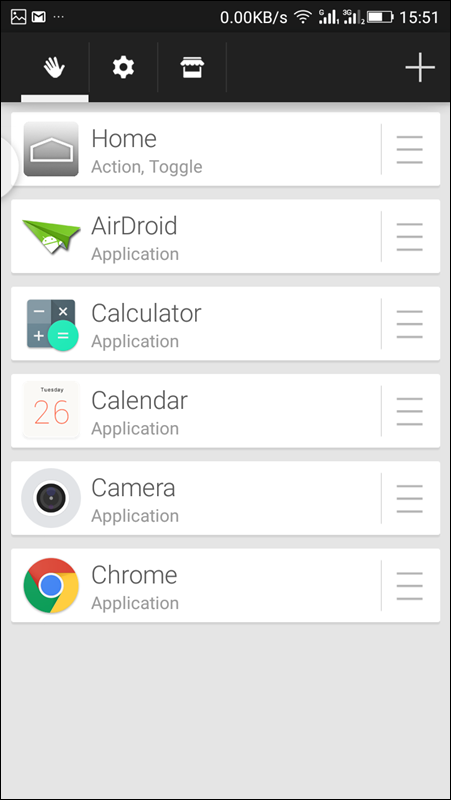
Add Left App Slider Using Glovebox App
Step 7. Now swipe to left to the right corner of your Android, and a slider will appear that will contain all the Android apps that you have selected.

Add Left App Slider Using Glovebox App
That’s it! You are done, now slider is get added to your Android that you can easily use for multitasking purpose in your Android device.
Ray Sidebar Launcher
It is very similar to Glovebox. You will get to see the similar vertical list of icons. You can add more function works directly from the panel itself. Let’s know how to use it.
Step 1. First of all, you need to download and install Ray Sidebar Launcher on your Android smartphone.
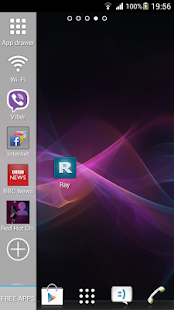
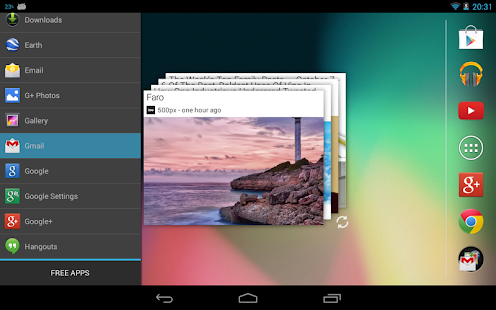
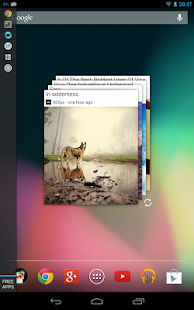
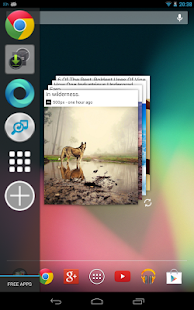
Step 2. Now open the app, and you will be given the tutorial on how to use this app.
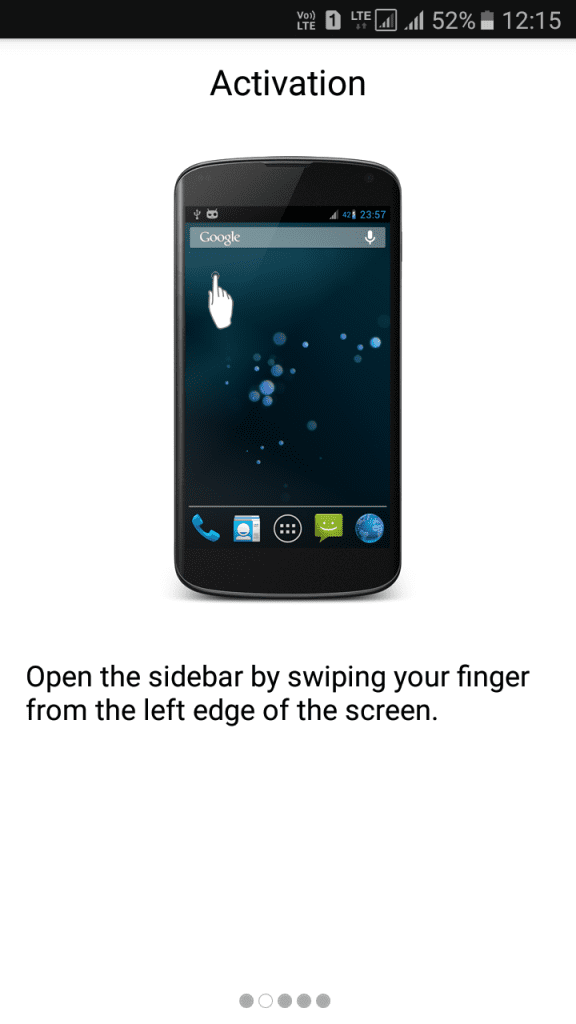
Ray Sidebar Launcher
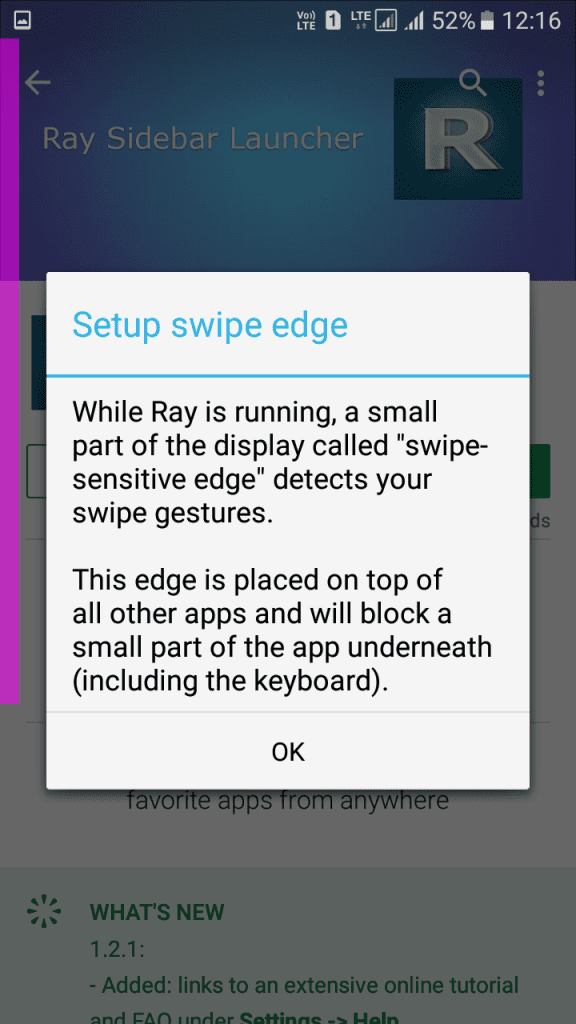
Step 3. Now you will see a screen like below. Just, tap on “Ok” to continue.
Ray Sidebar Launcher
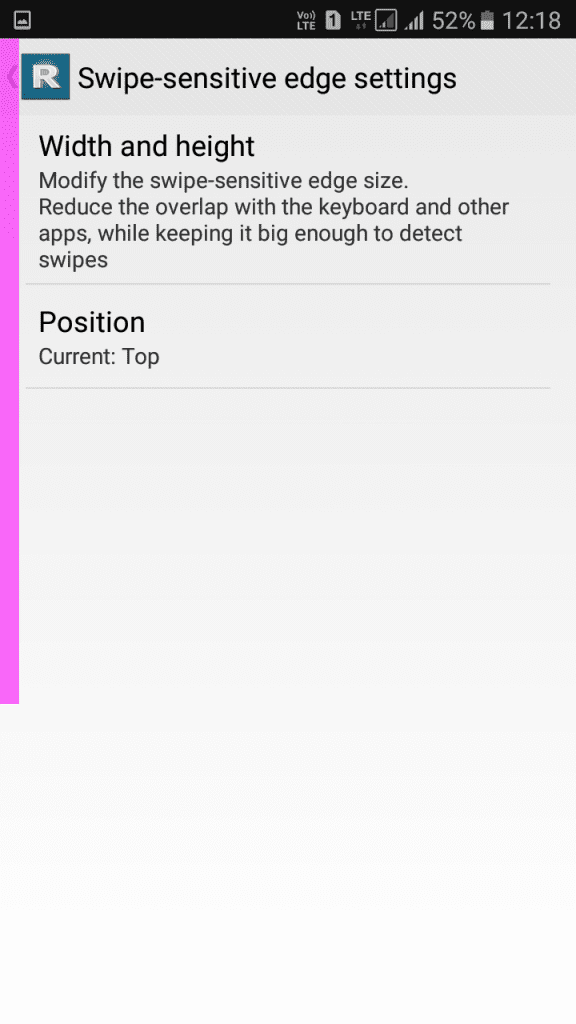
Step 4. Now you will get to see the settings panel to adjust width and height of the edge.
Ray Sidebar Launcher
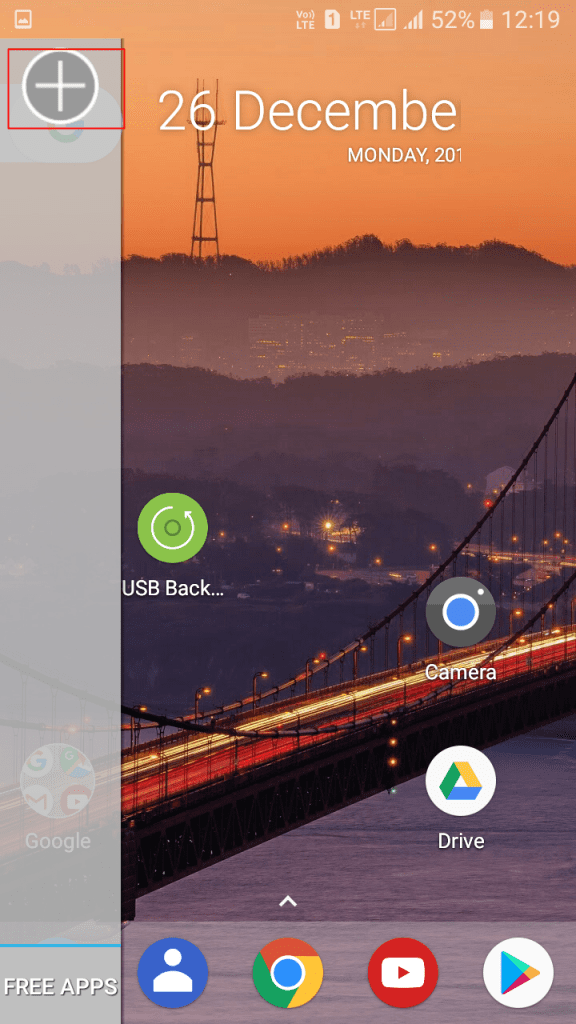
Step 5. Now you need to press the home button, and on the home screen, you need to swipe the screen from left corner where you will see a “+” button simply tap on it.
Ray Sidebar Launcher
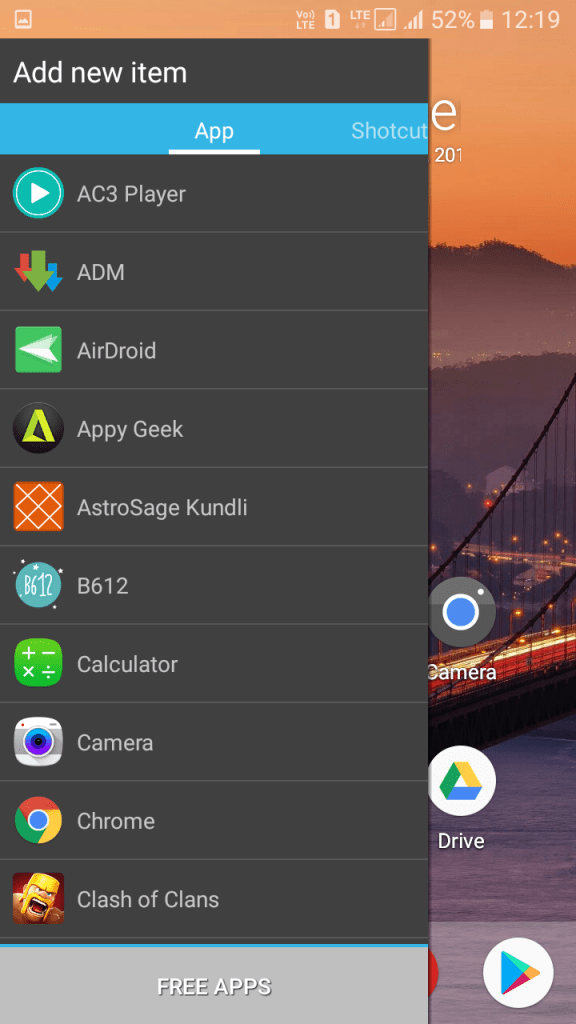
Step 6. Now you can add new items on the sidebar, just tap on the apps.
Ray Sidebar Launcher
That’s it! You have added apps on your sidebar; you just need to swipe your screen from the left corner, and you will get to see the sidebar launcher.
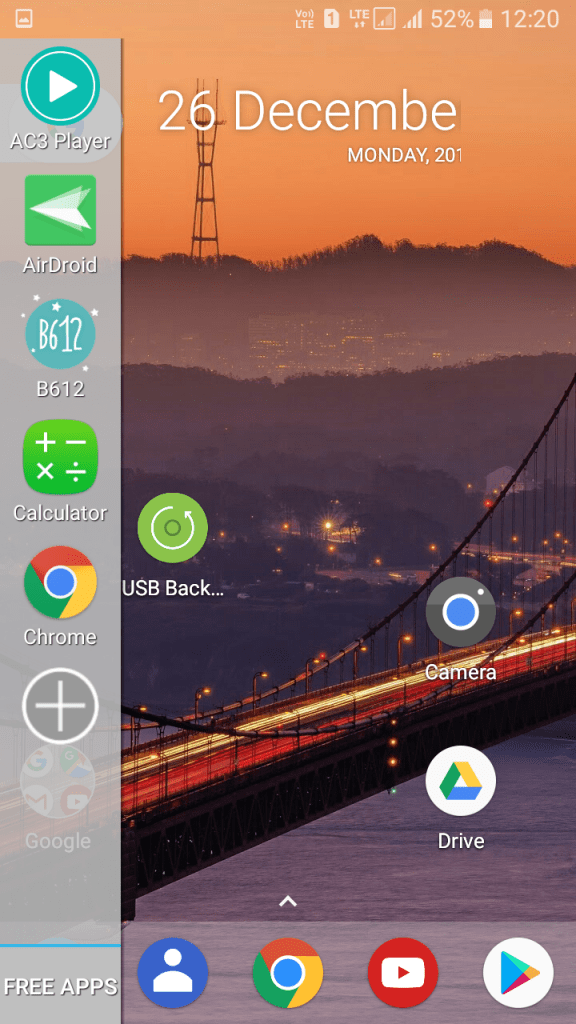
Ray Sidebar Launcher
Using Circle Sidebar
Circle Sidebar – An application to make your android experience better, provides easy multitasking from anywhere and anytime! Users can easily customize the way it works and the content it holds. It runs in the background and can be easily accessed from any screen with just a swipe.
Step 1. First of all download and install Circle Sidebar on your Android smartphone and launch the app.


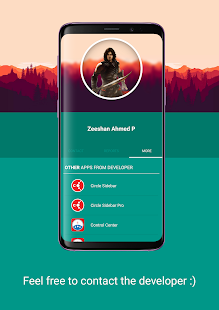
Step 2. Once installed you will see the screen like below. Here you need to tap on the Next button to continue.
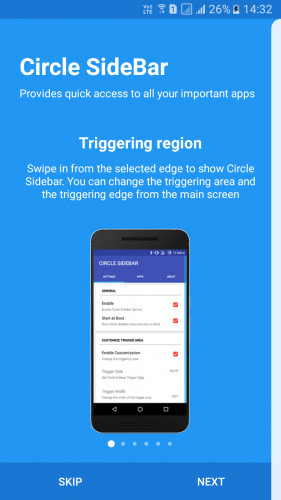
Using Circle Sidebar
Step 3. Now in the very next step, you need to allow Circle SideBar to access photos, media, and files on your device.
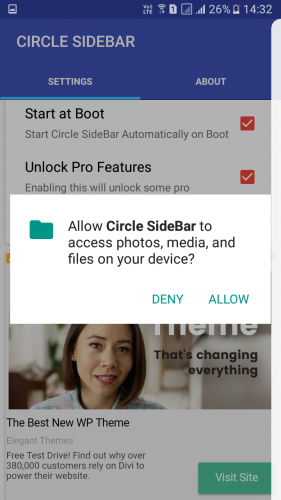
Using Circle Sidebar
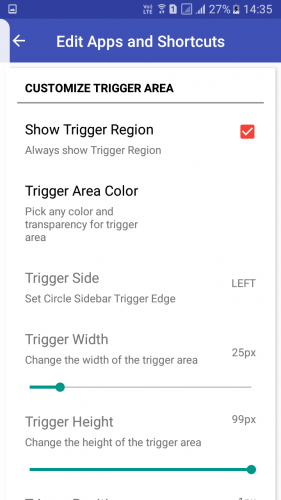
Step 4. Now open up the setting panel and set everything according to your wish.
Using Circle Sidebar
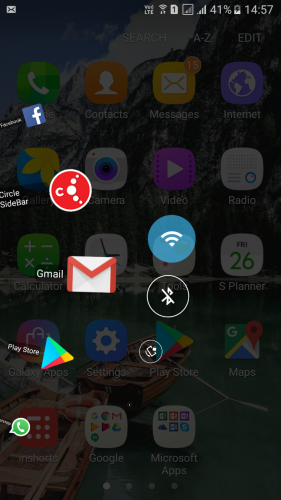
That’s it! You are done. Now simply press the home button and then swipe your screen from left to right to open up the Circle SideBar.
Using Circle Sidebar